 ENEnglish
 LTLietuviškai
 DEDeutsch
 FRFrançais
 RUРусский
 ESEspañol
 PLPolski
 ITItaliano
 UKУкраїнська
 CSČeština
 PTPortuguês
 JA日本語
JA日本語 LVLatviešu valoda
 ETEesti
 HUMagyar
 IDBahasa Indonesia
 TRTürkçe
 HIहिन्दी
 ELΕλληνικά
 ARالعربية
 THไทย
THไทย VITiếng Việt
 RORomână
 MSBahasa Melayu
 BNবাংলা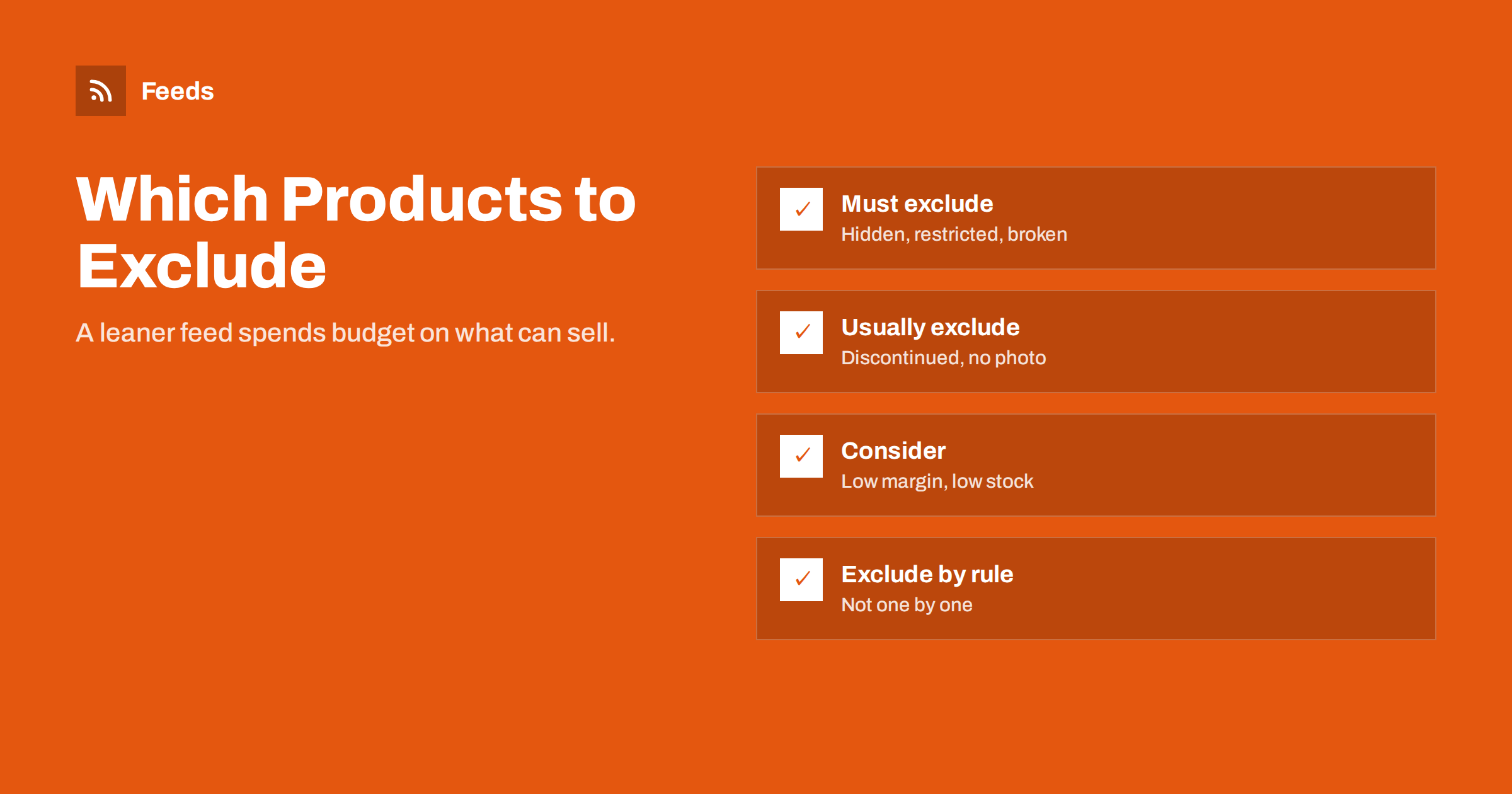
Short answer: Exclude products that cannot or should not be bought through an ad: hidden, draft or password-protected products, items prohibited or restricted by platform policies, products without a real image or price, discontinued items, gift cards and samples. Consider excluding sold-out, very low-stock and very low-margin products from advertising. Do it with rules based on product data, such as stock status, category or a tag, so exclusions stay correct as the catalog changes.
Why a smaller feed can be a better feed
It is tempting to send every product in the store to every channel. More products seem to mean more chances to be found. In practice, products that cannot be bought, should not be advertised or are unlikely to be profitable add noise: they create disapprovals, clutter diagnostics, dilute campaign data and sometimes consume budget.
A deliberate feed contains the products you want to sell through that channel, with good data. Everything else is left out, not because it is bad, but because it does not belong in that particular channel. Different channels can have different exclusions: a product may be fine in free listings but not worth paid ads, or allowed on Google but restricted on Meta.
Excluding thoughtfully is also a signal of quality to the platforms. An account with few disapprovals and accurate data is easier to keep in good standing than one full of problem items.
Start by listing the kinds of products your store contains, not individual products. Most catalogs have a handful of types: regular products, variants, bundles, gift cards, services, samples, and perhaps rentals or custom orders. For each type, decide whether it belongs in each channel. The individual exclusions then follow from those decisions automatically.
Products you must exclude
- Hidden, draft, private and password-protected products. Their pages are not available to shoppers, so links fail or lead to errors.
- Prohibited products under the platform’s policies, which cannot be advertised at all.
- Products without a price or with a placeholder price such as zero or “call for price”.
- Products without a real image, where only a placeholder exists.
- Products whose pages are broken, redirect or cannot be purchased online.
Sending these creates disapprovals at best and account-level problems at worst. They should never reach the feed.
Watch for products that were never meant to be public but slipped through: items created for a single B2B customer, products with internal-only pricing, or test products left over from a theme setup. They often appear in stores that have been running for years, and they tend to have exactly the kind of incomplete data that platforms flag.
Products you usually exclude
- Discontinued products that will not return. There is no reason to keep them.
- Gift cards and vouchers, which are generally not eligible as regular products.
- Samples, spare parts sold only with a service, and internal items such as shipping fees set up as products.
- Bundles that duplicate their components when the components are already listed and the bundle adds no value to shoppers searching.
- Restricted products in countries or channels where you have not met the requirements.
Every store accumulates odd products over the years: test items, old promotions, products created for a single customer. A periodic review of what the feed contains usually finds a few of these.
Also consider regional differences. Some products can be sold in your home market but not shipped to other countries you target, because of carrier restrictions, local regulations or licensing. Exclude them from the feeds for those countries rather than letting shoppers discover the restriction at checkout.
If you are unsure about a product type, check the platform’s policy pages for that category before sending it, rather than finding out through disapprovals.
Products worth considering
Some exclusions are business decisions rather than rules:
- Sold-out products. Keeping them marked out of stock preserves their history; excluding them keeps the feed lean. Decide per product type, and at least exclude them from ads.
- Very low stock. One remaining unit may sell before the next refresh. Some stores treat stock below a threshold as unavailable for advertising.
- Very low margin. Products that lose money after ad costs may belong in free listings only, or not in the feed at all.
- Very cheap products. Items priced below typical click costs rarely pay back as standalone ads, unless they drive larger orders.
- Products with poor data that you cannot fix quickly, such as missing identifiers in a category where they matter.
These decisions are often better handled at campaign level with custom labels, which keep products in the feed for free listings while controlling paid spend. Excluding from the feed removes them from every destination.
Before excluding for margin, look at the whole picture. A low-margin item that brings in new customers who later buy higher-margin products may be worth advertising anyway. Customer lifetime value, basket size and repeat purchase rates can change the answer, and those are decisions for the business, not for a feed rule.
Exclude in the feed or in the campaign?
| Reason | Where to exclude | Why |
|---|---|---|
| Product not available to buy | Feed | Should not appear anywhere |
| Policy prohibited | Feed | Cannot be shown anywhere on that platform |
| Not allowed in one program only | excluded_destination attribute | Keep it in the others |
| Low margin | Campaign, via custom label | Still useful in free listings |
| Temporarily sold out | Feed availability or campaign filter | Returns automatically when restocked |
The excluded_destination attribute is a useful middle ground in Google’s specification: it keeps a product in Merchant Center but out of specific destinations, such as Shopping ads, while it remains eligible elsewhere.
How to exclude with rules
Excluding products one by one does not scale and does not last. New products arrive without exclusions, and old exclusions are forgotten. Rules based on product data solve both problems:
- By status: exclude anything not published or not visible in the catalog.
- By stock: exclude out-of-stock items, or those below a threshold.
- By category: exclude gift cards, samples and service items by their category.
- By tag or custom field: add an “exclude from feeds” tag in the store for special cases, and have the feed honor it.
- By price: exclude items with zero or missing prices, and optionally items below a minimum price.
- By missing data: exclude items without an image or without required attributes.
Order matters when rules overlap. If one rule includes a category and another excludes low-stock items, decide which wins, and make sure the tool applies rules in that order. Otherwise small changes in one rule can have surprising effects on the other.
A store-side tag is particularly practical: staff can mark a product without touching the feed configuration, and the rule does the rest.
Keep rules simple enough to explain in one sentence. “Exclude products tagged no-feed” or “exclude items with stock below two” can be understood by anyone. Complex combinations of conditions are harder to maintain and more likely to exclude the wrong products when data changes.
Checking your exclusions
Exclusions can go wrong silently. A rule that excludes a category by name stops working when the category is renamed; a stock rule that relies on a field some products do not use may exclude them entirely. Check regularly:
- Compare the number of items in the feed with the number of published, in-stock products in the store.
- Look for sudden drops in item counts after store changes.
- Search the feed for a few products you expect to be excluded and a few you expect to be included.
Document each exclusion rule with its reason. When someone asks why a product is not in Shopping, the answer should take seconds.
Exclusions are also worth revisiting when your strategy changes. A product excluded as unprofitable last year may become worthwhile after a price change or a new supplier, and nobody will notice unless exclusions are reviewed from time to time.
How Feeds helps
Feeds can skip out-of-stock products automatically when it builds a product feed from WooCommerce, Shopify or a CSV link, and you see a preview of the products found before the feed is created, which makes unexpected items easy to spot. Other rules rewrite titles and adjust prices, and the Google product XML output works with Merchant Center and Meta. See the pricing page for plans.
Related reading
- Out-of-Stock Products in Your Feed: Keep, Mark or Remove?
- Custom Labels in Product Feeds: A Practical Guide
- Merchant Center Disapproved Products: Causes and Fixes
The bottom line
Keep products out of the feed when they cannot be bought, are not allowed, or have no real image or price, and usually when they are discontinued or not real products. Handle business decisions like margin and low stock mostly at campaign level. Exclude with rules based on product data, check item counts regularly, and document why each rule exists.
FAQ
Should out-of-stock products be excluded from the feed?
It depends. Products that will return can stay marked out of stock to keep their history. Discontinued products should be excluded.
How do I keep a product out of Shopping ads but in free listings?
Use the excluded_destination attribute for Shopping ads, or exclude it at campaign level with a custom label.
Can I include gift cards in a product feed?
Generally no. Gift cards are usually not eligible as regular shopping products and should be excluded.
What is the easiest way to exclude individual products?
Add a tag or custom field such as “exclude from feeds” in the store and use a feed rule that honors it.
Why did many products disappear from my feed suddenly?
Often an exclusion rule matched more than intended after a store change, such as a renamed category. Compare item counts and check recent changes.


