ENEnglish
 LTLietuviškai
 DEDeutsch
 FRFrançais
 RUРусский
 ESEspañol
 PLPolski
 ITItaliano
 UKУкраїнська
 CSČeština
 PTPortuguês
 JA日本語
JA日本語 LVLatviešu valoda
 ETEesti
 HUMagyar
 IDBahasa Indonesia
 TRTürkçe
 HIहिन्दी
 ELΕλληνικά
 ARالعربية
 THไทย
THไทย VITiếng Việt
 RORomână
 MSBahasa Melayu
 BNবাংলা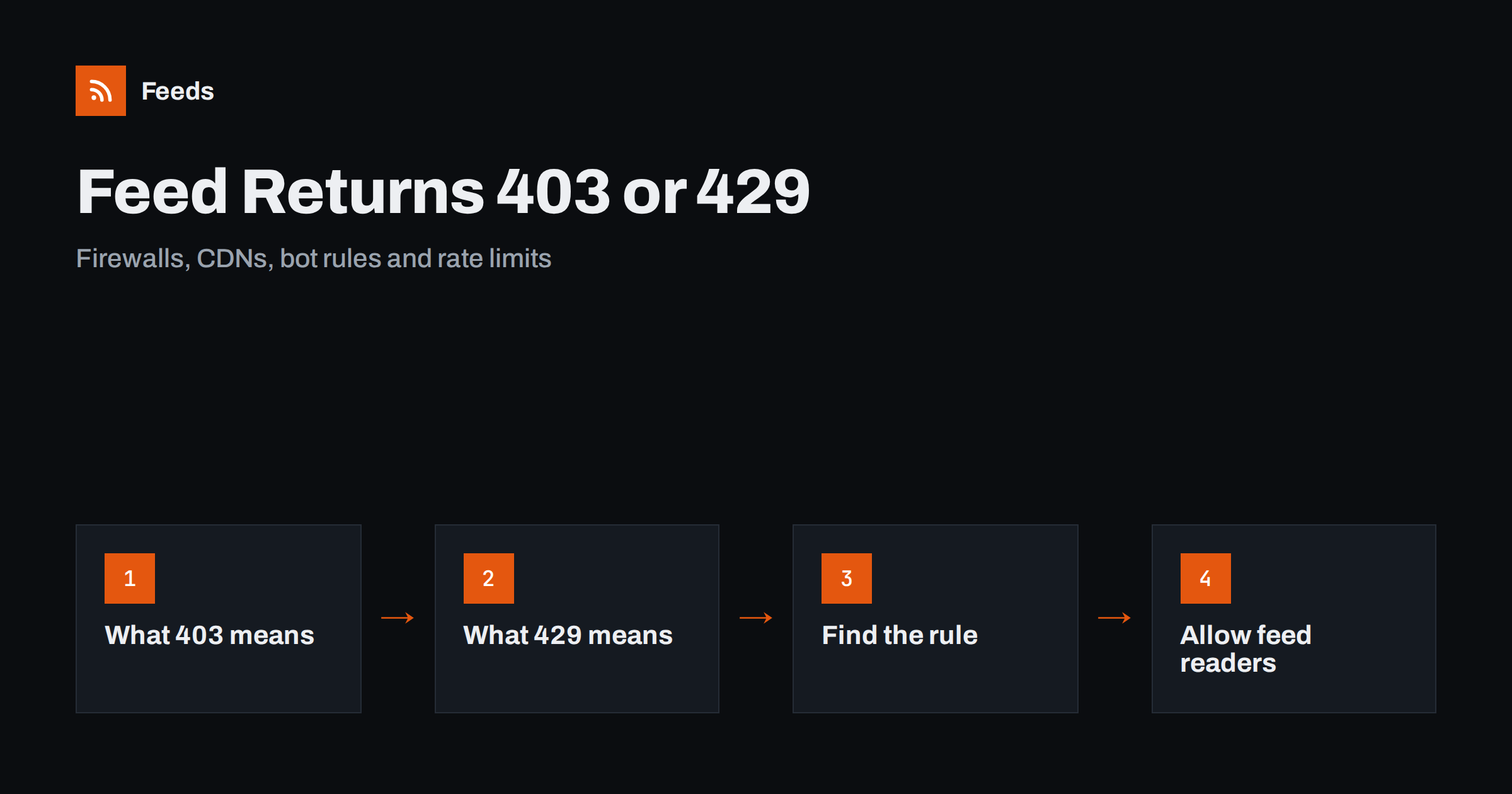
Short answer: A 403 error means the server understood the request and refused it, and a 429 error means the client sent too many requests in a short time. Both are usually caused by a firewall, a CDN, a security plugin or a bot rule that treats feed readers as unwanted bots. To fix it, find which layer blocks the request, allow the feed path or well-behaved readers, set sensible rate limits and cache the feed so that it can be served cheaply.
Why the feed opens in your browser but not in a reader
The most confusing thing about these errors is that you can open the feed yourself without any problem. The reason is that a browser and a feed reader are different clients. Your browser sends a full set of headers, runs scripts and keeps cookies. Modern protection systems use these signals to decide whether a visitor is a person. A feed reader or an automation tool sends a short, simple request, often with a plain user agent, and no cookies. To a security layer it can look like a bot, and bots are what those rules are meant to stop.
The result is that the site works for humans, while the feed fails for readers, social tools, validators and search crawlers. From the outside the symptom is the same as in why an RSS feed stops updating: subscribers see no new items. The cause lies in the protection layer and not in the feed file.
What 403 and 429 mean
The two codes point in different directions:
- 403 Forbidden: the server refuses to serve the request. The cause may be a rule on the IP address, the country, the user agent, a missing header, a challenge page or a permission setting on a file or a path.
- 429 Too Many Requests: the server accepts the client in principle but limits how often it may ask. A reader that checks too often, or many readers behind the same address, hit the limit.
Some systems also return other codes for the same reason, such as 503 during a challenge or 406 for a rule violation, and some show an HTML challenge page with a 200 status, which a reader cannot parse as a feed. Whatever the code, the way to start is the same: look at the exact response that the client gets, not what you see in the browser.
Check what the client actually receives
To diagnose the problem, reproduce the request in a way that is similar to a reader. A few steps help:
- Request the feed with a command-line tool or an online checker and look at the status code and the headers of the response.
- Look at the body. If it is HTML with words such as “checking your browser”, “access denied” or a CAPTCHA, a protection layer answered, not your site.
- Try from a different network. If it works from one and not another, the block is based on the address or the country.
- Compare the result with a different user agent string. If one passes and the other does not, a user agent rule is at fault.
- Check your server logs and your security dashboard for blocked requests to the feed path.
Note the time and the address of the failed request, because most firewalls log blocks with a rule name that tells you exactly which rule to change.
The usual suspects
Several layers sit between a reader and your feed. Check each of them in turn:
- A CDN or web application firewall: managed rules, bot fight modes and challenge settings may treat requests without a browser fingerprint as suspicious. These settings are often on by default.
- Your hosting provider: some hosts add their own rate limits or block empty user agents at server level.
- A security plugin or module: on a content management system, plugins may block feed paths, limit requests or hide the feed completely.
- Server rules: web server configuration that denies certain user agents or paths, or a permission problem on a file.
- Password or login protection: a staging site, a membership plugin or basic authentication will refuse anonymous clients. See RSS feeds for pages behind a login for ways to deal with that.
- Anti-scraping measures: tools meant to stop copying of your content can block legitimate readers too, as described in how to protect an RSS feed from scrapers.
If the feed is generated by WordPress, also work through the checklist for a WordPress RSS feed that does not work, since a plugin conflict or a redirect can produce similar symptoms.
How to allow feed clients safely
The aim is to allow legitimate readers and keep out abusive traffic. Common approaches are:
- Create a rule for the feed path. Allow requests to your feed URLs to bypass challenges, while keeping the protection for the rest of the site.
- Do not rely on user agents alone. They are easy to fake, so they are a weak basis for allowing or blocking. Combine path rules with rate limits.
- Set a reasonable rate limit. A feed is requested again and again, so a limit that suits web pages may be too tight. Choose a limit per address that allows normal readers and stops floods.
- Cache the feed. If the feed is served from a cache, thousands of requests cost almost nothing, and you can allow more of them. The settings are in serving an RSS feed with correct headers and caching.
- Use the right content type and conditional requests, so that well-behaved clients download the file only when it has changed.
After each change, repeat your test from outside. Do not turn protection off completely. A narrow rule for the feed is safer than a general exception.
Remember that feeds are served to many kinds of clients, not only readers. Social posting tools, email digest services, validators, search engine crawlers and monitoring services all request the same file. A rule that blocks one of them may block all, so decide which clients you want to allow. If your feed is part of how you reach your audience, a blocked automation tool means missed posts, and a blocked search crawler can delay the discovery of new pages. Check the access logs for the user agents that request your feed in a normal week, and make sure the important ones are not on any blocklist.
If you are the one reading the feed
The same error looks different from the other side. If you run a tool that fetches a feed from a site you do not control, a 403 or 429 is a sign that you should slow down or identify yourself. Lower the refresh frequency, honour any “retry after” instruction in the response and avoid checking many feeds from the same site at once. Use a clear user agent that names your tool. If the owner of the site publishes a contact address, ask them to allow the feed, and explain what you use it for. Repeated aggressive requests can get an address blocked permanently, and they harm the people who run the site.
Respect the owner’s choices. If a site clearly does not want automated access, do not try to get around the protection. The legal and practical side is covered in using RSS feeds of other websites: what is allowed.
How RSS Feed Creator helps
RSS Feed Creator reads public pages from the outside, like a visitor, and turns the list of items into a clean RSS feed. It uses an existing feed when there is one. Because it works like a visitor, a page that blocks all automated visitors may also block it, and a preview shows you at once whether the items were found before you create anything. On every refresh the list of items is detected again, and paid plans send an alert if a feed stops finding items, so a newly added block does not go unnoticed for weeks. Feeds refresh every 3 hours on the free plan and every 30 minutes on paid plans. Details are on the pricing page.
Related reading
- How to validate an RSS feed and fix common errors
- How often should an RSS feed refresh?
- Duplicate posts in automation: causes and fixes
The bottom line
A 403 or 429 on a feed is almost always a protection layer doing its job too well. Look at the response that a reader receives, find the firewall, CDN, plugin or host rule that blocked it and allow the feed path with sensible rate limits. Cache the feed so that it is cheap to serve, test again from outside and monitor it, so that the next change in your protection settings does not silence your subscribers.
FAQ
Why does my feed open in a browser but fail in a reader?
Browsers send full headers, run scripts and keep cookies, while readers send simple requests. Bot protection may allow the first and block the second.
What is the difference between 403 and 429?
A 403 means the server refuses the request. A 429 means the client made too many requests in a short time and should slow down.
Is it safe to turn off my firewall for the feed?
Do not turn it off. Create a narrow rule for the feed path, combine it with a rate limit and cache the feed to reduce the load.
Can I block only bad bots and allow readers?
Partly. User agents are easy to fake, so rely on path rules, rate limits and caching rather than on user agent names alone.
How do I know when my feed becomes blocked again?
Monitor the feed from outside on a schedule and check the status code. Paid RSS Feed Creator plans also alert you when a feed stops finding items.