ENEnglish
 LTLietuviškai
 DEDeutsch
 FRFrançais
 RUРусский
 ESEspañol
 PLPolski
 ITItaliano
 UKУкраїнська
 CSČeština
 PTPortuguês
 JA日本語
JA日本語 LVLatviešu valoda
 ETEesti
 HUMagyar
 IDBahasa Indonesia
 TRTürkçe
 HIहिन्दी
 ELΕλληνικά
 ARالعربية
 THไทย
THไทย VITiếng Việt
 RORomână
 MSBahasa Melayu
 BNবাংলা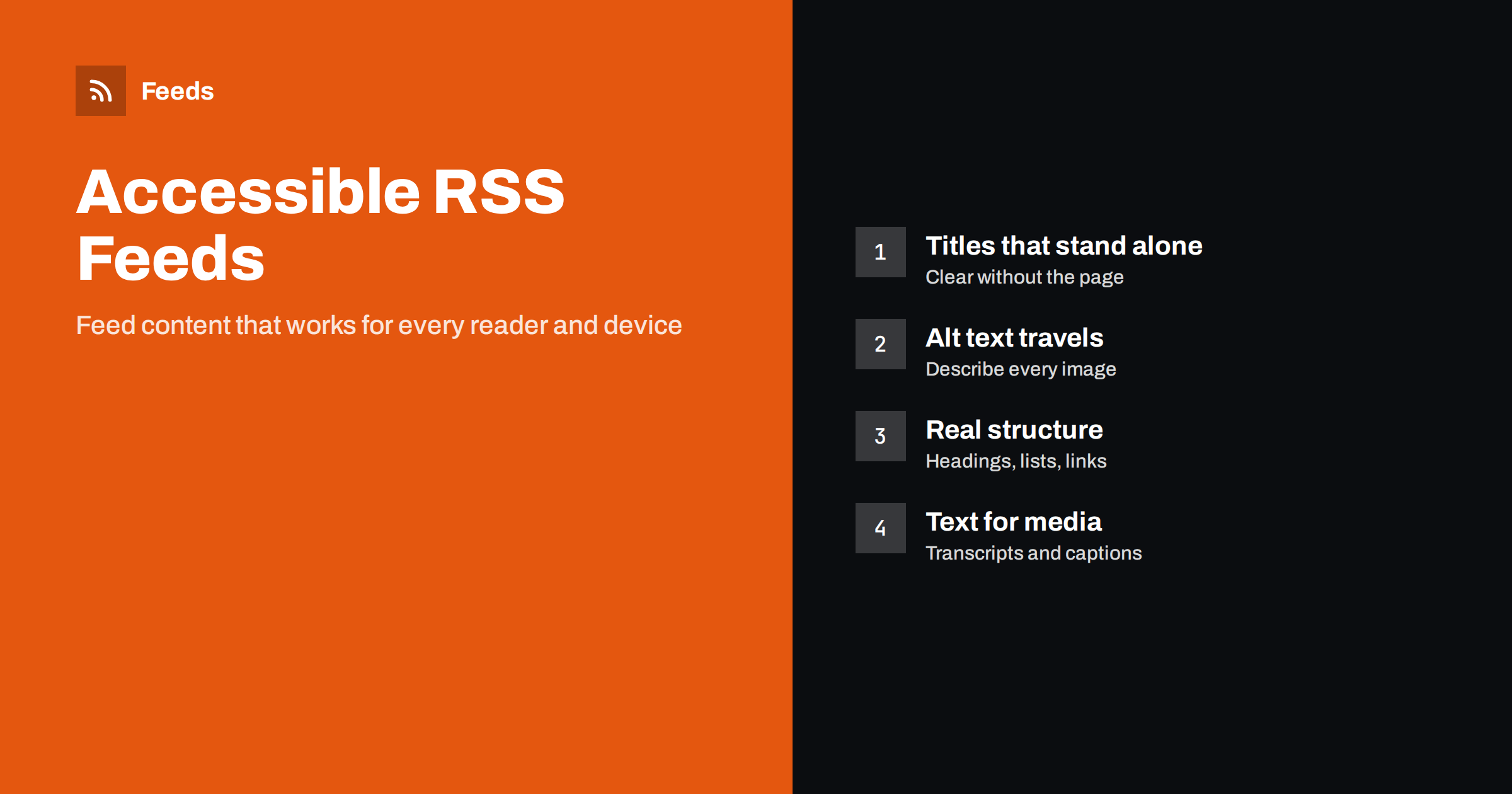
Short answer: An accessible RSS feed carries content that works without your website’s design around it. Write item titles that make sense on their own, give every image meaningful alt text in the HTML that goes into the feed, keep real headings, lists and descriptive link text, declare the feed’s language and provide transcripts or text summaries for audio and video. Feed readers then present your content well to screen reader users, people who enlarge text and anyone reading on a small screen.
Why accessibility matters in feeds
Most accessibility work focuses on websites: colour contrast, keyboard navigation, form labels and page structure. Feeds are often forgotten, yet they deliver your content to readers in a completely different environment. In a feed reader, your theme, navigation and styles disappear. What remains is the item title, the summary or full content and whatever images and links are inside it.
That stripped-down presentation can actually be an advantage. Many people with visual impairments, reading difficulties or limited mobility prefer feed readers precisely because they offer a clean, predictable layout without pop-ups, autoplay media or cluttered sidebars. A feed reader lets them choose the font size, contrast and reading tool that suits them.
The advantage only works if the content itself is accessible. If images have no alt text, if links say “click here” and if the structure is a wall of styled paragraphs, the clean presentation reveals the problems instead of hiding them. Good feed accessibility is mostly about good content habits that carry over when the design is removed.
It also benefits people without any disability. Clear titles, real structure and descriptive links make items easier to skim on a phone, easier to process for automation tools and easier to understand in any language.
Item titles that stand on their own
In a feed reader, the title is often the only thing a person sees before deciding to open an item. Screen reader users frequently navigate a list of titles, hearing one after another. Titles that depend on context, such as “Part 2”, “Update” or “You won’t believe this”, tell them nothing.
- Write titles that describe the content, so they make sense in a list of items from many sites.
- Avoid titles that are only a date, a number or a single vague word.
- Do not put HTML or emoji strings in titles; they may be read aloud literally or shown as code.
- Keep the most important words at the start, because long titles are often cut off.
Good titles help everyone, including automation tools that post your items to social networks and display screens. They are the single most valuable improvement for feed readability.
Alt text that survives syndication
Images inside full-text feeds come from the article’s HTML. If an image has a meaningful alt attribute on the website, that text usually travels with it into the feed and is available to screen readers in feed readers. If the alt text is missing, the image is either skipped or announced with its file name.
- Describe what the image shows and why it matters in the article, in one short sentence.
- Use empty alt text only for purely decorative images, so screen readers skip them.
- Do not put important information only in an image, such as a chart with no text explanation.
- Check that your content system includes the alt attribute in the feed HTML, not only on the page.
Featured images deserve special attention. Some systems add them to the feed through a media element or an enclosure rather than inside the content, and those methods often carry no description at all. In that case, make sure the article text itself explains anything the image shows. For more on how images get into feeds, see Media RSS explained and how to add featured images to your WordPress RSS feed.
Keep real structure in the content
Screen reader users navigate long content by headings and lists. A full-text feed that preserves headings, lists and tables gives them the same structure as the website. A feed that flattens everything into paragraphs, or uses bold text instead of real headings, removes that navigation.
| Element | Accessible practice in feed content |
|---|---|
| Headings | Real heading elements in a logical order |
| Lists | Real list elements, not lines starting with dashes |
| Tables | Header cells marked as headers, used only for data |
| Emphasis | Used sparingly, not as a substitute for headings |
| Layout | No content that depends on columns or positions |
Avoid relying on styles that the feed will not carry. Text that is meaningful only because it is red, a button that is a styled link with no clear label or content arranged in visual columns all lose their meaning in a reader. Our guide on full text or summary in your RSS feed discusses when full content is worth including.
Descriptive links and clean summaries
Many screen reader users pull up a list of all links in an item to decide where to go next. Links that all say “here”, “read more” or “this article” are useless in that list. Write link text that names the destination, such as the title of the linked guide.
Summaries matter too. When a feed contains only a summary, that text is the whole item for many readers. A summary that is the first fifty words of the article, cut off mid-sentence, is hard to understand. A short, complete description of what the article covers is far more useful, and it also works better when your feed is shown on social networks, screens or in newsletters.
- Use link text that describes the destination.
- Write summaries as complete sentences rather than truncated text.
- Remove leftover fragments like “Continue reading” or share buttons from the feed content.
- Use absolute URLs, so links and images work outside your website.
Language and character encoding
Screen readers choose a voice and pronunciation based on the language of the content. RSS has a channel-level language element, and declaring it correctly helps readers and assistive tools handle your text. For multilingual sites, a separate feed per language is clearer than one mixed feed; see RSS feeds for multilingual sites.
Encoding problems are also an accessibility issue. Broken characters, such as garbled accents or quotes shown as strange symbols, are confusing visually and nonsensical when read aloud. Use UTF-8 consistently from your database to the feed output, and fix encoding errors as soon as you see them. Our guide on RSS feed encoding errors explains the usual causes.
Audio, video and podcasts
Feeds often carry media: podcast episodes, video posts and embedded clips. For people who are deaf or hard of hearing, or who simply cannot play audio at the moment, media without text is inaccessible. The fix is to provide text alongside the media.
- Publish transcripts for podcast episodes and link them from the episode notes.
- Use the podcast transcript tag where your hosting platform supports it, so apps can show transcripts directly.
- Provide captions for videos and a text summary in the feed item.
- Describe in show notes what the episode covers, with chapter titles where possible.
Podcast-specific tags are explained in podcast RSS tags explained, and formatting episode notes in podcast show notes in RSS.
The guidelines that apply to web content in general are a useful reference here as well. The Web Content Accessibility Guidelines are written for websites, but most of their content principles, such as text alternatives and meaningful link text, apply directly to what you put into a feed.
How RSS Feed Creator helps
RSS Feed Creator (Feeds) turns web pages without RSS into clean feeds with titles, images, summaries and dates, so readers who prefer a calm, predictable reading environment can follow sites that offer no feed of their own. It uses a site’s existing feed when there is one and can read JSON-LD article data from pages. You can merge several sources into one feed, keep only items with your words or drop items you do not want, and duplicates are removed automatically. The finished feed works in any RSS reader, including readers chosen for their accessibility features. You can create a feed on the free plan.
Related reading
- RSS feed best practices for publishers: a 24-point checklist
- How to choose an RSS reader: features that actually matter
- How to validate an RSS feed and fix the most common errors
The bottom line
Feeds remove your design and leave only the content, so accessible content is what makes an accessible feed. Write titles that stand alone, add alt text that travels with images, keep real headings and lists, use descriptive links and complete summaries, declare the language, fix encoding and provide transcripts for audio and video. These habits help screen reader users most, and make your feed better for every reader and tool.
الأسئلة الشائعة
Do feed readers support screen readers?
Many feed readers work with screen readers, and some users choose feed readers because they offer a simpler layout than websites. How well they work depends on both the reader app and the quality of the feed content.
Does alt text from my website appear in the RSS feed?
Usually yes, if the feed includes the article HTML and your system keeps the alt attribute. Check the feed source to confirm, especially for featured images added outside the content.
Should feed titles include emoji?
Use them sparingly or not at all. Screen readers may read emoji aloud by name, and some readers display them inconsistently, which can make titles harder to understand.
How do I make a podcast feed accessible?
Provide transcripts, link them in the show notes and use the podcast transcript tag where your host supports it. Clear episode titles and descriptive notes also help listeners decide what to play.
Is a summary-only feed less accessible?
Not necessarily, as long as the summary is complete and the linked page is accessible. A truncated summary that stops mid-sentence is the main problem, so write summaries as short, complete descriptions.