 ENEnglish
 LTLietuviškai
 DEDeutsch
 FRFrançais
 RUРусский
 ESEspañol
 PLPolski
 ITItaliano
 UKУкраїнська
 CSČeština
 PTPortuguês
 JA日本語
JA日本語 LVLatviešu valoda
 ETEesti
 HUMagyar
 IDBahasa Indonesia
 TRTürkçe
 HIहिन्दी
 ELΕλληνικά
 ARالعربية
 THไทย
THไทย VITiếng Việt
 RORomână
 MSBahasa Melayu
 BNবাংলা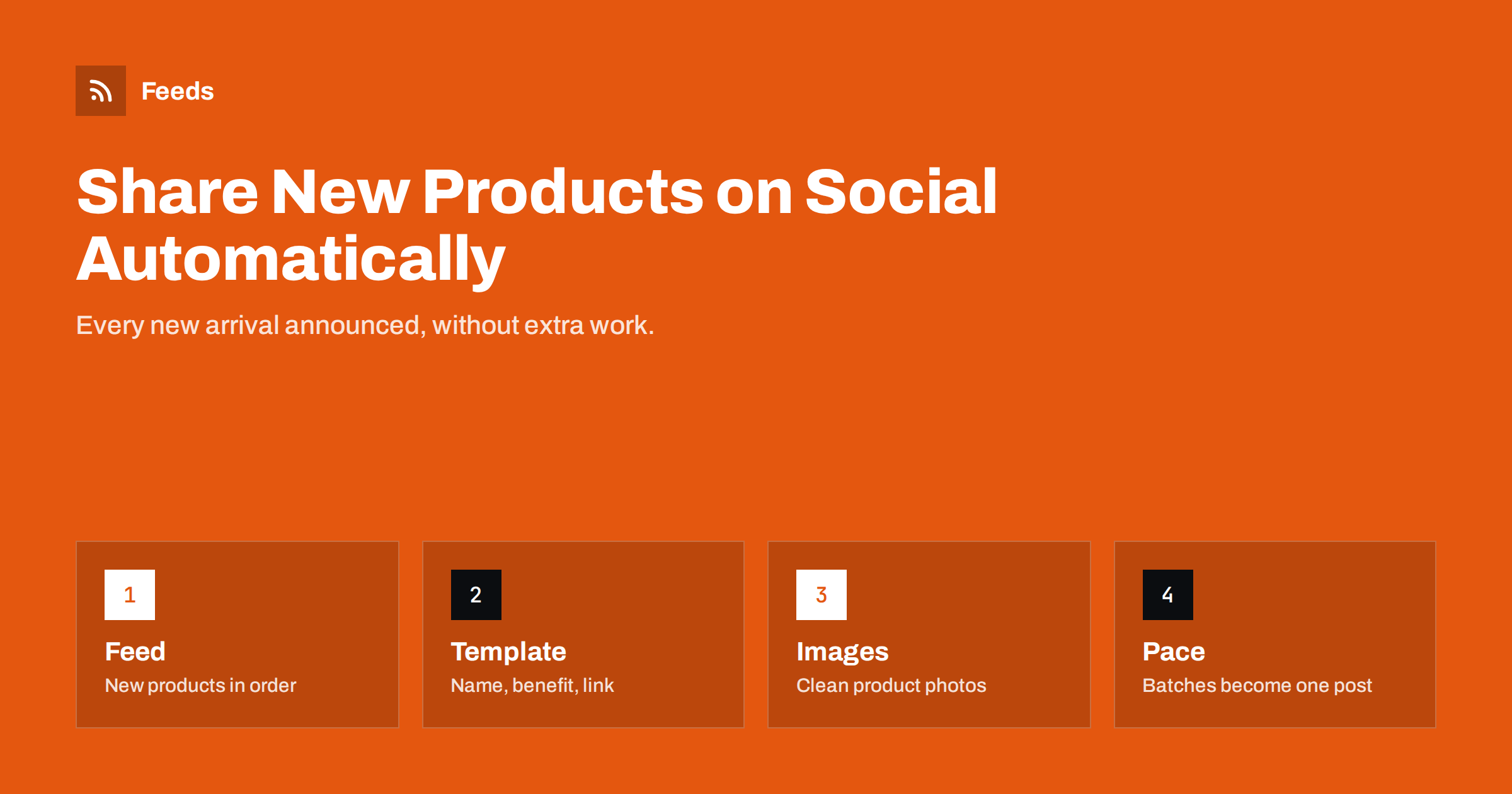
Short answer: To share new shop products on social media automatically, use a feed that lists your newest products, such as WooCommerce’s product RSS feed, a Shopify collection’s Atom feed or a feed created from your “new arrivals” page, and connect it to a social posting tool. Write a template with the product name, one benefit and the link, make sure product images work as previews, and cap the number of posts per day so a large import does not flood your followers. For ads and shopping placements, keep a separate product catalog feed.
Two different jobs: posting and catalogs
Shops often confuse two automations that both involve “product feeds”.
- Announcing new products as regular social posts on your page or channel. This is content automation: a new item appears, a post goes out. It uses an RSS or Atom feed of recent products.
- Syncing a product catalog with Google Merchant Center or a Meta catalog, so products can appear in Shopping results, shops on Facebook and Instagram, and dynamic ads. This uses a product feed in the platforms’ formats, with prices, availability, identifiers and images for every product.
Both are useful, and many shops need both. This article is about the first. The catalog side has its own requirements, covered in the guide to what a product feed is.
Getting a feed of new products
You need a feed where each new product appears as an item with a title, link, image and ideally a short description.
WooCommerce
WooCommerce products are a WordPress post type, and WordPress can output a feed for them, commonly at /?post_type=product&feed=rss2 or /shop/feed/ depending on your setup. Category feeds for product categories are often available too. Check that items include images; some themes need a small tweak or plugin to add featured images to feeds.
Shopify
Shopify collections can be read as Atom feeds by adding .atom to the collection URL, for example /collections/all.atom or a “new arrivals” collection. Order matters: make sure the collection is sorted by newest first so new products appear at the top.
Other shop systems
Many platforms have no product feed at all, or only one meant for catalogs. In that case, a “new arrivals” or “latest products” page is the natural source. Turning that page into an RSS feed gives you exactly the list you need.
Setting up automated product posts
- Choose the feed and open it in a browser to check the newest products appear with images.
- Add it to your posting tool and select destinations: typically Facebook, Instagram, Telegram, Pinterest or X, depending on where your customers are.
- Start with new items only, so your whole catalog is not posted on day one.
- Write templates per network, for example: “New: [product name]. [one sentence benefit]. [link]”.
- Set pacing: a daily maximum and minimum gap between posts.
- Add UTM parameters so you can see sales and visits from product posts in analytics.
- Test by adding a product and checking the live post on each network.
Which networks suit product announcements
Not every network rewards the same kind of product post. Choose destinations based on where your customers actually spend time and how they use each platform.
- Facebook pages work well for local shops and broad consumer products. Link previews show the product image and name, and followers can comment with questions.
- Instagram is visual and suits fashion, home, food and design products. Links in captions are not clickable, so posts point to the link in your profile or rely on Instagram’s own shopping features, which use your catalog rather than a posting feed.
- Pinterest is a discovery platform where pins can drive traffic for a long time after posting. Product pins with good vertical images often perform well for home, fashion, crafts and gifts.
- Telegram channels are popular for deal and new-arrival channels in some markets. Subscribers receive every post, so pacing matters even more.
- X suits fast-moving product categories such as tech and gaming, but pure product announcements rarely get much attention without context.
- LinkedIn is usually a poor fit for consumer product announcements, but fine for B2B products and equipment.
Start with one or two networks where your customers already are, measure the results for a couple of months, and expand only if the posts bring visits or sales.
Writing product posts that sell without shouting
- Lead with what is new or useful, not with “Buy now”. “Back in stock” and “New colour” are strong hooks.
- Use the product’s short description rather than the full technical text. If your shop’s short descriptions are empty, the posts will be bare; filling them is a one-time investment that also helps your product pages.
- Price in posts is optional. Prices change, and posts stay. If you include them, be ready for outdated prices in old posts.
- Mix product posts with other content. A page that only posts products becomes an ad feed that followers scroll past. Blog posts, tips and behind-the-scenes content keep the page worth following.
Images are everything for product posts
For products, the image does most of the selling. Check a few things before automating:
- Product pages output an
og:imagewith the main product photo, so link previews on Facebook and LinkedIn show the product rather than your logo. - Images are large enough for social previews, roughly 1200 pixels wide or more.
- For Instagram and Pinterest, which need an uploaded image, the feed item includes an image your tool can download, and the photo works in square or vertical crops.
- Photos with plain backgrounds and the product centred survive cropping better than wide lifestyle shots.
Handling big imports and restocks
Shops add products in batches: a new season, a supplier import, a hundred variants. Without limits, the automation posts all of them. Two approaches help:
- Pause automation before large imports and restart it with “new items only” afterwards. Then post a single hand-written “new collection” announcement.
- Use daily caps and a digest. Post the first two or three products individually, then one roundup post linking to the new arrivals page.
Restocks are different: they are usually not new items in the feed. If “back in stock” posts matter to you, use a dedicated collection or category for restocked products and a separate feed.
Filtering which products get posted
Think of the automated feed as your default, not your only voice. Products that matter most, such as a flagship launch or a seasonal collection, deserve a hand-made post with better photos and a story. Automation covers the long tail of new arrivals that would otherwise never be announced at all, and that is where it saves the most time for a small shop.
Not every product deserves a post. Accessories, spare parts, gift cards and low-margin items may be better left out. Use category feeds for the product ranges you want to promote, or keyword filters that exclude certain words in product titles. It is also sensible to exclude out-of-stock products, since posting an item customers cannot buy disappoints them.
How Feeds helps shops
Feeds supports both jobs described above. For announcements, it turns any page that lists items, including a shop’s “new arrivals” page, into an RSS feed with titles, images and summaries, and it can keep or drop items by keyword. For catalogs, it creates product feeds for Google Merchant Center and Meta from WooCommerce, Shopify or a CSV link, with rules to skip out-of-stock products, rewrite titles and adjust prices, and the currency is detected automatically. Both kinds of feeds refresh on their own. The pricing page compares the plans for one store and for several stores.
Related reading
- How to Automate Social Media Posts from an RSS Feed
- How Often Should Automated Feeds Post to Social Media?
- Why Automated Social Posts Lose Images and How to Fix It
- What Is a Product Feed? A Plain-English Guide for Stores
The bottom line
Automatic product announcements are a quick win for small shops: a feed of new products, a posting tool, a good template and sensible caps. Keep catalog syncing for ads as a separate job with its own product feed, make sure product images work as previews, pause automation before big imports and mix product posts with other content, so your social pages stay worth following.
الأسئلة الشائعة
Does WooCommerce have an RSS feed for products?
WordPress can output a feed for the product post type, commonly at /?post_type=product&feed=rss2 or /shop/feed/, depending on the setup. Check that it includes product images before connecting it to a posting tool.
Does Shopify have a product feed for new items?
Shopify collections can be read as Atom feeds by adding .atom to the collection URL. Use a collection sorted by newest products for announcements.
Is a Google Merchant Center feed the same as a feed for social posts?
No. Merchant Center and Meta catalogs need structured product feeds with prices, availability and identifiers for every product, while social announcements use a simple feed of the newest products.
Should automated product posts include prices?
It is optional. Prices can change after the post is published, so many shops leave them out and let the product page show the current price.
How do I stop a big product import from flooding social media?
Pause the automation before the import and restart it with new items only, or use daily caps and a roundup post for large batches.
Which social networks work best for automated product posts?
It depends on your products and customers. Facebook, Instagram and Pinterest suit most consumer products, Telegram works for deal and new-arrival channels, and LinkedIn fits B2B products. Start where your customers already are and measure the results.


