ENEnglish
 LTLietuviškai
 DEDeutsch
 FRFrançais
 RUРусский
 ESEspañol
 PLPolski
 ITItaliano
 UKУкраїнська
 CSČeština
 PTPortuguês
 JA日本語
JA日本語 LVLatviešu valoda
 ETEesti
 HUMagyar
 IDBahasa Indonesia
 TRTürkçe
 HIहिन्दी
 ELΕλληνικά
 ARالعربية
 THไทย
THไทย VITiếng Việt
 RORomână
 MSBahasa Melayu
 BNবাংলা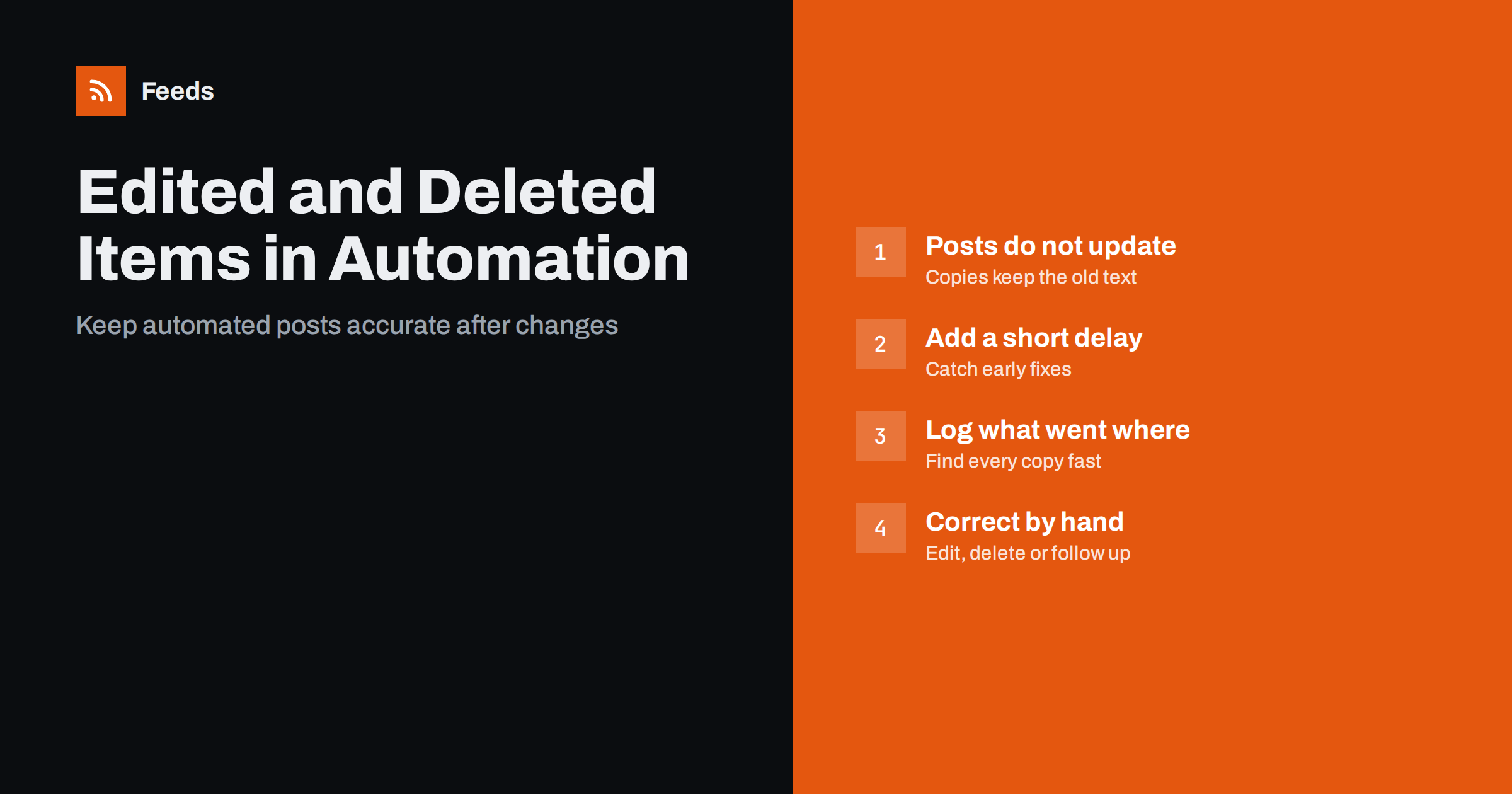
Short answer: Most feed-based automations act only once, when a new item appears. If the source post is later edited or deleted, the social posts, newsletters and partner copies already sent usually keep the old version. Prevent most problems with a short delay before posting and an approval step for sensitive content, keep a log of what was sent where, and have a simple correction routine: edit or delete the copies by hand where possible, and post a clear follow-up where not.
Why this problem catches teams by surprise
Content automation is usually set up for the happy path: a post is published, the feed updates, the automation sends it to social networks and the newsletter. That works well for months, until the day a post goes out with a wrong date, a typo in the headline, a broken link or a mistake that needs a correction. The team fixes the article on the website and assumes the problem is solved.
It is not. The social posts and emails that were already sent still show the old headline and summary. The automation will not send the corrected version, because from its point of view the item is not new. And if the post was deleted from the website, the copies elsewhere now point to a missing page.
None of this is a fault in the automation. It is how feeds and posting tools are designed: they track items by identity and act on new ones. Understanding that design makes the problem easy to manage.
How feed automations see changes
A feed lists recent items, and each item has an identifier, usually a GUID or the link. An automation stores the identifiers it has already processed and only acts on items with new ones. What happens after a change depends on what changed:
| Change on the source | What the feed shows | What a typical automation does |
|---|---|---|
| Typo fixed in the body | Same item, updated content | Nothing; the copy keeps the old text |
| Headline changed | Same item, new title | Nothing, unless it treats updates as new |
| Link or slug changed | May look like a new item | Possibly posts it again as a duplicate |
| Post unpublished or deleted | Item disappears from the feed | Nothing; copies point to a missing page |
| Date changed to today | Item moves to the top | Usually nothing if the GUID stays the same |
The most confusing case is a changed link. If the item identifier depends on the URL, changing the slug creates what looks like a brand-new item, and the automation may post it a second time. This is one of the main causes of duplicate posts, explained in RSS GUIDs explained and how to stop duplicate posts in automated content workflows.
Prevention: a short delay before posting
Many mistakes are spotted within minutes of publishing: the author rereads the post on the live site, a colleague notices the wrong image, the editor finds a broken link. If the automation posts instantly, those fixes come too late for the social copies.
A short delay between publishing and distribution catches most of them. Fifteen to sixty minutes is enough for many teams. There are several ways to add one:
- delay the feed itself, which WordPress can do with a small change described in how to delay your WordPress RSS feed after publishing;
- use a scheduling or delay option in the posting tool, if it has one;
- simply let the feed refresh interval act as a natural delay, if it is long enough for your workflow.
The trade-off is speed. For breaking news or time-critical alerts, a delay may not be acceptable. For most blog posts, product news and announcements, nobody will notice a 30-minute delay, but everyone notices a wrong headline.
Prevention: approval for sensitive content
Some content is more likely to be corrected or withdrawn: news on developing stories, statements, price announcements, legal or medical topics, and anything involving named people. For these, a fully automatic flow is risky.
An approval queue solves this without giving up automation completely. Routine content, such as regular blog posts, flows automatically; selected categories or keywords wait for a person to approve them. The pros and cons are compared in full auto vs approval queue: choosing a content workflow, and keyword-based safeguards are covered in brand safety for automated posting.
Feed filtering helps here too. A feed that excludes items with certain words, or only includes chosen sections, keeps the riskiest content out of automatic channels.
Keep a log of what was sent where
When a correction is needed, the first question is “where did this go?”. Without a record, someone has to check every social account, the newsletter archive and partner sites by hand.
A simple log answers that in seconds. For each automated item, record:
- the source item title and link;
- the time it was sent;
- each destination: network, account or page, newsletter issue;
- the link to the post on each destination, where the tool provides it.
Many posting tools keep this history for you; check where it is and who can see it. If you run several automations, document them in one place, as described in how to document your content automations so they last.
A correction routine that works
When a published item needs a correction, a short routine keeps the response calm and consistent:
- Fix the source first. Correct the article on the website. Every copy links there, so it is where readers end up.
- Decide how serious the error is. A typo in the summary is not worth deleting posts for. A wrong price, a wrong date for an event or a factual error about a person is.
- Find all copies in the log. List every destination the item reached.
- Edit where the network allows it. Some networks let you edit posts after publishing, others do not, and rules change. Where editing is possible, correct the text.
- Delete and repost, or follow up, where it does not. For serious errors, delete the wrong post and publish a corrected one manually. Where deleting would remove an important discussion, add a clear correction reply or a follow-up post instead.
- Handle newsletters honestly. Sent emails cannot be changed. For significant errors, include a short correction in the next issue.
- Make sure the automation does not repost. If you changed the slug or link during the fix, check that the automation does not treat the item as new.
When a source item is deleted
Deleted posts need extra care. Copies on social networks now lead to an error page, which looks careless and wastes the attention the post earned.
- If the content moved, redirect the old address to the new one, so existing links still work.
- If it was withdrawn on purpose, delete the automated copies too, and consider a short explanation if many people saw it.
- If you only want it hidden from the feed but kept on the site, exclude it from the feed rather than deleting it.
For content from other sources, such as curated partner news, the same applies in reverse: if a partner withdraws an article you shared, remove or update your copy when you learn about it.
How RSS Feed Creator fits in
Many automations read feeds created from web pages, for example a partner’s news page that has no RSS. RSS Feed Creator builds such feeds from public pages, removes duplicates automatically, and keeps only items with, or without, your keywords, which helps keep sensitive or unwanted items out of automatic channels. Feeds refresh on their own at the interval of your plan, and the plans are on the pricing page. Corrections to items that have already been sent to other services still need to be made in those services, as described above.
Related reading
- Scheduled posts vs feed-triggered automation explained
- RSS automation stopped posting? A step-by-step diagnosis
- Content automation checklist: 30 checks before you go live
The bottom line
Feed automations act once, when an item is new, so edits and deletions on the source do not reach copies that were already sent. Add a short delay before posting to catch early fixes, use approval for sensitive categories, log every destination, and follow a simple correction routine: fix the source, edit or delete copies where needed, and follow up openly where a copy cannot be changed. Avoid changing links of published items, or redirect them if you must.
الأسئلة الشائعة
Will my social posts update when I edit the original article?
Usually not. Most automations post an item once and do not track later edits, so copies keep the original text. Correct important errors in each destination by hand, or post a follow-up.
Why did my automation post the same article twice after I edited it?
Most likely the link or GUID changed, for example because the slug was edited. The automation then saw what looked like a new item. Keep links stable after publishing, or check the automation after changing one.
How long should the delay before automated posting be?
For most blogs and news updates, 15 to 60 minutes catches most early corrections without noticeably slowing distribution. Time-critical alerts may need a shorter delay or none.
What should I do if a deleted post was already shared?
If the content moved, redirect the old address so links keep working. If it was withdrawn on purpose, delete the shared copies and, if many people saw it, add a short explanation.
Can I correct a newsletter that was already sent?
No, a sent email cannot be changed. For significant errors, add a short, clear correction to the next issue, and make sure the article on the website is corrected.