 ENEnglish
 LTLietuviškai
 DEDeutsch
 FRFrançais
 RUРусский
 ESEspañol
 PLPolski
 ITItaliano
 UKУкраїнська
 CSČeština
 PTPortuguês
 JA日本語
JA日本語 LVLatviešu valoda
 ETEesti
 HUMagyar
 IDBahasa Indonesia
 TRTürkçe
 HIहिन्दी
 ELΕλληνικά
 ARالعربية
 THไทย
THไทย VITiếng Việt
 RORomână
 MSBahasa Melayu
 BNবাংলা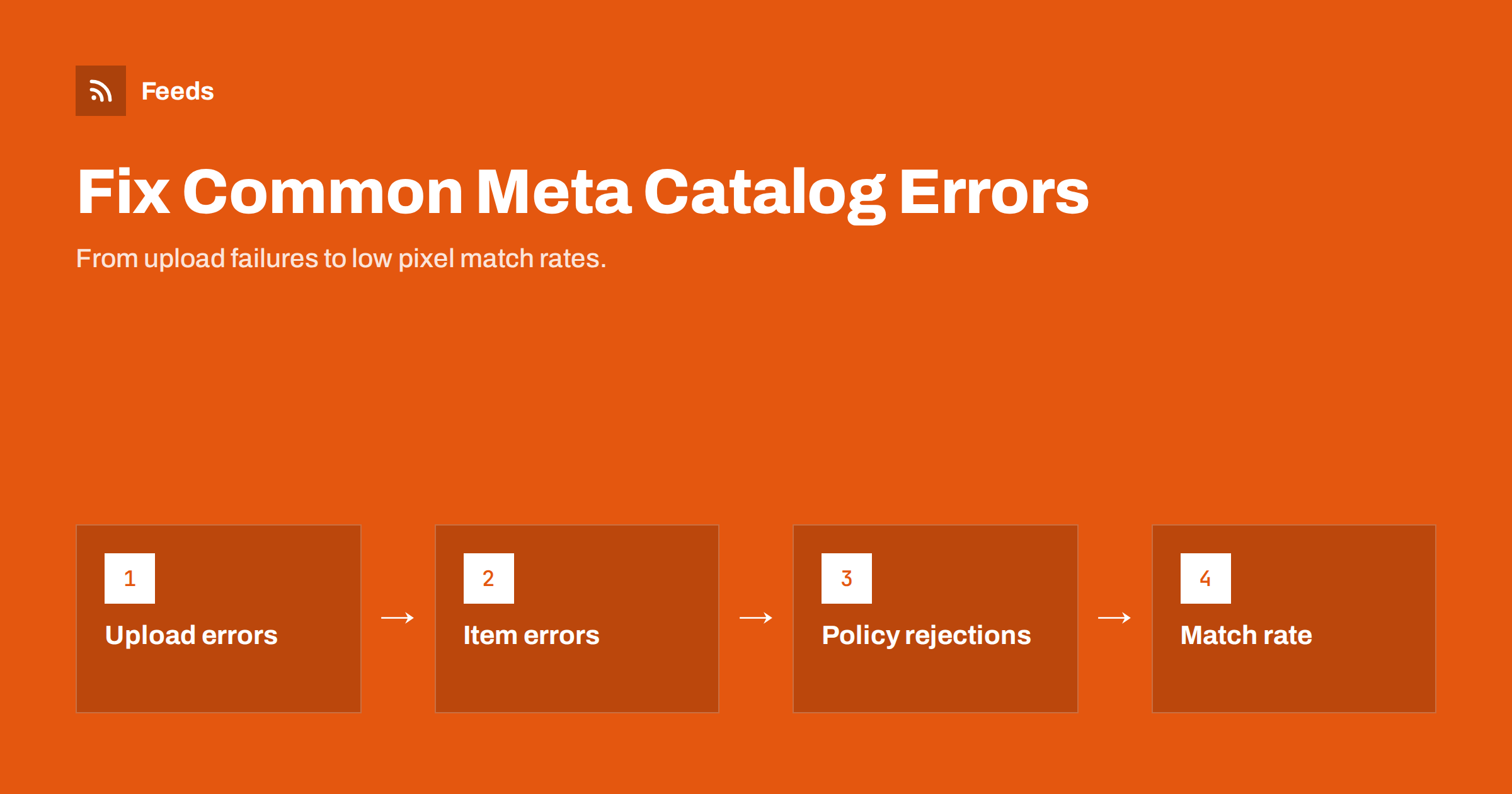
Short answer: Meta catalog errors fall into four groups: feed upload errors (the file cannot be fetched or parsed), item errors (missing required fields, invalid prices, images that cannot be downloaded, duplicate IDs), policy rejections (products not allowed in ads or shops), and matching problems (pixel content IDs that do not match catalog IDs). Check the catalog’s Issues view, fix the largest group at its source in the store or feed, and let the next scheduled fetch confirm the fix.
Where to find catalog errors
Commerce Manager shows problems at several levels. The data source view reports each feed upload: when it ran, how many items were created, updated, deleted or failed, and why. The Issues view groups problems across the catalog by type and severity, separating errors that block items from warnings that only limit them. Individual items show their own status, including policy review results.
Start with the most recent upload report. If the upload itself failed or processed far fewer items than expected, item-level issues are secondary; fix the upload first. If the upload succeeded, move to the Issues view and sort by the number of affected items.
As with any catalog, a single issue affecting hundreds of items usually has one cause in the feed generation, while scattered issues on individual items usually reflect individual data problems. Handle the big patterns first, because one fix there does more than an afternoon of item-by-item edits.
Feed upload errors
Upload errors stop Meta from reading the file at all, or from reading it correctly. Typical causes include:
- URL not reachable: the server returns an error, times out, or requires a login the schedule does not provide.
- Blocked fetcher: a firewall, bot protection or security plugin challenges Meta’s crawler.
- Wrong content: the URL returns an HTML page, such as a download page or login screen, instead of the file.
- Malformed file: invalid XML, mixed delimiters in CSV, or a header row with unrecognized column names.
- Encoding problems: a file that is not UTF-8, producing broken characters or parsing failures.
Test the feed URL from outside your network, without being logged in to anything. If it opens in a private browser window and downloads the raw file, Meta can usually fetch it too. If your hosting uses bot protection, allow the platforms that fetch your feed rather than disabling protection altogether.
Also check the schedule itself. A scheduled feed that has been failing quietly for days leaves the catalog frozen at an old state, with prices and stock drifting away from the store. Commerce Manager can notify you of failed uploads; make sure those notifications reach someone who will act on them.
Missing and invalid fields
Once the file is read, each item is checked for required fields: id, title, description, availability, condition, price, link, image_link and brand. Common item errors include:
- Missing description or brand for items created by a different import or product type.
- Invalid availability or condition values that do not use the accepted terms.
- Invalid price format: currency symbols, thousands separators, decimal commas, or a missing ISO currency code.
- Title or description too long, or containing HTML markup.
- Invalid URLs: relative links, spaces or unescaped characters.
When a required field is missing for a whole category, look at how that category’s products are stored in the store. It is often a field with a different name, such as a brand stored as an attribute in one category and as a taxonomy in another.
A good diagnostic trick is to download the feed file and open it next to the error report. Find one affected item by its ID and look at the exact values Meta received. Often the problem is obvious at that point, such as a price written as “1.299,00” or a description full of HTML entities, and it becomes clear which mapping produced it.
Image errors
Meta downloads every image. Items fail or look poor when images are too small (Meta asks for at least 500 by 500 pixels), cannot be downloaded, are in an unsupported format, or change URL constantly. Promotional text on product images is discouraged, and it can be cropped awkwardly or clash with ad templates.
The usual fixes are structural: map the original image rather than a thumbnail, make sure images are served over HTTPS without hotlink protection blocking external requests, and keep image URLs stable. If many items fail at once after a site change, check whether a CDN or image optimization plugin changed the URLs or started returning a different format.
Remember that images are downloaded asynchronously. Items may be created before their images are processed, and image problems can surface hours after the upload report looks clean. Check the Issues view again the day after a large change.
Duplicate IDs and variant problems
Every item in a catalog needs a unique id. When two rows share an id, one overwrites the other, and you lose items without an obvious error. This happens most often with variants that inherit the parent SKU, or when two feeds for the same catalog use overlapping ID ranges.
Give each variant its own id, usually the variant SKU, and connect variants with item_group_id. If you run several feeds into one catalog, make sure their IDs cannot collide, for example by using prefixes consistently. Changing ID conventions later resets item history and breaks the connection with pixel events, so decide early and keep it.
Deleted items are a related surprise. When a product disappears from the feed, Meta removes it from the catalog on the next upload, depending on your data source settings. If a filter in your feed generation accidentally excludes a category, the whole category vanishes from the catalog and from any ads using it. Compare item counts between uploads and investigate sudden drops.
Policy rejections
Items can be rejected for commerce or advertising policy reasons. Some product categories are restricted or prohibited, such as certain health products, weapons, adult products, tobacco and similar items, and rules vary by region. Rejections can also be triggered by wording in titles or descriptions that suggests prohibited content, even when the product itself is allowed.
- Read the rejection reason on the item before changing anything.
- If the product is genuinely restricted, exclude it from ad product sets or from the feed.
- If the rejection seems wrong, check for ambiguous wording, adjust it if appropriate, and request a review.
Keep a list of products that were reviewed and approved after appeal. If they are rejected again after a feed change, you will know what to check.
Some items are not rejected but restricted to certain placements or regions. Read these statuses carefully before excluding products, because an item that cannot be advertised in one country may be perfectly fine in another.
Low pixel match rate
A catalog can be error-free and still underperform because website events do not match catalog items. The pixel and the Conversions API send content IDs with events like ViewContent and Purchase. If those IDs differ from the feed’s ids, Meta cannot connect browsing behavior to products, and retargeting weakens.
| Symptom | Likely cause | Fix |
|---|---|---|
| Match rate near zero | Completely different ID schemes | Align pixel and feed on one ID |
| Match rate around half | Parent IDs in events, variant IDs in feed (or reverse) | Send the same level in both |
| Match rate drops suddenly | Plugin or theme update changed event IDs | Compare recent events with feed IDs |
| Some products never match | Products missing from the feed | Check exclusions and upload counts |
Use Events Manager’s test tools to inspect the content IDs your site actually sends, then search for those IDs in the catalog.
After aligning IDs, allow a few days for new events to accumulate before judging the match rate again. Historical events sent with the old IDs will not be rewritten, so improvements show up gradually.
How Feeds helps
Feeds publishes a product feed in Google’s XML format, which Meta reads as a scheduled catalog feed, generated from WooCommerce, Shopify or a CSV link. It fills id, title, link, image, price, availability and brand, detects the currency and refreshes automatically, and rules let you skip out-of-stock products, rewrite titles and adjust prices. See the pricing page for plans.
Related reading
- How to Add a Product Feed to a Meta Catalog, Step by Step
- Meta Catalog Ads: What Your Product Feed Must Get Right
- Product Feed Image Requirements for Google and Meta
The bottom line
Fix Meta catalog problems in order: make sure the feed uploads and parses, then fix item errors by pattern, then handle policy rejections, and finally check that pixel content IDs match catalog IDs. Most issues trace back to a single cause in feed generation, and fixing it at the source clears many items at once.
الأسئلة الشائعة
Why does my Meta feed upload fail?
Common causes are an unreachable URL, a firewall blocking Meta’s fetcher, a URL returning an HTML page instead of the file, or a malformed file.
What are the required fields for a Meta catalog?
For e-commerce items: id, title, description, availability, condition, price, link, image_link and brand, with the price including an ISO currency code.
Why are some catalog items missing without errors?
Often because of duplicate IDs, where one row overwrites another. Make sure every variant has its own unique ID.
How do I fix a low pixel match rate?
Compare the content IDs your pixel sends with the IDs in the feed and align them on one convention, such as variant SKUs.
Can I appeal a policy rejection?
Yes. If you believe the rejection is wrong, check the product text for ambiguous wording and request a review on the item.


