 ENEnglish
 LTLietuviškai
 DEDeutsch
 FRFrançais
 RUРусский
 ESEspañol
 PLPolski
 ITItaliano
 UKУкраїнська
 CSČeština
 PTPortuguês
 JA日本語
JA日本語 LVLatviešu valoda
 ETEesti
 HUMagyar
 IDBahasa Indonesia
 TRTürkçe
 HIहिन्दी
 ELΕλληνικά
 ARالعربية
 THไทย
THไทย VITiếng Việt
 RORomână
 MSBahasa Melayu
 BNবাংলা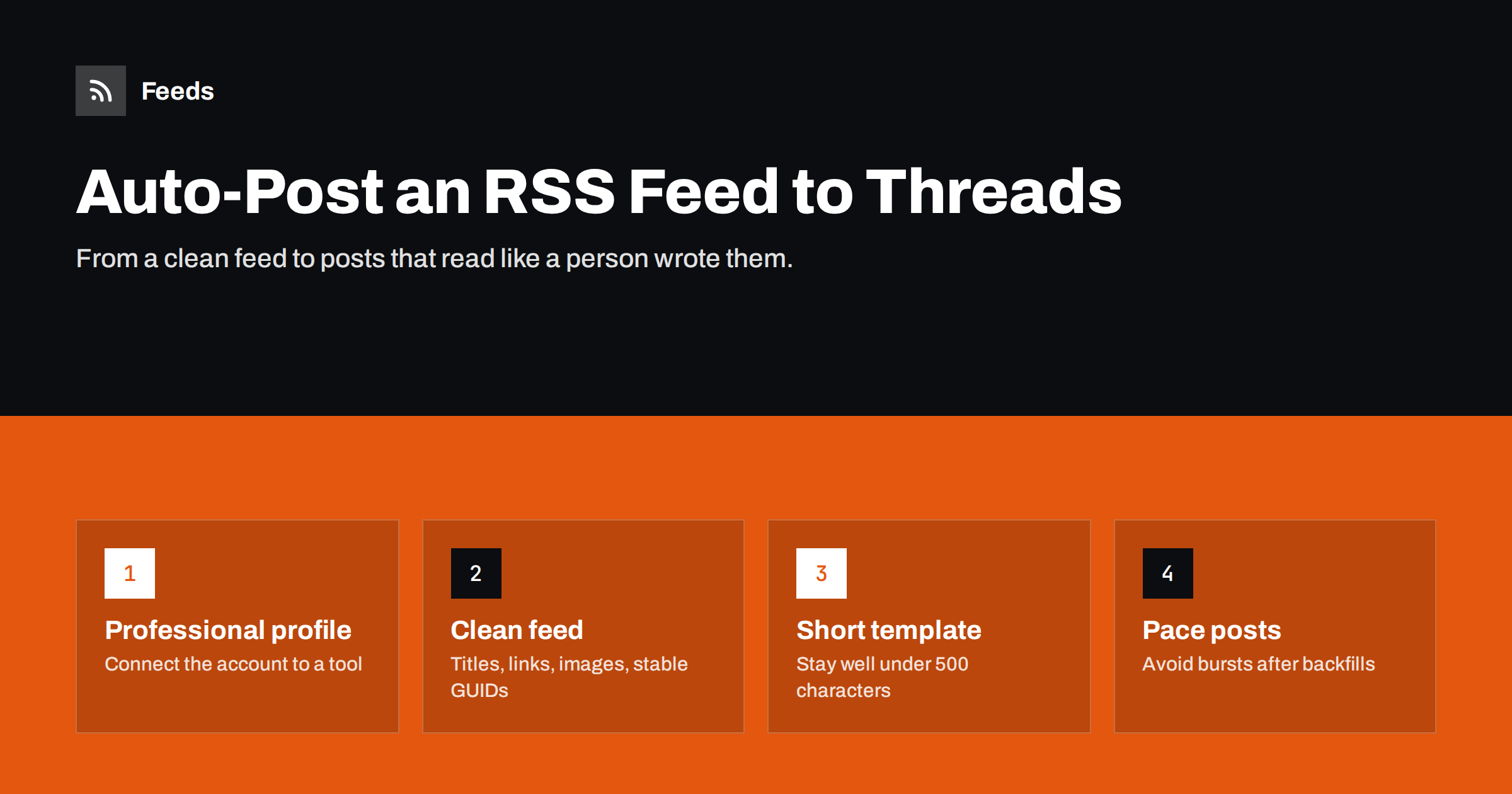
Short answer: To auto-post an RSS feed to Threads, connect your Threads profile to a social posting tool or automation platform that supports Threads publishing, point it at a clean RSS feed, and write a short post template with the title, one line of context and the link. Keep posts well under Threads’ 500-character limit, let the link preview carry the image, and set pacing and duplicate protection so a burst of new items does not flood your followers.
Is it possible to post to Threads automatically?
Yes. Threads offers an official publishing API, so approved apps can create posts on a profile on the owner’s behalf. That is what social scheduling tools, RSS-to-social services and automation platforms use when they list Threads as a destination. Because it is an official route, you do not need browser tricks or unofficial scripts, which tend to break and can put the account at risk.
What the API allows changes over time, so check the current documentation of whichever tool you use. At the time of writing, publishing supports text posts, posts with a link, images, videos and carousels, and there is a daily cap on how many posts one profile can publish through the API. For a normal publishing schedule the cap is never an issue; it only matters if a misconfigured workflow tries to post hundreds of items at once.
If you already automate other networks, the pattern will feel familiar. Our guide to auto-posting RSS feeds to Mastodon and Bluesky covers two similar text-first networks, and most of the same advice applies here.
What you need before you start
- A Threads profile you control. Threads profiles are tied to an Instagram account. For business use, a professional (business or creator) account is the usual choice, and some tools require it.
- A working RSS feed. Your blog, news section, product updates or a curated feed. Open it in a browser and check that the newest items appear with correct titles and links.
- A tool that supports Threads. Many social posting services and general automation platforms now include Threads. Check that the tool’s Threads support covers links and images, not just plain text.
- A clear rule about what to post. Every new article? Only one category? Only items with certain words? Decide before connecting anything.
If the site you want to post from has no RSS feed, you need one first. A feed can be created from the page that lists new articles, as long as each item has its own title and link.
Step by step: connecting a feed to Threads
- Add the feed to your tool. Paste the feed URL and let the tool read it. Look at the items it shows and confirm titles, links and dates are right.
- Connect the Threads profile. Sign in through the official authorisation screen and grant the requested permission to publish. Never share your password with a tool that asks for it directly.
- Choose what happens to existing items. Most tools ask whether to post items that are already in the feed. Say no, or limit it to the newest one, otherwise the first run can post your entire back catalogue.
- Write the template. Decide which fields go into the post and in what order (more on this below).
- Set filters and pacing. Add keyword rules if you only want certain items, and a minimum gap between posts.
- Test with one item. Publish one post, open it on Threads on both mobile and desktop, and check the text, the link preview and the image.
- Switch on and review. Let the automation run, then look at the first few posts over the next days before you stop checking.
Writing a template that suits Threads
Threads is conversational. Posts that look like a bare headline and a link tend to feel automated; a short sentence of context makes a big difference. A good template usually has three parts:
- A hook or context line. Many tools can insert the item’s summary or the first sentence of the description. Trim it to one short sentence.
- The title, if the context line does not already make the topic clear.
- The link, placed at the end so the preview card appears under the text.
Keep the whole post comfortably below 500 characters. Feed summaries can be long, so use your tool’s option to cut them at a sentence boundary rather than mid-word. Threads uses topic tags rather than long rows of hashtags, and a post usually carries only one, so choose a single relevant topic if you add any. For more on templates across networks, see our guide to writing post templates for automated social feeds.
Avoid putting the same template on every network unchanged. What reads well on LinkedIn is often too formal for Threads, and what works on X may be too clipped.
Images and link previews
When a post contains a link, Threads can show a preview card built from the linked page’s Open Graph tags: title, description and image. That makes the page’s og:image more important than the image in the feed. Check that each article sets a proper Open Graph image and that the image is large enough to display cleanly.
Some tools also let you attach the feed item’s image directly as a media post. That can look more striking, but the link then sits in the text without a preview. Test both formats with a couple of posts and keep the one that suits your content. If images go missing, the causes are usually the same as on other networks, which we cover in why automated posts lose images.
Pacing, filters and avoiding spam
An RSS feed does not care how often it publishes; your followers do. If your site publishes ten articles at once after a batch import, an unpaced workflow will post ten times in a few minutes. Protect the profile with a few rules:
- Minimum gap between posts, such as 30 to 60 minutes, so bursts are spread out.
- A daily maximum that matches what your audience expects to see from you.
- Keyword filters that skip categories not suited to Threads, such as internal announcements or job listings.
- Duplicate protection based on the item’s GUID or link, so an edited article is not posted twice.
How often is too often depends on the account, but the principles are the same everywhere. Our article on how often automated feeds should post goes into more detail.
Running Threads alongside other networks
Most accounts that automate Threads also post to Instagram, Facebook, LinkedIn or X from the same feed. That is efficient, but a few adjustments keep each network feeling native:
- Stagger the timing. Posting the same item everywhere in the same minute looks automated. A delay of an hour or two between networks is usually enough.
- Use a different template per network. Threads suits a conversational line; LinkedIn suits a slightly longer professional summary.
- Tag links per network. Add UTM parameters with a separate source value for Threads, so you can see in analytics whether it brings visitors at all.
- Reply by hand. Automation can start the conversation, but replies to comments should come from a person. Unanswered questions under automated posts send a poor signal to readers.
After a month, compare the numbers. If Threads sends almost no traffic but gets replies, the network may be better for conversation than for clicks, and your template can lean into that.
Common problems and fixes
- Nothing posts: the connection may have expired. Reconnect the profile, then check whether the tool is still reading new items from the feed.
- Old items posted: the feed’s GUIDs changed, for example after a site migration, so the tool treated old articles as new. Fix the GUIDs or reset the tool’s “seen” list carefully.
- Text cut off: the template is too long. Shorten the summary or drop the title.
- Wrong preview image: the article’s Open Graph image is missing or cached. Fix the tag and test the link again.
- Posts go out in the middle of the night: set a posting window that matches your audience’s time zone.
Where a feed tool fits in
The posting tool handles Threads; the quality of what it posts depends on the feed. Feeds can create an RSS feed from a web page that has none, merge several sources into one feed, keep only items that contain or exclude your keywords, and remove duplicates. That gives any Threads-capable posting tool a clean, focused feed to work from, whether it is your own blog, a partner’s news page or a curated set of sources. You can try it on one website on the free plan; see the Feeds homepage for how it works.
Related reading
- How to Automate Social Media Posts from an RSS Feed
- Can You Automate Instagram Posts from an RSS Feed?
- How to Track Traffic from Automated Posts with UTM Tags
The bottom line
Threads can be automated through its official publishing API, so any tool that supports Threads can turn new RSS items into posts. Start with a clean feed, connect the profile through official authorisation, write a short conversational template under 500 characters, rely on Open Graph images for previews, and set pacing and duplicate protection. Check the first posts yourself before letting it run.
الأسئلة الشائعة
Can I post to Threads automatically from RSS?
Yes. Threads has an official publishing API, and many social posting tools and automation platforms use it. You connect your profile, add your RSS feed and set a post template.
Do I need an Instagram account to automate Threads?
Threads profiles are linked to Instagram accounts, so yes. For business publishing, a professional Instagram account is the usual choice, and some tools require it.
How long can an automated Threads post be?
Threads text posts are limited to 500 characters. Automated posts work best when they are much shorter: one line of context, the title if needed and the link.
Will links in automated Threads posts show an image?
Usually yes. Threads can build a preview card from the linked page’s Open Graph tags, so make sure each article has a good og:image set.
How do I stop my whole archive being posted to Threads?
When you add the feed, choose not to post existing items, or post only the newest one. Also keep your feed’s GUIDs stable, because changed GUIDs make old items look new.


