ENEnglish
 LTLietuviškai
 DEDeutsch
 FRFrançais
 RUРусский
 ESEspañol
 PLPolski
 ITItaliano
 UKУкраїнська
 CSČeština
 PTPortuguês
 JA日本語
 LVLatviešu valoda
 ETEesti
 HUMagyar
 IDBahasa Indonesia
 TRTürkçe
 HIहिन्दी
 ELΕλληνικά
 ARالعربية
 THไทย
 VITiếng Việt
 RORomână
 MSBahasa Melayu
 BNবাংলা
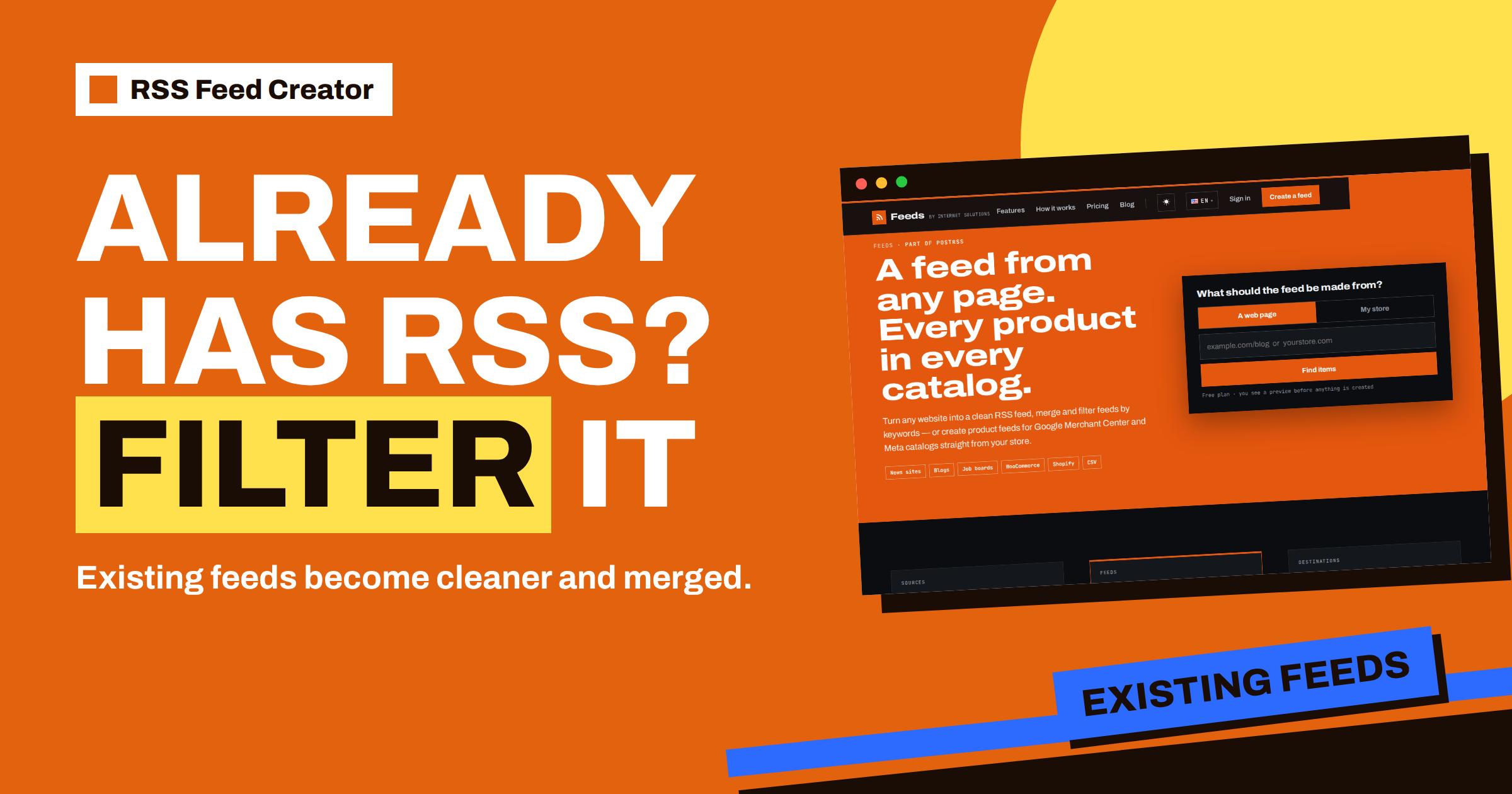
Short answer: If a website already has an RSS feed, RSS Feed Creator does not try to guess anything: it reads that feed directly, in RSS 2.0, Atom or the older RDF format. You can paste either the site address or the feed address. What you gain is control over the result. You can keep only the items that contain your words, skip the ones that contain others, merge the feed with other sources and get one tidy address with a stable refresh. This article explains what the tool takes from an existing feed and how the filters really work.
Why bother when a feed exists
A native feed is already a good start, so the question is fair. There are four reasons to run it through RSS Feed Creator anyway:
- Noise. A news site’s feed covers every topic, but you care about one. A filter keeps only what matters.
- Several sources. You want ten sites in one stream, with the newest first, instead of ten subscriptions.
- One address for tools. A posting tool or a team channel usually takes one feed link, and a merged feed gives it exactly one.
- A common format. Feeds come in several formats, and the tool presents the result as one clean RSS feed with titles, links, summaries, dates and pictures.
The home page states the principle: “What if the website already has RSS? Then we use it, and you can still merge it with other sources and filter it by keywords.”
How the tool recognises an existing feed
When you paste an address, the tool downloads it and checks whether the content is a feed. If it is RSS 2.0, Atom or RDF (RSS 1.0), it reads the entries. If it is an ordinary page, the tool looks in the page header for the standard line that announces a feed, and uses the announced feed. Comment feeds are ignored, because nobody wants a feed of comments by mistake. The preview tells you when it found an existing feed, and that is the best case: the site itself says what each item is.
If you are unsure whether a site has a feed, paste the site address and read the preview heading. It says whether it found items on the page or an existing feed. The full order of steps, including what happens when there is no feed, is in how RSS Feed Creator finds items on pages without RSS.
What is taken from each entry
For every entry, the tool keeps a handful of fields:
- the title, cleaned of tags and extra spaces;
- the link, made absolute, which also serves as the item’s identifier;
- a summary, taken from the description or content, stripped of markup and shortened to a short excerpt;
- the date, from the publication date, or for Atom the published or updated date;
- a picture, from the feed’s declared image or, when there is none, the first image inside the item text.
Entries without a title or a link are dropped. The picture logic is described in pictures in your feed: where RSS Feed Creator finds images. One consequence is worth noting: because the summary is shortened, the feed is made for headlines and short teasers, not for carrying full article text.
How the keyword filters work
On the management page of a page-based feed the Settings card has two boxes. “Only items containing” keeps an item if it contains at least one of your words. “Skip items containing” removes an item if it contains any of its words. Separate words with commas or line breaks. Capital letters do not matter.
The tool searches the title and the summary together, and it looks for your word as a piece of text. That has two practical effects. First, a short word can match inside longer ones: “car” also matches “carbon” and “career”. Use a longer or more specific word where that would be a problem. Second, a phrase such as “solar panel” works as a phrase, because the whole text is compared.
Both boxes can be used together. A typical setup for a news feed is a few words in the first box for your topic, and a few words in the second to cut recurring noise such as “sponsored” or “newsletter”. More examples are in keyword filters in RSS Feed Creator: keep only what matters and skip words: clean up a noisy feed.
A worked example
Suppose you follow the news feed of an energy industry site that publishes forty items a day, and you care about solar and storage. You paste the feed address, create the feed and type “solar, storage, battery” into the first box. After “Save and update”, the feed is rebuilt at once, and the list of latest items on the page shows only items whose title or summary contains one of the three words. If a few unwanted items slip through, for example “stored” matching “storage” in a different sense, you adjust a word and save again.
This loop of change, save and look takes a minute, and it is the reason to build filters in small steps. Add one word at a time and read the list after each save. When the result is right, you have a feed that a reader, a team or a posting tool can follow without further sorting.
Adding other sources
Merging is where an existing feed becomes more useful. The paid plans let you combine up to 10 sources in one feed. A source can be another feed, a page with no feed, or a mix of both. The tool removes duplicates by web address, keeps the first copy it meets in the order of your sources and sorts the result with the newest items first. The details are in merge sources in RSS Feed Creator: up to 10 in one feed and how it removes duplicates.
On the free plan, a feed has one source, and the keyword filters are available. Merging is part of the PostRSS add-on, described in the €5 PostRSS add-on: what changes from the free plan.
Direct subscription or through the tool?
You do not need RSS Feed Creator for every feed. If you read a single feed in a reader and you like everything in it, subscribe directly; there is nothing to gain from an extra step. The tool starts to pay off in these situations:
| Situation | Better choice |
|---|---|
| One feed, everything is interesting | Subscribe directly |
| One busy feed, only one topic matters | Filter through the tool |
| Several feeds on one subject | Merge through the tool (paid plans) |
| A posting tool that takes one feed link | One feed address from the tool |
| A site that has some pages with feeds and some without | Mix both kinds in one merged feed |
The last row is easy to overlook. Many sites publish a feed for their blog but not for their press page, their events or their job list. In the tool, the blog feed and the press page are both simply sources, and the merged result reads like a single stream. If you post the result to social networks with PostRSS, each new item from either source is picked up by the same feed address.
Three habits that keep a filtered feed healthy
- Write your words down. Keep a note of the include and skip words and the reason for each. When a colleague takes over, or when you return in six months, the note saves guesswork.
- Review the feed monthly. Open the management page, read the counters and the latest items and remove words that no longer help. A feed with an item count that has dropped sharply usually means that the source changed, or that a skip word is too broad.
- Prefer specific words. A specific word or phrase gives fewer surprises than a short, common one. The more precise the filter, the less you need to check it.
The same habits apply to any feed, whether it began as a native feed or as a page. If you want a quick overview of what the plans allow before you build a bigger setup, open the pricing page; for most single-feed filtering, the free plan is enough.
Limits you should know
An existing feed usually lists only the newest 10 to 20 entries, and the tool can only show what the feed contains. The feed you create holds up to 20 items on the free plan and up to 100 on paid plans. For sources that you want to follow in more depth, a page-based source may give more history than the feed itself; see whole-section feeds. Finally, a filter cannot recover items the source feed no longer lists.
Related reading
- Follow Many Sources in One Feed: RSS Feed Creator for Researchers
- Add Your RSS Feed Creator Feed to Any RSS Reader or Tool
- Follow Competitor Blogs and News Pages with RSS Feed Creator
The bottom line
An existing feed is the best starting point, and RSS Feed Creator uses it as it is. What you add is control: keyword filters that search titles and summaries, a skip list for noise, merging with other sources on paid plans and one stable address for every reader or tool you use. Build the filter in small steps and let the list of latest items tell you when it is right.
الأسئلة الشائعة
Can I paste the feed address directly?
Yes. A pasted feed address is read directly, and a site address is checked for an announced feed.
Which feed formats are understood?
RSS 2.0, Atom and the older RDF format.
Do the filters look at the full article?
No. They look at the title and the summary of each item.
Is merging available on the free plan?
No. A free feed has one source; merging up to 10 sources is part of the paid plans.