ENEnglish
 LTLietuviškai
 DEDeutsch
 FRFrançais
 RUРусский
 ESEspañol
 PLPolski
 ITItaliano
 UKУкраїнська
 CSČeština
 PTPortuguês
 JA日本語
 LVLatviešu valoda
 ETEesti
 HUMagyar
 IDBahasa Indonesia
 TRTürkçe
 HIहिन्दी
 ELΕλληνικά
 ARالعربية
 THไทย
 VITiếng Việt
 RORomână
 MSBahasa Melayu
 BNবাংলা
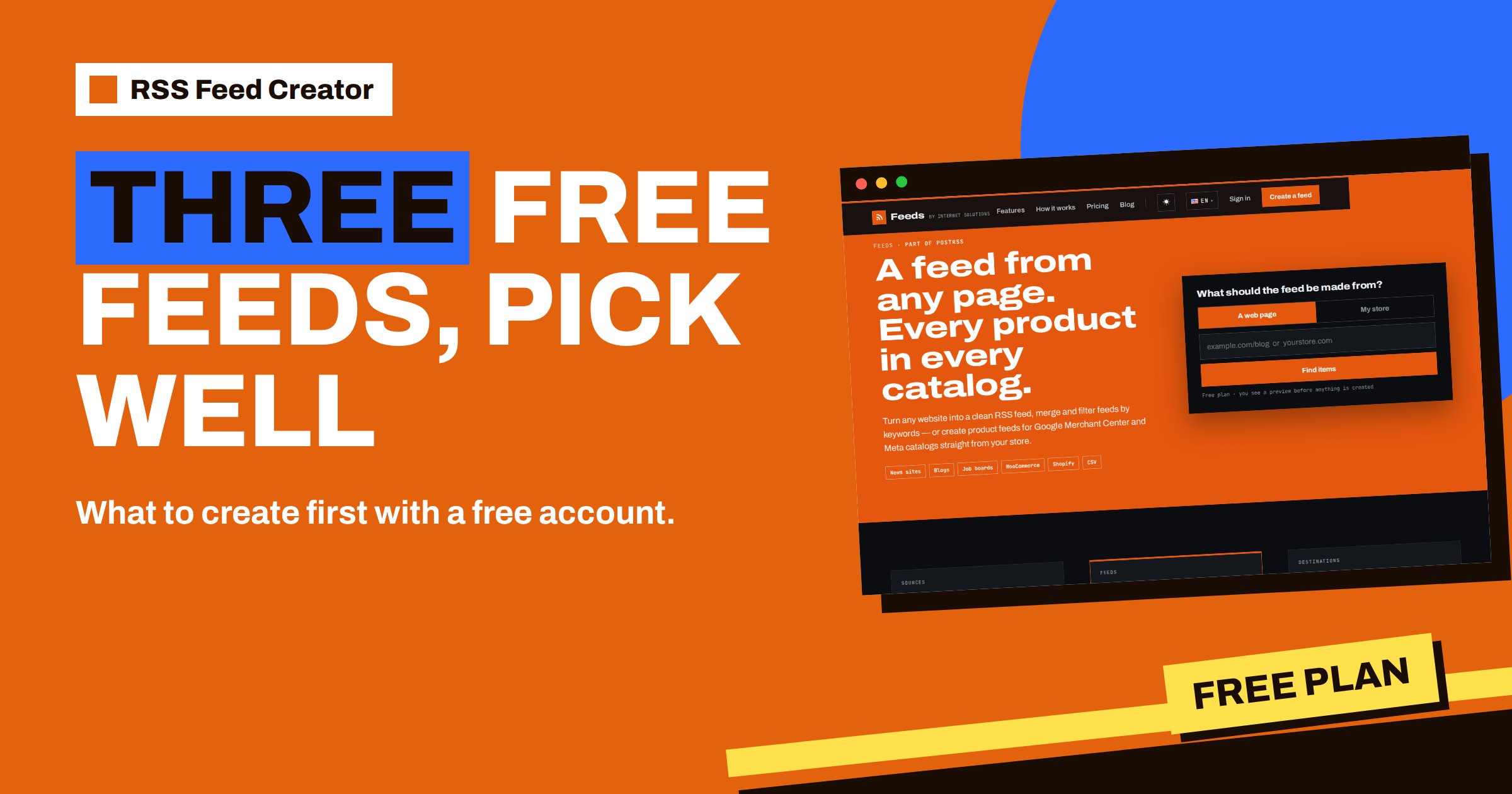
Short answer: The pricing page of RSS Feed Creator promises that a free account keeps up to 3 feeds in one list. Three feeds are enough to get real value if you choose them for different jobs: one feed that you read yourself, with a keyword filter; one feed that publishes your own or a partner’s news through PostRSS; and one feed that tests a bigger idea, such as a product feed for a store or a page you are unsure about. This guide helps you pick the three and shows when it is time to upgrade.
What a free account gives you
You can use RSS Feed Creator without an account, but the account is where your feeds live. It takes about 20 seconds and needs no card. You can register with Google, Facebook, Apple or Yahoo, or with an e-mail address and a password. After that, your feeds appear in one list with their names, item counts and update times, and the management links are no longer something you must save by hand. The reasons are explained in why a free account helps keep your feeds safe.
The free plan itself includes RSS from any page, up to 20 items per feed, product feeds of up to 50 products, keyword filters, product rules and a refresh every 3 hours. It does not include merging several sources into one feed. With three feeds, then, you have three single-source feeds, each with filters or rules. That is a clear frame, and clear frames make good choices easier.
The idea: three jobs, three feeds
People often spend their first feed on whatever they tried when they first saw the tool, and then they are left with a list full of tests. A better method is to give each of the three slots a job.
| Slot | Job | Typical content |
|---|---|---|
| 1. Read | Keep up with what matters to you | A busy news or industry page, filtered by keywords |
| 2. Publish | Turn a source into social posts | Your own blog or a partner’s news page, sent to PostRSS |
| 3. Test | Try an idea before you commit | A product feed for a store, or a page that may or may not work |
Slot 1: the reading feed
Pick the one site that you check most often and that has no feed of its own, or whose feed is full of things you do not need. Paste the address of the page that lists the news, check the preview and create the feed. Then add a few words to “Only items containing” and a few to “Skip items containing”, save, and read the list of latest items on the management page.
The aim is a feed that you would miss if it disappeared. Add the feed address to your reader, as described in add your RSS Feed Creator feed to any RSS reader or tool, and spend a week with it. If you find yourself ignoring half the items, tighten the filter; if you find yourself wondering what you missed, loosen it. The filters search the title and the short text, as covered in keyword filters in RSS Feed Creator.
Slot 2: the publishing feed
This slot is for the feed that does work for you. The classic choice is the blog of your own website, in particular when the site has no feed. Create the feed from the blog page and add its address as a source in PostRSS. New items are then published to the profiles you chose, with their pictures. The steps are in make a feed for your own website without touching it.
If you do not have a site to publish from, use a partner’s or an association’s news page that you want to share with your audience. In both cases, check that each item has a clear title and a picture in the preview, because those two elements decide how a post looks. And remember that the free feed holds up to 20 items and refreshes every 3 hours, which is generous for a blog that publishes a few times a week.
Slot 3: the test feed
The third slot is for learning. If you run a store, use it for a product feed with “My store” and test your stock, title and price rules on up to 50 products; the routine is described in test product rules for free. If you do not run a store, use it for a page that you doubt: an unusual site, a page with a long list, a section with pagination. Create the feed, look at the result and decide whether it deserves a permanent slot.
The test slot is also where you try a source before you move it to slot 1 or 2. When a test feed proves itself, you can move it to a real job by deleting one of the other feeds, or by upgrading when you outgrow the three.
Three example setups
A blogger. Slot 1 is an industry news page, filtered by the blogger’s main topics. Slot 2 is the blogger’s own site, published to social networks through PostRSS. Slot 3 tests a competitor’s blog, to see whether it is worth a place in the reading list. After two weeks, the blogger keeps the first two and replaces the third with another candidate.
A small shop owner. Slot 1 follows the news page of the main supplier, with skip words for events. Slot 2 turns the shop’s “New in” page into a feed for social posts, as in a new-arrivals feed from a shop category page. Slot 3 is a product feed of the whole catalog, if it has 50 products or fewer, or of a group of test products, to try rules for Google and Meta.
A researcher or student. Slot 1 is the page of the institute that matters most, filtered by the research terms. Slot 2 is not needed for publishing, so the researcher uses it for a second institute. Slot 3 tests a conference page. When the researcher wants all three in one stream, that is the moment to look at merging on a paid plan, described in merge sources in RSS Feed Creator.
Mistakes that waste a slot
- Using a slot for a page that gives an empty preview. Check the preview first and create the feed only when the list looks right.
- Creating the same feed twice. If you try two addresses of the same site, delete the weaker one.
- Keeping a test feed forever. A test either earns a real job or goes.
- Skipping the filters. A reading feed without filters is just the original site in a different place.
- Forgetting the account. Without an account, you rely on a saved link. With it, your three feeds are always in one list.
Avoid these five, and the three slots will carry more weight than their number suggests. The tool is built so that you can start in a minute, and the free plan is meant to let you find out whether it fits your work before you pay anything.
Keeping the list tidy
Three slots work only if you keep them tidy. Once a month, open the list and look at each feed: when was it last updated, how many reads does it have and does anything still use it? A feed with a rising reads counter is working. A feed with no reads is not used by any reader or tool, and a feed with an item count that fell to zero may have lost its source. The counters are explained in a tour of the RSS Feed Creator management page.
Delete what you do not need. The management page has a Delete button at the bottom, which asks for confirmation and warns that the feed address will stop working. Do that only when nothing fetches the feed.
When three are not enough
Most people who find the tool useful soon want more than three feeds, or want to merge several sources. The plans then differ by purpose:
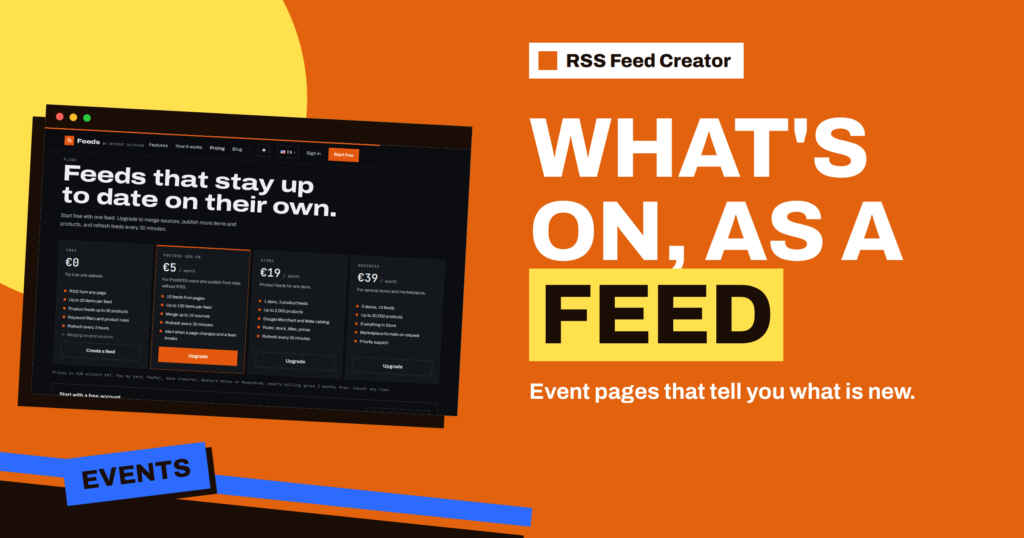
- PostRSS add-on, €5 per month: 10 feeds from pages, 100 items per feed, merging of up to 10 sources and a refresh every 30 minutes.
- Store, €19 per month: product feeds for one store, with 3 product feeds and up to 2,000 products.
- Business, €39 per month: several stores, up to 20,000 products and priority support.
The pricing page lists them with all details, and which RSS Feed Creator plan fits your feeds helps you choose. The pricing page also says that upgrading later takes one e-mail, so there is no reason to decide early.
Related reading
- RSS Feed Creator Walkthrough: From a Web Address to a Feed
- Free Product Feed for a Small Shop: What 50 Products Can Do
- The €5 PostRSS Add-on: What Changes From the Free Plan
The bottom line
Three free feeds are plenty when each has a job: one to read, one to publish and one to test. Create a free account so that they stay in one list, tune the filters on the reading feed, connect the publishing feed to PostRSS, and use the test slot to decide what deserves a permanent place. Upgrade only when the list is full of feeds you really use.
الأسئلة الشائعة
How many feeds can I keep in a free account?
Up to three, in one list, according to the pricing page.
Does the free plan include filters and product rules?
Yes. Keyword filters and product rules are part of the free plan.
Can I merge several sources on the free plan?
No. Merging up to 10 sources is part of the paid plans.
Do I need a card to start?
No. A free account needs no card.