ENEnglish
 LTLietuviškai
 DEDeutsch
 FRFrançais
 RUРусский
 ESEspañol
 PLPolski
 ITItaliano
 UKУкраїнська
 CSČeština
 PTPortuguês
 JA日本語
 LVLatviešu valoda
 ETEesti
 HUMagyar
 IDBahasa Indonesia
 TRTürkçe
 HIहिन्दी
 ELΕλληνικά
 ARالعربية
 THไทย
 VITiếng Việt
 RORomână
 MSBahasa Melayu
 BNবাংলা
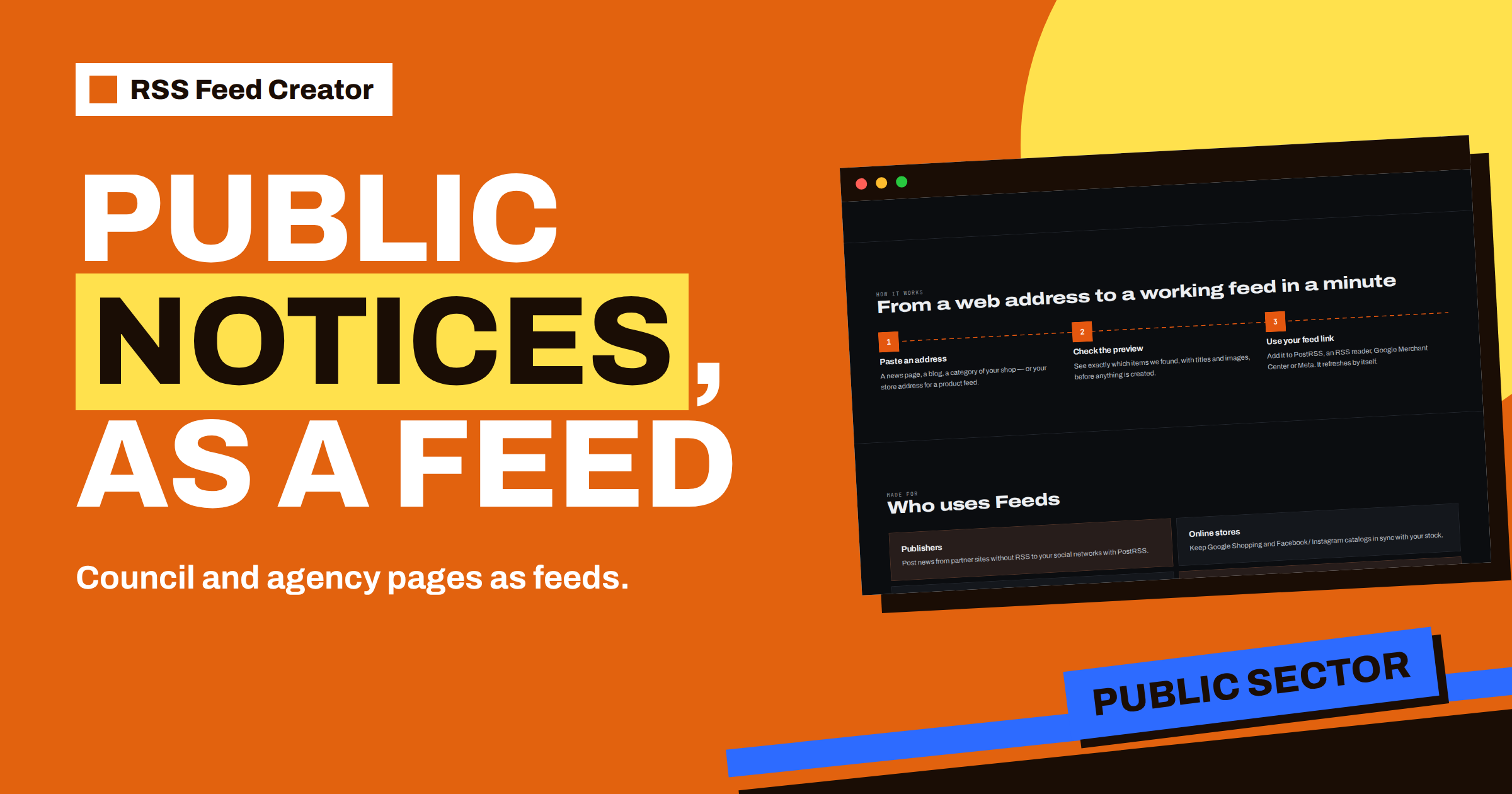
Short answer: Council, agency and ministry websites publish notices, consultations, tenders and announcements, but many have no RSS feed. With RSS Feed Creator you paste the address of the page that lists them, check the preview and get a feed that your reader, team channel or PostRSS can follow. Keyword filters keep only the topics you care about. Three things need care on public pages: choose the list page, not the home page; expect that links which end in .pdf are not turned into items; and check that dates are present before you rely on the order.
Why public pages are a good fit and a tricky one
Public bodies have a duty to publish, so their pages are open, stable and update regularly. A notice about a road closure, a planning consultation, a new regulation or a call for applications is usually posted on a news or notices page, and that is exactly the kind of list that RSS Feed Creator can read. People who benefit include local residents, small businesses that depend on permits or tenders, consultants, journalists and associations.
These sites are also tricky. They are often built on older systems, with tables instead of cards, with documents as PDF files and with menus that run to hundreds of links. A feed tool that guesses well on blogs can struggle here. The good news is that the preview tells you at once, before you create anything, whether the page works. The method is the same as for any source: RSS Feed Creator walkthrough: from a web address to a feed.
Step 1: find the right list page
Open the site and look for the page that lists items under a heading such as News, Notices, Announcements, Press releases, Consultations, Tenders or Public notices. Many sites have several: a general news page, a page of formal notices and a page of consultations. Each is a separate source, and each can have its own filter.
Avoid the home page and the page of a single notice. The home page mixes highlights, quick links and menus; a single notice has one headline and nothing repeating. The tool needs a block that repeats at least three times with different links. The reasoning is explained in which web address to paste: home page, section or search.
Step 2: read the preview with an official’s eyes
Paste the address with “A web page” selected, and read the preview. For public pages, check these points:
- Titles are real. “Notice of public consultation on the new parking zone” is good. “Read more” or “Download” means the tool picked up buttons.
- Links lead to notice pages. Each item should open a page, not a category.
- Dates are present and recent. A date comes from a time element or from article data. If the page prints the date only as plain text in a local format, the item has no date.
- The newest is first. Some public pages list items oldest first or by importance. In a single-source feed the order of the page is kept.
If the preview shows nothing, the page may be built as a table or may need scripts to show its list. Look for another page of the same site, or for a feed that the site announces. The empty case is covered in preview shows 0 items: what to try.
The PDF trap
Public bodies love PDF files, and the tool treats them in a particular way: links whose address ends in .pdf, together with pictures, archives and similar files, are not turned into items. A page whose list consists only of links to PDF documents therefore gives an empty or poor preview, even though it looks like a perfect list in the browser.
There are three ways around this. First, look for a notice page that has an ordinary page for each notice, with the PDF attached inside it; the list of such pages works. Second, check whether the site publishes a feed or a sitemap for its news section, because both lead to ordinary pages. Third, follow the page that announces the documents, for example the news item that says “the new regulation has been published”, instead of the document library itself. None of this is a flaw to hide: it is simply how the tool decides what an item is, and the preview shows the result.
Step 3: add keywords
A general notices page can be noisy. Use the two keyword boxes on the management page to focus it. In “Only items containing”, write the topics: “tender, procurement, permit, consultation”. In “Skip items containing”, write what you never need, such as “holiday opening hours” or “event”. The filters search the title and the short text, and a short word can match inside a longer one, so choose specific words, or word stems if the site is in a language with endings. More on this in feeds from non-English sites: filters, accents and dates.
Save, read the list of latest items and adjust. A good filter produces a short list that you would read in full.
Step 4: use the feed
- In a reader. Add the feed address to your reader and read notices with your other news.
- In a team channel. Many team tools accept an RSS link and post each new item.
- On social media. An association, a residents’ group or a business network can add the feed to PostRSS and share each new notice with its members.
The last use needs a sense of responsibility. A notice you share is an official statement, and a feed brings it to you but cannot judge it. Read an item before it goes out, and credit the source. The reader and tool options are described in add your RSS Feed Creator feed to any RSS reader or tool.
An example: a consultation page
A small consultancy wants to know when its region opens a consultation on environmental rules. The region’s website has a page called “Consultations” with a list of cards: a title, a closing date and a short text. The consultant pastes the address, and the preview shows eleven items with titles and links, but no dates, because the closing date is plain text inside the card.
That is acceptable for this job. The feed keeps the order of the page, which lists the newest consultation first, and the consultant adds “environment, emissions, waste” to the first keyword box. Each time a new consultation appears, it shows up at the top of the feed in the consultant’s reader. The closing date does not travel in a separate field, but it is part of the short text when the card has one, and a click leads to the full notice. The consultant also notes that the feed refreshes every 3 hours on the free plan, which is fast enough for a process that runs for weeks.
If the consultant later needs the same topics from three other regions, the next step is a paid plan with merging; until then, the three free feeds of a free account can cover three regions, each as its own feed.
Keeping a public-sector feed reliable
Public websites are redesigned from time to time, often after a change of system or contractor. The tool detects the list again on every refresh, so a new look does not usually matter, but a new structure may. If the item count of your feed drops suddenly or the management page shows a “Last update” message, open the source page and compare it with the preview. The previous version of the feed stays in place while you fix the source, so readers do not lose items; paid plans also send an alert when a feed stops finding items.
It also helps to keep a short note of why you follow each page and which words you filter. Public pages change names of sections, merge departments and move notices; the note tells you what to look for after such a change. The management page shows when the feed was last updated and how often it has been read, which is the quickest way to see whether a feed is still alive. The page is described in a tour of the RSS Feed Creator management page.
Several bodies in one feed
If you follow a council, a regional agency and a national ministry on the same subject, merging helps. A paid plan lets you merge up to 10 sources into one feed, with duplicates removed and the newest items first. Be aware that items without a date go to the end of a merged list, so choose sources that show dates, or use their own feeds when they have them. The sorting rules are in why items appear in that order in RSS Feed Creator, and the plans are on the pricing page.
Related reading
- How to Monitor Public Tenders and Procurement Notices with RSS
- Merge Sources in RSS Feed Creator: Up to 10 in One Feed
- Keyword Filters in RSS Feed Creator: Keep Only What Matters
The bottom line
Public notice pages are good sources and sometimes awkward ones. Pick the list page, read the preview for real titles, links and dates, remember that PDF links are not turned into items, add keywords to cut the noise and share the feed with care. Ten minutes of setup can replace a weekly round of visits to several official sites.
FAQ
Why does a page full of PDF documents show no items?
Links that end in .pdf are not turned into items. Look for a list of ordinary notice pages or another page that announces the documents.
Can I follow several authorities in one feed?
Yes, on the paid plans, which merge up to 10 sources with duplicates removed and the newest first.
Do I need permission to read a public page?
No access is needed. The tool reads public pages from the outside, like a visitor.
What if the page has no dates?
The items are listed without dates, in the order of the page. In a merged feed they move to the end.