 ENEnglish
 LTLietuviškai
 DEDeutsch
 FRFrançais
 RUРусский
 ESEspañol
 PLPolski
 ITItaliano
 UKУкраїнська
 CSČeština
 PTPortuguês
 JA日本語
JA日本語 LVLatviešu valoda
 ETEesti
 HUMagyar
 IDBahasa Indonesia
 TRTürkçe
 HIहिन्दी
 ELΕλληνικά
 ARالعربية
 THไทย
THไทย VITiếng Việt
 RORomână
 MSBahasa Melayu
 BNবাংলা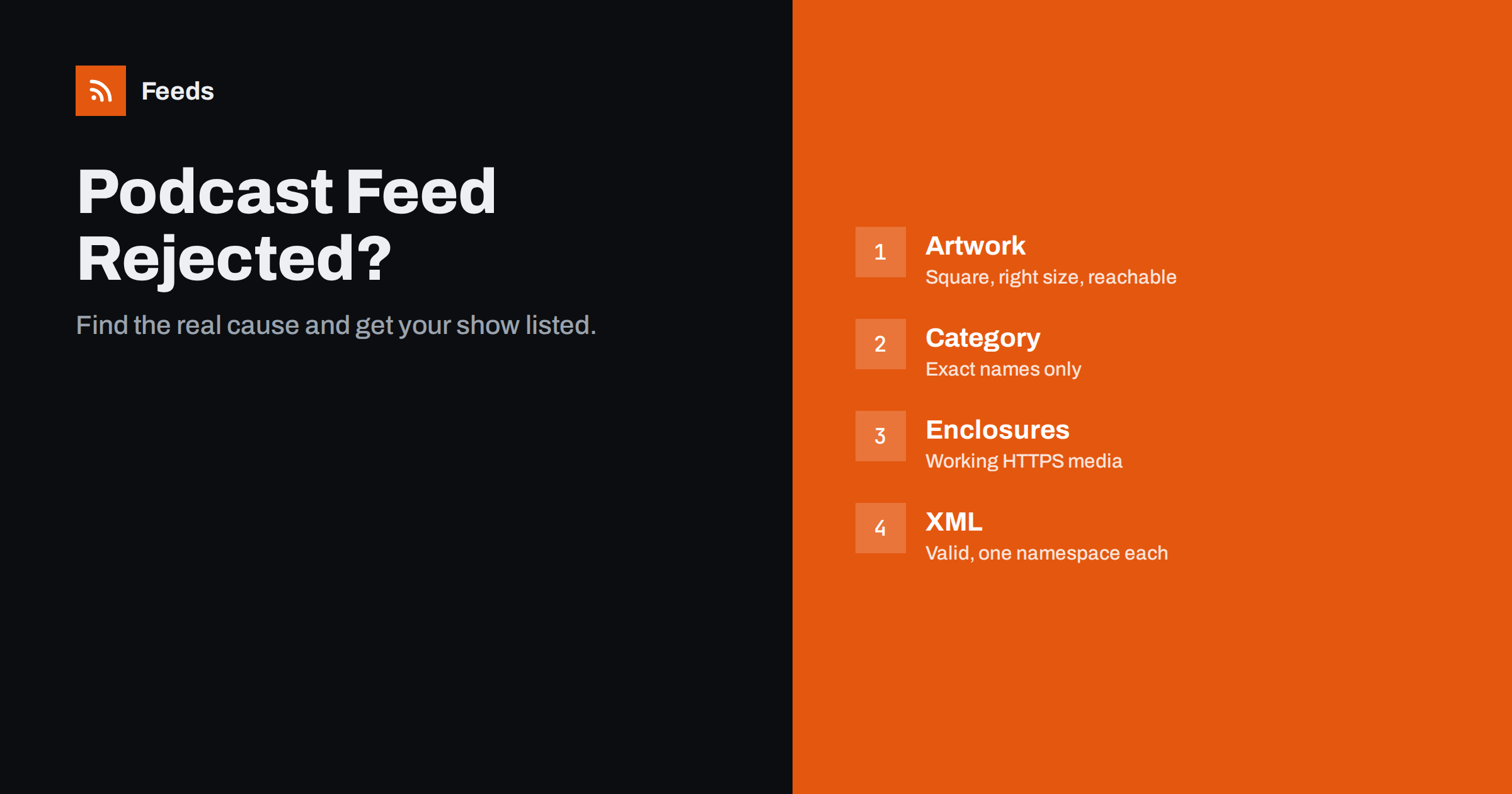
Short answer: Podcast directories reject feeds for a small set of reasons: artwork that is the wrong size, format or not reachable; missing or invalid categories; enclosures that point to files that do not load or lack byte-range support; missing required tags such as the explicit flag or owner email; invalid XML; and feeds behind redirects, logins or firewalls. Validate the feed, read the exact error message, fix the cause in your host’s settings, then use the directory’s refresh or resubmit option.
Few things are as frustrating as recording, editing and uploading a first episode, only for Apple Podcasts or another directory to reply with a terse error. The messages are often short and technical, and the underlying cause may not be where you expect it. The good news is that almost all rejections come from a handful of issues, and most can be fixed in your hosting dashboard without touching XML. This guide lists the common errors, explains what they mean, and shows how to fix them.
Start with the exact message and a validator
Before changing anything, gather evidence:
- Copy the exact error from the directory’s dashboard, such as Apple Podcasts Connect or Spotify’s creator tools.
- Run the feed through a podcast validator. Apple validates when you submit or refresh; independent podcast validators and the W3C Feed Validation Service give more detailed reports.
- Open the feed URL in a private browser window to confirm it loads without a login or error.
- Check the newest episode’s media file by opening its enclosure URL directly.
Most of the time, the validator’s first error and the directory’s message point to the same problem. Fix that first, because one XML error can create several confusing follow-on messages.
Artwork errors
Artwork is the most frequent cause of rejection. Apple’s requirements, which most directories follow, are well documented:
- Square, between 1400 × 1400 and 3000 × 3000 pixels.
- JPEG or PNG, in the RGB colour space.
- Reachable over HTTPS without login, with the server allowing the directory to fetch it.
- A reasonable file size; very large files can time out.
Common mistakes include a rectangular image, a CMYK file exported from print design software, a PNG with an unusual colour profile, and an image URL that points to a web page rather than the image itself. If you update artwork, upload it under a new file name: directories and apps cache images aggressively, and replacing a file at the same URL may not trigger an update for a long time.
Category and metadata errors
Directories only accept categories from their own list, with exact spelling and capitalisation. “Tech” instead of “Technology”, or a subcategory placed under the wrong parent, can cause an error or leave the show uncategorised. Also check:
- itunes:explicit is present with “true” or “false”.
- ভাষা is a valid code, such as
enoren-us. - Owner email is present and reachable; Apple and others use it to verify ownership.
- Title and description are not empty and do not contain only keywords. Directories may reject spammy titles stuffed with search terms.
Enclosure and media errors
Every episode must have an enclosure with a working URL, correct length in bytes and a correct type, such as audio/mpeg for MP3 or audio/x-m4a for M4A. Problems to look for:
- The file does not load, because it was deleted, moved or blocked.
- No byte-range support. Apps request parts of a file to stream and seek. Servers that ignore range requests can cause rejection or playback problems. Podcast hosts handle this; self-hosted files on basic web hosting sometimes do not.
- HTTP instead of HTTPS. Many directories now require secure URLs for media.
- Wrong MIME type for the file format, or a video file in an audio-only show without the right type.
- Unusual file formats not supported by directories. MP3 and M4A (AAC) are the safe choices.
XML and namespace errors
If the validator reports that the XML is not well-formed, nothing else matters until that is fixed. Typical causes:
- An unescaped ampersand in a title or description, such as “Q&A” written as a raw character.
- Invisible control characters pasted into show notes from another application.
- A namespace declared twice, for example when both a WordPress podcasting plugin and an SEO plugin add the iTunes namespace.
- Output before the XML declaration, such as whitespace or a PHP warning from a plugin.
Hosted platforms rarely produce invalid XML, so these problems are most common with self-hosted feeds generated by plugins. Clean up the offending episode’s notes or disable the duplicate plugin feature.
Access, redirect and server errors
| Symptom | Likely cause | Fix |
|---|---|---|
| Directory cannot fetch the feed | Login, firewall, bot protection or geo-blocking | Allow directory crawlers; disable challenges on the feed URL |
| Too many redirects | HTTP to HTTPS to www chains or loops | Submit the final URL; simplify redirects |
| Feed times out | Slow server or very large feed | Use caching; limit feed size if possible |
| Temporary errors | Maintenance mode or server overload | Wait, then refresh in the dashboard |
| Feed found but shows old content | Caching layer serving an old copy | Purge caches; shorten cache time for the feed |
Security services that show a “checking your browser” page are a frequent hidden cause. Humans pass the check in a browser, but directory crawlers cannot, so the directory sees an HTML page instead of a feed.
Errors after the show is already listed
Sometimes a show that has been live for months suddenly stops updating in one directory. Common reasons:
- The host changed or the feed URL moved without a proper 301 redirect.
- A new episode has a broken enclosure or invalid characters that stop the whole feed from parsing.
- Artwork URL changed and the new image fails requirements.
- The owner email changed, and a verification step failed.
- A security rule on the server began blocking the directory.
Check the directory’s dashboard for a feed status or error, fix the cause, and use the refresh option rather than resubmitting, which could create a duplicate listing.
Self-hosted feeds need extra care
Most podcasters use a dedicated host, which generates a compliant feed and serves media correctly. Some publish from their own website instead, often with a WordPress podcasting plugin and audio files in the media library or on cloud storage. That can work well, but more things can go wrong:
- Web hosting is not built for media. Shared hosting may throttle large downloads, lack range support or hit bandwidth limits when an episode becomes popular.
- Plugins interact. SEO, caching and security plugins can change feed output, add namespaces or block crawlers without warning.
- Updates change behaviour. A plugin update may alter tags or feed URLs.
- Statistics are harder. Download counts need separate tools, and podcast measurement guidelines are more complex than page views.
If you self-host, serve media from storage designed for large files, keep one plugin responsible for the podcast feed, and re-validate after every plugin update. If rejections keep recurring, moving to a specialised host with a proper 301 redirect of the old feed is often the most reliable fix, and it removes a whole category of server problems from your to-do list.
A pre-submission checklist
- Artwork: square, 1400 to 3000 pixels, JPEG or PNG, RGB, HTTPS.
- Category from the official list; explicit flag; language; owner name and email.
- At least one episode with a working HTTPS enclosure of the right length and type.
- Feed validates with no errors.
- Feed URL loads without login or browser checks, with at most one redirect.
- Show title and description written for people, not stuffed with keywords.
Once your show is live, the feed can also feed other channels, such as a website episode list or a combined feed of several shows. Our tool, Feeds, can merge public feeds, including podcast feeds, into one RSS link with duplicate removal and keyword filters. It does not host or validate podcasts. See the plans.
Related reading
- Podcast RSS Tags Explained: iTunes and Podcasting 2.0
- How to Validate an RSS Feed and Fix the Most Common Errors
- How to Move a Podcast Feed Without Losing Subscribers
The bottom line
Podcast feed rejections almost always trace back to artwork, categories and required tags, broken or insecure media files, invalid XML, or a server that blocks directory crawlers. Read the exact error, validate the feed, fix the cause in your host or plugin settings, and refresh the feed in the directory. A short checklist before each submission or host change prevents most of these problems.
FAQ
Why was my podcast rejected by Apple Podcasts?
The most common reasons are artwork that does not meet the size and format rules, missing or invalid categories, broken or insecure episode files, and invalid XML. The error in Podcasts Connect usually names the area to check.
What size should podcast artwork be?
Apple requires square artwork between 1400 × 1400 and 3000 × 3000 pixels, in JPEG or PNG with RGB colours. Most other directories accept the same image.
Why can’t the directory read my feed when it opens fine in my browser?
Your server or security service may be showing a browser check, login or geo-block to crawlers. Your browser passes it, but the directory does not. Allow crawlers on the feed URL.
Should I resubmit my podcast after fixing an error?
If the show is already listed, use the refresh option in the directory dashboard instead. Resubmitting can create a duplicate listing. For a new submission, submit again after the validator shows no errors.
Which audio format should I use?
MP3 is the safest choice and is supported everywhere. M4A with AAC audio is also widely supported. Make sure the enclosure’s type attribute matches the actual file format.


