 ENEnglish
 LTLietuviškai
 DEDeutsch
 FRFrançais
 RUРусский
 ESEspañol
 PLPolski
 ITItaliano
 UKУкраїнська
 CSČeština
 PTPortuguês
 JA日本語
JA日本語 LVLatviešu valoda
 ETEesti
 HUMagyar
 IDBahasa Indonesia
 TRTürkçe
 HIहिन्दी
 ELΕλληνικά
 ARالعربية
 THไทย
THไทย VITiếng Việt
 RORomână
 MSBahasa Melayu
 BNবাংলা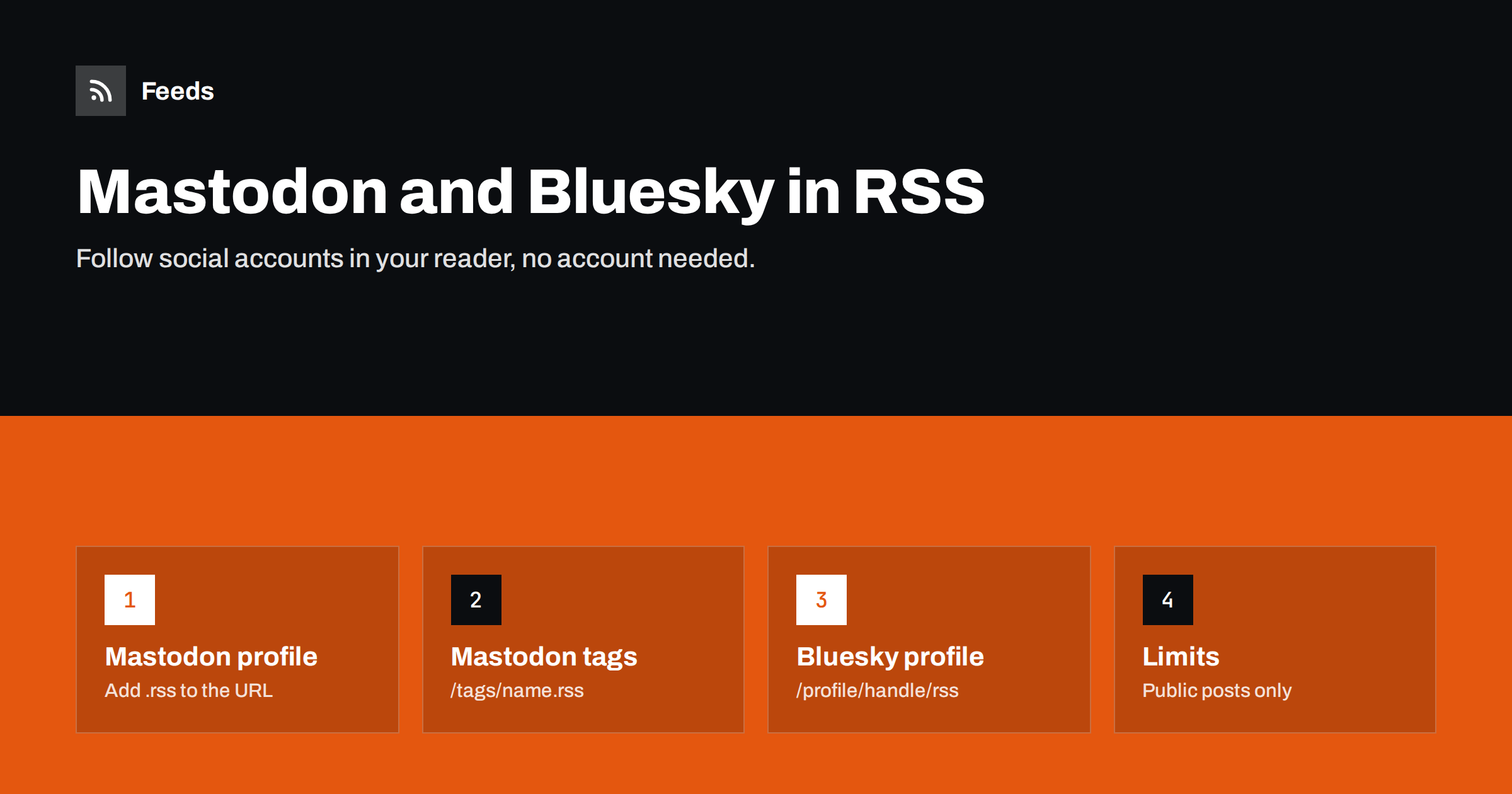
Short answer: Mastodon publishes an RSS feed for every public profile: add .rss to the profile URL, as in https://mastodon.social/@username.rss, and hashtags have feeds at /tags/tagname.rss on each server. Bluesky profiles have a feed at https://bsky.app/profile/handle/rss. Paste these into any RSS reader to follow public posts chronologically, without an account and without an algorithm. Replies, boosts and reposts are usually not included.
Social networks built on open protocols have brought back an old idea: your posts should be readable outside the app that created them. Both Mastodon, part of the wider fediverse, and Bluesky offer RSS feeds for public profiles. For readers, that means you can follow a researcher, journalist, company or public body in the same place you follow blogs and news. For organisations, it means your social posts can reach people who never open a social app. This guide explains how the feeds work, what they include and how to use them well.
Why follow social accounts through RSS
There are good reasons to prefer a reader over the social app for some accounts:
- Chronological and complete. You see every public post, in order, instead of a selection chosen by an algorithm or buried among thousands of others.
- No account required. You can follow accounts on any Mastodon server or on Bluesky without signing up.
- Everything in one place. A company’s blog, press releases, podcast and social posts can sit in one reader folder.
- Calmer reading. No likes, counts or reply threads competing for your attention.
- Automation-friendly. A feed can be filtered, archived or forwarded to other tools.
RSS also helps when you follow people across several networks. A researcher who posts on Mastodon, a journalist who moved to Bluesky and a company that stayed on its own blog can all live in one folder, and you no longer need three apps open to keep up with them.
The trade-off is interaction: you cannot reply, like or boost from most readers. For accounts you only want to read, that is often a benefit.
Mastodon profile feeds
Every public Mastodon profile has a feed. Take the profile URL and add .rss:
- Profile:
https://example.social/@alice - Feed:
https://example.social/@alice.rss
Use the account’s home server, which is the domain after the second @ in the full handle @[email protected]. Viewing a remote profile through another server may give you a different URL, so always go to the home server for the feed.
The feed contains the account’s recent public original posts, with text, links and usually image attachments. Boosts and replies are typically left out, and posts with restricted visibility, such as followers-only posts, never appear. The number of items is limited to recent posts, so a reader that checks regularly will not miss anything, while an archive cannot be reconstructed from the feed alone.
Mastodon hashtag feeds
Mastodon servers also publish feeds for hashtags: https://example.social/tags/opendata.rss. This is useful for following a topic, a conference or a community. Two things to understand:
- Each server sees a different slice. A hashtag feed shows public posts with that tag known to that server: its own users’ posts plus posts from other servers it federates with. Large, well-connected servers show more; small servers may show only a fraction.
- Volume varies wildly. Popular tags can produce hundreds of posts a day. Filter them in your reader or use them for short events only.
For thorough topic coverage, some people subscribe to the same hashtag on two or three large servers and rely on duplicate detection, or merge the feeds and remove duplicates before they reach the reader.
Bluesky profile feeds
Bluesky offers an RSS feed for public profiles at https://bsky.app/profile/handle/rss, where the handle is, for example, alice.bsky.social or a custom domain handle such as example.com. Many readers also find the feed automatically if you paste the profile URL, because the profile page includes an autodiscovery link.
The feed contains the account’s recent posts. As with Mastodon, reposts and replies are generally not included, and interactive elements such as quote threads may appear as plain text with a link. Custom feeds and lists inside Bluesky are separate features and do not map directly to RSS.
A quick reference and troubleshooting
| What you want to follow | Feed URL pattern | Notes |
|---|---|---|
| A Mastodon account | https://server/@username.rss | Use the account’s home server |
| A Mastodon hashtag | https://server/tags/tag.rss | Coverage depends on the server |
| A Bluesky account | https://bsky.app/profile/handle/rss | Handle may be a custom domain |
| Other fediverse software | Varies; check the profile page source | Many platforms offer RSS or Atom |
Platforms change features over time, so if a pattern stops working, view the profile page source and search for application/rss+xml to find the current feed address.
Troubleshooting social feeds
If a feed does not work, the cause is usually simple. A 404 error often means the handle is wrong, the account moved to another server, or you used the address of a remote view rather than the home server. An empty feed may mean the account posts only replies or followers-only posts. If images are missing, your reader may not display media attachments from this kind of feed; open the post link to see them. And if an account has moved, Mastodon shows a notice on the old profile pointing to the new one, whose feed you should use instead.
Organising social feeds in your reader
Social posts are shorter and more frequent than articles, so treat them differently:
- Use a separate folder for social accounts so they do not bury long-form articles.
- Prefer list or card views that show the whole short post without opening it.
- Mute noisy words or filter to the topics you care about for prolific accounts.
- Keep hashtag feeds temporary: follow a conference tag during the event, then unsubscribe.
- Use duplicate detection when following the same content from several servers.
Privacy, etiquette and limits
Feeds make public posts easier to read, which is exactly their purpose, but a few considerations apply, especially if you use feeds at scale:
- Public means public. Posts in a feed can be read, cached and stored by readers and tools. If you post publicly, assume your posts can be followed this way.
- Respect community norms. Parts of the fediverse are sensitive about large-scale collection of posts. Following individual accounts in a reader is normal; building a public archive or search index of other people’s posts without consent is widely frowned upon.
- Deleted posts may linger. A reader that fetched a post before it was deleted may keep a copy. That is a limitation of every feed, not a special feature of these networks.
- Be gentle with servers. Many Mastodon servers are run by volunteers. A normal reader’s polling is harmless; scripts that fetch hundreds of feeds every minute are not.
- Content warnings may appear differently in readers. Some show the warning text first; others show the whole post.
For personal reading and for following organisations’ official accounts, none of this is a problem. It matters mainly if you plan to process social feeds automatically, where respecting servers and people is both polite and sensible.
For organisations: make your posts followable
If your organisation posts on Mastodon or Bluesky, the feed is a free extra channel. Mention it on your website’s “Follow us” or press page next to your blog feed, so people who prefer readers can follow without joining a network. Also consider the reverse direction: many organisations publish their blog feed to social accounts with automation, so every article appears on social media without manual work. Keep posts public if you want them in feeds, and remember that anything public in a feed may be archived by readers and tools.
When a social source has no feed
Not every network or profile page offers RSS, and many organisations announce news only in a “Newsroom” or “Updates” page on their website. For those website pages, our tool, Feeds, creates an RSS feed from the list of items on a public page, uses an existing feed when there is one, and can merge several sources, such as a Mastodon profile feed, a Bluesky feed and a website news page, into one filtered feed with duplicates removed. See the plans for source limits.
Related reading
- How to Get an RSS Feed for Any YouTube Channel or Playlist
- How to Organize Your RSS Reader So It Never Overwhelms You
- How to Automate Social Media Posts from an RSS Feed
The bottom line
Mastodon and Bluesky both publish RSS feeds for public profiles, and Mastodon adds hashtag feeds on each server. Add .rss to a Mastodon profile URL, use /tags/tag.rss for topics, and /profile/handle/rss on Bluesky. Put social feeds in their own reader folder, filter prolific accounts, and enjoy following people chronologically, on your own terms, without needing an account.
FAQ
Does Mastodon have RSS feeds?
Yes. Every public profile has a feed: add .rss to the profile URL on the account’s home server. Hashtags also have feeds at /tags/tagname.rss on each server.
Does Bluesky have RSS feeds?
Yes. Public profiles have a feed at bsky.app/profile/handle/rss. Many readers find it automatically when you paste the profile address.
Do I need an account to follow someone through RSS?
No. Feeds for public profiles are available to anyone. You only need an account if you want to reply, like, repost or see non-public posts.
Why don’t I see replies and boosts in the feed?
Profile feeds generally contain only the account’s own public posts. Replies, boosts and reposts are usually left out, which keeps the feed focused on original content.
Why does a Mastodon hashtag feed show different posts on different servers?
Each server only knows about posts from its own users and from servers it federates with. Large, well-connected servers see more posts with a given hashtag than small ones.


