 ENEnglish
 LTLietuviškai
 DEDeutsch
 FRFrançais
 RUРусский
 ESEspañol
 PLPolski
 ITItaliano
 UKУкраїнська
 CSČeština
 PTPortuguês
 JA日本語
JA日本語 LVLatviešu valoda
 ETEesti
 HUMagyar
 IDBahasa Indonesia
 TRTürkçe
 HIहिन्दी
 ELΕλληνικά
 ARالعربية
 THไทย
THไทย VITiếng Việt
 RORomână
 MSBahasa Melayu
 BNবাংলা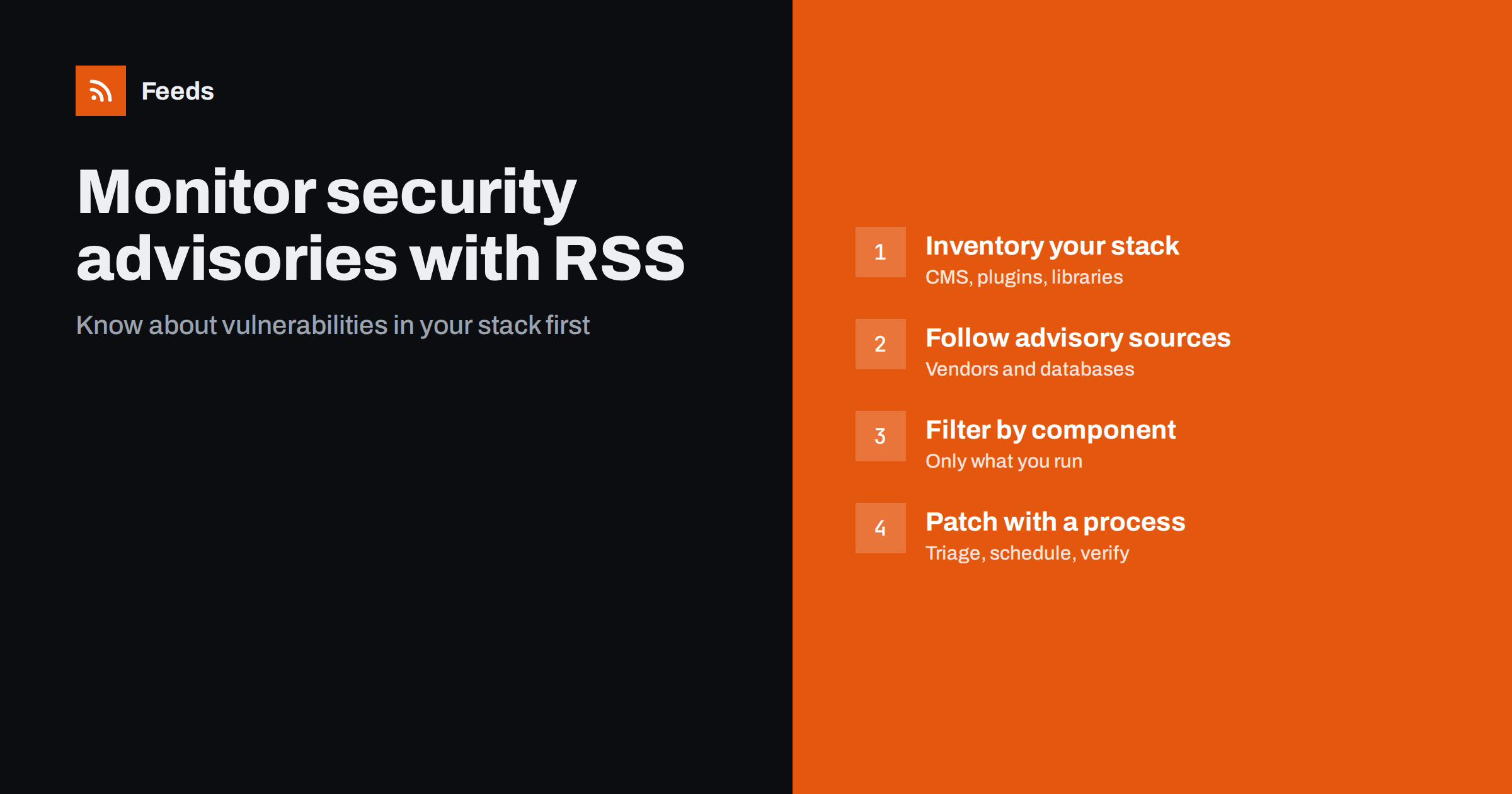
Short answer: Make an inventory of the software your website runs, including the CMS, plugins, themes, libraries and server components. Then follow the security advisory pages and release notes of each vendor, plus a few vulnerability databases, as RSS feeds. Filter the broad sources for the names of your components, send matches to whoever maintains the site, and handle each one with a simple triage and patching routine.
Most successful attacks on small and mid-sized websites do not use clever new techniques. They use known vulnerabilities in outdated software: a plugin with a published flaw, a library that was patched months ago, a CMS version that no longer receives updates. The fix was usually available, and the advisory was public. What was missing was someone noticing it in time. Feed-based monitoring is one of the cheapest ways to close that gap. It does not replace updates, backups or a firewall, but it makes sure the people responsible hear about relevant fixes promptly and can decide what to do.
Where security advisories are published
Advisories reach the public through several channels, each with different speed and detail.
| Source | What it covers | Why follow it |
|---|---|---|
| Vendor security pages | Advisories for one product | Most authoritative, includes fixed versions |
| Vendor release notes | Security fixes mentioned in regular releases | Often the first public mention of a fix |
| Ecosystem advisory databases | Plugins, packages or libraries of one ecosystem | Covers many small components at once |
| National vulnerability databases and CERT teams | Broad coverage across vendors | Standard identifiers, severity scores |
| Security researchers’ blogs | Detailed analyses of specific issues | Context on real-world exploitation |
Many of these sources publish RSS or Atom feeds, particularly national CERT teams and vulnerability databases. Vendor security pages vary: large vendors often offer feeds or mailing lists, while plugin authors may only post a note in a changelog.
Step 1: Inventory your stack
You cannot monitor what you have not listed. Build an inventory for each website you are responsible for.
- Platform: the CMS or store platform and its version.
- Extensions: every plugin, module, theme and integration, including inactive ones that are still installed.
- Libraries: JavaScript and server-side libraries bundled in your theme or custom code.
- Server components: web server, language runtime, database, control panel, if you manage the server yourself.
- Third-party services: embedded widgets, payment forms and other services loaded on your pages.
Record the vendor and the page where each component announces updates. This list is also useful for other purposes, such as planning upgrades and removing components you no longer need. Every unused plugin you delete is one less thing to monitor.
Step 2: Get feeds for every advisory source
For each component, find the best source of security news. In order of preference:
- The vendor’s dedicated security advisory page, if it has a feed.
- The vendor’s release notes or changelog feed, since security fixes usually appear there.
- A feed created from the vendor’s advisory or changelog page, if it has no feed of its own.
Then add broad sources: the advisory feed of your platform’s ecosystem, and the feed of your national CERT or a major vulnerability database. These cover components whose vendors do not publish much themselves.
Pay attention to identifiers. Most advisories carry a CVE identifier, and ecosystem databases often add their own. When the same issue appears in several feeds with different links, the identifier tells you it is one vulnerability, not three. Recording the identifier in your triage notes also makes it easy to check later whether a fix was applied.
Finally, decide on delivery. Advisory feeds are among the few where speed genuinely matters, so the filtered result should go somewhere a responsible person sees during the working day, not a folder reviewed once a month. A separate, unfiltered folder for the broad sources can be skimmed weekly for context and trends.
Step 3: Filter broad sources by component name
Broad databases publish far more advisories than any one website needs. Filter them for the names of the components in your inventory.
- Use exact product names, including the plugin’s distinctive name rather than generic words.
- Include the vendor name for products with generic names.
- Add your platform name to catch advisories that mention the ecosystem.
- Do not filter vendor-specific feeds; everything they publish is relevant.
Filters usually see the advisory title and summary, which in vulnerability feeds normally include the product name, so name-based filtering works well here. Revisit the filter list whenever you add or remove components.
Step 4: Triage every match
An advisory is a question: does this affect us, and how urgently? A short triage routine answers it consistently.
- Do we run the affected component? Check the inventory.
- Is our version affected? Compare with the affected and fixed versions in the advisory.
- How severe is it? Consider the severity score and, more importantly, whether exploitation requires a login or works for anonymous visitors.
- Is it being exploited? Advisories and researcher posts often say so. Active exploitation means act immediately.
- Decide and record: patch now, patch in the next maintenance window, apply a mitigation, or no action, with a note explaining why.
Step 5: Patch and verify
Monitoring only reduces risk if it leads to updates. Keep a regular maintenance window for routine updates and a fast path for critical ones. After updating, check that the site works and that the version number has actually changed. For components you cannot update quickly, look for mitigations the advisory suggests, such as disabling a feature, or remove the component if it is not essential.
Keep backups before updating, and test major updates on a staging copy when possible. The goal is a routine that makes updating normal rather than risky. Over time, a record of advisories and the dates you patched them also shows clients, auditors or insurers that security maintenance is done systematically.
Common mistakes
- Monitoring only the CMS core. Most website vulnerabilities are in plugins and themes, not in the core platform.
- Forgetting inactive plugins. Installed but inactive code can still be vulnerable on some platforms. Remove what you do not use.
- Relying on automatic updates alone. They help, but they do not cover everything, can fail silently and may be disabled for some components.
- No owner. Advisory feeds sent to a shared inbox that nobody reads protect nobody.
- Letting the inventory go stale. A new plugin added by a colleague will not be in your filters unless someone updates them.
- Treating every advisory as an emergency. Alert fatigue is real. Triage calmly, and keep the fast path for issues that are severe and exploitable.
A worked example
A small agency maintains fifteen client websites on the same CMS. It builds a single inventory spreadsheet listing every plugin and theme across all sites, about sixty components in total. It follows the CMS’s security release feed, the ecosystem’s plugin vulnerability feed and the national CERT’s advisory feed, filtered for the sixty component names. For eight premium plugins whose vendors publish updates only on a changelog page, it generates feeds from those pages.
All matches go to a channel watched by the developer on duty that week. Each item gets a short triage note in the spreadsheet. Routine updates are applied every Tuesday; critical, exploitable issues are patched the same day. When a widely used form plugin receives a critical advisory, the agency knows within hours which four client sites run it and updates them before lunch.
How Feeds helps
Feeds is useful for the vendor pages that publish security notes or changelogs without a feed. It turns those pages into RSS by finding the list of entries, uses an existing feed when there is one, and shows a preview before anything is created. You can merge several advisory sources into one feed and keep only items that mention your components, with duplicates removed automatically. Feeds refresh on their own, and paid plans alert you if a feed stops finding items. Feeds does not scan your website for vulnerabilities; it helps you follow the sources that announce them. See the plans.
Related reading
- How to Follow Software Changelogs and Release Notes with RSS
- How to Set Up Keyword Alerts Using RSS Feed Filters
- How to Merge Multiple RSS Feeds into One Clean Feed
The bottom line
Most website compromises exploit known, already-fixed vulnerabilities. Keep an inventory of everything your site runs, follow vendor and ecosystem advisory sources as feeds, filter broad sources by component name, and triage every match with a clear decision. Combined with a regular update routine, this turns public advisories into protection rather than headlines you read too late.
FAQ
How do I find out about vulnerabilities in my website plugins?
Follow your platform’s plugin vulnerability sources and each plugin vendor’s changelog or security page, ideally as RSS feeds. Filter broad sources for the names of plugins you actually run.
Do vulnerability databases have RSS feeds?
Many do, including national CERT teams and major vulnerability databases. Because they cover many vendors, filter them for your component names to keep the volume manageable.
Are automatic updates enough to stay secure?
They help a lot, but they do not cover every component, can fail silently and are sometimes disabled. Monitoring advisories lets you confirm that critical fixes were actually applied.
How quickly should I patch a vulnerability?
It depends on severity and exploitability. Issues that anonymous visitors can exploit, especially if exploitation is already happening, deserve same-day attention; others can wait for a regular maintenance window.
Can a feed tool scan my site for vulnerabilities?
No. Feed tools help you follow the sources that announce vulnerabilities. To find vulnerable components on your site, compare your inventory with advisories or use a dedicated security scanner.


