ENEnglish
 LTLietuviškai
 DEDeutsch
 FRFrançais
 RUРусский
 ESEspañol
 PLPolski
 ITItaliano
 UKУкраїнська
 CSČeština
 PTPortuguês
 JA日本語
JA日本語 LVLatviešu valoda
 ETEesti
 HUMagyar
 IDBahasa Indonesia
 TRTürkçe
 HIहिन्दी
 ELΕλληνικά
 ARالعربية
 THไทย
THไทย VITiếng Việt
 RORomână
 MSBahasa Melayu
 BNবাংলা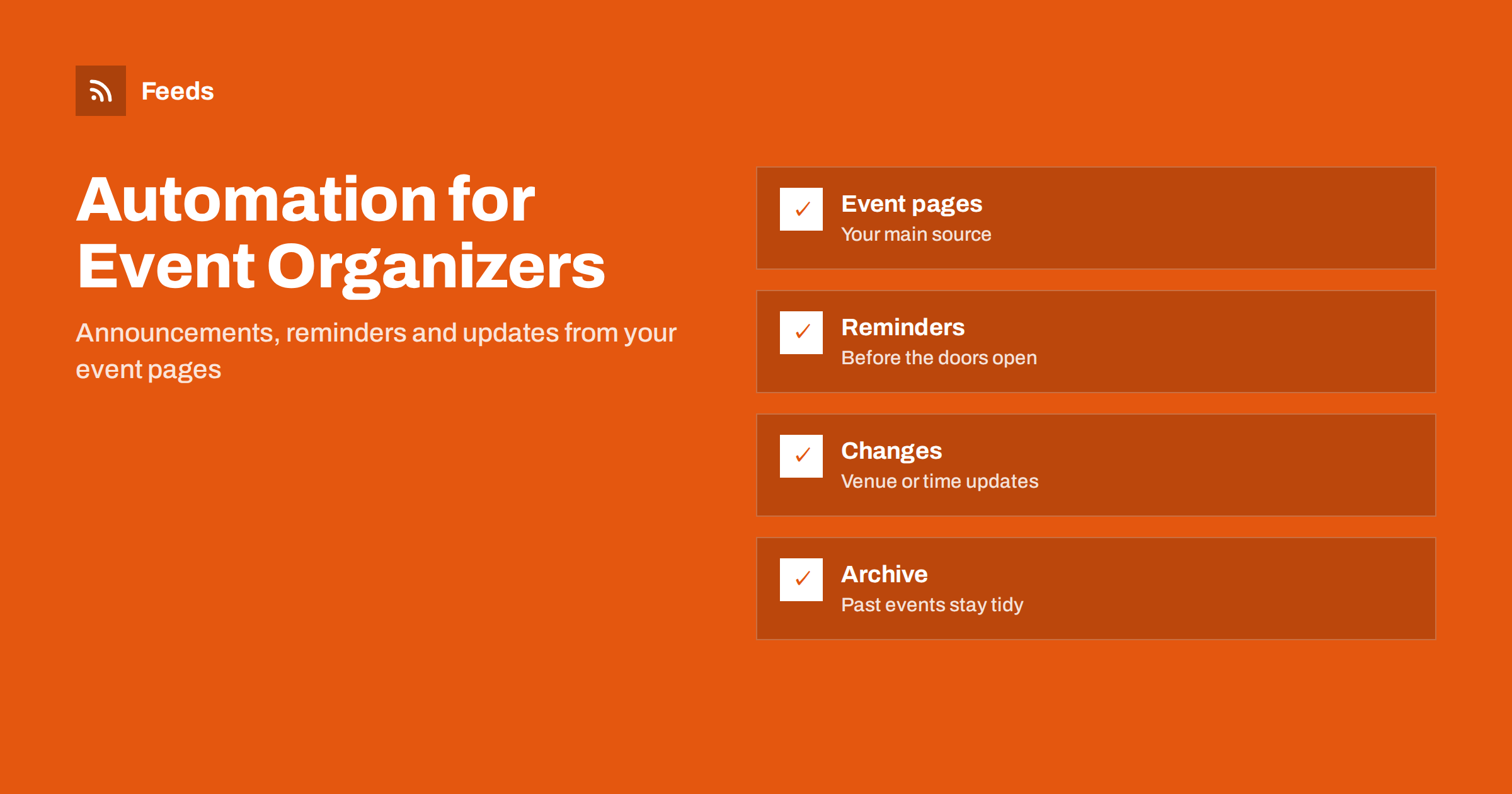
Short answer: Event organizers repeat the same communication again and again: announce, remind, update and follow up. If your event listings live on a web page, you can turn that page into a feed and let a tool create the announcement and reminder posts for you. Keep a human check for dates, times and venues, treat changes and cancellations as manual messages, and use automation for the routine rhythm around each event.
The communication load of running events
A single event creates a long chain of messages. There is the first announcement, an early-bird reminder, a lineup or speaker reveal, a “last chance” push, practical details such as parking and doors-open times, a day-of reminder and a thank-you with photos. Multiply this by a season with dozens of events, and the marketing becomes a second full-time job. Venues have the same problem with many different promoters and a calendar that changes weekly.
The calendar is usually the one thing that is kept accurate, because it has to be: the website listing, the ticketing page, the venue’s “what’s on” page. That makes it the best source for automation. If the facts are updated in one place, the posts can follow. The general approach is described in how to promote your event calendar automatically, and the structure of an event feed in creating an event calendar RSS feed.
Choose the source of truth
Decide which page holds the correct date, time, venue and ticket link. For most organizers that is the event page on their own website or the ticketing page. Everything else, including social posts, newsletters and partner listings, should be derived from it. If there are two versions of the facts, an automated post will sooner or later copy the wrong one.
Check the page structure. A page that lists upcoming events, each with a title, a date, a short description, an image and a link, can be turned into a feed. Each new event then becomes a new feed item. If the listing page has no RSS feed, you can create one, as described in creating an RSS feed for a website without one. Many ticketing platforms also provide their own listing pages or feeds, which you can use if they are public.
Plan the message rhythm for each event
Automation works best when you decide the pattern once. A simple rhythm for a typical event might be:
- Announcement: when the event first appears on the page. This is the post that the feed triggers by itself.
- Reminders: scheduled posts a few weeks and a few days before, using the same data. These can be prepared when the announcement is created.
- Day-of post: doors open, entrance, any last-minute information.
- Follow-up: thanks, photos and a link to the next event.
The announcement can be fully automatic once you trust the source. Reminders can use a template that fills in the date and the link. Follow-ups usually need a human touch, because a good photo and a short personal message do more than a templated line. Templates and variables are explained in writing post templates for automated social media feeds.
Handle changes, sell-outs and cancellations by hand
Automation is weakest where events are not routine. A moved date, a changed venue, a cancelled performance or a sold-out evening need clear, quick and well-worded messages. Do not let a scheduled reminder go out for an event that has changed. Make it a habit that when an event changes, you check the queue of scheduled posts first and pause or edit anything related.
The same problem exists with edited and deleted source items: a tool may not know that the original item was corrected or removed. Read edited and deleted source items in automated posting and write down a simple procedure for your team. For cancellations, it is better to publish a manual post immediately and then pause the automation for that event.
Write for each audience and channel
The audience for an event is rarely one group. Regular visitors want quick facts, new visitors need to know what to expect and partners want visibility. Adjust posts by channel while keeping the same facts: a short post with a picture for social networks, a longer message with practical details for email, and a link in a chat group for volunteers or staff. Do not copy the whole description everywhere, because search and social platforms tend to show duplicated text less favourably.
Always include the essentials: what, where, when and how to get tickets. Use the same date format everywhere, and mention the time zone if you have visitors from other countries, which is relevant for online events. Add tracking parameters to ticket links to see which channels sell, as in UTM tags for automated posts.
Think about the people behind the posts, too. Venues often work with promoters, artists, speakers and sponsors who want visibility. Agree in advance what you will post, how you will describe them and whether they have to approve texts and images. An automated post that spells a performer’s name wrongly, or uses a picture they have not approved, is a quick way to upset a partner. Keep a short checklist of names, hashtags and tags that you use for each series, and add it to your templates.
Accessibility information is another part of the message that is easy to forget. If the venue has step-free access, a quiet room, a hearing loop or seating, mention it on the event page, and include a line about it in the post when it is relevant. Visitors who need this information often cannot ask at the last minute, and an accurate answer gives them confidence to book.
Keep the archive tidy
Past events should not stay in the “upcoming” list, and automation should not promote them. Make sure your listing page removes events after they take place, or moves them to an archive page. If the listing page keeps old events, set up a filter that ignores items with old dates, or limit the number of items in the feed. Keep an archive of past events as it is good for trust and search, but do not let it feed the promotion rhythm.
Think also about recurring events, such as a weekly quiz or a monthly market. A single listing with a long list of dates is difficult to turn into a feed. If each date is a separate item with its own link, automation works better, and posts can announce “this Friday” without any confusion.
Finally, learn from each season. After a few events, compare which posts led to ticket sales, which reminders worked and which channels brought nothing. Keep the rhythm that worked and drop the posts that did not. Automation makes this review easy, because every event follows the same pattern and the results are comparable. A small spreadsheet with the event name, the dates of posts and the number of tickets sold in the following days is enough to show you where the effort pays off.
One more habit is worth building: a short review of the next fourteen days every Monday. Open the events list, compare it with the queue of scheduled posts and check that dates, times and links agree. The review takes ten minutes, catches almost every mistake before the audience does and makes the team confident that the automation is under control rather than running unattended. If something looks wrong, fix the source page first and let the feed carry the correction, so that every channel receives the same corrected facts.
How RSS Feed Creator helps
RSS Feed Creator turns a listing page into an RSS feed with titles, images, summaries and dates, and shows a preview before anything is created. It uses an existing feed when the page has one. You can merge sources, up to 10 on paid plans, which helps venues that publish events from several promoters, and you can keep or exclude items by keywords, for instance to keep only one series. Duplicates are removed automatically. Feeds refresh every 3 hours on the free plan and every 30 minutes on paid plans, and paid plans send an alert if a feed stops finding items. See the pricing page for details.
Related reading
- Call for speakers alerts with RSS
- Ticket release alerts with RSS
- Content automation for hospitality and tourism
The bottom line
Event communication is repetitive, and automation can carry the routine part. Keep one source of truth, turn the listing page into a feed, define a rhythm of announcements and reminders, and write follow-ups yourself. Treat changes and cancellations as manual messages, keep the archive clean and review the queue whenever the calendar changes.
FAQ
Can I automate event announcements without a ticketing integration?
Yes. If your event listing page is public, it can be turned into a feed, and each new event becomes an item that an automation tool can post.
What if an event is moved or cancelled?
Pause the scheduled posts for that event and publish a manual message. Automation does not always notice that the original item was edited or removed.
How many reminders should I send?
A few are enough: one or two weeks ahead, a few days before and one on the day. Too many reminders annoy followers and lower reach.
Can a venue combine events from several promoters?
Yes. Merge the sources into one feed, remove duplicates and use keywords to keep only the series or categories you want to promote.
Should follow-up posts be automated?
Usually not. Photos and a personal thank-you work better when a person writes them, so keep follow-ups manual and automate the announcements.