ENEnglish
 LTLietuviškai
 DEDeutsch
 FRFrançais
 RUРусский
 ESEspañol
 PLPolski
 ITItaliano
 UKУкраїнська
 CSČeština
 PTPortuguês
 JA日本語
 LVLatviešu valoda
 ETEesti
 HUMagyar
 IDBahasa Indonesia
 TRTürkçe
 HIहिन्दी
 ELΕλληνικά
 ARالعربية
 THไทย
 VITiếng Việt
 RORomână
 MSBahasa Melayu
 BNবাংলা
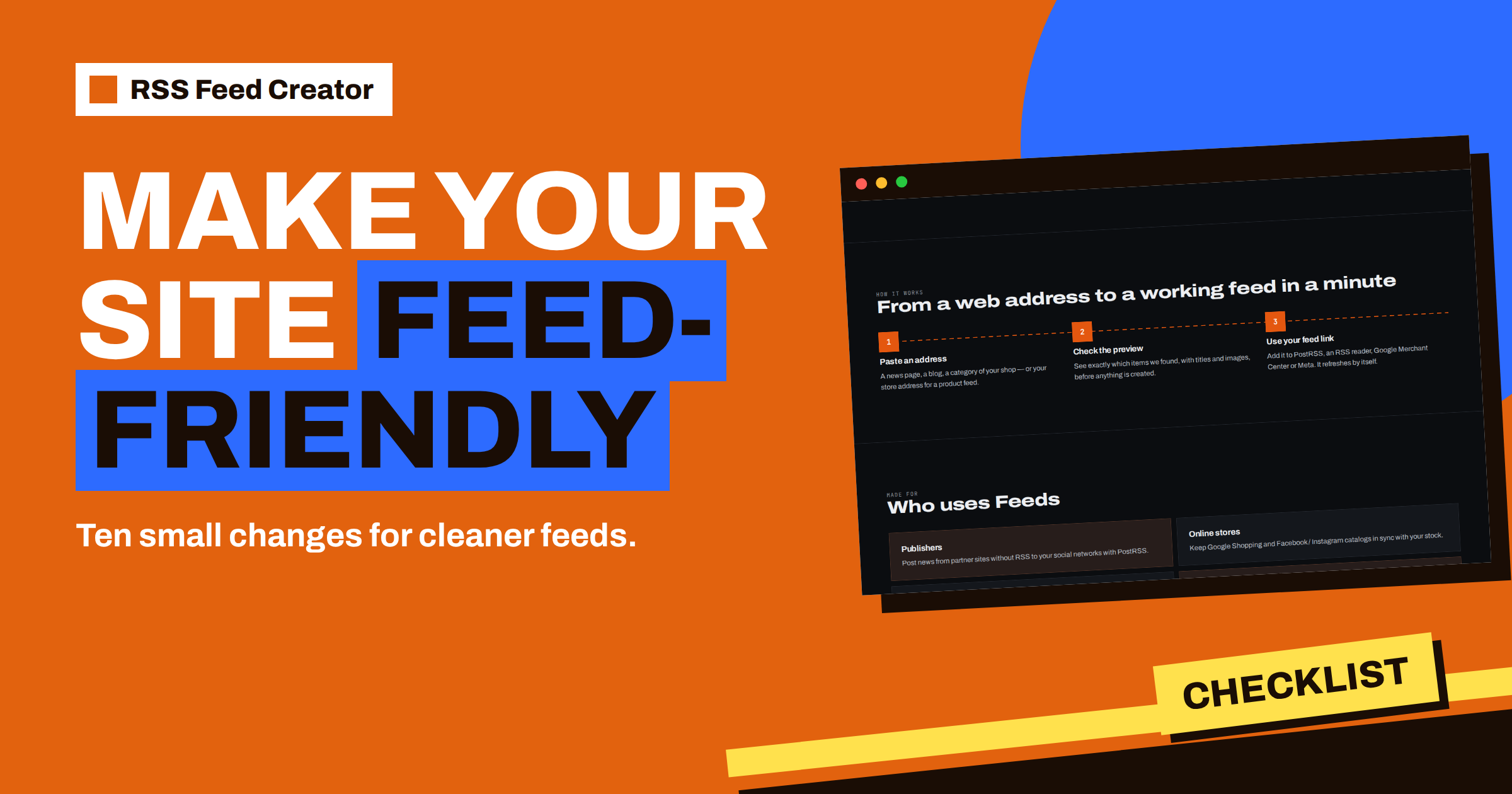
Short answer: You do not have to change anything on your site for RSS Feed Creator to read it, but a few small changes make the result much cleaner. Announce your own feed in the page header. Add article data in JSON-LD to list pages. Give each card a heading, a link, a picture, a date and a clear sentence. Keep a sitemap with dates. Fill in titles and Open Graph tags on every page. Do not hide pages you want in a feed with noindex, and do not block the tool’s visitor, FeedsBot. This checklist explains each one and why it works.
Why site owners should care
A feed made from a page is a mirror of what the page offers to a machine. If the page is organised, the mirror is sharp: every item has a title, a link, a picture, a date and a short text. If the page is a tangle of scripts and unlabelled blocks, the mirror is blurred, and a tool has to guess. RSS Feed Creator guesses well, because it checks several sources of information in a fixed order, but it cannot invent what is not there.
The good news is that the changes that help a feed also help search engines, social previews and other tools. They are ordinary good practice for a content site. Each of the ten points below is based on how the tool actually reads a page, which is described in how RSS Feed Creator finds items on pages without RSS. You can do them in any order, and each is worth doing alone.
1. Announce your own feed
The best feed is the one your site publishes itself. If your site generates an RSS or Atom feed, announce it in the head of every page with a link element whose type says it is an RSS or Atom feed. The tool then lists the feed address in the preview and can use it directly, and any reader that does feed discovery finds it too. Comment feeds are ignored, so announcing them does no harm, but it does not help either. If your platform has a feed, check that it contains full titles, links and dates, and a short description for each entry.
2. Add article data to list pages
For pages without a feed, the tool first looks for structured article data in JSON-LD, the format that search engines use. It understands entries of the types Article, BlogPosting, NewsArticle and Product. Each entry needs an address and a headline, or at least a name, and it may carry a picture and a description. The data can sit in a graph or in a list of items. The tool uses this route when it finds at least three entries, and it is the most reliable route, because the data is already organised for machines. The background is in how JSON-LD structured data helps turn pages into feeds.
3. Give every card a clean structure
If there is no article data, the tool looks for a repeated block of cards, such as twelve article teasers. A good card has these parts:
- A heading with a link. A heading of level one to four, or an element whose class name contains the word title, with at least eight characters, and a link to the article.
- A picture. The tool understands ordinary pictures, lazy-loaded pictures that keep their address in a data attribute, and picture sets.
- A date. A time element with a date in a standard form is read first.
- A teaser. A paragraph of at least 40 characters that is not the same as the title.
The group needs at least three blocks with three different links. Class names that suggest content, such as article, post, news, entry, item, card, story, blog or teaser, give a block an advantage over menus and widgets. If your theme builds cards from generic wrappers without any of this, the tool may still find them, but a clean structure leaves less to chance.
4. Keep content in the HTML
RSS Feed Creator reads the page as it is delivered, like a simple visitor. It does not run scripts. If your list is built in the browser from data fetched after the page loads, the delivered page has no cards, and the preview reports that no list of items was found. If you use such a design, keep a plain HTML version of the list, a server-rendered page or an archive page, and keep article data in JSON-LD in the delivered page. The difference matters more than any other point in this list.
Also keep menus, headers, footers and sidebars in their proper elements. The tool removes navigation, header, footer, aside and form elements before it looks for cards, so content placed in them is ignored, which is just what you want for menus and just what you do not want for articles. Links to tag, category, author, numbered-page, search, login and cart addresses are also skipped.
5. Make the list continue
A feed for a whole section needs more than the first page. Mark the next page with a link that says it is the next page in the header or in the pagination, or use the common address forms /page/2/ or ?page=2 and make sure the page links to them. The tool follows them for a limited number of pages. The next layer, the sitemap, is described in RSS Feed Creator beyond page one: whole-section feeds.
Sitemap and meta tags
6. Publish a sitemap with dates
When the list pages do not fill the feed, the tool reads your sitemap. Announce it in robots.txt with a sitemap line, or use one of the usual names: sitemap_index.xml, sitemap.xml or wp-sitemap.xml. Include the last-modified date of each address, because it is used as the date of an item when the page itself does not state one. Split large sitemaps by content type; the tool prefers the files for posts, products, articles and news, and skips those for tags, categories, authors, languages, pictures and videos. The comparison between sitemaps and feeds is in sitemap vs RSS: which is better for detecting new pages?.
7. Fill in the meta tags
For each page found through the sitemap, the tool reads the head of the page. It takes the title from the Open Graph title or the page title, the description from the Open Graph description or the ordinary description, the picture from the Open Graph image and the date from the article published time or the article data. A page without a usable title is skipped. Write a clear title and a sentence of description for every page, and add a picture of decent size. These are the same tags that social networks use for link previews, so the work pays twice. The picture rules are explained in pictures in your feed: where RSS Feed Creator finds images.
Visibility and stability
8. Do not hide what you want to share
Pages that carry a robots meta tag with noindex are left out when they are found through the sitemap. This is correct for drafts and thank-you pages, but it is a trap for pages that were hidden by accident, for example by a plugin setting or a staging configuration that went live. Check the pages you want in a feed. Also check that your firewall, security plugin or hosting rules do not block the tool’s visitor, which is named FeedsBot. A site that blocks it answers with an error, and the preview shows the status code.
9. Keep addresses stable
The link of an item is also its identifier. Readers and posting tools use it to know whether they have seen an item before, and the tool removes duplicates by comparing links, ignoring capital letters and a final slash. If you change the address of an article, for example by altering the slug, the item appears as a new one. Choose addresses carefully, redirect old ones permanently when you must change them and avoid adding tracking parameters to links inside your own lists.
10. Test with the preview
When you have made your changes, paste your own list page into the preview on the home page. It is free, it creates nothing and it shows exactly which items the tool finds, with titles, pictures and dates. Compare it with what you expected. If an item is missing or looks poor, the causes in the list above are the first places to look. Do this again after a redesign, because new themes often change the markup. The tool is made to cope with layout changes, as described in when a page layout changes: how RSS Feed Creator copes, and a quick preview after each change confirms it. The limits on the number of items are on the pricing page.
Related reading
- RSS Feed Best Practices for Publishers: A 24-Point Checklist
- RSS Feed Creator Preview: Check Every Item Before You Create
- How JSON-LD Structured Data Helps Turn Pages into Feeds
The bottom line
A feed-friendly site announces its feed, carries article data, builds clear cards, keeps content in the HTML, links its pages, publishes a dated sitemap, fills in meta tags, avoids accidental noindex and keeps stable addresses. None of it is required, and all of it helps. Test with the free preview and you will see the difference at once.
FAQ
Do I have to change my site to use RSS Feed Creator?
No. The tool reads public pages from the outside. The changes in this list only make the result cleaner.
Which change helps most?
Keeping the list of articles in the delivered HTML, with article data in JSON-LD. The tool does not run scripts, so content built only in the browser cannot be read.
Does the tool follow robots rules?
It reads the sitemap lines in robots.txt, and it leaves out pages found through the sitemap that carry a noindex tag. Make sure it is not blocked by a firewall.
Why did my new theme break the feed?
A redesign changes the markup of the cards. Check the preview after a redesign and use the checklist above to restore a clear structure.
Should I add a feed if the tool can read my pages?
Yes, if your platform makes it easy. A feed that you maintain is the most stable source, and the tool will use it directly.