 ENEnglish
 LTLietuviškai
 DEDeutsch
 FRFrançais
 RUРусский
 ESEspañol
 PLPolski
 ITItaliano
 UKУкраїнська
 CSČeština
 PTPortuguês
 JA日本語
JA日本語 LVLatviešu valoda
 ETEesti
 HUMagyar
 IDBahasa Indonesia
 TRTürkçe
 HIहिन्दी
 ELΕλληνικά
 ARالعربية
 THไทย
THไทย VITiếng Việt
 RORomână
 MSBahasa Melayu
 BNবাংলা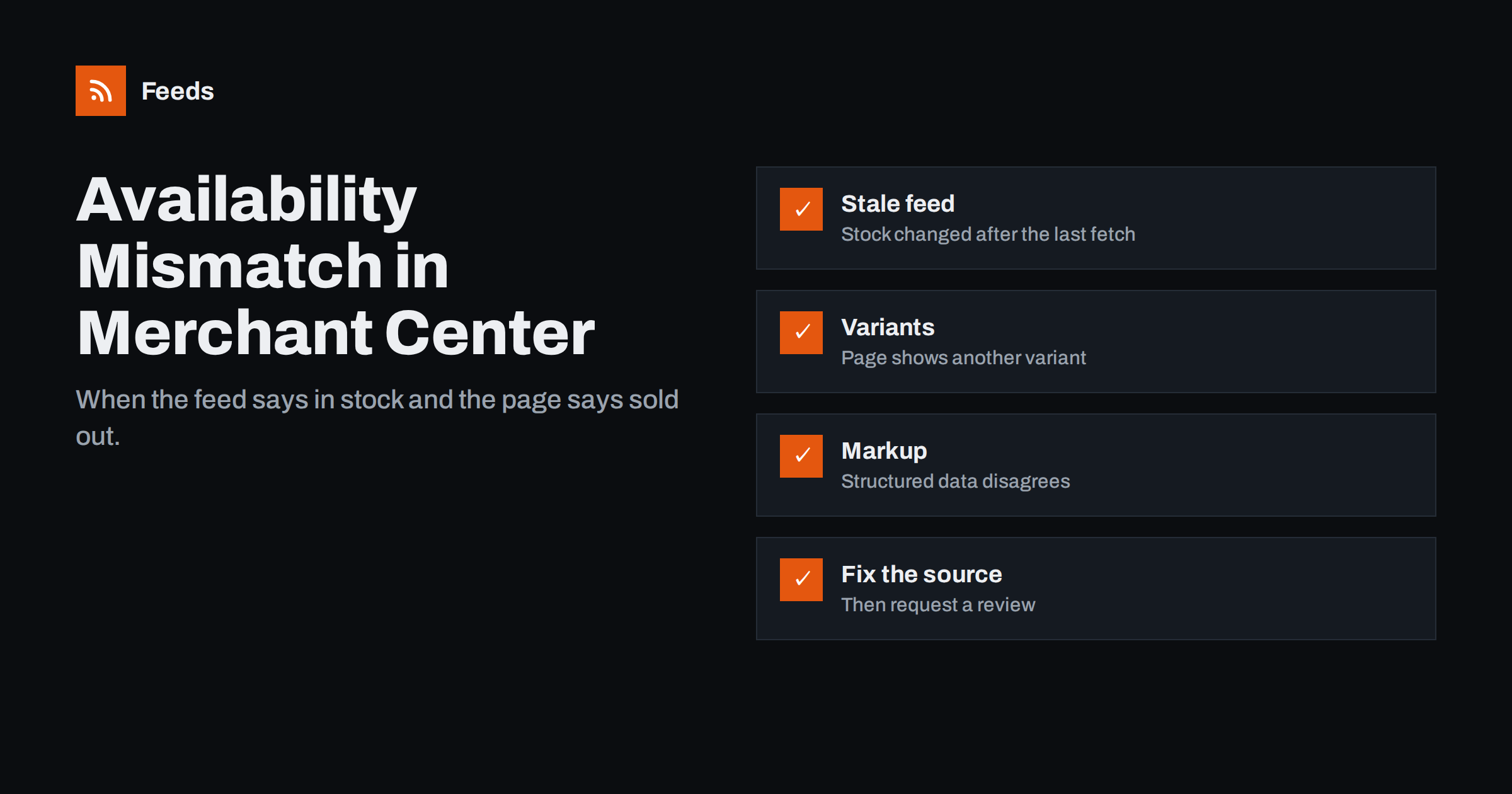
Short answer: an availability mismatch means Google saw one stock status in your product feed and a different one on your product page. The usual causes are a feed that updates less often than stock changes, a product page that shows a different variant than the feed item, structured data that says something else than the visible page, or caching. Fix the source of truth first, make the feed refresh often enough, align your page markup, and the affected items will be re-checked and approved again.
What the error means
Google Merchant Center regularly visits the landing pages of the products you submit. It compares key values on the page, such as price and availability, with the values in your feed. When the feed says in_stock but the page shows the product as sold out, or the other way round, the item is flagged with an availability mismatch. The item may be disapproved until the values agree again.
Google is strict about this for a simple reason: a shopper who clicks an ad for an available product and lands on a “sold out” page has a bad experience. Consistent data is part of the promise of Shopping ads and free listings. The same logic applies to price, which is covered in our guide to fixing price mismatch errors.
Occasional mismatches happen to every store, especially during sales. Persistent or widespread ones deserve attention, because they reduce the number of products that can show and can lead to further warnings on the account.
Cause 1: the feed updates less often than your stock
This is the most common cause. A feed fetched once a day cannot reflect a product that sold out at 10:00. For the rest of the day the feed says “in stock” while the page says “out of stock”, and a crawl in that window triggers the mismatch.
How to fix it:
- Increase the fetch frequency in Merchant Center if your feed source can support it, or use a feed that is regenerated whenever it is requested.
- Avoid manual exports. A CSV exported by hand once a week will always drift from reality.
- Consider automatic item updates. Merchant Center can update availability and price based on structured data it finds on your pages. This reduces disapprovals, but it only works well when your page markup is accurate.
How often is often enough depends on how fast your stock moves. The trade-offs are explained in how often a product feed should update.
Cause 2: variants and default selections
Products with sizes or colours are a frequent source of mismatches. Each variant is a separate item in the feed with its own availability, but all variants may share one product page. If the feed item for “blue, size M” links to the base product URL and the page loads with “red, size S” preselected, Google checks the wrong variant.
Fixes:
- Use variant-specific URLs, typically with a parameter that preselects the variant, so the landing page shows exactly the item from the feed.
- Keep availability per variant in the feed, not a single value for the whole product.
- Group variants correctly with
item_group_id, as described in how item_group_id works.
Also watch the case where every variant is sold out except one. The page may say “in stock” because at least one option is available, while most variant items in the feed are correctly marked out of stock. Variant-specific URLs solve this too.
Cause 3: structured data says something different
Google reads the schema.org Product markup on your page, including offers.availability. If your theme hard-codes InStock, or a plugin outputs markup from cached data, the markup can contradict both the feed and the visible page. Google’s documentation on product structured data lists the supported availability values.
Check a product that is currently sold out:
- Open the page and view its source, or use a structured data testing tool.
- Find the Product markup and its availability value.
- Compare it with what the page shows and what the feed contains.
If the three disagree, fix the markup at the theme or plugin level so it is generated from live stock. The relationship between markup and feeds is covered in product structured data vs product feed.
Cause 4: caching, geography and special stock states
Several less obvious causes produce the same error:
- Page caching. A full-page cache or CDN may serve an old version of the product page for hours. Exclude stock status from long caches, or purge the product page when stock changes.
- Stock by location. If your site shows availability based on the visitor’s country or chosen store, Google’s crawler may see a different state than your feed describes.
- Backorders and preorders. A product that can be ordered but ships later should use
backorderorpreorderin the feed, with an availability date, notin_stock. - Low-stock thresholds. Some shops show “sold out” when fewer than two items remain, while the feed still exports the raw quantity as available.
- JavaScript-rendered stock. If the page loads availability with a script after the initial HTML, the crawler may see a placeholder. Render the status in the HTML where possible.
A step-by-step diagnosis
- Open the diagnostics in Merchant Center and export the list of items with availability issues.
- Look for a pattern: one category, only variants, only products that recently sold out, or a specific time of day.
- Check three sources for five sample items: the feed value, the visible page and the page’s structured data.
- Note when the feed was last fetched and compare it with when stock changed.
- Fix the cause at the source: the store’s stock logic, the markup, the URLs or the update schedule.
- Refetch the feed and let Google recrawl. Items usually recover after the next successful check.
| Pattern | Likely cause | First fix |
|---|---|---|
| Mostly items that sold out today | Feed updates too rarely | More frequent fetches or automatic updates |
| Mostly variants | Base URL shows another variant | Variant-specific landing URLs |
| Page and markup disagree | Hard-coded or cached markup | Generate markup from live stock |
| Random items, any time | Page cache or CDN | Purge product pages on stock change |
| Items that ship later | Wrong availability value | Use backorder or preorder |
Busy periods: sales, launches and limited stock
Availability mismatches cluster around the moments that matter most commercially. During a big sale, stock can go from dozens to zero in an hour. A product launch may start with a preorder phase and switch to available on a fixed day. Limited editions sell out quickly and never return. In each case the gap between the feed and the page grows exactly when traffic is highest.
Plan for these moments in advance:
- Shorten the refresh interval before a sale starts, not after errors appear.
- Prepare launch items with
preorderand an availability date, then let the store switch them to in stock automatically on the release day. - Remove sold-out limited items from the feed once they will not return, instead of leaving them marked out of stock for months.
- Avoid purging and rebuilding the whole catalog during peak hours; a partial or empty feed fetch causes more trouble than a few mismatches.
- Check the diagnostics daily during the busy period and fix patterns the same day.
After the period ends, review which products caused most issues. They usually point to a structural problem, such as variant URLs or caching, that is worth fixing before the next campaign.
Preventing it from coming back
Once the backlog is fixed, a few habits keep mismatches rare:
- Treat the store as the single source of truth and generate the feed from it automatically.
- Decide what to do with out-of-stock products and apply it consistently, as discussed in out-of-stock products in your feed.
- Test a sold-out product and a variant product after every theme or plugin update.
- Review the availability issue count weekly during busy periods, when stock changes fastest.
How Feeds helps
Feeds builds Google product XML with id, title, link, image, price, availability and brand straight from a WooCommerce or Shopify store, or from a CSV file link, so the availability value comes from the store rather than from a manual export. You can choose to skip out-of-stock products entirely, which removes a whole class of mismatches. Feeds refresh automatically, and an out-of-date feed is also refreshed when it is read, so Merchant Center fetches reflect recent stock. Meta catalogs can read the same file. See the plans for product limits and refresh intervals.
Related reading
- Merchant Center Disapproved Products: Causes and Fixes
- Product Feed Health Metrics: What to Monitor Every Week
- WooCommerce Product Feed for Google Shopping: A Setup Guide
The bottom line
Availability mismatches happen when your feed, your product page and your page markup tell different stories. Find the pattern, check those three sources for a few items, and fix the cause where it starts: update frequency, variant URLs, structured data, caching or the wrong availability value. Generate the feed automatically from the store and the error becomes an occasional exception instead of a daily task.
FAQ
What does availability mismatch mean in Google Merchant Center?
Google found a different stock status on your product page than the one in your feed. For example, the feed says in stock while the page shows the product as sold out.
How long does it take for items to recover after a fix?
Items are usually re-checked after the next feed fetch and page crawl. Recovery often takes from a few hours to a few days, depending on how often Google fetches your feed and crawls the pages.
Should I enable automatic item updates?
It can reduce disapprovals because Google updates availability and price from your page markup. It only helps if your structured data is accurate, so check the markup first.
Why do only my variant products have availability mismatches?
Variant items often link to a base product URL that preselects a different variant. Use variant-specific URLs so the page shows exactly the item in the feed.
Which availability value should I use for products that ship later?
Use preorder for products not yet released and backorder for products temporarily out of stock that can still be ordered, and add an availability date. Do not mark them as in stock.


