 ENEnglish
 LTLietuviškai
 DEDeutsch
 FRFrançais
 RUРусский
 ESEspañol
 PLPolski
 ITItaliano
 UKУкраїнська
 CSČeština
 PTPortuguês
 JA日本語
JA日本語 LVLatviešu valoda
 ETEesti
 HUMagyar
 IDBahasa Indonesia
 TRTürkçe
 HIहिन्दी
 ELΕλληνικά
 ARالعربية
 THไทย
THไทย VITiếng Việt
 RORomână
 MSBahasa Melayu
 BNবাংলা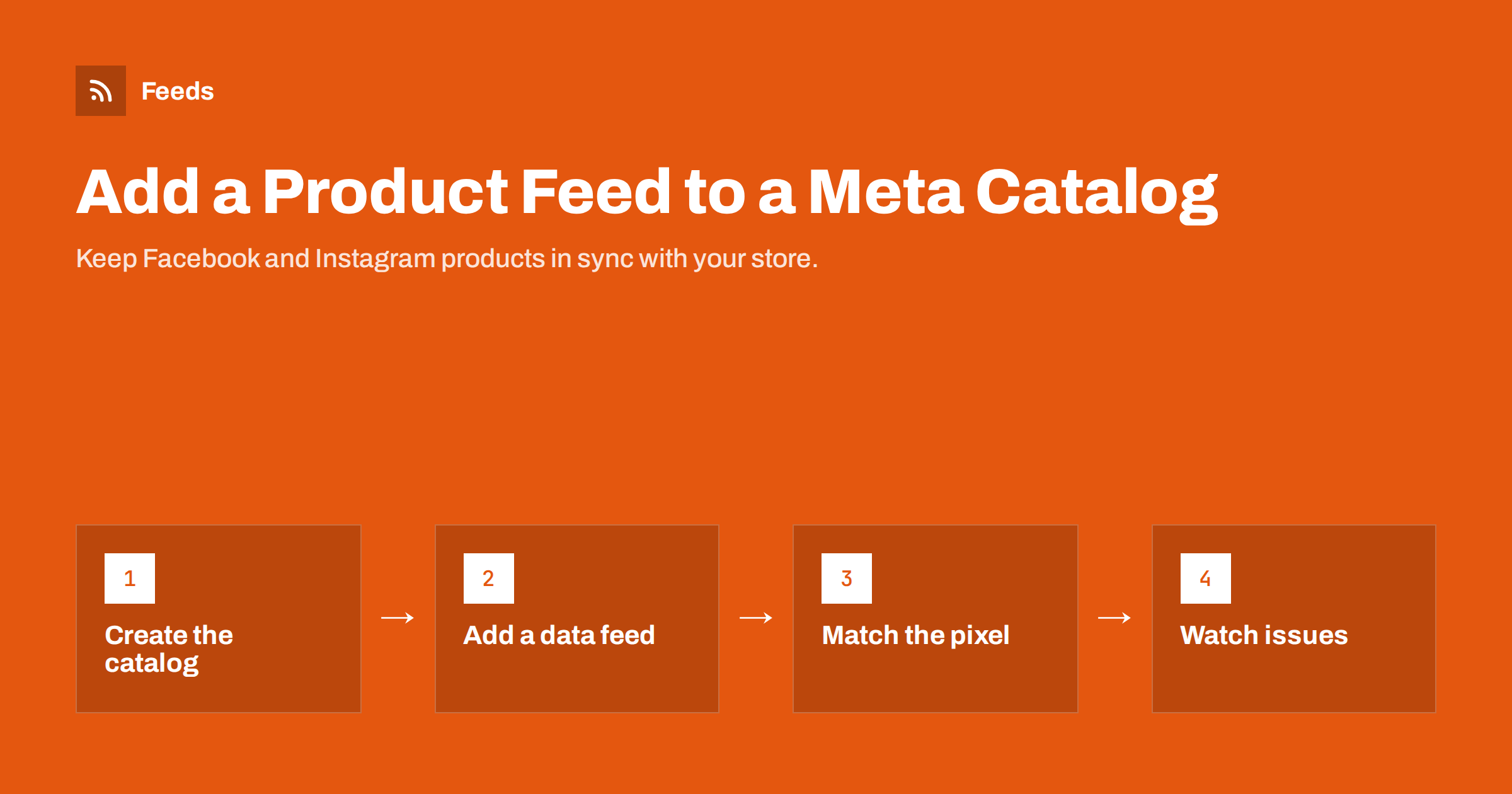
Short answer: To add a product feed to a Meta catalog, create a catalog for e-commerce in Commerce Manager, choose “data feed” as the data source, enter the URL of your hosted feed and set a scheduled update, at least daily. Meta accepts CSV, TSV, XML (RSS or Atom) and Google Sheets, and it can read a Google product XML file. After the first import, fix any issues shown in the catalog, and make sure the product IDs in the feed match the content IDs your Meta pixel sends from the website.
What a Meta catalog is used for
A catalog is Meta’s copy of your product list. It powers several things at once: shops on Facebook and Instagram in the regions where they are available, product tags on posts, and ads that pull products from the catalog automatically, including ads that show people the products they viewed on your site. Instead of designing an ad for every product, you give Meta a catalog and a template, and the system chooses which products to show to whom.
This only works when the catalog is accurate. If a product sold out yesterday but the catalog still says it is in stock, you are paying to send people to a page where they cannot buy. That is why the way you fill the catalog matters more than any creative choice.
Ways to fill a catalog
Commerce Manager offers several data sources. They are not equally good for a growing store.
| Source | Cómo funciona | Good for |
|---|---|---|
| Manual entry | Add products one by one in the interface | A handful of products, testing |
| File upload | Upload a CSV, TSV or XML file once | One-time imports; goes stale quickly |
| Scheduled data feed | Meta fetches a file from your URL on a schedule | Most stores; set once and it stays current |
| Partner platform integration | An e-commerce platform syncs products through its own app | Stores fully inside one platform’s ecosystem |
| Pixel-based catalog | Meta builds items from product data on your pages | A fallback; less control over fields |
A scheduled data feed is usually the best balance of control and effort. You own the file, you can apply rules to it, and the same file can often serve Google Merchant Center too.
Required fields for a Meta catalog
Meta’s required fields for e-commerce products closely mirror Google’s. Each item needs:
- id: a unique identifier, ideally your SKU. It must match the content ID sent by the pixel.
- title: the product name, clear and specific.
- description: plain text describing the product.
- availability: in stock, out of stock and similar values.
- condition: new, refurbished or used.
- price: amount with an ISO currency code.
- link: the product page URL.
- image_link: the main image URL.
- brand: the brand name (or GTIN/MPN in some setups).
Optional fields such as sale_price, item_group_id for variants, additional_image_link, color, size, gender, age_group, google_product_category and custom labels help with variants, filtering product sets and ad relevance. Because Meta accepts Google-style field names, a feed built for Merchant Center usually works without renaming anything.
Step-by-step: connect a scheduled feed
- Open Commerce Manager and create a catalog. Choose the e-commerce catalog type and the business account that owns it. Using a business account rather than a personal profile keeps access manageable when staff or agencies change.
- Add items and choose data feed as the upload method, then choose the scheduled option.
- Enter the feed URL. Add a username and password if the file is protected. Make sure the URL returns the file directly and is not a download page.
- Set the schedule. Daily is a sensible minimum; hourly is available if stock changes fast. Pick a time after your feed refreshes.
- Choose the currency if the file does not specify one per item. It is better to include the currency in every price.
- Run the first upload and wait for the processing summary. It lists how many items were created, updated or failed and why.
Once the catalog is connected, you can add supplementary feeds for extra fields, localized feeds for other languages or countries, and rules that transform values without touching the main file.
Connecting the pixel and the catalog
For ads that retarget viewers with the exact products they looked at, Meta must match website events to catalog items. The pixel (and the Conversions API, if you use it) sends a content ID with events such as ViewContent, AddToCart and Purchase. That content ID must equal the id field in the feed.
Mismatches are one of the most common reasons retargeting underperforms. Typical causes are a pixel that sends the parent product ID while the feed lists variant IDs, or a plugin that prefixes IDs in one place but not the other. Commerce Manager shows the match rate between events and catalog items; if it is low, compare a few IDs by hand and align the two sides. Choose one convention, usually the variant SKU, and use it everywhere.
Common catalog issues and fixes
- Missing or invalid price. Include the currency code and use a plain number. Remove currency symbols and thousands separators that the parser does not expect.
- Image cannot be downloaded or is too small. Use a direct, publicly reachable image URL over HTTPS and a reasonably large image. Very small images may be rejected or look poor.
- Items rejected for policy. Some product types are restricted in ads or shops. Check the commerce policies; some items can stay in the catalog but cannot be advertised.
- Duplicate IDs. Two items with the same id overwrite each other. This often happens when variants inherit the parent SKU.
- Out-of-stock products still advertised. Make sure availability updates in the feed, and filter ad product sets to in-stock items.
As with Google, fix issues in the source data or feed rules rather than editing items manually in Commerce Manager. Manual edits can be overwritten on the next scheduled fetch, and you end up fixing the same thing again.
Keeping Google and Meta in sync
Many stores run both Google Shopping and Meta catalog ads. The simplest approach is one master feed built from the store, used by both platforms. Differences, such as a shorter title style for social or excluding products that are not allowed on one platform, can be handled with rules or a second feed generated from the same data. What you want to avoid is two separately maintained product lists that slowly drift apart and give shoppers different prices on different channels.
Product sets: using the catalog in ads
Once the catalog is filled, you rarely advertise all of it at once. Product sets are filtered groups of catalog items that ads draw from. You define them with rules on catalog fields, for example brand equals a certain value, price above a threshold, product type contains “shoes”, or a custom label equals “bestseller”.
This is where good feed data pays off a second time. If your feed carries a consistent product_type, brand and custom labels, building product sets is quick and the sets update themselves as products are added or removed. If those fields are empty or inconsistent, you end up with manual lists that fall out of date. A few practical product sets most stores find useful:
- In-stock items only, as a safety net under every catalog ad.
- Best sellers or core range, based on a custom label your team maintains with a rule.
- Sale items, based on the presence of a sale price, for promotional periods.
- Category sets, so you can give each category its own budget and creative template.
- High-margin items, if you tag margin bands in a custom label.
Before launching, preview each product set in Commerce Manager and scroll through the items. It is the fastest way to catch a filter that accidentally includes gift cards, samples or discontinued products.
Localized catalogs and multiple countries
If you sell in several countries or languages, you do not need a separate catalog for each. Meta supports localized information through additional country and language feeds that override fields such as title, description, price and link for a given market. The base feed stays the source of truth for IDs and images, and the localized feeds supply translated text and local prices. Keep IDs identical across these feeds, otherwise Meta treats them as different products. Where your store already has language versions, generate each localized feed from the matching store version rather than translating text inside the feed.
How Feeds helps
Feeds creates a Google product XML file from a WooCommerce or Shopify store, or from a CSV link, and Meta reads the same file. You add the feed URL once as a scheduled data feed in Commerce Manager, and the file refreshes on its own. Rules let you skip out-of-stock products, rewrite titles and adjust prices, and the currency is detected automatically. Plans and product limits are on the pricing page.
Related reading
- What Is a Product Feed? A Plain-English Guide for Stores
- Google Product Feed Attributes: Required and Recommended
- How to Set Up a Google Merchant Center Product Feed
The bottom line
Fill your Meta catalog with a scheduled data feed built from live store data, include the required fields with currency codes, and make sure feed IDs match the pixel’s content IDs. Check the catalog’s issues regularly and fix them at the source. One accurate feed can then power Facebook and Instagram shops and ads alongside Google.
FAQ
Can I use my Google Merchant Center feed for Meta?
Usually yes. Meta accepts XML feeds in Google’s product format and recognizes Google field names, so the same file often works for both platforms without changes.
How often does Meta update a scheduled feed?
You choose the schedule when you set up the feed, from hourly to weekly. Daily is a sensible minimum for most stores, more often if stock changes quickly.
Why are my catalog products not matching pixel events?
The content IDs the pixel sends must equal the id values in the feed. Differences between parent and variant IDs, or prefixes added by plugins, are the usual cause.
Do I need a Facebook or Instagram shop to use a catalog?
No. A catalog can power catalog-based ads on its own. Shops are an additional feature that depends on your region and eligibility.
What file formats does Meta accept for catalogs?
CSV, TSV, XML in RSS or Atom format, and Google Sheets. Compressed files are also supported in some setups.


