ENEnglish
 LTLietuviškai
 DEDeutsch
 FRFrançais
 RUРусский
 ESEspañol
 PLPolski
 ITItaliano
 UKУкраїнська
 CSČeština
 PTPortuguês
 JA日本語
JA日本語 LVLatviešu valoda
 ETEesti
 HUMagyar
 IDBahasa Indonesia
 TRTürkçe
 HIहिन्दी
 ELΕλληνικά
 ARالعربية
 THไทย
THไทย VITiếng Việt
 RORomână
 MSBahasa Melayu
 BNবাংলা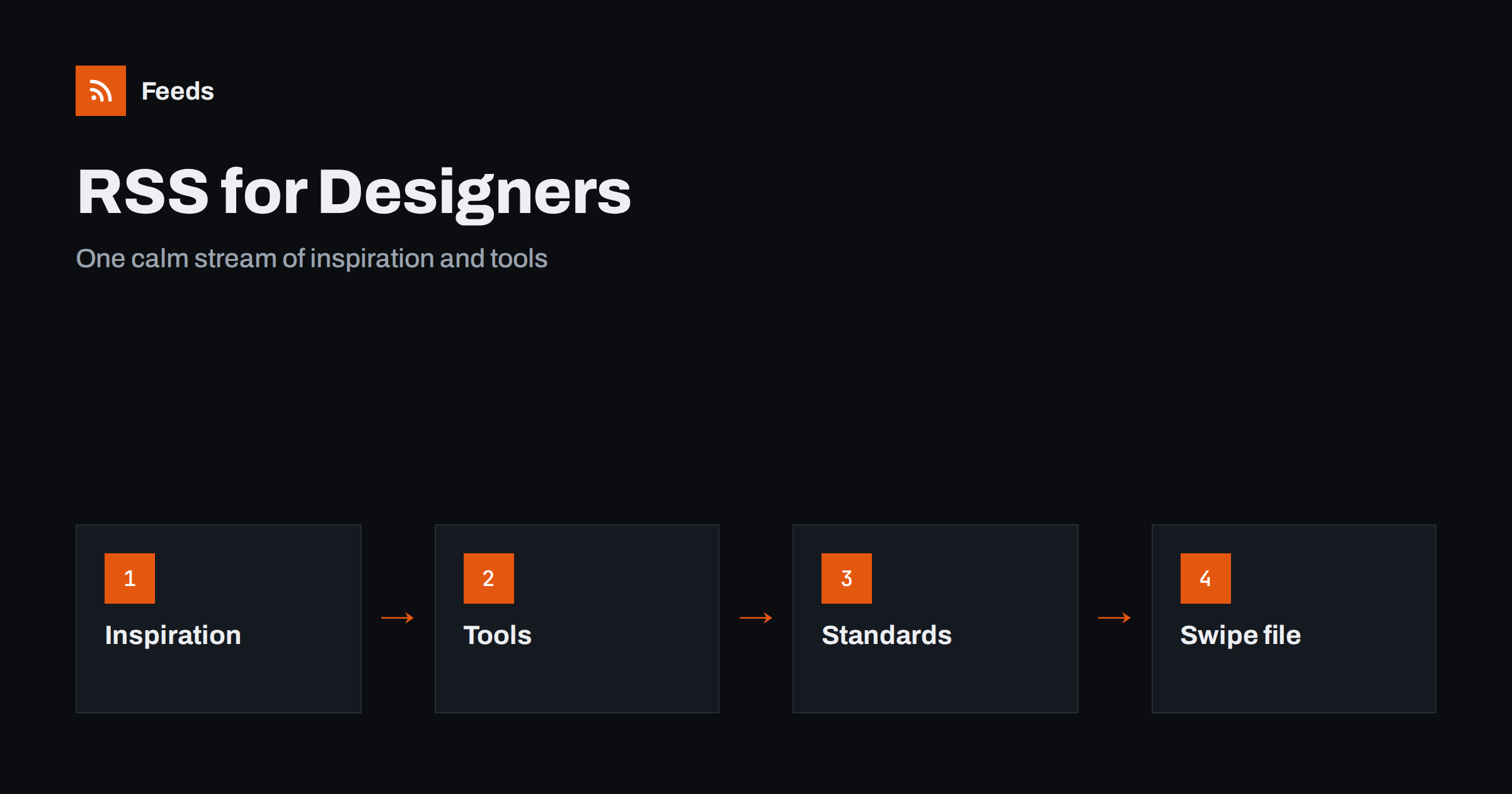
Short answer: Designers can use RSS to gather inspiration, trend writing, type releases, tool updates and standards news into one reader that they open on their own schedule. Pick a small number of sources per discipline, add keyword filters for the busy ones, save only what you will use again and set a regular time to browse, so that following the field feeds your work and not your distraction.
Why designers need a calmer way to follow the field
Design moves quickly, and much of its best writing and work is scattered. Studios post case studies on their own sites, type foundries announce new fonts, tool makers publish release notes, and standards bodies update guidelines. Social networks mix all of this with everything else and decide the order for you, so the useful items arrive between the noise.
A feed reader reverses that. You choose the sources, the order is simple and chronological, and nothing disappears because an algorithm decided you had seen enough. The same argument for readers in general is made in RSS vs following on social media, and for a creative professional it is particularly strong, because looking at the right things is part of the job.
Build your streams by discipline
A designer rarely follows only one thing. Organise your reader into a few folders that mirror how you work, and keep each one small.
- Craft and inspiration. Studio blogs, case studies, magazines and curated galleries in your discipline, whether that is branding, interface, editorial, packaging or motion.
- Typography and colour. Type foundries and type writers, new releases, licence changes and colour system articles.
- Tools and platforms. The release notes of your design software, plugins, design systems and the platforms you design for.
- Standards and accessibility. Updates to guidelines, platform design rules and regulations that affect the work.
- Business and careers. Pricing, contracts, freelancing and job posts.
The principles for keeping such a structure under control are in how to organize your RSS reader so it never overwhelms you. A rule of thumb is five to ten sources per folder, and fewer for the busy ones.
Inspiration that lives in pictures
Design is visual, so it matters whether a feed carries images. Many blogs include the main image of each post in the feed, and some use media elements to give a larger picture. Others give only text and a link, which means you have to click through to see the work. When you choose a reader, check how it shows images. The way pictures travel in feeds is explained in images and video in RSS feeds.
If you prefer to view the picture first, choose a reader with a card or magazine view. If you want to scan titles quickly, use a list view and open only what looks promising. Both are valid. What matters is to use the view that makes you look at the work, and not scroll through it. For help choosing, see how to choose an RSS reader.
Follow tools without hunting for updates
Design tools change often. A new feature or a removed one can alter how you work, and finding out late costs time. Many tool makers publish changelogs or release blogs, and some of them have feeds. Follow those for the software you use every day. If a vendor has no feed for its release notes, you can create one from the page. The method is explained in how to follow software changelogs and release notes with RSS.
Do the same for the platforms you design for. A change in the guidelines of an operating system or in the rules of a marketplace can affect what you deliver, and a feed gives you a calm way to notice it. Keep this folder to a few sources and read it as part of your weekly routine.
Accessibility and standards. Designers have a professional duty to make work usable by as many people as possible, and the rules evolve. Following the bodies that publish accessibility guidelines, along with the blogs of respected practitioners, keeps your knowledge current. Choose primary sources, such as the organisations that write the standards, before commentary. If you publish a feed of your own, the guide to accessible RSS feed content shows how to make it readable by assistive technology.
Filter the busy sources
Some sources publish many items a day, and only a few matter to you. Instead of unfollowing them, filter them. Keep the items whose titles contain words that matter to your work, such as identity, variable font or onboarding, and drop the rest. The method is covered in how to set up keyword alerts using RSS feed filters.
If you follow the same topic across several publishers, merge them into one feed. You will see each story once, and a busy topic becomes a single list instead of five. The details are in how to merge RSS feeds.
From browsing to a swipe file
Inspiration is only useful if you can find it again. Keep a swipe file, a place where you save the items you may want to refer to, with a note on why each one is interesting. It can be a folder of bookmarks, a board in a visual tool, or a notes database. Many readers let you star an item or send it to a read-later app, as discussed in RSS reader vs read-later app.
A few habits make a swipe file valuable:
- Save the link and a short note, not a pile of screenshots without context.
- Tag by what you will use it for, such as layout, type pairing or motion, and not by the source.
- Clean it out every few months, and delete what no longer excites you.
If you prefer a database, the guide on sending RSS feed items to a Notion database shows one way to automate the saving.
Inspiration is not permission
A feed makes it easy to see a lot of other people’s work, and the line between inspiration and copying is one every designer has to hold. Use what you see to understand why something works, and then make your own solution. Do not reuse images, layouts or illustrations without permission and a licence. If you share items from other creators on your own channels, credit them and link to the original. The legal side of using other sites’ content is discussed in using RSS feeds from other websites: what is legal.
A weekly rhythm
You do not need a daily hour in the reader. A rhythm like this is enough for most designers:
- Ten minutes on two mornings to scan the inspiration folder and star a few items.
- Twenty minutes on Friday for tools, standards and business, plus tidying the swipe file.
- Once a month, remove the sources you never open and add one or two new ones.
If you work in a team, share the best items in a channel so that the whole group benefits. A feed can also drive a team channel directly, as explained in how to send RSS items to a Slack channel.
How RSS Feed Creator helps
RSS Feed Creator turns the article list of a web page into a standard RSS feed with titles, images, summaries and dates, and it uses an existing feed when the page already has one. This helps when a studio, a type foundry or a tool maker publishes news on a page without a feed. You see a preview of the items before the feed is created, and the feed works in any RSS reader. You can merge several sources into one feed (up to 10 on paid plans), keep only the items that contain your keywords and have duplicates removed automatically. Feeds refresh every 3 hours on the free plan and every 30 minutes on paid plans, and the free plan allows up to 20 items per feed. The details are on the pricing page.
Related reading
- How to Subscribe to RSS Feeds: A Beginner’s Step-by-Step Guide
- How to Get RSS Feeds for Job Listings and Careers Pages
- How to Never Miss a Call for Speakers or Papers Again
The bottom line
A designer’s reader works best as a few small folders: inspiration, type and colour, tools, standards and business. Filter the busy sources, merge overlapping ones, save what you will reuse in a swipe file and keep to a weekly rhythm. Let the feeds feed your work, credit the work of others and make your own.
FAQ
How can designers use RSS for inspiration?
Follow studio blogs, design magazines and curated galleries in your discipline in a feed reader, save the items you may reuse in a swipe file and browse on a fixed schedule, instead of through a social feed.
Do RSS feeds show images?
Many do, either through the post’s main image or through media elements, but some carry only text and a link. Pick a reader with a card or magazine view if you want to see the work first.
How do I follow design tool updates?
Subscribe to the release notes or changelog feed of the tools you use. If a vendor has no feed for its release page, you can create one from the page and add it to your reader.
How many sources should I follow?
Five to ten per folder is a good starting point, and fewer for very busy sources. Review the list every month and remove feeds that you never open.
Is it acceptable to reuse images I find in feeds?
No, not without permission and a licence. Use the work you see as inspiration to understand a solution, then create your own. When you share someone else’s work, credit them and link to the original.