 ENEnglish
 LTLietuviškai
 DEDeutsch
 FRFrançais
 RUРусский
 ESEspañol
 PLPolski
 ITItaliano
 UKУкраїнська
 CSČeština
 PTPortuguês
 JA日本語
JA日本語 LVLatviešu valoda
 ETEesti
 HUMagyar
 IDBahasa Indonesia
 TRTürkçe
 HIहिन्दी
 ELΕλληνικά
 ARالعربية
 THไทย
THไทย VITiếng Việt
 RORomână
 MSBahasa Melayu
 BNবাংলা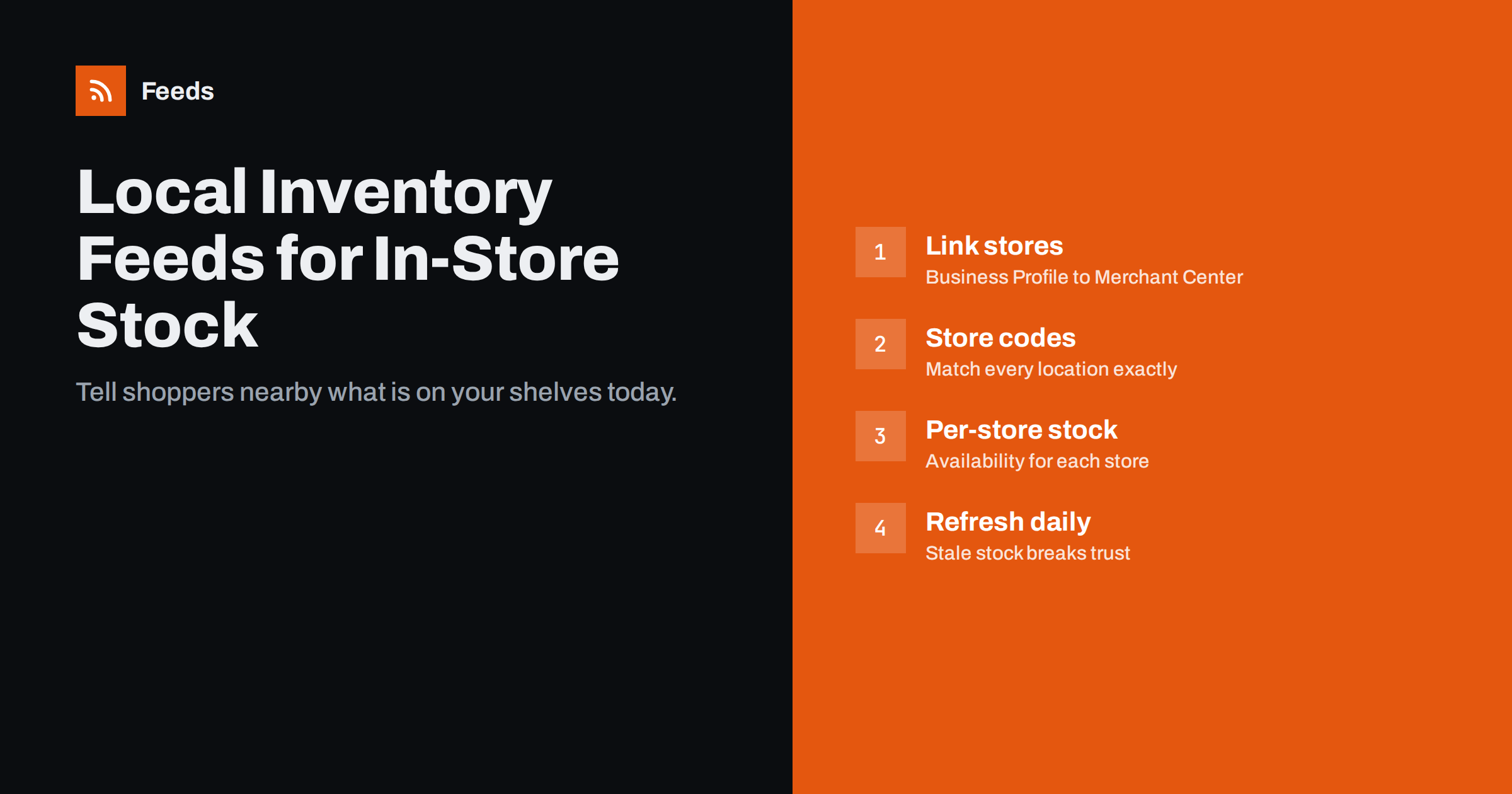
Short answer: A local inventory feed tells Google which of your products are available in which physical store, so they can appear in local inventory ads and free local listings for nearby shoppers. It sits alongside your normal product feed: the product feed describes each item once, and the local inventory feed lists, for every store code, the product ID, its availability and optionally its in-store price and pickup options. To make it work, link your Business Profile locations to Merchant Center, keep store codes identical in both, and update in-store availability at least daily.
What local inventory ads and listings are
Many shoppers search online and then buy in person, especially for things they need today or want to see first. Local inventory ads and free local listings answer the question “is it in stock near me?” They show a product together with a nearby store, its availability, and often a link to a store page with directions, opening hours and pickup options.
For retailers with physical shops, this connects online search to store visits. It is useful for:
- Chains and multi-store retailers that want each location to show its own stock.
- Single-store shops that sell locally and want to appear for nearby searches.
- Stores offering click-and-collect, where pickup options can be shown with the product.
- Categories bought urgently, such as hardware, pharmacy, electronics accessories, pet supplies and gifts.
Availability depends on your country, as the programme is not offered everywhere and details differ between markets. Check the current Merchant Center help for your region before planning a rollout.
How the feeds fit together
Local inventory works with two kinds of data, and understanding the split avoids most confusion.
| Data | What it contains | How often it changes |
|---|---|---|
| Product data (your main feed) | One row per product: ID, title, description, image, brand, identifiers, online price and availability | When products or prices change |
| Local inventory data | One row per product per store: store code, product ID, in-store availability, optional price, quantity and pickup details | Daily or more often |
| Store locations | Your Business Profile locations with addresses and store codes | Rarely |
The local inventory rows refer to products by the same id used in the product data. If the IDs do not match exactly, the local data has nothing to attach to. Products sold only in stores and never online can usually still be listed, as long as they are described in the product data; how that is set up has changed over time, so follow the current instructions in your account.
If you do not yet have a working main feed, start there. Our guide on setting up a Google Merchant Center product feed covers the basics, and how small stores get started with free listings explains the online side.
Step 1: link your store locations
- Verify your locations in Business Profile. Each physical store that should show stock needs a verified listing with accurate address and opening hours.
- Assign store codes. A store code is your own short identifier for each location, such as
VIL-01orstore-17. Set it in each Business Profile listing. - Link Business Profile to Merchant Center. This lets Merchant Center see your locations and their codes.
- Enable local listings or local inventory ads in Merchant Center for the right country.
Store codes are the thread that ties everything together. Keep them short, stable and consistent. Renaming codes later means updating both Business Profile and every row of your local inventory data at the same time.
Step 2: build the local inventory data
A local inventory file has one row for each combination of store and product. A minimal version contains:
store_code: the exact code from Business Profile.id: the product ID from your main product data.availability: whether the item is in stock, limited, out of stock or available to order in that store.
Common optional fields include:
priceandsale_pricewhen the in-store price differs from the online price.quantityfor the number of units on hand, which helps Google decide what to show as available.pickup_methodandpickup_slato describe click-and-collect options and how soon an order is ready.
Field names and which ones are required have changed over the years, so use the current specification when you build the file. The format is typically a delimited text file or a spreadsheet uploaded or fetched on a schedule, or an API connection for larger retailers.
The data almost always comes from the point-of-sale or inventory system, because that is where store-level stock lives. An e-commerce platform usually knows only the total online stock. Many POS systems offer an export or an integration for this purpose; ask your POS provider what they support before building something yourself.
Step 3: the store-facing landing page
When a shopper clicks a local product, they need to see that store’s information. There are generally two options: a store page hosted by Google that shows the product, store details and availability, or a page on your own website that shows local availability for the selected store. The hosted option is quicker to launch; your own page gives you more control and keeps visitors on your site.
If you host it yourself, the page must show the same price and availability as your local data. Mismatches here cause the same problems as in online shopping ads. Our guide to what product landing pages must show covers the general principles.
Step 4: keep in-store availability fresh
Nothing damages trust faster than a shopper driving to a store for an item the ad said was in stock. In-store data should typically be updated at least once a day, and more often for fast-moving items or during peak periods.
- Schedule automatic exports from the POS rather than manual uploads.
- Use a safety buffer. Some retailers mark an item as limited or out of stock when only one or two units remain, because the last units may be damaged, misplaced or already in a customer’s basket.
- Handle display-only items with the availability value meant for them, rather than as in stock.
- Check after holidays and stock counts, when large corrections often happen.
For timing principles that also apply here, see how often a product feed should update.
Common mistakes that hide local products
- Store codes that do not match Business Profile exactly, including capitalisation or extra spaces.
- IDs that differ between the product data and the local inventory data, for example because one system uses SKUs and the other internal numbers.
- Unverified or suspended locations in Business Profile.
- Stale local data that stopped updating when an export job failed.
- In-store price not shown in the store or on the landing page, which causes mismatches.
- Too few products: listing only a handful of items per store makes the programme less useful and may affect eligibility.
Merchant Center diagnostics show most of these problems. Review them weekly, as you would for the online feed.
Measuring results takes a little more thought than for online ads, because the sale happens at the till. Look at clicks to store pages, direction requests and calls where your reporting shows them, and compare store traffic or sales for products with and without local listings over a few weeks. Ask store staff to note when customers mention seeing an item online. None of these is perfect on its own, but together they show whether local inventory is bringing people through the door.
Where Feeds fits and where it does not
Local inventory depends on two things: good product data and accurate store-level stock. Feeds helps with the first. It creates a Google product XML feed directly from a WooCommerce or Shopify store or a CSV link, with IDs, titles, links, images, prices, availability and brands, refreshed automatically and with rules for stock, titles and prices. That feed can serve as the main product data your local inventory rows refer to. Store-level stock, however, comes from your point-of-sale system, and Feeds does not read POS data or generate per-store inventory files. For product feed plans, see the pricing page.
Related reading
- Google Product Feed Attributes: Required and Recommended
- Out-of-Stock Products in Your Feed: Keep, Mark or Remove?
- Supplemental Feeds in Merchant Center: When and How to Use
The bottom line
Local inventory feeds let physical stores show what is on their shelves to nearby shoppers. Link verified Business Profile locations to Merchant Center, give each store a stable code, describe products once in your main feed, and send per-store availability, and optionally price and pickup details, from your POS at least daily. Match IDs and store codes exactly, and treat accuracy as the priority: a wrong “in stock” costs more than a missing listing.
KKK
What is a local inventory feed?
It is a data file that lists, for each of your physical stores, which products are available and optionally their in-store price and pickup options. Google uses it to show your products to nearby shoppers.
Do I need a separate feed for local inventory ads?
Yes. Your main product feed describes each product, while local inventory data lists availability per store and product. The two are linked by the product ID and your store codes.
Where does store-level stock data come from?
Usually from your point-of-sale or inventory management system, because that is where each store’s stock is recorded. Many POS providers offer exports or integrations for local inventory.
How often should local inventory be updated?
At least once a day, and more often for fast-selling products or busy periods. Outdated stock information sends shoppers to stores for items that are not there.
Can a single-store shop use local inventory ads?
Yes, where the programme is available in your country. You need a verified Business Profile location linked to Merchant Center and local inventory data for that one store.


