ENEnglish
 LTLietuviškai
 DEDeutsch
 FRFrançais
 RUРусский
 ESEspañol
 PLPolski
 ITItaliano
 UKУкраїнська
 CSČeština
 PTPortuguês
 JA日本語
 LVLatviešu valoda
 ETEesti
 HUMagyar
 IDBahasa Indonesia
 TRTürkçe
 HIहिन्दी
 ELΕλληνικά
 ARالعربية
 THไทย
 VITiếng Việt
 RORomână
 MSBahasa Melayu
 BNবাংলা
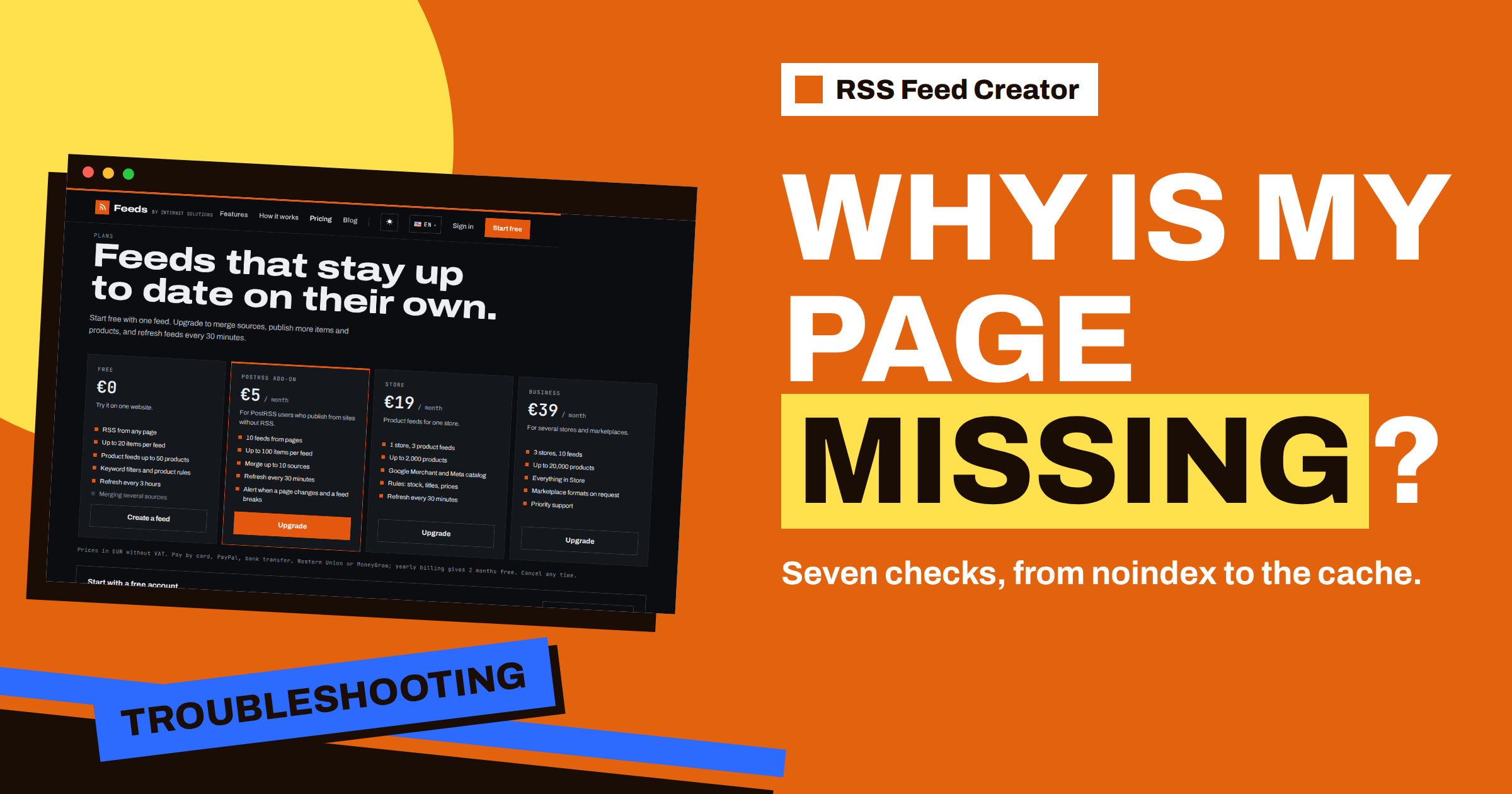
Short answer: When RSS Feed Creator builds a feed for a section of a website, it fills the list in three steps: the items on the page you gave, the following pages of the list, and the site’s sitemap. A page you expect can be missing for a handful of precise reasons: it carries a noindex tag, it is not in the sitemap, it lies outside the section path, it sits in a tag or category sitemap, its title is too short to count, the feed is already full, or the details the tool stored for it are up to a week old. This article gives you a short checklist to find which one it is.
How the list is built, in three steps
A feed for a blog or news section has to be longer than the dozen cards that fit on the first page. RSS Feed Creator therefore goes beyond the page you paste, as described in RSS Feed Creator beyond page one: whole-section feeds. The order matters for troubleshooting, so here it is in short.
- The page itself. The tool looks for article data in JSON-LD, and if there is not enough, for a repeated block of cards, such as twelve article teasers. This is the part you see in the preview, with titles, pictures, dates and short texts.
- The following pages. If the first page does not fill the feed, the tool follows the “next page” of the list. It recognises a link marked as next, or page addresses of the usual forms, such as /page/2/ or ?page=2, when the page really links to them. It stops after a limited number of pages, or earlier when a page adds nothing new.
- The sitemap. If the feed is still not full, the tool looks at the sitemap of the site and adds addresses from it, newest first.
The feed stops growing as soon as it reaches the number of items your plan allows, which is 20 on the free plan and 100 on paid plans. That single fact explains many “missing” pages before any other check: if the section has more recent items than the limit, the older ones are simply beyond the end.
Check 1: the page carries a noindex tag
When an item comes from the sitemap, the tool opens the page to read its title, description, picture and date. If the page tells search engines not to index it, with a robots meta tag that contains noindex, the tool leaves the page out. The idea is simple: a page that its owner has hidden from search is not something to announce in a feed.
This is the most common surprise for site owners. A draft that was left on noindex, a page that a plugin marked as thin, a thank-you page or a staging copy all fall into this group. To check a page, view its source in a browser and search for the word “robots”. If you find noindex, either change the setting, or accept that the page is outside the feed. The rule applies to items found through the sitemap. Items that come directly from the cards on the list page are shown as the page lists them.
Check 2: the page is not in the sitemap
The sitemap step can only add what the sitemap contains. The tool finds the sitemap in the robots.txt file of the site, where sitemaps are announced in lines that begin with the word “sitemap”, and it also tries the usual file names: sitemap_index.xml, sitemap.xml and wp-sitemap.xml. It reads index files that point to other sitemap files, and it reads compressed files as well.
If a new page is missing, open the sitemap in your browser, for example yoursite.com/sitemap.xml, and look for the page. A page that was just published may not be there yet, because many sites rebuild the sitemap later. A page that an SEO setting excludes from the sitemap will never be there. In both cases the feed cannot add it through this step, although it may still appear through the first page of the list, where new articles normally sit. The difference between the two sources of new pages is explained in sitemap vs RSS: which is better for detecting new pages?.
Check 3: the page is outside the section
If the address you pasted is a section, such as yoursite.com/guides/, the tool keeps only the sitemap addresses that lie under that section. A page at yoursite.com/news/launch/ does not belong to a feed made from /guides/, even though it is on the same site. That is what makes section feeds useful: each section gets its own feed.
The common blog names behave differently. When the address ends in /blog, /news, /naujienos, /straipsniai or /articles, the tool treats it as the main stream of the site and takes posts from the whole site, leaving out the home page and the usual list pages for tags, categories, authors and numbered pages. If your section has a less common name, use the address of the list page of that section, and check that the pages you expect really live under it. Pages on another domain or another subdomain count as another site, and the tool ignores them. The prefix www is not counted as a difference.
Check 4: the page belongs to a tag, category or author list
Sitemap index files often split into several files, such as posts, pages, tags, categories and authors. The tool skips the files whose names show that they hold tags, categories, authors, users, taxonomies, languages, images or videos, and it reads the files for posts, products, articles, news, blogs and pages first. It also leaves out addresses of picture, document and XML files. The reason is to keep the feed made of real items, not of list pages.
If the page you expect is itself a list page, such as a category page, it will not show up. That is not a fault of the sitemap. The feed is built from items, not from lists of items.
Check 5: the title is too short or missing
For each page found in the sitemap, the tool takes the title from the Open Graph title, or from the title of the page, and it needs at least a few characters to count the page. A page whose title is empty, or just one or two letters, is dropped. The description comes from the Open Graph description or from the ordinary description tag, and is shortened to about 300 characters. The picture comes from the Open Graph image, and the date from the article published time or from the article data on the page, with the date from the sitemap as a fallback.
A missing description or picture does not hide a page. They only make the item thinner. A missing title does hide it. If you own the site, give every page a clear title and an Open Graph title. The same advice appears in pictures in your feed: where RSS Feed Creator finds images, because the same meta tags feed the picture.
Check 6: stored details are up to a week old
Reading every page of a site at every refresh would be slow and unfriendly to the site. The tool therefore keeps the details it read from a page, its title, description, picture, date and noindex state, for up to seven days. This has two effects that are easy to miss:
- If you fix a title or remove a noindex tag, the feed may show the old state for a few days.
- If a page was judged unusable once, for example because it had a noindex tag or no real title at the time, that result is remembered for the same period.
When you have corrected something on your site, give the feed a few days before you judge the result. The preview is built from the same logic, so it is a fair picture of what the feed will do. If everything on the live pages is right and the item is still missing after a week, run through the other checks again. How refreshes work in general is covered in how often RSS Feed Creator refreshes your feed.
Check 7: the feed is full
Finally, count. The feed holds up to 20 items on the free plan and up to 100 on paid plans. It collects until it reaches that number, newest first when the sitemap contributes, and then stops. A section that publishes ten items a day has more than 20 items in two days. If a page from last week is missing from a free feed, it may simply have moved beyond the limit. The paid limit gives you a longer window, the numbers are on the pricing page, and the plans are compared in which RSS Feed Creator plan fits your feeds.
It also helps to know that merged feeds sort all their sources by date and then cut at the limit, so a busy source can push a quiet one out of view. If one source disappears from a merged feed, the keyword filters or the item limit are the likely reasons, and the structure of the problem is the same as above: a filter or a limit decides, not a failure.
A two-minute routine
- Open the missing page and view its source. Look for noindex and for the title.
- Open the sitemap of the site and search for the page address.
- Compare the path of the page with the section address you pasted.
- Count the items in the feed and compare with the limit of your plan.
- If you changed something, wait up to a week or compare with the preview.
Most cases are solved by the first two steps. The rest are a matter of reading your own address closely.
Related reading
- How RSS Feed Creator Finds Items on Pages Without RSS
- When a Page Layout Changes: How RSS Feed Creator Copes
- RSS Feed Creator Preview: Check Every Item Before You Create
The bottom line
A page missing from a section feed has a reason you can find: a noindex tag, a sitemap that does not list it, a path outside the section, a tag or category list, a missing title, an old stored copy or a full feed. Check the page source, the sitemap and the limit, and you will know in two minutes.
KKK
Why is a page with noindex left out of the feed?
When the tool reads a page found in the sitemap and sees that the owner asked search engines not to index it, it leaves the page out of the feed.
How long does RSS Feed Creator remember what it read from a page?
Up to seven days. Changes to a title or a robots tag may take a few days to show in a feed.
Does the tool use my sitemap?
Yes, when the first pages do not fill the feed. It finds the sitemap through robots.txt or the usual file names.
Why does a feed for /guides/ not contain my news pages?
The feed keeps addresses under the section you pasted. Create another feed for the other section, or merge both feeds on a paid plan.
Can I get more items than 20 or 100?
Not beyond the limit of your plan: 20 items per feed on the free plan and 100 on paid plans.