ENEnglish
 LTLietuviškai
 DEDeutsch
 FRFrançais
 RUРусский
 ESEspañol
 PLPolski
 ITItaliano
 UKУкраїнська
 CSČeština
 PTPortuguês
 JA日本語
JA日本語 LVLatviešu valoda
 ETEesti
 HUMagyar
 IDBahasa Indonesia
 TRTürkçe
 HIहिन्दी
 ELΕλληνικά
 ARالعربية
 THไทย
THไทย VITiếng Việt
 RORomână
 MSBahasa Melayu
 BNবাংলা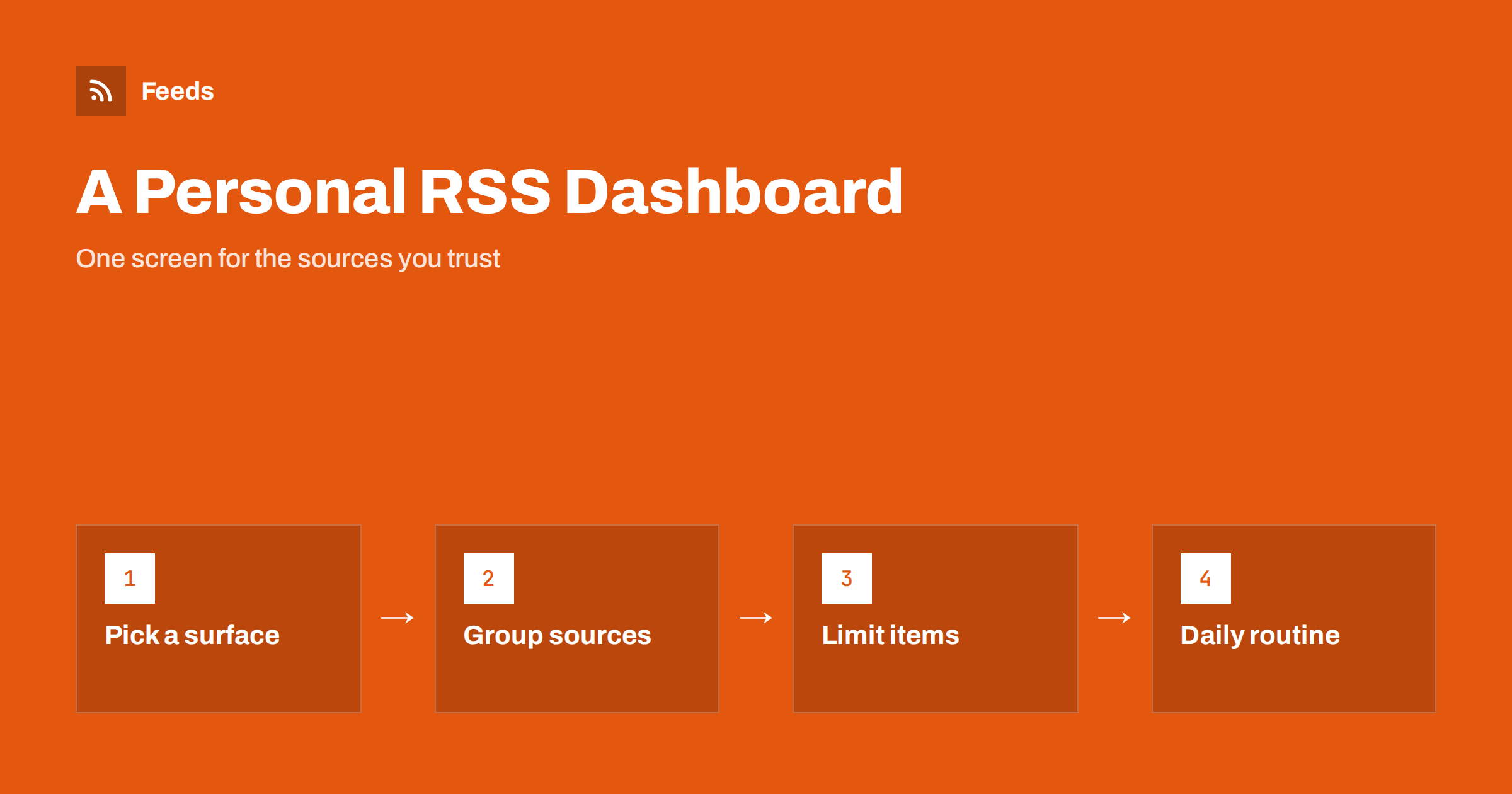
Short answer: A personal RSS dashboard is one screen that shows the latest items from the sources you trust, grouped by topic. You can build it in a feed reader with folders, as a start page in your browser, as a widget on your phone, or as a small web page that you host yourself. Start with ten to twenty sources, group them into four or five topics, show only a few items from each and look at the screen at fixed times of the day.
What a dashboard is for
A normal feed reader is built around an inbox: every new item waits until you read it or mark it as read. A dashboard is built around a glance. It shows what is new right now, in a compact layout, and it does not ask you to clear anything. That makes it a good fit for sources that you want to keep an eye on but not read in full: news headlines, the status of services you depend on, the blogs of competitors, local notices or the releases of tools you use.
A dashboard is also easier to share. You can show it on a second monitor in an office, keep it on a tablet in the kitchen or put it on a screen for a team, because it needs no interaction to be useful. Many people use both. The reader holds the long-form material that they want to read later, and the dashboard holds the quick scan. If you are deciding which one fits a given source, RSS reader versus a read-later app explains the difference between reading now and saving for later.
Choose where the dashboard lives
There are four realistic places to put it, and each has trade-offs:
- Inside your feed reader. Most readers can show a folder as a list or a card view. This is the simplest option, because your subscriptions are already there, and it works on every device the reader supports.
- A browser start page. Some start page services and browser extensions turn the new-tab page into a set of feed panels. It is quick to set up, but it depends on one browser unless the service also has an app.
- A phone or tablet widget. Some reader apps offer a home screen widget that shows the latest headlines. It is excellent for a glance on the go, and weaker for long lists.
- A page you host. A small web page that loads a few feeds and prints their latest items gives full control and no limits. It needs a little technical skill, or a self-hosted reader, as described in self-hosted RSS readers.
Think about privacy as well: a hosted page or a start page service sees which sources you follow, so choose a provider you trust, or host it yourself if the list of sources is sensitive. Pick the place where you already look every day. A dashboard that lives on a page you never open is just another unread list.
Group your sources by topic
A dashboard works when it is organized by purpose. Create four or five groups and give each a clear name, for example “Industry”, “Local”, “Tools”, “Competitors” and “Reading”. Put every feed into exactly one group. If a feed does not fit any group, it probably does not belong on the screen.
Keep the groups small. Five feeds in a group give a readable panel, and twenty give a wall of text. If a group grows, split it or move some sources back to the reader. More tips about folders, labels and trimming are in how to organize your RSS reader so it never overwhelms you. When you move to a new tool, an OPML file carries your folders with you, as explained in OPML files explained.
Limit the number of items
The main danger of a dashboard is length. Decide how many items each source may show and stick to it. Three to five per source is usually enough, and a headline plus a short summary is enough for each item. Sources that publish many posts a day, such as news sites, should be filtered by keywords or limited to one section of the site, as described in how to follow just one section or category of a website.
Think about the rhythm of each source too. A blog that posts once a week needs one slot, and a news feed that posts every ten minutes needs a filter. If a panel is always empty or always flooded, adjust it. A feed that rarely changes and that you can check weekly might be better off in the reader.
Reduce noise before it reaches the screen
Noise is what makes people abandon dashboards. Use the filters your reader offers to hide items with words you do not care about, and merge sources that repeat the same story. Duplicates are the most visible kind of noise, and combining similar sources into one panel helps, as explained in how to merge multiple RSS feeds into one clean feed. For alerts and monitoring panels, the techniques in how to reduce noise in RSS alerts without missing anything apply directly.
Review the dashboard once a month. Remove sources that you have not clicked, and add one new source only when you remove one. A dashboard of fifteen well chosen sources is better than one of eighty.
Build a simple page yourself
If you like to control everything, a small page can load several feeds and show their newest items. The idea is straightforward: for each feed, request the file, read the first few items, and print their titles with links. Because browsers limit requests from one site to another, the loading step usually happens on a server or in a small script that runs on a schedule, and the result is saved as a static page. How to read a feed in code is explained in how to parse an RSS feed in Python, JavaScript and PHP, and the display side is covered in how to display RSS feeds on your website the right way.
Whichever way you build it, respect the sources. Do not load the same feed more often than needed, show a link back to each article and do not copy full articles onto your page. Refreshing every half hour or every hour is more than enough for a personal screen, and the typical intervals are discussed in how often RSS feeds update.
A daily routine that keeps it useful
A dashboard only helps if it is part of your day. A simple routine is to look at it twice: once in the morning with your coffee and once in the afternoon. Scan the headlines, open the three items that matter and close the screen. Send long articles to your read-later list and ignore the rest without guilt.
For sources that need action, such as outage notices or competitor launches, add a rule. When an item appears, decide immediately whether it needs a task, a message to a colleague or nothing at all. Teams can send selected items into a shared channel instead of each person keeping a private dashboard, and a short weekly note about what the dashboard showed helps colleagues who do not follow the sources themselves.
How RSS Feed Creator helps
A dashboard is only as good as its sources, and many useful pages have no feed at all: news pages, price lists, event pages and department blogs. RSS Feed Creator turns the article list of such a page into a clean RSS feed with titles, images, summaries and dates, and uses an existing feed when the page has one. You see a preview of the items first. You can merge several sources into one feed (up to 10 on paid plans), keep only the items that contain your words and have duplicates removed automatically, so each panel stays short. The free plan allows up to 20 items per feed, and the details are on the pricing page.
Related reading
- How to choose an RSS reader: features that actually matter
- How to create an RSS feed for a website without one
- Monitoring hundreds of sources with RSS without chaos
The bottom line
A personal RSS dashboard turns a long list of subscriptions into a short, calm screen. Choose one place to keep it, group sources by purpose, show only a few items from each, filter the noise and check it at fixed times. Review it every month and keep it small, so that it stays a tool you use and not a pile you avoid.
KKK
How many sources should a dashboard have?
Ten to twenty is a good start. Group them into four or five topics and show three to five items from each source. Add more only when you remove others.
Is a dashboard better than a normal feed reader?
They solve different problems. A reader is an inbox for things you want to read, and a dashboard is a glance at what is new. Many people use both with the same subscriptions.
Can I build a dashboard without any code?
Yes. Folders and card views in a reader, a browser start page or a phone widget need no code. A self-built page is only for people who want full control.
How often should the dashboard refresh?
Every thirty minutes to an hour is enough for a personal screen. Refreshing more often adds load on the sources and rarely gives you anything useful.
What if a site I want has no RSS feed?
You can create a feed from the page that lists its articles, and then add that feed to the dashboard like any other source.