 ENEnglish
 LTLietuviškai
 DEDeutsch
 FRFrançais
 RUРусский
 ESEspañol
 PLPolski
 ITItaliano
 UKУкраїнська
 CSČeština
 PTPortuguês
 JA日本語
JA日本語 LVLatviešu valoda
 ETEesti
 HUMagyar
 IDBahasa Indonesia
 TRTürkçe
 HIहिन्दी
 ELΕλληνικά
 ARالعربية
 THไทย
THไทย VITiếng Việt
 RORomână
 MSBahasa Melayu
 BNবাংলা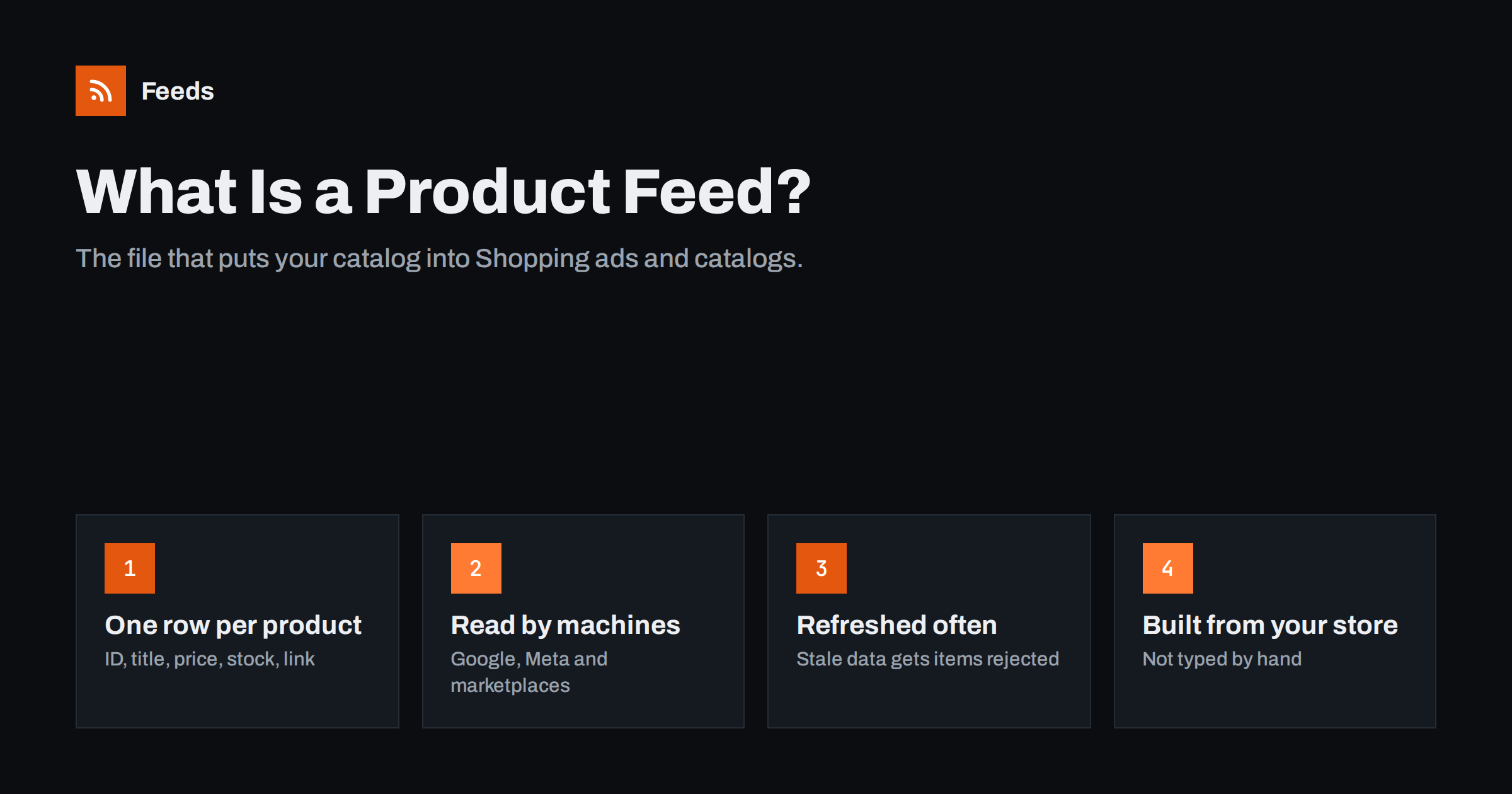
Short answer: A product feed is a structured file, usually XML or CSV, that lists every product in your store with fields like ID, title, description, price, availability, product page link and image link. Platforms such as Google Merchant Center and Meta Commerce Manager fetch this file on a schedule and use it to show your products in Shopping listings, ads and catalogs. The feed has to match your website exactly, so it should be generated from your store data rather than maintained by hand.
Why product feeds exist
Search engines and social networks can crawl your pages, but crawling is slow and ambiguous. A product page mixes the price with shipping notes, related products, reviews and navigation. A shopping platform needs precise answers: what is this item, how much does it cost right now, is it in stock, and which image represents it. A product feed answers those questions in a fixed structure that a machine can read without guessing.
That is why almost every commerce channel asks for a feed. Google uses it for free product listings and Shopping ads. Meta uses a catalog, which is usually filled from a feed, for shops and dynamic product ads on Facebook and Instagram. Comparison sites, affiliate networks and many marketplaces accept feeds as well. Once you have one clean feed, adding a new channel is often a matter of pointing it at the same file or a close variant.
What a product feed contains
Think of a feed as a spreadsheet where every row is one product (or one variant) and every column is an attribute. The exact attribute names differ slightly between platforms, but the core set is remarkably similar everywhere.
| Attribute | What it holds | Why it matters |
|---|---|---|
| id | A unique, stable identifier such as your SKU | Links performance history to the product; changing it resets that history |
| title | The product name, often with brand, model, size or color | The main text shoppers see and the main signal for matching searches |
| description | Plain-text details about the product | Adds context for matching and for shoppers comparing items |
| link | The URL of the product page | Where the click lands; it must show the same product and price |
| image_link | The URL of the main image | Shopping results are visual; poor images get fewer clicks or get rejected |
| price | The price with a currency code, for example 24.90 EUR | Must match the landing page, or the item can be disapproved |
| availability | in stock, out of stock, preorder or backorder | Prevents ads for products you cannot ship |
| brand, gtin, mpn | Product identifiers | Help platforms understand exactly which product you sell |
Beyond this core, feeds can include sale prices, shipping costs, product categories, variant groups, apparel attributes such as size and color, and custom labels you use to organize campaigns. You do not need all of them on day one. Start with the required fields, get them right, and add optional ones where they help.
Common feed formats
Most platforms accept more than one format. The three you will meet most often are:
- XML (RSS 2.0 or Atom based). Google’s product XML is an RSS 2.0 file with extra product fields in a special namespace. It handles long descriptions, special characters and multiple images cleanly, and Meta can read the same file.
- CSV or TSV. A text table with a header row. It is easy to open in a spreadsheet, which makes it popular for small catalogs and for exporting from systems that have no feed feature.
- Spreadsheets and APIs. Some platforms accept a Google Sheet or a direct API connection. APIs update faster but need development work and credentials.
For most small and mid-sized stores, a hosted XML file at a stable URL is the most practical choice. The platform fetches it on a schedule, you never upload anything by hand, and the same URL keeps working for years.
Who reads your feed and what they do with it
The feed itself does nothing until a platform consumes it. Understanding each consumer helps you decide which fields deserve attention.
- Google Merchant Center reviews each item against its product data specification and policies, then makes approved items eligible for free listings and Shopping ads. Titles, images, prices and identifiers carry the most weight.
- Meta Commerce Manager turns the feed into a catalog. Catalogs power shops on Facebook and Instagram and ads that show each person products they viewed or might like.
- Marketplaces and comparison engines often have stricter category and attribute rules, so they may need a slightly different version of the same data.
Each platform keeps its own copy of your products. That is the key point: if your website changes and the feed does not, the platforms keep showing old data until the next successful fetch.
How to create a product feed
There are three broad ways to produce a feed, and the right one depends on the size of your catalog and how often it changes.
- Manual file. You export products to a spreadsheet, fix the columns and upload it. This works for a handful of products that rarely change, but prices and stock drift quickly and every change means another upload.
- Store plugin or built-in channel. Many platforms offer a plugin or sales channel that generates a feed from inside the store. It stays close to the data, but some plugins add load to the store and can be tricky to customize.
- External feed service. A service reads your store data from the outside and publishes a feed at its own URL. It adds no code to your store and can apply rules such as excluding out-of-stock items or rewriting titles.
Whichever route you choose, the steps are the same: decide which products belong in the feed, map your store fields to the platform’s attributes, publish the file at a stable URL, register that URL in the platform, and review the diagnostics after the first fetch.
Keeping the feed accurate
A feed is only as good as its freshness. Prices change, sales start and end, and stock runs out. When the feed says one thing and the landing page says another, platforms treat it as a data quality problem and may suspend items or, in repeated cases, the account.
- Schedule the platform to fetch the feed at least daily, more often if stock moves quickly.
- Generate the feed from live store data, never from a copy that someone has to remember to update.
- Remove or mark products as out of stock as soon as they sell out.
- Keep product IDs stable. Do not regenerate them when you rename or re-import products.
- Check the platform’s diagnostics page weekly. Warnings today often become disapprovals later.
Beginner mistakes to avoid
Most feed problems are not technical. They come from small decisions made in the first week that quietly cause trouble for months. These are the ones that come up again and again:
- Using the page title as the product title. Page titles often include the store name or marketing phrases. A product title should describe the product: brand, product type and the attributes people search for, such as size, material or color.
- Leaving variants merged. A shirt in five sizes and three colors is fifteen products to a shopping platform. If you send only one row, shoppers may land on a variant that is not what they clicked, and the price or image may not match.
- Prices without currency or with tax confusion. In many countries the displayed price must include VAT. If the feed sends a net price while the page shows a gross price, the mismatch is flagged.
- Placeholder images. Logos, “image coming soon” graphics and images with promotional text overlays are commonly rejected. Use a clean photo of the actual product.
- Changing IDs. Re-importing products into a new platform and letting it assign new IDs makes every product look new, which throws away its history.
- Forgetting the feed after launch. A feed that was correct in January can be wrong by March. Treat it as a live system with a weekly check, not a one-time project.
None of these require special tools to fix. They require a feed that is generated from the store, a short set of rules for titles and exclusions, and someone who looks at the diagnostics regularly.
How Feeds helps
Feeds creates product feeds straight from a WooCommerce or Shopify store, or from a CSV file link for any other platform. It reads public store data from the outside, so there is nothing to install on the store. The result is a Google product XML file with id, title, link, image, price, availability and brand, and Meta can read the same file. You can skip out-of-stock products, rewrite titles and adjust prices with rules, and the currency is detected automatically. You see a preview of the products before the feed is created, and the feed refreshes on its own. Plan limits are listed on the pricing page.
Related reading
- Product Feed Glossary: Key Terms Every Store Should Know
- One Product Feed or Several? When to Split Your Catalog
- Product Feeds for Handmade and Custom Products
The bottom line
A product feed is the bridge between your store and every channel that sells for you. It is a structured list of products with a small set of essential fields: ID, title, description, link, image, price and availability. Generate it from live store data, publish it at a stable URL, and let each platform fetch it on a schedule. Get the core fields accurate first; optimization comes after.
KKK
Is a product feed the same as a sitemap?
No. A sitemap lists page URLs so search engines can crawl them. A product feed lists products with structured attributes such as price and availability, and shopping platforms use it to build listings and ads.
Do I need a product feed for free Google Shopping listings?
Google can take some product data from structured data on your pages, but a feed in Merchant Center is the most reliable and controllable way to supply it. It also lets you add attributes that are not on the page.
Can one feed work for both Google and Meta?
Often yes. Meta accepts feeds in Google’s product XML format, so one well-built file can fill both. You may still want small differences, such as other titles or excluded products, for each channel.
How often should a product feed update?
At least once a day for most stores. If prices or stock change several times a day, refresh the feed more often and schedule the platform fetch to match.
What happens if my feed has errors?
The platform flags affected items in its diagnostics and may stop showing them. Fix the data in the source, let the feed refresh, and the items are reviewed again on the next fetch.


