 ENEnglish
 LTLietuviškai
 DEDeutsch
 FRFrançais
 RUРусский
 ESEspañol
 PLPolski
 ITItaliano
 UKУкраїнська
 CSČeština
 PTPortuguês
 JA日本語
JA日本語 LVLatviešu valoda
 ETEesti
 HUMagyar
 IDBahasa Indonesia
 TRTürkçe
 HIहिन्दी
 ELΕλληνικά
 ARالعربية
 THไทย
THไทย VITiếng Việt
 RORomână
 MSBahasa Melayu
 BNবাংলা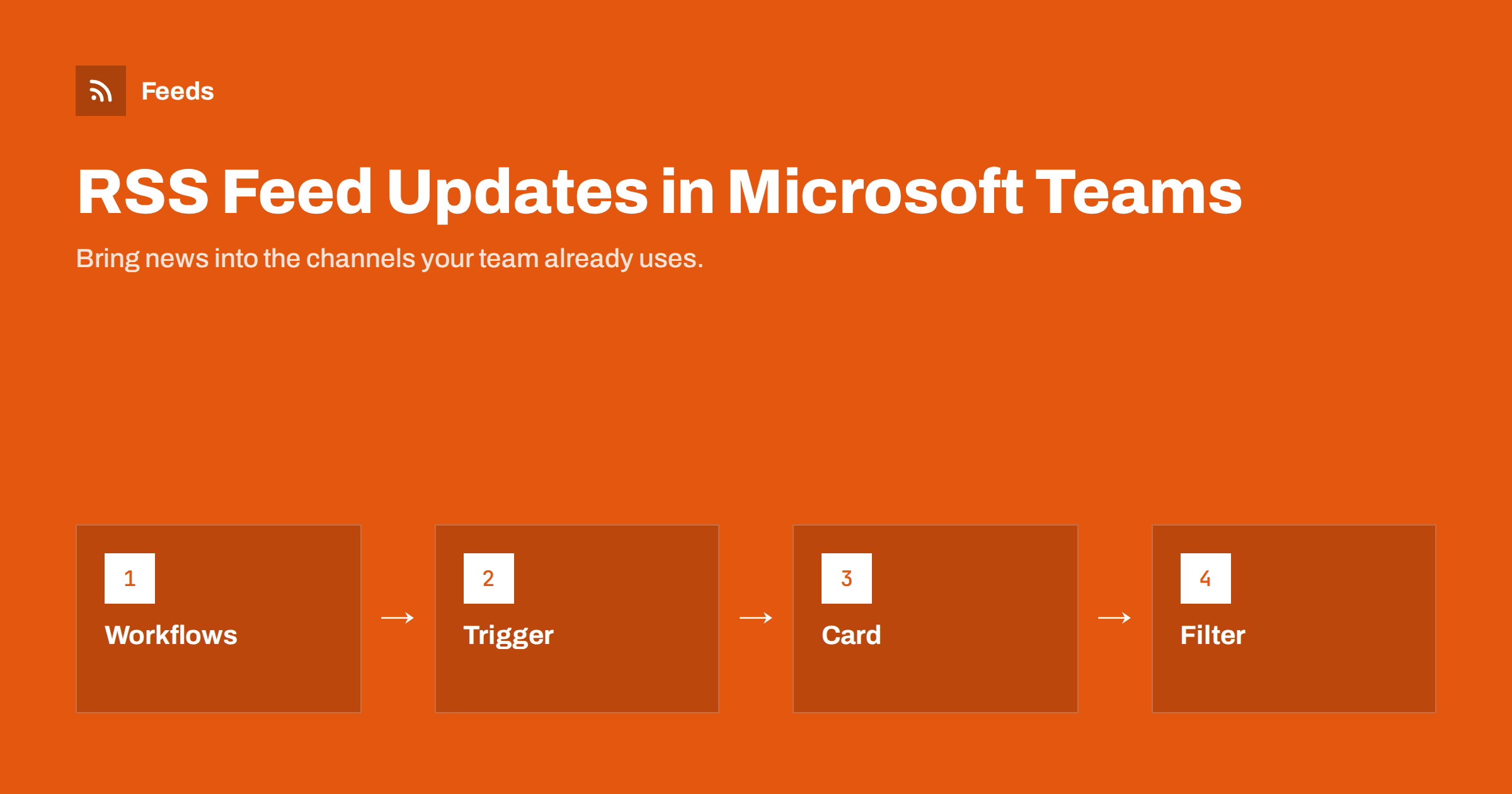
Short answer: The usual way to get RSS updates into Microsoft Teams today is a workflow built on Power Automate: the RSS connector’s “When a feed item is published” trigger watches the feed, and a Teams action posts each new item, or a daily summary, to a channel. Older Office 365 connectors in Teams have been in the process of being retired, so new setups should use the Workflows app or Power Automate. Give feeds their own channel and filter them so only relevant items are posted.
Why bring feeds into Teams
In many organisations, Microsoft Teams is where work conversations happen. People rarely open a separate feed reader, but they do check the channels of their team. Posting relevant news, updates and announcements straight into a channel means information reaches people where they already are, and discussion can happen right under the item.
Useful examples include:
- Industry and market news for sales, marketing or management teams.
- Service status and release notes from vendors your IT team depends on.
- Security advisories for security and operations staff.
- Your own organisation’s news, such as new blog posts or press releases, so colleagues can share them.
- Tenders and public procurement notices for business development teams.
- Research publications for teams working in a specific scientific or technical field.
Teams is also common in public sector and regulated organisations where third-party tools need approval. Using Microsoft’s own automation stack is often the easiest route through internal IT policies.
The state of RSS in Teams: connectors and Workflows
For years, Teams offered an RSS connector that could be added to a channel directly. Microsoft has announced the retirement of Office 365 connectors in Teams and recommends the Workflows app, which is built on Power Automate, as the replacement. Timelines have shifted during this transition, so check Microsoft’s current documentation before relying on any older connector.
In practice, this means new RSS-to-Teams setups should be built as workflows. The good news is that workflows are more flexible than the old connector: you can filter items, change the message format and post a daily summary instead of one message per item.
If your organisation restricts Power Automate or premium connectors, talk to your Microsoft 365 administrator early. Licensing and data policies in your tenant decide which connectors you can use.
Step by step: a feed-to-channel workflow
- Get the feed URL. Open it in a browser and confirm it shows recent items with titles and links.
- Create a new flow. In Power Automate, or through the Workflows app in Teams, start an automated cloud flow.
- Add the RSS trigger. Choose the RSS connector’s trigger “When a feed item is published” and paste the feed URL. You can choose whether it looks at the published date or the updated date.
- Add a condition (optional). Continue only if the title or summary contains specific words.
- Add the Teams action. Choose to post a message or an adaptive card in a chat or channel, pick the team and channel, and choose whether it posts as the flow bot or as a user.
- Build the message. Insert dynamic content from the trigger: feed item title, primary feed link and summary.
- Save and test. Wait for the next new feed item, or test with a feed you control, and check the channel on desktop and mobile.
Power Automate checks feeds at intervals, not instantly, so expect some delay between publication and the Teams post.
Formatting messages people will read
A plain message with a title and a URL works, but a little formatting makes a big difference in a busy channel.
- Linked title, not a bare URL. Make the headline itself the link.
- Short summary. Feed summaries can be long or contain HTML. Keep the first sentence or two and strip tags where possible.
- Source label. Start with the site or publication name, especially if several feeds share a channel.
- Adaptive cards for richer layout, such as a header, summary text and an “Open article” button. They take a little longer to design but look much cleaner.
- A clear bot identity. Posting as the flow bot rather than as a colleague avoids confusion about who shared the item.
Instant posts or a daily summary?
One message per item is fine for low-volume, high-importance feeds, such as a vendor status page. For news feeds with several items a day, a daily summary is far kinder to the channel.
A daily summary flow runs on a schedule, for example every weekday at 8:30. It reads the feed with the RSS connector’s “List all RSS feed items” action, keeps items published since the previous run, and posts one message listing them. It takes a bit more setup, with a filter on dates and a loop to build the list, but it replaces a dozen notifications with one.
A practical middle ground is to post urgent sources instantly and everything else in a daily summary, using two separate flows.
Keeping feed channels useful
- Dedicated channels. Keep feeds out of discussion channels, and name feed channels clearly so members know what to expect.
- Channel notifications off by default. Let members opt in to notifications instead of pinging everyone for every item.
- Strict filters. Include your key terms and exclude recurring noise.
- Merged sources. One merged feed with duplicates removed is easier to manage than many flows, one per source.
- A named owner. Someone should own each flow and review it every few months. Flows tied to a person’s account can stop when that person leaves.
Governance: who owns the flows
In a Microsoft 365 environment, automation quickly becomes a governance question. A flow built by one enthusiastic employee in their own account works fine until they change roles, their password policy forces a new sign-in, or they leave the company. Then the channel goes quiet, and nobody knows why or how to fix it.
A few simple rules prevent this:
- Build shared flows under a service account or add co-owners, so more than one person can edit and repair them.
- Document each flow in the channel’s description or a pinned post: which feeds it reads, what it filters and who owns it.
- Check data policies. Your organisation may have data loss prevention policies that restrict which connectors can be combined in one flow. The RSS connector and Teams connector need to be allowed together.
- Review external sources. Feeds bring outside content into an internal space. For sensitive channels, stick to reputable sources and avoid feeds that could carry misleading or malicious links.
None of this is complicated, but deciding it upfront saves a lot of confusion when something breaks months later.
Common problems and fixes
- The flow never runs: check that the feed URL is valid and publishes dates; the trigger relies on them.
- Items arrive late: the RSS trigger polls at intervals that depend on your licence. For time-critical items, consider a different source such as a webhook.
- The flow stopped after a colleague left: connections owned by that user expire. Rebuild the flow under a shared or service account.
- Old items were posted: the feed changed its dates or GUIDs. Check the flow run history for the item that triggered it.
- Messages show raw HTML: use an expression or HTML-to-text action to clean the summary.
When the source has no feed
Many sources that matter to business teams do not offer RSS: a regulator’s news list, a customer’s press page, a public tender portal. The RSS connector cannot watch those pages.
Feeds creates an RSS feed from any page that lists items, and uses the existing feed if the site already has one. It can merge several sources into one feed, keep or drop items based on your keywords and remove duplicates automatically. You check a preview before creating a feed, and it refreshes itself afterwards, with an alert on paid plans if a page changes and the feed stops finding items. The feed URL then goes into the Power Automate trigger like any other. See the pricing page for plan limits.
Related reading
- How to Send RSS Feed Updates to a Slack Channel
- How to Post RSS Feed Items to Discord Automatically
- Zapier vs Make vs IFTTT vs n8n for RSS Automation
- How to Build an Automated Daily News Digest from Feeds
The bottom line
For RSS in Microsoft Teams, build new setups with Workflows or Power Automate rather than the retiring connectors. Use the RSS trigger for instant posts or a scheduled flow for a daily summary, format messages with a linked title and a short summary, give feeds their own channels and assign an owner to every flow. Filtered, merged feeds keep the channel worth following.
KKK
Does Microsoft Teams still have an RSS connector?
Microsoft has been retiring Office 365 connectors in Teams and recommends the Workflows app, based on Power Automate, instead. Check Microsoft’s current documentation for the status in your tenant.
Do I need a paid licence to use RSS in Power Automate?
The RSS connector has been available as a standard connector for many Microsoft 365 licences, but licensing and tenant policies vary. Ask your Microsoft 365 administrator which connectors your account may use.
How quickly do feed items appear in Teams?
Not instantly. The RSS trigger checks the feed at intervals that depend on your plan, so delays of minutes up to an hour are normal.
Can I filter RSS items before they are posted to Teams?
Yes. Add a condition in the flow that checks the title or summary for keywords, or filter the feed itself before the flow reads it.
Why did my RSS flow stop working?
Common reasons are an expired connection from a user who left, a changed or broken feed URL, or tenant policy changes. The flow’s run history usually shows which step failed.


