 ENEnglish
 LTLietuviškai
 DEDeutsch
 FRFrançais
 RUРусский
 ESEspañol
 PLPolski
 ITItaliano
 UKУкраїнська
 CSČeština
 PTPortuguês
 JA日本語
JA日本語 LVLatviešu valoda
 ETEesti
 HUMagyar
 IDBahasa Indonesia
 TRTürkçe
 HIहिन्दी
 ELΕλληνικά
 ARالعربية
 THไทย
THไทย VITiếng Việt
 RORomână
 MSBahasa Melayu
 BNবাংলা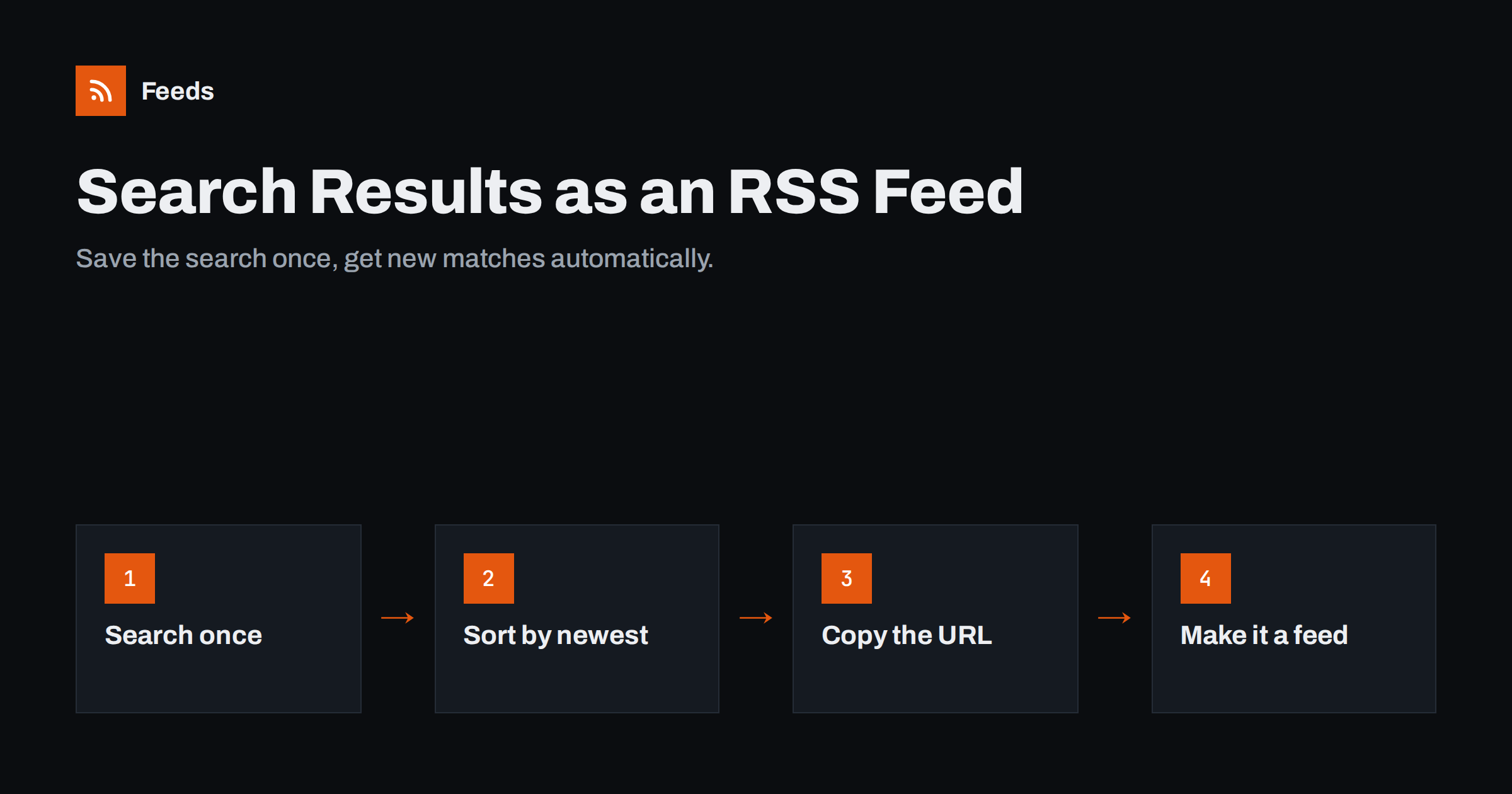
Short answer: if a website’s search or filter page puts your query in the address bar, that address is a stable page you can monitor. Run the search, sort the results by newest first, copy the URL and turn the page into an RSS feed, either with a built-in search feed (WordPress sites have one) or with a page-to-feed tool. Every time something new matches your query, it appears as a new item in your reader or automation.
Why search results make excellent feeds
Most feeds follow a whole site or a section. That is often too broad. A procurement portal publishes hundreds of notices a week, but you only care about “translation services”. A marketplace lists thousands of items, but you want used road bikes in your size. A news archive covers everything, but you are tracking one topic.
The site has already solved the filtering problem for you: its search and filter functions. When you turn a saved search into a feed, you get a personal alert that uses the site’s own index and categories, which are usually more accurate than keyword filters applied afterwards. Typical uses include:
- new listings on classifieds, property or car sites that match your criteria;
- new job postings for one role and location;
- new documents in a public register, archive or library search;
- new products in one category of a supplier’s catalog;
- new articles mentioning your brand in a publication’s own search.
Step 1: check whether the search URL is shareable
Run the search on the website and look at the address bar. You want to see your query and filters in the URL, for example ?q=solar+inverter&category=12 or a path such as /search/solar-inverter/. Then test it:
- Copy the address.
- Open it in a private browser window, where you are not logged in and have no cookies.
- Check that the same results appear.
If they do, the search is a normal GET request and the URL can be monitored. If the address bar shows no query, or the private window shows an empty page, the site uses a form submission or a script that loads results separately. Those cases are harder, and we cover them below.
Step 2: sort by newest and keep it on page one
The most important setting is the sort order. Search pages often default to “relevance” or “popularity”, which reshuffles results every day. A feed built on that order will show old items as new whenever the ranking changes. Choose “newest”, “date” or “recently added” and make sure the sort parameter is in the URL.
A few more tips:
- Stay on the first page. New items appear at the top, so page one is all you need. Remove page numbers from the URL.
- Increase results per page if the site allows it and new items arrive quickly, so nothing slips to page two between refreshes.
- Remove tracking parameters such as session IDs or campaign tags that may expire.
- Keep the query specific. A narrow search produces a feed you will actually read.
Step 3: look for a built-in search feed
Some platforms already offer feeds for search results, and a native feed is always the first choice.
- WordPress sites generate a feed for any search. Add
&feed=rss2to a search URL such asexample.com/?s=keyword, givingexample.com/?s=keyword&feed=rss2. Many WordPress sites also support tag and category feeds, described in every feed a WordPress site already has. - Job boards, forums and marketplaces sometimes show an RSS icon or an “alerts” option on the results page. Look near the result count or in the page footer.
- Public registers and procurement portals occasionally offer RSS for saved searches, sometimes only after registration.
If the page has an autodiscovery link, most RSS readers will find the feed when you paste the results URL. Otherwise, move to the next step.
Step 4: create a feed from the results page
When no native feed exists, a page-to-feed tool can read the results page and turn each result into a feed item. It looks for the repeating block that holds each result, then extracts the title, link, image, summary and date. The approach is explained in detail in how page-to-feed tools find the articles on a page.
Results pages are usually a good fit because they are lists by design. Check the preview carefully, though:
- Sponsored or “featured” results pinned to the top can appear as permanent items. Exclude them with a keyword filter if they carry a label such as “Sponsored”.
- Results without dates will be dated by when the feed first saw them, which is fine for alerts.
- If the site shows “No results” in a styled box, make sure that box does not become an item.
Once the feed exists, add it to your reader or connect it to email, Slack or Teams. For narrower alerts, combine it with keyword filters on RSS feeds.
When search results cannot be turned into a feed
Some searches cannot be monitored from the outside, and it is better to know early:
| Situation | What you see | What to do |
|---|---|---|
| Search uses POST forms | URL does not change after searching | Look for a browse or category page with a stable URL instead |
| Results load by script | Page source has no results; private window shows a spinner | Check for a JSON-LD block or a native alert feature |
| Login required | Private window redirects to sign in | Use the site’s own email alerts |
| Bot protection or CAPTCHA | Challenge page instead of results | Respect it; use official alerts or an API |
JavaScript-heavy sites are discussed further in creating RSS from JavaScript-heavy websites. Whatever the method, stay within the site’s terms and keep refresh rates modest; a results page checked a few times a day is plenty for almost every use.
Practical examples
- A buyer tracks a supplier catalog search for “stainless fittings”, sorted by newest, and gets new parts in a reader folder.
- A recruiter turns a job board search for “data engineer, Berlin” into a feed and sends it to a team channel.
- A consultant monitors a procurement portal search for a service category and forwards new notices by email.
- A PR manager saves a publication’s site search for the company name to catch articles that general news alerts miss.
- A collector watches a marketplace search for a rare item, sorted by newly listed.
In each case, several saved searches can be merged into one feed so the person checks a single stream instead of five websites.
Keeping a search feed reliable over time
Saved searches break more quietly than ordinary feeds. The site still responds, but the results page may change in ways that make your feed empty or noisy. A little maintenance prevents most surprises:
- Watch for zero-result periods. A narrow search can legitimately return nothing for weeks. Decide in advance whether silence is normal or a sign that something changed, and check the results page by hand if in doubt.
- Re-check the URL after a site redesign. Parameter names such as
q,queryorkeywordssometimes change, and old URLs may silently fall back to an unfiltered list. - Review the query every few months. Your needs drift. A search for one product model may need a newer model name; a job search may need an extra location.
- Label each feed clearly in your reader or automation, including the site and the query, so a colleague can understand and fix it later.
- Keep a list of saved searches with their URLs in one document. When a site changes, you can rebuild the feeds in minutes.
How Feeds helps
Feeds reads public pages from the outside, so a search or filter results page with a stable URL can be pasted just like any other address. If the site already offers a feed, Feeds uses it; if not, it finds the list of results on the page and builds a clean feed with titles, images, summaries and dates, and you see a preview before anything is created. You can merge several saved searches into one feed, keep only items with or without certain words, and duplicates are removed automatically. Feeds refresh on their own, and paid plans alert you when a feed stops finding items, for example after the site changes its layout. Try it with a results page you already use.
Related reading
- How to Get RSS Alerts for New Property and Rental Listings
- How to Get RSS Feeds for Job Listings and Careers Pages
- How to Monitor Public Tenders and Procurement Notices with RSS
The bottom line
A saved search is one of the most precise feeds you can have. Make sure the query lives in the URL, sort by newest, check for a native search feed, and otherwise create the feed from the results page. Avoid pages that need logins, forms or scripts, respect the site’s rules, and merge several searches into one stream you actually read.
KKK
Can any website search be turned into an RSS feed?
Only searches whose results appear at a stable, public URL. If the query is in the address bar and the results show up in a private browser window, the page can usually be turned into a feed.
How do I get an RSS feed of WordPress search results?
Add &feed=rss2 to the search URL, for example example.com/?s=keyword&feed=rss2. WordPress then returns the matching posts as an RSS feed.
Why does my search feed keep showing old items as new?
The results are probably sorted by relevance or popularity, which changes the order over time. Switch the search to newest first and make sure the sort parameter is part of the URL.
How often should a search results feed refresh?
A few times a day is enough for most uses such as listings, jobs or tenders. Faster polling adds load to the website without giving you meaningfully earlier alerts.
Is it allowed to monitor another site’s search results?
Reading public pages at a modest rate is generally similar to a person visiting them, but terms of use differ. Check the site’s terms and use official alerts or an API where they exist.


