 ENEnglish
 LTLietuviškai
 DEDeutsch
 FRFrançais
 RUРусский
 ESEspañol
 PLPolski
 ITItaliano
 UKУкраїнська
 CSČeština
 PTPortuguês
 JA日本語
 LVLatviešu valoda
 ETEesti
 HUMagyar
 IDBahasa Indonesia
 TRTürkçe
 HIहिन्दी
 ELΕλληνικά
 ARالعربية
 THไทย
 VITiếng Việt
 RORomână
 MSBahasa Melayu
 BNবাংলা
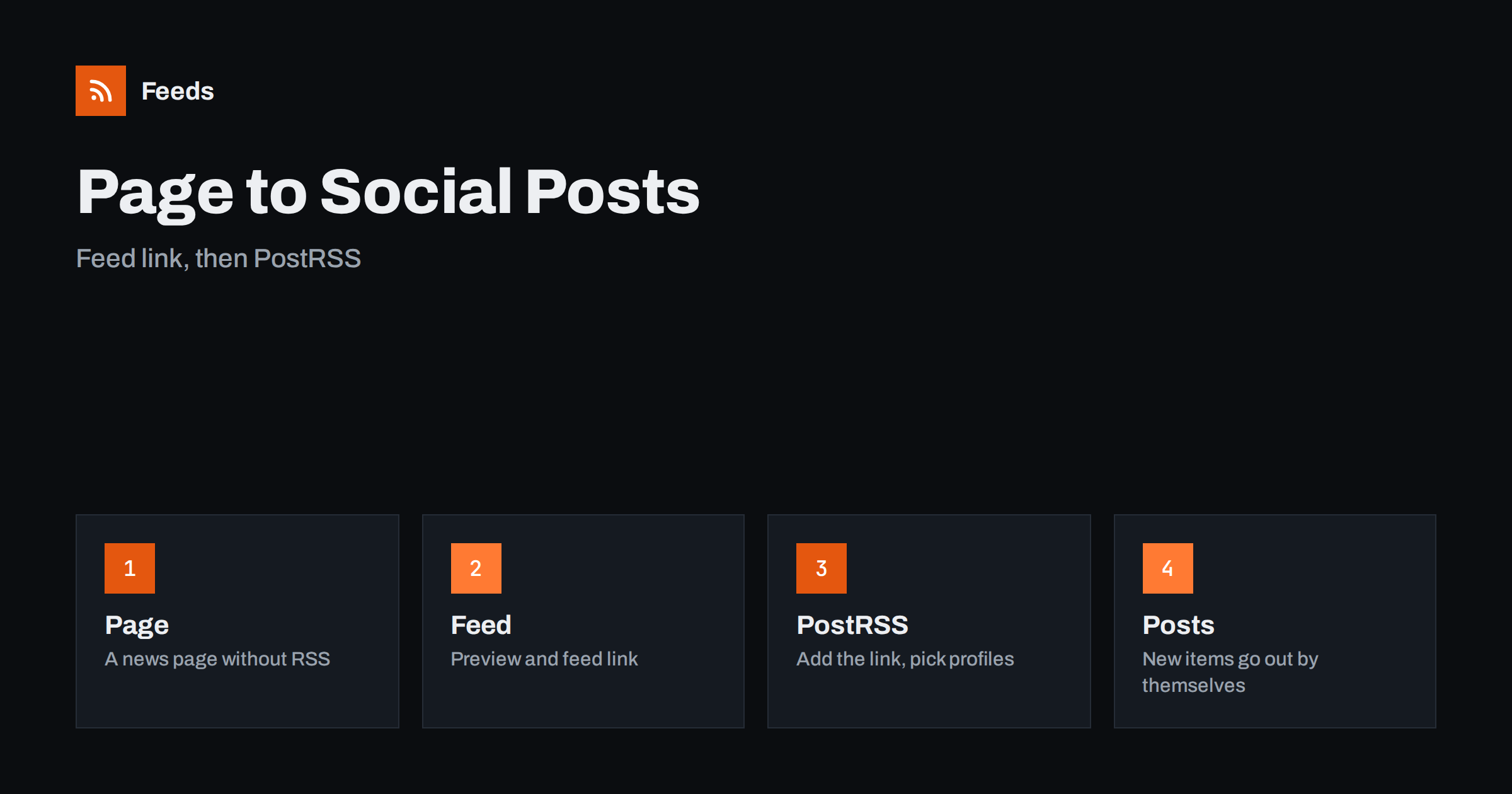
Short answer: Many partner and industry sites publish news but have no RSS feed, so they cannot be posted automatically. RSS Feed Creator reads such a page from the outside and turns it into a clean feed with titles, images, summaries and dates. You add the feed link to PostRSS, choose your pages and profiles, and new items are posted by themselves. The PostRSS add-on is made for exactly this case.
Think about what a steady stream gives you. Followers who see useful news from your account every few days learn to look at your page first, and the partners and sources you credit see your page too, which can start good relationships. The saving in time is real, but the larger gain is consistency, which is the hardest thing to keep up by hand.
The gap this solves
Automatic social posting from a feed works well when the source has a feed. Plenty of useful sources do not: a trade association, a council, a supplier, a partner company or a local club may publish news on a page and nothing more. Without a feed, someone has to open the page every day, copy the item and post it by hand. That is slow, and it is easy to forget.
RSS Feed Creator closes the gap. It turns the news page into a feed without needing any code or plugin on the other website, and PostRSS takes the feed from there. If you want the general background, how to automate social media posts from an RSS feed explains the idea, and why many websites have no RSS feed explains why the gap is so common.
If the site has several news sections, make one feed per section. A company may have separate pages for product news, press releases and events, and your audience may want only one of them. Separate feeds let you give each its own filters, profiles and posting style, and they are easy to pause one by one.
Step 1: make a feed from the page
Open the news page you want to share in your browser and copy its address. The best page is the one that lists items in order, such as “latest news” or “press releases”, not a home page with banners. Paste the address into RSS Feed Creator. If the site already has an RSS feed, the tool uses it; if it does not, the tool finds the list of items on the page and reads titles, images, summaries and dates.
You need no access to the other site, because the tool reads public pages from the outside, like a visitor. Think about permission and good manners as well: is it legal to create RSS feeds from other websites covers the main points, and sharing a link with credit is different from copying a whole text.
Step 2: check the preview
Before anything is created, you see exactly which items were found, with titles and images. Read the list like a follower would. Do the titles make sense on their own? Is the newest item first? Are there items that do not belong, such as menu links or cookie notices? Do the images look good as post pictures?
This step matters most for social posting, because every item in the feed can become a public post. If the preview is not right, try a more specific page, such as a category of news, or add keyword filters so that only relevant items remain. Writing RSS item titles and summaries that get opened shows what makes a good item, and keyword filters in RSS Feed Creator explains how to keep only what matters.
Name your sources clearly inside PostRSS, for example with the name of the partner and the section. When you have ten sources, clear names make it easy to see which one produced a post and to switch it off if the quality drops. A tidy setup now saves confusion later.
Step 3: add the feed link to PostRSS
When the preview looks right, create the feed and copy its link. In PostRSS, add this link as a source, choose the pages and profiles where the posts should appear, and new items from the feed are posted by themselves. PostRSS publishes every new item from a feed to social networks such as Facebook, Instagram, X, LinkedIn and Telegram, and it has done so since 2014.
Start with one or two profiles and watch the first posts. Check the text, the image and the link. Then adjust the post format to your style. Writing post templates for automated social media feeds and hashtags in automated posts give practical rules for clean and consistent posts.
A small association is a good example. It has twenty member organisations, and only a few of them have feeds. With a feed made from each member’s news page, the association account can share the best items every week without a volunteer copying text. Members get more visibility, and the association looks active and useful.
Who is this for
The main users are publishers and organisations that share news from other places. A local news page may share items from the council and from community groups. An industry association may share announcements from member companies. A shop may share news from the brands it sells. A school may share notices from the education authority.
It also suits agencies, which manage many accounts for clients and need a steady flow of relevant items for each. One source set per client, each with its own filters and its own profiles, keeps the work organised. For the wider setup, content automation for agencies managing many clients is a good guide.
Pay attention to images. Social networks show a preview picture, and items without an image look weak. The preview in RSS Feed Creator shows the images found, so you can see in advance which items will look good. If a source rarely has images, consider adding a standard picture in your post format.
Keep the posts valuable
A feed that posts everything can quickly become noise. Use keyword filters to keep only the items your audience cares about, and avoid sources that publish often with little value. Add your own opinion when it matters, and do not post items that are only advertising for another company unless that is what your audience expects.
Think about frequency, too. Several posts at the same minute can look like spam, and a long silence can look like neglect. How often should automated feeds post to social media helps you find a rhythm. Credit the original source in the text or link, and respect any usage rules that the source publishes.
What happens when the page changes
Websites change their design, and a feed built from a page could stop finding items. RSS Feed Creator detects the list of items again on every refresh, so most changes are handled without action. On paid plans, you also receive an alert if a page changes and a feed breaks, so the posting does not stop silently for weeks.
It is still sensible to check the posts now and then. If you depend on the stream for your audience, add a monthly reminder to open the feed and confirm that new items arrive. What to do when RSS automation stops posting lists common causes, and monitor your own RSS feed describes a light routine.
Plans and limits
The PostRSS add-on costs €5 per month and is made for PostRSS users who publish from sites without RSS. It includes 10 feeds from pages, up to 100 items per feed, merging of up to 10 sources, a 30-minute refresh and the alert when a page changes and a feed breaks. The free plan lets you try the tool on one website, with up to 20 items per feed and keyword filters, and refreshes every 3 hours.
The add-on is made for PostRSS users, but the feeds themselves work in any RSS reader or tool. Prices are in euros without VAT, you can cancel at any time and your feeds keep working within the free plan limits. See the pricing page for all plans.
Responsible sharing checklist
Before you switch on automatic posting from another site, run through a short list. Is the source one you trust? Is the content public and suitable for your audience? Do you link to the original page? Have you filtered out items that are advertising or sensitive? Do you review the first week of posts? Is there a person who can pause the stream if something goes wrong?
If the answers are yes, you have a stream that saves time and serves your audience. Brand safety in automated posting and full auto vs approval queue help you decide how much control to keep.
Related reading
- How to Automate Social Media Posts from an RSS Feed
- How to Create an RSS Feed for a Website Without RSS
- Writing Post Templates for Automated Social Media Feeds
The bottom line
RSS Feed Creator turns a news page without RSS into a feed, and PostRSS posts its new items to your social networks. Check the preview, filter for quality, start with one profile, credit the source and keep an eye on the stream.
FAQ
Do I need access to the other website?
No. RSS Feed Creator reads public pages from the outside, like a visitor.
Does the add-on need a PostRSS account?
Il est conçu pour les utilisateurs de PostRSS, mais les flux fonctionnent dans tout lecteur ou outil RSS.
What happens if the page changes its layout?
The list of items is detected again on every refresh, and paid plans send an alert if a feed stops finding items.
How fast do new items arrive?
Feeds refresh every 3 hours on the free plan and every 30 minutes on paid plans.
Can I keep only some items?
Yes. Keyword filters keep the items that contain your words, and you can exclude words you do not want.


