 ENEnglish
 LTLietuviškai
 DEDeutsch
 FRFrançais
 RUРусский
 ESEspañol
 PLPolski
 ITItaliano
 UKУкраїнська
 CSČeština
 PTPortuguês
 JA日本語
JA日本語 LVLatviešu valoda
 ETEesti
 HUMagyar
 IDBahasa Indonesia
 TRTürkçe
 HIहिन्दी
 ELΕλληνικά
 ARالعربية
 THไทย
THไทย VITiếng Việt
 RORomână
 MSBahasa Melayu
 BNবাংলা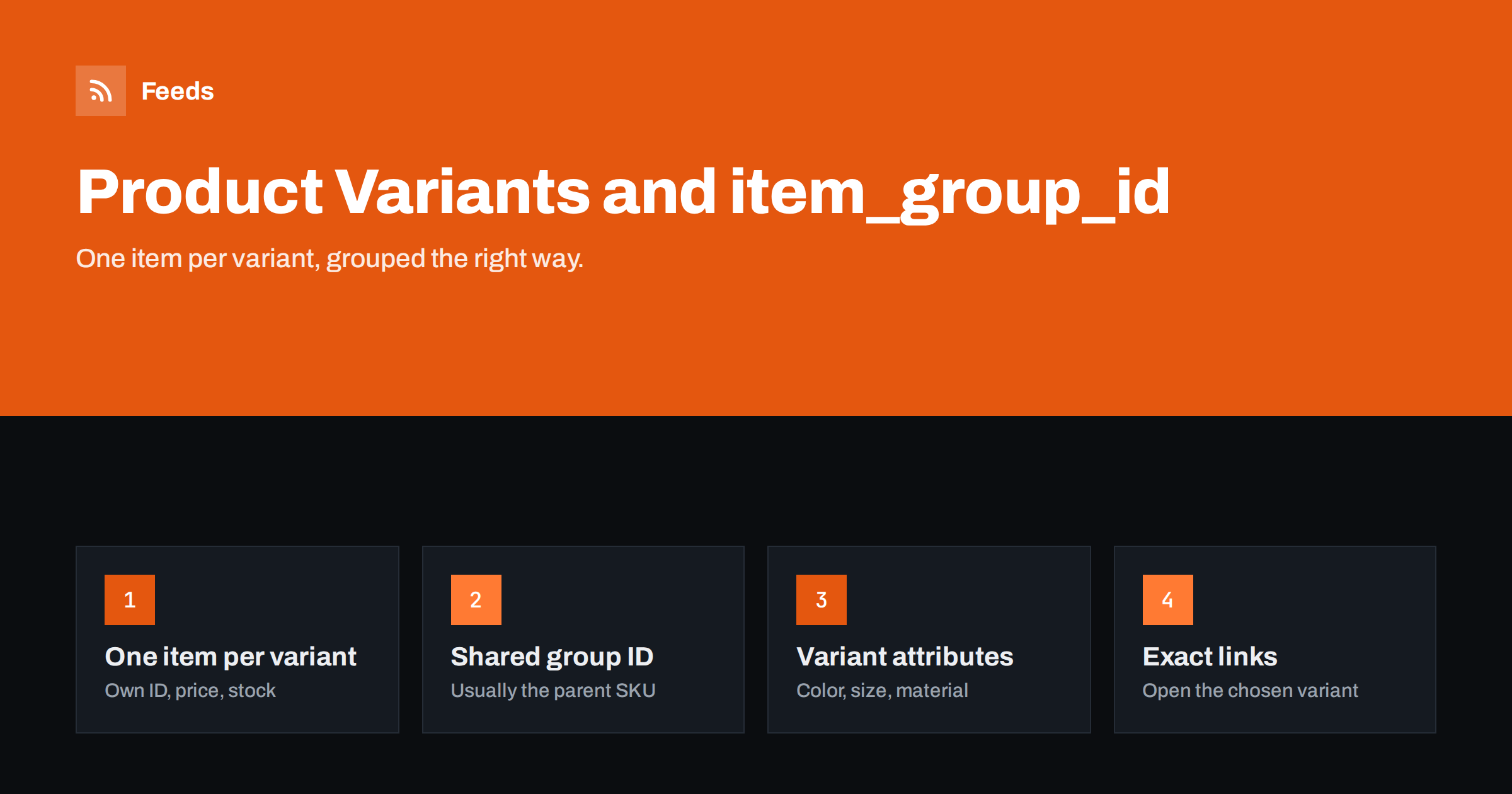
Short answer: In a product feed, each purchasable variant (for example each size and color of a shirt) is a separate item with its own id, price, availability, image and GTIN. All variants of the same product share one item_group_id, usually the parent SKU, and each item carries the attributes that vary, such as color, size, material or pattern. Each variant’s link must open that exact variant on the page, so the price and stock the platform sees match the feed.
Why variants need special handling
In your store, a product with variants looks like one thing: one page, one set of photos, a dropdown for size and color. For a shopping platform, it is many things. A shopper searching for “blue linen shirt size L” wants the blue one in size L, at its price, with its stock status. If your feed sends only the parent product, the platform cannot show the right variant, cannot tell whether it is in stock, and may show a price that only applies to another option.
Variants are also where many feed problems concentrate. Price differences between sizes, stock that runs out per variant, images that differ per color and links that open the default option all create opportunities for mismatches. Getting the structure right removes a whole family of issues at once.
The good news is that the rules are simple and the same across Google and Meta: one item per variant, a shared group ID, the varying attributes on each item, and exact links.
Think of it from the shopper’s side. Someone who searches for a specific color and size and lands on the right variant, with the right price and a green “in stock” label, has a short path to checkout. Someone who lands on the default variant has to find the right options, may discover a different price, and may find their size sold out. The feed structure directly shapes that experience.
What item_group_id does
item_group_id tells the platform which items belong together as variants of one product. Google uses it to group variants in some displays, to understand that the items are related rather than duplicates, and to apply requirements for variant attributes. Meta uses it similarly to group variants in catalogs and ads.
The value itself can be anything unique per product group, as long as it is the same for all variants of that product and different from other products. The parent product’s SKU is the natural choice. Avoid using the parent’s database ID if it could change during a migration, for the same reasons you avoid it for item IDs.
Do not reuse the item_group_id as an item’s own id. The parent product is not purchasable by itself and should not appear as an item. Only the variants appear, each with its own id and the shared group ID.
The attributes that vary
For each variant, send the attributes that distinguish it from its siblings. Google recognizes a set of variant attributes:
- color: the color name as shoppers understand it, such as “Navy” rather than a code like “C-07”.
- size: the size as displayed, such as “M”, “42” or “10.5”.
- material: when variants differ by material, such as leather versus canvas.
- pattern: when variants differ by print or pattern.
- age_group and gender: when variants target different groups.
For apparel in many countries, color, size, gender and age_group are required for every item regardless of whether they vary. For other categories, send the attributes that actually vary. If variants differ by something not covered, such as capacity or flavor, include it in the title and consider product_detail for structured specifications.
Keep attribute values consistent. “Navy”, “navy blue” and “NAVY” for the same color across products make filtering and reporting harder, and they look sloppy in results.
Size systems deserve a note. If you sell internationally, a size “42” means different things for shoes in different regions. Google offers size_system and size_type attributes for apparel and shoes, which help when the same product is sold in several countries with different size conventions.
Titles, images and prices per variant
Each variant item should be complete on its own:
- Title: the base title plus the variant attributes, such as “Northwind Linen Shirt, Navy, L”. Without them, all variants look identical in results.
- Image: the image for that color or style. For size-only variants, the same image is fine.
- Price: the variant’s own price. Larger sizes or premium materials often cost more.
- Availability: the variant’s own stock status. One size can be sold out while others are in stock.
- GTIN: each variant usually has its own barcode. Do not repeat the parent’s GTIN for all variants.
Description and brand can usually be shared across the group. Shared fields are fine; what matters is that the fields that differ in reality also differ in the feed.
Links that open the exact variant
The link for each variant must land on a page that shows that variant: the right color selected, the right size selected where it affects price or stock, and the matching price and availability visible without further clicks. Most platforms support URL parameters for this. Shopify uses a variant parameter; WooCommerce can preselect attributes through parameters; custom platforms often have their own.
If the link opens the default variant, the platform compares your variant’s feed data with the default variant’s page data. When prices or stock differ, the result is a mismatch. This is the most common variant problem, and it is easy to test: open a few variant links in a private browser window and check what is selected.
Also check that structured data on the page reflects the selected variant. Some themes output only the lowest price or the parent’s data, which can confuse crawlers even when the visible page is correct.
A quick way to audit variant links at scale is to take a sample of fifty variants, open each link, and record whether the selected option matches the feed. If more than a handful fail, the problem is systematic, usually in how links are generated, and one fix will correct all of them.
How many variants to include
Large catalogs with many sizes and colors can produce feeds with tens of thousands of items. That is normal, and platforms handle it. Still, a few choices keep the feed useful:
| Situation | Recommended approach |
|---|---|
| Variants differ in color, size or price | Include every purchasable variant |
| Variant permanently discontinued | Remove it from the feed |
| Variant temporarily sold out | Keep it, marked out_of_stock, or exclude by rule |
| Options that do not change the product (gift wrap, engraving) | Do not create separate items |
| Made-to-measure or configurable products | Send a representative item with a clear starting configuration |
Options such as gift wrapping or personalization are not variants in the feed sense. They do not create a different product, and turning them into items would create near-duplicates.
Common variant mistakes
- Parent product listed as an item alongside its variants, creating a duplicate without a clear price or stock.
- Same id for all variants, so they overwrite each other and only one survives.
- Missing item_group_id, so variants look like unrelated near-duplicates.
- Same image for all colors, misleading shoppers who search by color.
- Parent GTIN copied to every variant, causing invalid or conflicting identifiers.
- Links to the default variant, causing price and availability mismatches.
- Codes instead of names in color and size attributes.
Most of these trace back to how variant data is stored in the store. Fixing the store data, such as assigning variant images and barcodes, improves the feed and the storefront at the same time.
When you change how variants are structured in an existing feed, for example by switching from parent-level items to variant-level items, expect a period of adjustment. New item IDs start without history, and campaigns built around the old IDs need to be checked. Plan such a change for a quieter period rather than just before a major sale.
How Feeds helps
Feeds reads products from WooCommerce and Shopify stores, or from a CSV file link, and publishes them as a Google product XML feed with id, title, link, image, price, availability and brand that Merchant Center and Meta can both fetch. You can check the preview of found products before the feed is created, rewrite titles with rules, adjust prices and skip out-of-stock products. See the pricing page for plans and product limits.
Related reading
- WooCommerce Product Feed for Google Shopping: A Setup Guide
- Shopify Product Feed for Google Merchant Center Explained
- How to Fix Price Mismatch Errors in Google Merchant Center
The bottom line
Treat every purchasable variant as its own item with its own ID, price, stock, image and GTIN, and connect variants with a shared item_group_id. Send the attributes that vary, add them to titles, and make sure each link opens the exact variant. Most variant problems are fixed once, in how the store stores variant data.
FAQ
What should I use as item_group_id?
The parent product’s SKU is the usual choice. It must be the same for all variants of a product and different from other products.
Should the parent product appear in the feed?
No. Only purchasable variants should appear as items. The parent is represented by the shared item_group_id.
Do all variants need different images?
Variants that differ in color or style should have their own image. Size-only variants can share the same image.
Why are my variants disapproved for price mismatch?
Usually because the link opens the default variant instead of the one in the feed. Links must preselect the exact variant.
Do products without variants need item_group_id?
No. item_group_id is only needed for products that come in several variants.


