 ENEnglish
 LTLietuviškai
 DEDeutsch
 FRFrançais
 RUРусский
 ESEspañol
 PLPolski
 ITItaliano
 UKУкраїнська
 CSČeština
 PTPortuguês
 JA日本語
JA日本語 LVLatviešu valoda
 ETEesti
 HUMagyar
 IDBahasa Indonesia
 TRTürkçe
 HIहिन्दी
 ELΕλληνικά
 ARالعربية
 THไทย
THไทย VITiếng Việt
 RORomână
 MSBahasa Melayu
 BNবাংলা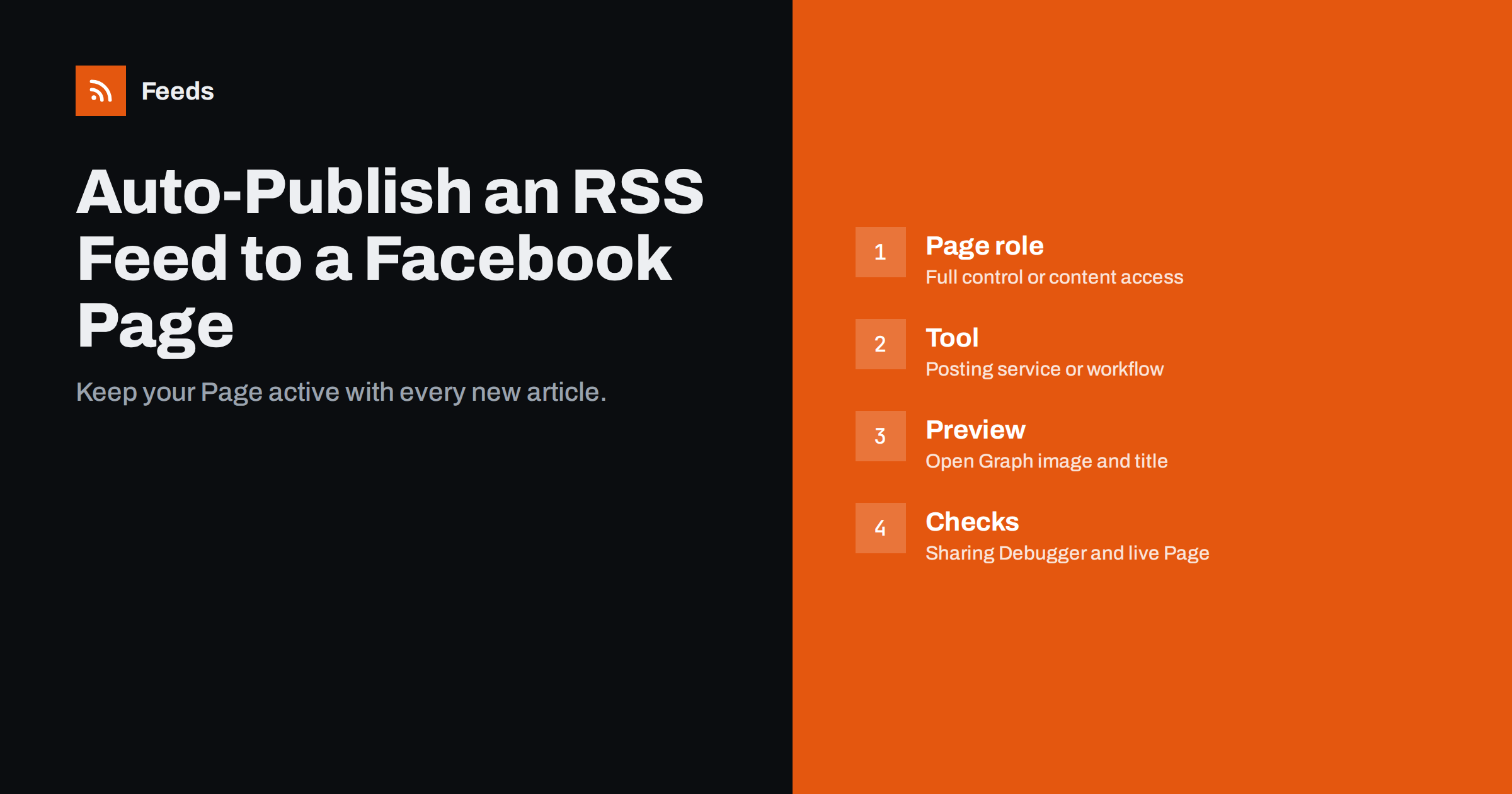
Short answer: Facebook no longer offers a built-in way to import an RSS feed into a Page, so you need a third-party tool: a social posting service with RSS support or an automation platform with a Facebook Pages action. You connect your Facebook account, grant the tool permission to publish on the Page you manage, add the feed URL and a post template, and set it to post only new items. Facebook builds the preview from your page’s Open Graph tags, so check those and use the Sharing Debugger when previews look wrong.
Why automate your Facebook Page
For many small businesses, clubs, local media and organisations, the Facebook Page is still where customers and members look for news, opening hours and updates. A Page that stays quiet for months looks abandoned, even if the website is busy.
Automatically publishing new website content to the Page keeps it alive without extra work: every blog post, news item, event announcement or new product appears on the Page shortly after it is published on the site. The website remains the main home of the content, which is good for search visibility and ownership, while the Page brings it to followers.
There is a further benefit in keeping the website as the source. Content published only on Facebook belongs to a platform you do not control, is hard to find through search engines and disappears from view quickly in the timeline. Content published on your site and shared to Facebook stays findable, can be linked from other places and remains yours if the platform changes its rules or your Page reach falls.
It also protects against a common gap. When the person who usually posts on Facebook is on holiday or leaves the company, the Page keeps receiving updates.
What changed: no native RSS import
Years ago, Facebook offered ways to import blog posts into Pages or Notes directly. Those features were retired, and today Pages do not read RSS feeds on their own. Publishing to a Page happens either by hand, through Meta’s own tools such as Meta Business Suite, or through apps that use Meta’s official APIs with your permission.
Meta also changes its APIs and review requirements from time to time. Reputable posting tools keep up with those changes on your behalf, which is one more reason to prefer an established tool over a small script that nobody maintains. If you build your own integration, expect to go through Meta’s app review for publishing permissions.
For automation from a feed, that means a third-party tool is required. Choose one that uses the official Facebook Pages API through a proper login and permission flow. Avoid tools that ask for your Facebook password directly or use unofficial methods, which can put your account at risk.
Permissions you need
To let a tool publish on a Page, the person connecting it needs a role on the Page with permission to create content. With Meta’s newer Page access model, this is typically full control or task access that includes content. During connection, the tool asks you to choose which Pages it may access and which permissions to grant, such as creating content.
A few practical tips:
- Connect with a business-owned account role, not the personal account of a freelancer who may leave.
- Grant access only to the Pages the tool needs.
- Note the date you connected; connections can expire or need renewal, especially after password changes or security checks.
- Use Meta Business Manager or its successor tools to keep an overview of who has access to the Page.
Step by step setup
- Check your feed. Open it and confirm that new items have titles, links and images.
- Choose a tool. A social posting service with RSS support is simplest; an automation platform is more flexible if you also post elsewhere.
- Connect Facebook and select the Page. Make sure you are posting as the Page, not to your personal profile.
- Add the feed URL and preview the items the tool found.
- Choose “new items only” so the archive is not published.
- Write the template. For example: a short line of context, then the link. Facebook will attach the preview card automatically.
- Set limits, such as a maximum number of posts per day and spacing between them.
- Publish a test item and check the Page on desktop and mobile.
Getting link previews right
When a post contains a link, Facebook fetches the page and builds a preview from its Open Graph tags: og:title, og:description and og:image. If the preview shows the wrong image, no image or an old title, the cause is almost always on the website side.
- Make sure every article or product page has a correct
og:imagewith an absolute HTTPS URL. - Use images large enough for a full-width preview; around 1200 × 630 pixels is a common choice.
- Use the Sharing Debugger from Meta for Developers to see what Facebook reads from a URL and to refresh its cache.
- Add a short delay between publication and automated posting, so images and metadata are final before Facebook caches the page.
Writing posts that fit Facebook
- Add a human line. A sentence that says why the article matters performs better than a bare link.
- Keep it short. The preview card already shows the title and description; avoid repeating them word for word.
- Ask sparingly. An occasional question can invite comments, but automated questions on every post feel forced.
- Hashtags are optional on Facebook and usually add little. One relevant tag is enough if you use them at all.
- Mind the timing. If your site publishes late in the evening, consider holding Facebook posts until the next morning, when your followers are more likely to see them. Page insights show when your audience is online.
- Reply to comments. Automation publishes the post, but people who comment expect a person to answer. Check the Page’s notifications or inbox daily, or route them to whoever handles customer questions.
- Track clicks with UTM parameters such as
utm_source=facebook&utm_medium=social.
Several Pages, one feed
Businesses with several locations, franchises or brands often want the same content on several Pages, or different content on each. Most posting tools let you connect several Pages and assign feeds to each. Consider:
- Category or location feeds so each Page only gets relevant content.
- Different templates per Page to match local tone.
- Staggered timing so the same article does not appear on several Pages at exactly the same moment, which looks mechanical to people who follow more than one of them.
Troubleshooting common problems
- Nothing is posted: check that the connection is still valid; Facebook connections often need re-authorisation after security events or password changes.
- Posts go to a personal profile: the tool was connected to the profile rather than the Page. Reconnect and choose the Page.
- Wrong or missing images: check
og:imageand refresh the URL in the Sharing Debugger. - Old items posted again: the feed changed links or GUIDs, or the workflow was recreated without “new items only”.
- Posts appear but get no reach: look at content, timing and frequency. Very frequent link posts with no context tend to be scrolled past.
Feeding the Page from sites without RSS
Local organisations often want to share news from partners: the municipality, a sports federation, a school or the local tourist board. Many of these sites have no RSS feed. Feeds creates an RSS feed from any page that lists articles, with titles, images, summaries and dates, and uses the existing feed where available. Several sources can be merged, items filtered by keywords, and duplicates are removed automatically. The feed link then goes into your Facebook posting tool. For third-party content, add a short comment and credit the source. The pricing page shows the available plans.
Related reading
- How to Automate Social Media Posts from an RSS Feed
- Why Automated Social Posts Lose Images and How to Fix It
- How Often Should Automated Feeds Post to Social Media?
- How to Share New Shop Products on Social Media Automatically
The bottom line
Facebook Pages do not import RSS by themselves, but any posting tool that uses Meta’s official API can do it for you. Connect with the right Page role, post only new items, write short templates with a human line, make sure Open Graph previews look right and check the live Page regularly. That keeps your Page consistently active with very little effort.
FAQ
Can a Facebook Page import an RSS feed directly?
No. Facebook retired its native import features, so you need a third-party posting tool or automation platform that publishes through Meta’s official API.
What Page role do I need to auto-post?
You need access that allows creating content on the Page, typically full control or task access including content. The tool will ask which Pages and permissions to grant when you connect.
Why does my Facebook post show the wrong image?
Facebook uses the page’s og:image tag and caches previews. Fix the tag if needed and use Meta’s Sharing Debugger to fetch the URL again.
Can I post one feed to several Facebook Pages?
Yes. Most posting tools support several Pages. Use category or location feeds and separate templates if each Page needs different content.
Does Facebook reduce reach for automated posts?
Meta does not publicly state that posts made through its official API are penalised. Reach depends much more on relevance, engagement and posting habits.
How often should an automated feed post to a Facebook Page?
For most business Pages, one to three posts a day is a sensible maximum. Use daily caps and spacing in your posting tool so busy publishing days do not flood your followers.


