 ENEnglish
 LTLietuviškai
 DEDeutsch
 FRFrançais
 RUРусский
 ESEspañol
 PLPolski
 ITItaliano
 UKУкраїнська
 CSČeština
 PTPortuguês
 JA日本語
JA日本語 LVLatviešu valoda
 ETEesti
 HUMagyar
 IDBahasa Indonesia
 TRTürkçe
 HIहिन्दी
 ELΕλληνικά
 ARالعربية
 THไทย
THไทย VITiếng Việt
 RORomână
 MSBahasa Melayu
 BNবাংলা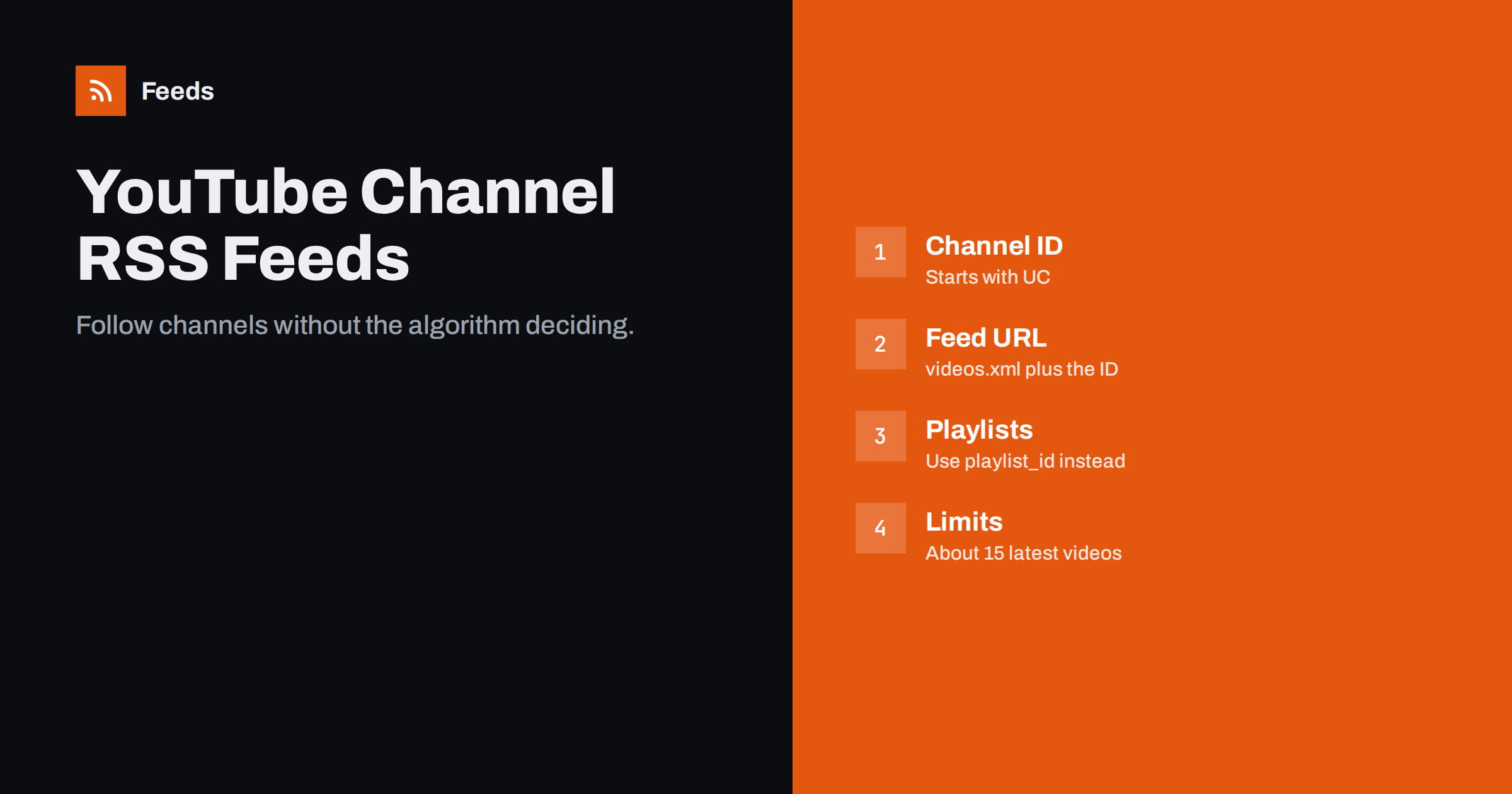
Short answer: Every YouTube channel has an Atom feed at https://www.youtube.com/feeds/videos.xml?channel_id= followed by the channel ID, which starts with “UC”. Playlists work the same way with ?playlist_id=. Paste either URL into any RSS reader or tool to get new uploads in chronological order, without recommendations or the algorithm. Most feed readers also find the feed automatically if you paste the channel’s page address.
YouTube never advertised it much, but it has kept publishing feeds for channels and playlists for many years. For people who follow a handful of creators, educators, companies or news channels, a feed is a calm alternative to the YouTube home page: every new upload, in order, nothing else. For marketers and agencies, the same feeds can drive dashboards, newsletters and internal alerts about competitors’ or clients’ videos. This guide shows how to find the right URL, what the feed contains and what its limits are.
Feeds vs YouTube subscriptions and notifications
If YouTube already has a subscribe button and a bell icon, why bother with a feed? The differences are practical:
- Completeness. The subscriptions page and notifications are shaped by YouTube’s own systems, and many users find they miss uploads from channels they follow. A feed lists every public upload, in order.
- No account needed. You can follow channels in a reader without signing in to YouTube, which some people prefer for privacy.
- One place for everything. Videos sit next to blogs, news and podcasts in the same reader, instead of in a separate app designed to keep you watching.
- Automation. A feed URL can be used by other tools; a YouTube subscription cannot.
- Sharing with a team. A list of feeds can be exported as OPML and handed to colleagues, which is not possible with personal subscriptions.
The trade-off is that a feed does not tell you about community posts, stories or live chat, and it does not help the creator’s subscriber count. If you want to support a creator, you can subscribe on YouTube as well; the two approaches work side by side.
The two feed URL formats
There are two useful variants:
- Channel uploads:
https://www.youtube.com/feeds/videos.xml?channel_id=UCxxxxxxxxxxxxxxxxxxxxxx - Playlist:
https://www.youtube.com/feeds/videos.xml?playlist_id=PLxxxxxxxxxxxxxxxx
A third variant using ?user= with a legacy username still works for some old channels, but many newer channels have no legacy username, so the channel ID is the reliable option. The feeds are in Atom format, which every mainstream reader supports.
How to find a channel ID
Channel pages today usually show a handle such as @examplechannel rather than the ID. There are several ways to get the ID:
- From the channel’s “About” or “Share channel” menu. On the channel page, open the description panel; there is usually a “Share channel” option with “Copy channel ID”.
- From the page source. Open the channel page, view the source and search for
channel_id=or"externalId". The value starting with “UC” is the ID. The page source also contains an autodiscovery link to the feed itself, which you can copy directly. - From a video. Clicking the channel name under a video sometimes leads to a URL containing
/channel/UC…, depending on the channel. - Let the reader do it. Many feed readers accept a channel URL or handle and find the feed through the autodiscovery link.
Once you have the ID, keep it with the channel name in a note or spreadsheet if you manage many channels. Handles can change, but the channel ID stays the same for the life of the channel, so feeds built on it keep working even after a creator rebrands.
The channel ID is 24 characters long and starts with “UC”. If you have something shorter or starting with “@”, it is the handle, not the ID.
Playlist feeds and why they are useful
Playlist IDs appear in the address bar as list=PL… when you open a playlist. Playlist feeds are handy when:
- A channel publishes many kinds of videos and you only want one series.
- A company keeps a “Product updates” or “Webinars” playlist separate from marketing clips.
- You curate your own playlist and want other tools to react when you add a video.
A playlist feed lists videos in the playlist, and new additions appear as new entries. Note that the order and dates reflect when videos were published, not necessarily when they were added to the playlist, which occasionally confuses readers.
What the feed contains
| Field | What you get |
|---|---|
| Title | The video title |
| Link | The watch URL of the video |
| Video ID | In a YouTube-specific element, useful for tools |
| Published and updated | Upload date and the time of the last metadata change |
| Author | Channel name and channel URL |
| Thumbnail | In a media:thumbnail element |
| Description | In media:description |
| Statistics | View count and rating information in media:community |
The thumbnail and description are what make YouTube feeds pleasant in a reader: most apps show the preview image in the list and the description under it, and some embed a player so you can watch without leaving the app. The statistics are a snapshot from the moment the feed was generated and should not be treated as live numbers; for reporting, use YouTube Studio or the official API.
The feed contains roughly the 15 most recent entries. It is meant for following new uploads, not for listing a channel’s whole history. For historic lists or detailed statistics, the official YouTube Data API is the right tool, with its own quotas and terms.
Shorts, live streams and premieres
Channel feeds generally include all public uploads, which can mean Shorts, live stream recordings and premieres appear alongside regular videos. Some readers let you filter them by title or link pattern; Shorts usually have /shorts/ in their web address, though the feed link may use the standard watch URL. Scheduled premieres and upcoming live streams may appear before they actually start. If you only want long-form videos, a playlist feed of the channel’s main series is often the cleanest option.
Using YouTube feeds in practice
- Personal reading: add your favourite channels to a folder in your reader. Many readers show the thumbnail and embed the player.
- Competitor monitoring: put competitors’ channels in one folder and check it weekly, or combine them into one feed.
- Client reporting for agencies: a feed of a client’s uploads can feed a shared dashboard or a chat channel.
- Websites: show your latest videos on your site by reading your own channel feed, without embedding heavy widgets.
- Newsletters: an RSS-to-email tool can include your latest videos in a digest.
- Education: teachers can give students a feed of a curated playlist rather than sending them to the YouTube home page.
Troubleshooting
YouTube feeds are generally reliable, but a few situations cause confusion. Most can be solved in a minute once you know what to look for:
- 404 or empty feed: check that you used the channel ID, not the handle, and that the channel has public videos.
- Old videos appearing as new: a video’s metadata was edited, updating its “updated” field, and some readers treat that as new.
- Delays: new uploads may take some time to appear in the feed, and your reader adds its own polling interval.
- Private or unlisted videos: these never appear in public feeds.
- Region or age restrictions: restricted videos may appear in the feed but not play for everyone.
Combining channels and filtering by topic
Following twenty channels as twenty feeds is fine in a reader, especially with a dedicated “Video” folder, but many tools accept only one feed URL. And sometimes you only care about videos on one topic across all of them. Our tool, Feeds, merges several feeds, including YouTube channel and playlist feeds, into one RSS link, removes duplicates and can keep only items whose text contains your keywords. You see a preview of the combined items before creating it. See the plans for how many sources you can merge.
Related reading
- How to Choose an RSS Reader: Features That Actually Matter
- How to Track Competitor Blogs and News with RSS Feeds
- RSS vs Atom: Which Feed Format Should Your Site Publish?
The bottom line
YouTube quietly publishes an Atom feed for every channel and playlist. Find the channel ID starting with “UC” or a playlist ID, build the videos.xml URL, and add it to any reader or tool. Expect around 15 recent videos per feed, thumbnails and descriptions included, and use playlists when you want only one series. It is the simplest way to follow creators on your own terms.
FAQ
Does YouTube still have RSS feeds?
Yes. Every channel has a feed at youtube.com/feeds/videos.xml?channel_id= followed by its channel ID, and playlists have feeds with ?playlist_id=. They are Atom feeds that any reader supports. YouTube does not promote them, but it has kept them working for many years.
How do I find a YouTube channel ID?
Use the channel’s “Share channel” option and choose “Copy channel ID”, or view the page source and search for channel_id. The ID is 24 characters long and starts with UC.
Can I use a channel handle in the feed URL?
No. The feed URL needs the channel ID, not the @handle. Many feed readers can find the feed from the channel page address, which saves you looking up the ID. The channel ID also has the advantage of never changing when a creator renames the channel.
How many videos does a YouTube feed show?
Typically around the 15 most recent entries. The feed is designed for following new uploads, not for listing a channel’s complete history.
Do YouTube feeds include Shorts?
Channel feeds generally include public Shorts along with regular uploads. Use a playlist feed of the main series, or a keyword filter, if you want only long-form videos.


