 ENEnglish
 LTLietuviškai
 DEDeutsch
 FRFrançais
 RUРусский
 ESEspañol
 PLPolski
 ITItaliano
 UKУкраїнська
 CSČeština
 PTPortuguês
 JA日本語
JA日本語 LVLatviešu valoda
 ETEesti
 HUMagyar
 IDBahasa Indonesia
 TRTürkçe
 HIहिन्दी
 ELΕλληνικά
 ARالعربية
 THไทย
THไทย VITiếng Việt
 RORomână
 MSBahasa Melayu
 BNবাংলা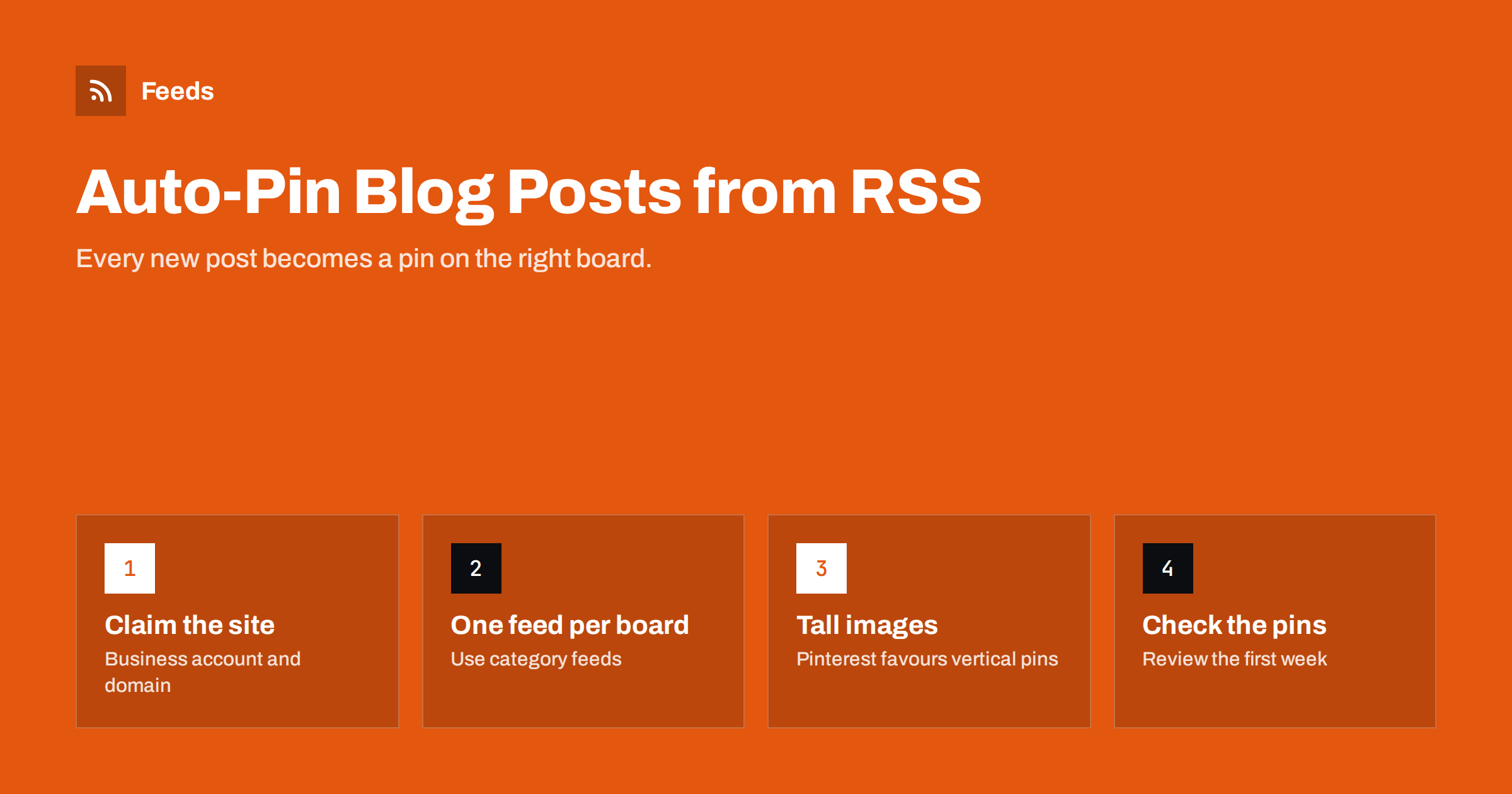
Short answer: Pinterest business accounts can connect an RSS feed and turn each new item into a pin automatically. You claim your website, open the bulk pin creation settings, add your feed URL and choose the board where new pins should go. For good results, give each board its own feed (for example a category feed), make sure every item has a strong image, preferably vertical, and write titles and excerpts that work as pin text. Review the first pins before you leave the automation alone.
Why Pinterest suits automated blog sharing
Pinterest behaves more like a visual search engine than a social feed. People save pins to boards and come back to them months later, so a pin can bring visits long after it was created. Many successful pins are years old and still bring steady traffic. That makes it a good channel for evergreen blog content: recipes, tutorials, guides, travel tips, home and garden ideas, fashion, crafts and anything people plan ahead.
Because pins have a long life, consistency matters more than timing. A blog that pins every new post, reliably, to the right board builds a library of content that keeps working. Doing that by hand is easy to forget; an RSS connection makes it automatic. If you are new to feed-driven posting in general, automating social media posts from an RSS feed explains the basic concepts.
What you need before you start
- A Pinterest business account. Feed-based pin creation is a business feature.
- A claimed website. Pinterest asks you to verify that you own the domain in your feed links, usually with a meta tag, an HTML file or a DNS record.
- A working RSS feed with one item per post, a stable link, a title, a description and an image.
- Boards that match your content, such as “Quick dinners”, “Garden projects” or “Marketing tips”.
Pinterest’s settings and limits change from time to time, including how many feeds you can connect and how quickly new items become pins. Check Pinterest’s business help pages for the current details before you plan a large setup.
Step by step: connecting the feed
- Claim your website in the account settings and wait for verification to complete.
- Open the bulk pin creation settings and choose the option to auto-publish pins from an RSS feed.
- Paste the feed URL of your blog or of one category.
- Choose the board that should receive new pins from this feed.
- Save and wait. Pinterest checks the feed periodically and creates pins for new items; it is not instant.
- Repeat for other boards with other feeds, if your account allows more than one.
After the first new post goes live, find the resulting pin and check its image, title, description and link. It is much easier to fix a template problem after one pin than after fifty.
Also decide in advance what should happen with posts you publish by mistake or delete later. A pin created from a post that is removed will point to an error page, so remove such pins by hand. If you often publish drafts or test posts, keep them out of the feed with a hidden category, or use a filtered feed that includes only the categories meant for Pinterest.
Map feeds to boards with category feeds
A single feed can only point to one board. If your whole blog feeds one board called “Blog”, Pinterest users see a mix of unrelated topics, and your boards do not match how people search. The better approach is one feed per topic, each connected to a matching board.
Most platforms make this easy:
- WordPress offers feeds per category and tag, for example
/category/recipes/feed/. - Other platforms may offer section or tag feeds; see how to follow one section of a website for the common patterns.
- If your platform has only one feed, a feed tool can split it by keywords: one filtered feed for items mentioning “recipe”, another for “garden”, and so on.
| Feed | Board | Why it works |
|---|---|---|
| Recipes category feed | Easy weeknight recipes | Board name matches search intent |
| Garden category feed | Small garden ideas | Pins stay on topic |
| Filtered feed: “budget” | Budget home tips | Cross-category theme from one blog |
Images: the part that makes or breaks auto-pins
Pinterest is visual, so the image Pinterest picks from your feed item decides whether anyone clicks. Common problems and fixes:
- No image in the feed. Many feeds include only text. Make sure the featured image is included; the guide on adding featured images to a WordPress RSS feed shows how for WordPress.
- Landscape images. Wide blog headers look small in the Pinterest grid. Pinterest recommends a vertical format, commonly a 2:3 ratio. If you can, create a vertical image for each post and make it the one included in the feed or the first image in the post.
- Small or low-quality images. Use large originals; thumbnails look blurry on high-resolution screens.
- Text-heavy images that are hard to read. A short, large headline on the image works better than a paragraph.
More general causes of missing images in automated posts are covered in why automated social posts lose images.
Titles, descriptions and links
Pins take their text from the feed item, so the quality of your titles and excerpts carries straight through:
- Titles: describe the benefit clearly, with the words people would search for. “15-minute tomato pasta for busy evenings” works better on Pinterest than “What we ate on Tuesday”.
- Descriptions: write a real excerpt of one or two sentences. Automatically truncated first paragraphs often cut off mid-sentence or include “In this post, I will…”.
- Links: make sure they point to the final URL on your claimed domain. Consider adding UTM parameters so you can see Pinterest traffic in analytics, using a consistent naming scheme.
Pitfalls to avoid
- Pinning everything. Announcements, event notices and short updates rarely perform on Pinterest. Exclude them with a separate category or a filtered feed.
- Duplicate pins. Feeds that change item links or identifiers after publishing can make Pinterest create a second pin. Keep links stable.
- Old content flood. Some tools pin the whole current feed when first connected. Check what happens with existing items before you connect a feed with many old posts.
- Mismatched boards. A feed connected to the wrong board fills it with off-topic pins that are tedious to move later. Double-check each connection before saving.
- Forgetting to look. A redesign can remove images from the feed without anyone noticing. Check a recent pin every month.
- Ignoring manual pins. Automation covers new posts. Extra pins with different images for your best evergreen posts are still worth creating by hand.
Measuring the results
Pinterest traffic grows slowly and lasts a long time, so judge the automation over months rather than weeks. Useful signals include outbound clicks per pin in Pinterest analytics, sessions from Pinterest in your web analytics, and which boards bring the most visits. If one board performs much better, consider feeding it more content or creating a second, more specific board for that topic.
Also look at which posts people save. Saves show that the content is useful enough to come back to, which is a good hint for what to write next.
Compare automated pins with the ones you create by hand. If manual pins with custom vertical graphics clearly outperform the automated ones, the lesson is usually not to stop automating but to improve the image that goes into the feed. A small change in your publishing routine, such as always adding a vertical graphic as the featured image, lifts every future automated pin at once.
How Feeds helps
If your blog has no category feeds, or you want a board fed from several sources, Feeds can build the feed you need. It turns any public page into RSS with titles, images, summaries and dates, uses an existing feed where one exists, lets you merge several sources and keep only items with or without certain words, and removes duplicates automatically. The feed link can then be connected to a Pinterest board like any other RSS feed, and it refreshes by itself. Create a filtered feed for a board and preview the items first.
Related reading
- Writing Post Templates for Automated Social Media Feeds
- How Often Should Automated Feeds Post to Social Media?
- How to Merge Multiple RSS Feeds into One Clean Feed
The bottom line
Auto-pinning from RSS turns every new blog post into a pin without extra work. Claim your website, connect one feed per board, make sure each item carries a strong vertical image and a clear title and excerpt, and review the first pins carefully. After that, check occasionally and add hand-made pins for your best content.
GYIK
Can Pinterest create pins from my RSS feed automatically?
Yes, business accounts can connect an RSS feed to a board and Pinterest creates pins from new items. You need to claim the website that the feed links to first.
Why are my auto-created pins missing images?
The feed items probably do not include an image, or the image is too small. Make sure the featured image is part of each feed item and use large, preferably vertical images.
Can one RSS feed publish to several Pinterest boards?
A feed connection targets one board. To fill several boards, use separate category or tag feeds, or create filtered feeds by keyword, and connect each to its own board.
How quickly do new blog posts appear as pins?
Pinterest checks connected feeds periodically, so new pins usually appear within hours rather than instantly. Check Pinterest’s help pages for the current timing.
Should I still create pins manually?
Yes, for your best evergreen posts. Extra pins with different images and titles reach more people, while the automation reliably covers every new post.


