 ENEnglish
 LTLietuviškai
 DEDeutsch
 FRFrançais
 RUРусский
 ESEspañol
 PLPolski
 ITItaliano
 UKУкраїнська
 CSČeština
 PTPortuguês
 JA日本語
JA日本語 LVLatviešu valoda
 ETEesti
 HUMagyar
 IDBahasa Indonesia
 TRTürkçe
 HIहिन्दी
 ELΕλληνικά
 ARالعربية
 THไทย
THไทย VITiếng Việt
 RORomână
 MSBahasa Melayu
 BNবাংলা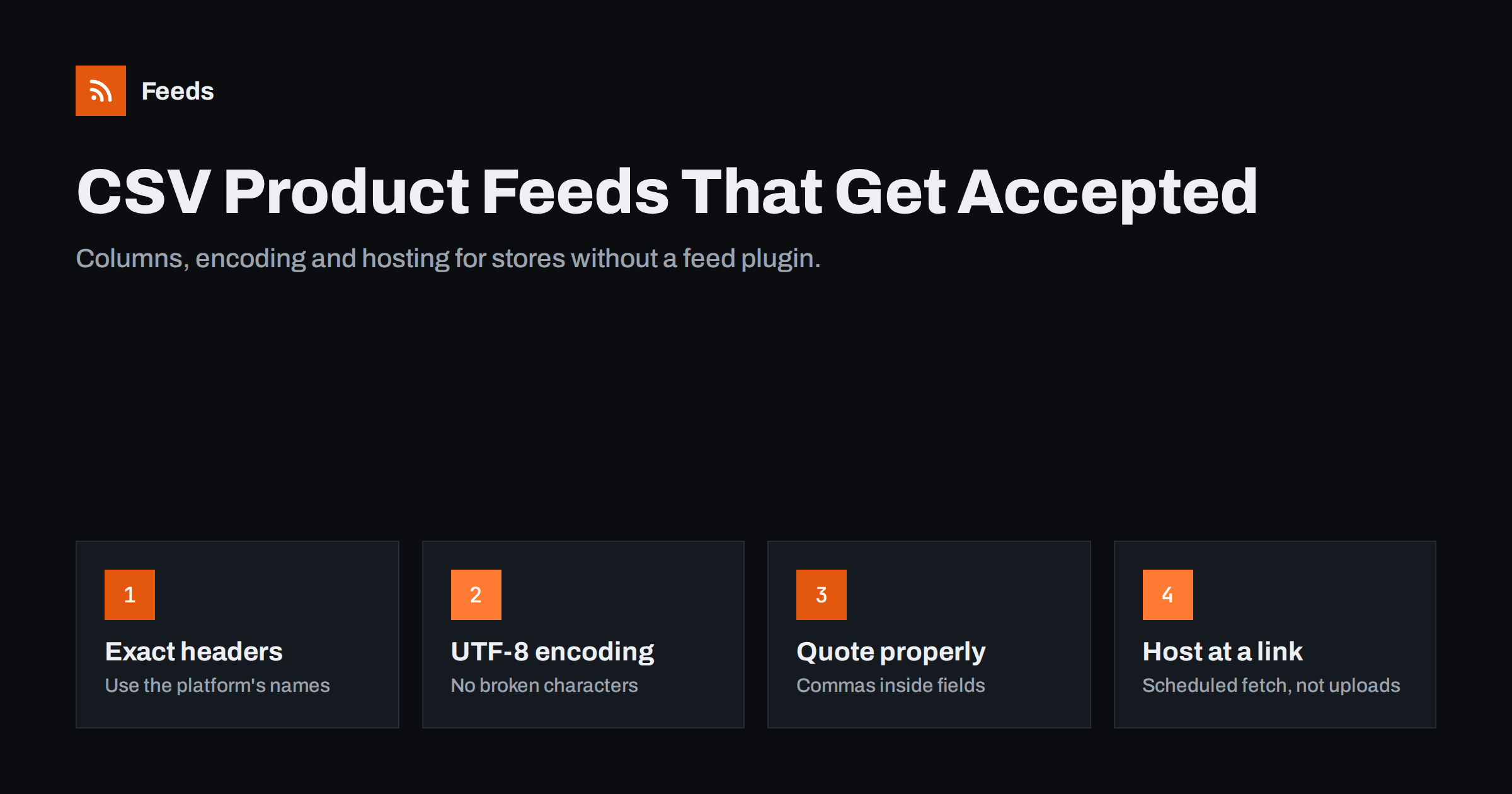
Short answer: A CSV product feed is a plain text table with a header row of attribute names (id, title, description, link, image_link, availability, price and so on) and one row per product. To be accepted it must use the platform’s exact column names, UTF-8 encoding, a consistent delimiter, quotes around fields that contain commas or line breaks, and prices with a currency code. Host it at a stable URL so Google or Meta can fetch it on a schedule instead of relying on manual uploads.
When a CSV feed is the right choice
CSV is the lowest common denominator of product data. If your store runs on a platform without a feed plugin, a custom-built shop, an ERP or an inventory system, chances are it can export CSV. That makes CSV the practical bridge between “we have product data somewhere” and “our products are in Google Shopping and Meta catalogs”.
It is especially useful in these situations:
- Custom or niche e-commerce platforms that have no official connection to Google or Meta.
- Businesses whose master product data lives in an ERP, PIM or warehouse system rather than in the web shop.
- Suppliers or wholesalers who publish their catalog as a CSV for resellers.
- Quick tests, where you want to see how a small set of products performs before building a full integration.
The weakness of CSV is that it is easy to get almost right. A spreadsheet program will happily save a file that looks fine on screen but breaks on import because of an encoding, delimiter or quoting problem. The rest of this guide is about avoiding those traps.
The columns you need
Use the attribute names the platform expects as column headers. For Google and Meta, the same core names work:
| Column | Example value | Notes |
|---|---|---|
| id | SKU-10442 | Unique and stable; never reuse an ID for another product |
| title | Acme Ceramic Pour-Over Coffee Dripper, White | Descriptive, no promotional text |
| description | Ceramic dripper for size 02 paper filters… | Plain text; quote the field if it contains commas |
| link | https://shop.example.com/p/dripper-white | Absolute URL on your verified domain |
| image_link | https://shop.example.com/img/dripper-white.jpg | Direct image URL over HTTPS |
| availability | in_stock | Use the platform’s allowed values exactly |
| price | 24.90 EUR | Number plus ISO currency code |
| brand | Acme | Required for most new products |
| gtin | 4006381333931 | Store as text so leading zeros survive |
| condition | new | new, refurbished or used |
Add optional columns as you need them: sale_price, item_group_id, color, size, product_type, additional_image_link and custom_label_0 to custom_label_4. Columns you do not use should simply be left out rather than included empty.
Encoding, delimiters and quoting
Encoding: always UTF-8
Product names contain accented letters, special quotes, the degree sign, the euro sign and characters from many languages. If the file is saved in a legacy encoding, these characters turn into question marks or strings of odd symbols after import. Save the file as UTF-8. Some platforms accept a byte order mark at the start, some do not care; if you see a strange character before the first column name in the platform’s preview, the BOM is the likely cause.
If your source system exports in another encoding, convert the file as part of the export process rather than fixing it by hand each time. Many text editors and command-line tools can re-save a file as UTF-8 reliably.
Delimiters and quoting
CSV means comma-separated, but many exports use semicolons, especially in countries where the comma is the decimal separator. Tab-separated files (TSV) are also common and avoid most quoting problems. Platforms generally detect the delimiter, but the file must use the same one throughout.
- Wrap any field that contains the delimiter, a double quote or a line break in double quotes.
- Inside a quoted field, write a double quote as two double quotes.
- Remove line breaks from descriptions where possible. Even when quoted correctly, they confuse some parsers.
- Do not mix delimiters. A semicolon file with a few comma-separated rows will shift columns silently.
The telltale sign of a quoting problem is a product whose price shows up in the brand column or whose description is cut off halfway. When you see that pattern, open the raw file in a plain text editor, not a spreadsheet, and look at the exact row.
Numbers, prices and identifiers
Spreadsheet programs “help” by reformatting numbers. That help breaks feeds in predictable ways:
- GTINs lose leading zeros or turn into scientific notation such as 4.00638E+12. Format the column as text before pasting or exporting.
- Prices get thousand separators or local decimal commas. Send plain numbers with a dot as the decimal separator, followed by a space and the currency code.
- Dates change format. Sale date ranges should follow the ISO 8601 format the platform documents.
- IDs that look like numbers get rounded. Long numeric IDs can lose digits. Treat them as text.
The safest approach is to generate the file directly from the source system or a script and avoid opening and re-saving it in a spreadsheet at all.
Hosting the file for scheduled fetches
Uploading a CSV by hand works once. After that, someone has to remember to upload a fresh copy every time prices or stock change, and uploaded files eventually expire in some platforms if they are not refreshed. A better setup is to place the file at a stable URL and let the platform fetch it on a schedule:
- Export the CSV automatically from your system, for example every night or every few hours.
- Publish it at the same address every time, such as a path on your web server, a cloud storage bucket with a public link, or an SFTP location the platform supports.
- Register that URL in Merchant Center and Commerce Manager as a scheduled feed.
- Protect it with basic authentication if the data should not be public, and enter the credentials in the platform.
CSV versus XML
CSV is easier to read and edit; XML is more robust for rich data. XML handles long descriptions with line breaks and special characters without quoting rules, supports multiple values per attribute naturally, and is less likely to be damaged by spreadsheet programs. Many teams keep CSV as the export format from their internal system and convert it into an XML feed for the channels. That combines the simplicity of CSV at the source with the reliability of XML at the destination.
Validating before you submit
Before registering the feed, check the file the way a platform will read it:
- Open it in a plain text editor and confirm the header row and the first few lines look right.
- Count the columns in a few random rows; every row must have the same number.
- Search for question marks and odd character sequences that suggest encoding damage.
- Check that every link and image URL starts with https:// and opens in a browser.
- Upload a small test file to the platform first and read the processing report.
Common CSV errors and what they mean
Platform error messages for CSV files are often vague. These are the usual underlying causes behind the messages you are most likely to see:
- “Unrecognized attribute” or ignored columns. A header is misspelled, has a trailing space, or uses a translated name. Headers must match the documented names exactly.
- “Too many column values” or “missing value” on random rows. A field contains the delimiter or a line break without being quoted, so the row splits into too many or too few columns.
- “Invalid price”. The price has a currency symbol, a thousands separator or a decimal comma the parser did not expect, or the currency code is missing.
- “Invalid GTIN”. The number was rounded, lost its leading zero, or is an internal code rather than a real barcode.
- “Image too small” or “image not crawlable”. The URL points to a thumbnail, a relative path or a location that blocks bots.
- Garbled characters in titles. The file is not UTF-8, or it was re-saved by a program that changed the encoding.
Whenever an error affects a large share of items, look for one systematic cause in the export rather than fixing rows one by one. A single change in the export script usually resolves hundreds of errors at once, and it stays fixed for the next export.
How Feeds helps
For stores that are not on WooCommerce or Shopify, Feeds accepts a link to a CSV file and turns it into a Google product XML feed that Merchant Center and Meta can fetch. It detects the currency automatically, lets you skip out-of-stock products, rewrite titles and adjust prices with rules, and shows a preview of the products before the feed is created. The feed refreshes on its own, so your system only needs to keep the CSV at the same link. Plans are on the pricing page.
Related reading
- Google Product Feed Attributes: Required and Recommended
- How to Set Up a Google Merchant Center Product Feed
- How to Add a Product Feed to a Meta Catalog, Step by Step
The bottom line
A CSV feed that platforms accept uses exact attribute names as headers, UTF-8 encoding, one consistent delimiter, correct quoting, and prices and identifiers formatted as plain text. Generate it automatically from your source system, host it at a stable URL, and let platforms fetch it on a schedule. If your data is rich or messy, convert the CSV into XML before it reaches the channels.
GYIK
Does Google Merchant Center accept CSV feeds?
Yes. Merchant Center accepts delimited text files such as CSV and TSV, as well as XML. The header row must use Google’s attribute names.
Should I use commas or tabs in a product feed?
Either works if used consistently. Tab-separated files avoid most quoting problems, because tabs rarely appear inside product text.
Why do my GTINs look wrong after saving the CSV?
Spreadsheet programs often convert long numbers to scientific notation or drop leading zeros. Format the column as text or generate the file without a spreadsheet.
Can I update a CSV feed automatically?
Yes. Export the file on a schedule to the same URL and register that URL as a scheduled fetch in the platform. The platform then picks up each new version.
Is XML better than CSV for product feeds?
XML is more robust for long descriptions, special characters and repeated fields. CSV is simpler to create and inspect. Many stores export CSV and convert it to XML.


