ENEnglish
 LTLietuviškai
 DEDeutsch
 FRFrançais
 RUРусский
 ESEspañol
 PLPolski
 ITItaliano
 UKУкраїнська
 CSČeština
 PTPortuguês
 JA日本語
JA日本語 LVLatviešu valoda
 ETEesti
 HUMagyar
 IDBahasa Indonesia
 TRTürkçe
 HIहिन्दी
 ELΕλληνικά
 ARالعربية
 THไทย
THไทย VITiếng Việt
 RORomână
 MSBahasa Melayu
 BNবাংলা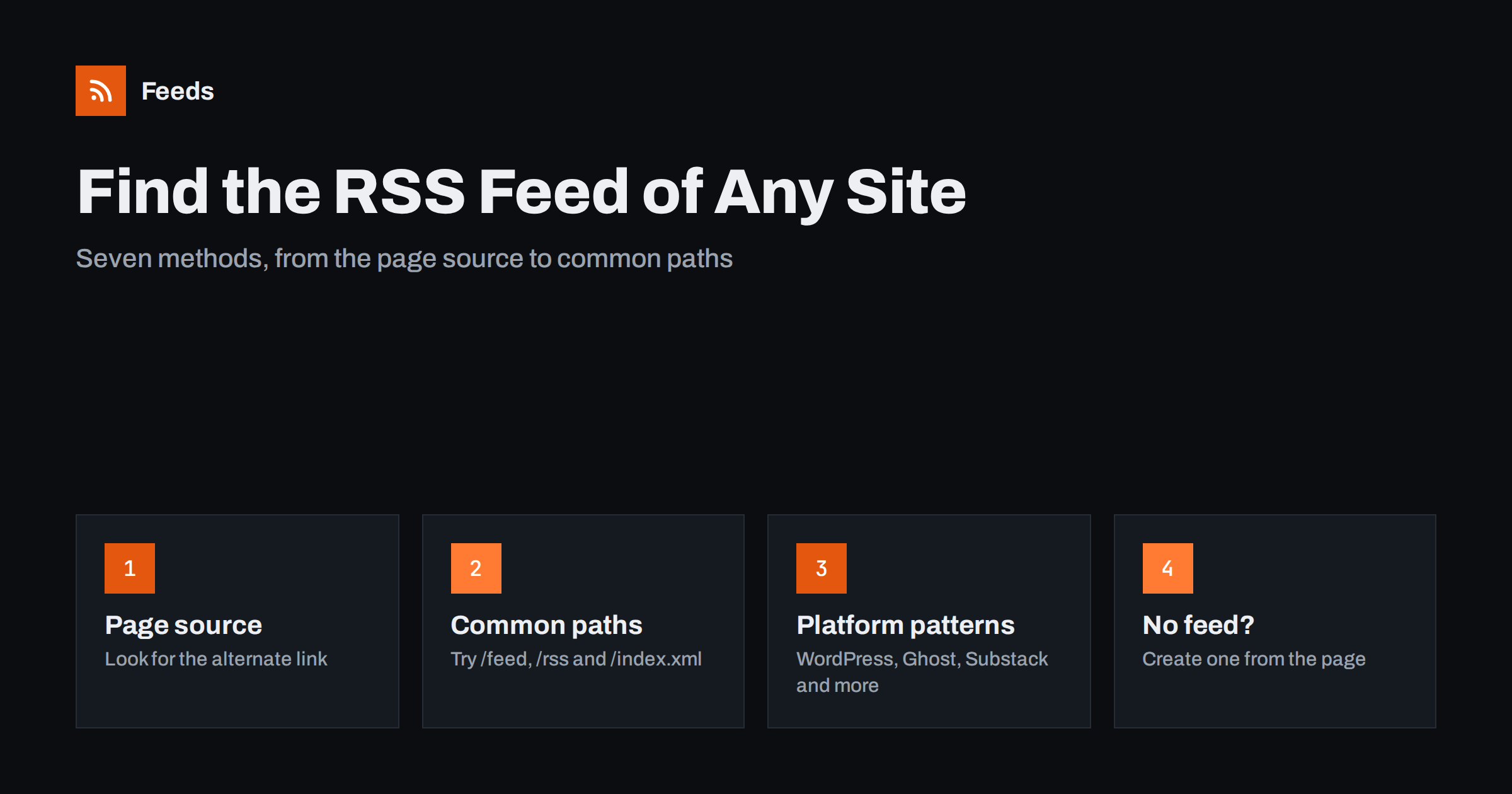
Short answer: The fastest way to find a website’s RSS feed is to view the page source and search for “application/rss+xml” or “application/atom+xml”. If that finds nothing, try common paths such as /feed/, /rss/ or /feed.xml, use the pattern of the platform the site runs on, or paste the site address into your feed reader and let it search. If the site truly has no feed, you can create one from its pages.
Years ago, a small orange icon marked nearly every blog. Browsers showed a feed button in the address bar and clicking it was all you needed to do. Today most browsers no longer surface feeds, many designers have removed the icon, and some sites bury the link in a footer or a page nobody visits. The feed itself is often still there. It is just not advertised.
The good news is that feeds follow strong conventions. A site that publishes one almost always does it in one of a few predictable ways, which means you can find it in a minute or two with the right method. The seven below are ordered from the most reliable to the last resort, so you can stop as soon as one works.
Method 1: read the page source for the alternate link
A well-built site announces its feed to software in the head of every page, through a link tag with a type such as application/rss+xml or application/atom+xml. This is called autodiscovery, and it is the most reliable method because it tells you the exact address the site wants you to use. If you publish a site yourself, the details of setting it up are in the guide to RSS autodiscovery and link tags.
- Open the page you want to follow, ideally the blog or news section rather than the home page.
- Right-click and choose “View page source”, or press Ctrl+U on most desktop browsers.
- Search the source for “rss” and then for “atom”.
- Look for a line that contains rel=”alternate” and a type of application/rss+xml or application/atom+xml. The href value next to it is the feed address.
Some sites list several feeds, for example one for posts and one for comments. Choose the one whose title matches what you want. If there is more than one result, open each in a new tab to see which holds the content you care about.
Method 2: try the common paths
When there is no link tag, try the usual locations by adding them to the end of the site address. Most feeds sit at one of a handful of paths, and a wrong guess simply returns an error page.
| Path to try | Usually found on |
|---|---|
| /feed/ or /?feed=rss2 | WordPress sites |
| /rss/ | Ghost and many custom blogs |
| /feed | Substack and similar newsletter platforms |
| /feed.xml or /atom.xml | Jekyll and other static site tools |
| /index.xml | Hugo sites |
| /rss.xml | Many older and custom-built sites |
If the path works, you will see either a page of text with tags in it or a prompt from your browser to open a reader. Both mean you have found a feed. A plain error page, or a redirect to the home page, means that path does not exist on this site. For WordPress, a full list of the feeds a site gets by default is in every WordPress RSS feed URL.
Method 3: use the pattern of the platform
Many sites run on a hosted platform, and each platform has its own pattern. If you know which one a site uses, you can often build the feed address yourself. A few platforms deserve their own guides, because their patterns are less obvious than a simple path:
- YouTube: channels and playlists have feeds, but the address uses an ID rather than a name. See how to get an RSS feed for any YouTube channel.
- Podcasts: the feed is the source every podcast app reads. The steps are in finding the RSS feed URL of any podcast.
- Shopify blogs: blogs on Shopify have a feed under the blog address, as covered in Shopify blog RSS feeds.
- Wix, Squarespace and Webflow: each has its own place for feeds, listed in where to find feeds on these builders.
- Substack, Ghost and Medium: see the patterns for these platforms.
Other communities follow similar rules. Reddit pages can be turned into feeds by adding a suffix to the address, and Blogger and Tumblr have their own paths, described in Blogger and Tumblr RSS feeds.
Method 4: let your feed reader search for it
Most modern feed readers have an add or subscribe box that accepts a normal website address, not only a feed address. The reader loads the page, looks for the autodiscovery link and offers the feed it finds, or a list if there are several. This is the easiest option for beginners because it combines methods 1 and 2 without any technical steps.
Try pasting the home page first and then the address of the blog section. If you are still choosing a reader, the criteria that matter are listed in how to choose an RSS reader.
Method 5: look for hidden links on the page
Some sites link to their feed in plain sight, just not with an icon. Check the footer, the “About” page, the page where newsletters are described and any “Follow us” or “Subscribe” section. Look for words such as RSS, Atom, Feed, XML or Syndication. A link labelled “Subscribe” sometimes opens a menu that includes the feed alongside email and social options.
It is also worth checking the page for category or tag links. Many sites offer separate feeds for each category, which is the easiest way to follow only the part of a site that interests you. The method is explained in how to follow just one section of a website.
Method 6: check the sitemap or a search for the domain
If the other methods fail, a site’s sitemap or a quick web search sometimes reveals a feed address. Searching for the site name plus the word “RSS” may bring up a help page or an old forum thread that mentions the address. Sitemaps are not feeds, but they list pages and often include dates, which helps when you need to decide whether a feed is possible at all. The differences are covered in sitemap vs RSS for detecting new pages.
Treat feed addresses you find in forum threads with care. They may be years old, and a site might have moved or switched to another platform since. Open the address before you rely on it.
Method 7: create a feed if none exists
Some sites have no feed at all, and some have turned it off on purpose. The reasons are discussed in why so many websites no longer offer RSS. In that case you can create a feed from the page itself. A page-to-feed tool reads the list of articles on a page, such as a news page or blog index, and produces a standard feed from their titles, links, images and dates. The principle is explained in how page-to-feed tools find the articles on a web page, and the full steps are in creating an RSS feed for a website without RSS.
Before you build one, check the site’s terms and think about how you will use the result. The legal side is covered in whether it is legal to create RSS feeds from other websites.
How to check that what you found is a real feed
A feed address should open a page of structured text or be recognised by your reader. Check three things before you subscribe. First, the items should be recent, which you can see from their dates. Second, the items should cover the content you want, because some feeds carry only a short summary or only one category. Third, the feed should be valid, so that readers do not stumble on it. Common errors and how to fix them are listed in how to validate an RSS feed.
If the dates are old, the site may have stopped publishing, or the feed may have been replaced by a new one at another address. In that case go back to method 1 and look for the current link tag.
How RSS Feed Creator helps
When a site has no feed, RSS Feed Creator can create one from any public page. You paste the address, check a preview of the titles, images, summaries and dates it found, and use the resulting link in any reader or tool. It reads public pages from the outside, like a visitor, so you do not need access to the source site. You can also keep only the items that contain the words you choose. Plans and limits are on the pricing page.
Related reading
- What is an RSS feed? A plain-English guide
- How to subscribe to RSS feeds: a beginner’s guide
- Your website has no RSS feed? Options for site owners
The bottom line
To find a feed, start with the page source and the autodiscovery link, then try the common paths, then use the pattern of the platform. Let your reader search if you would rather not look yourself, and check footers and category pages for hidden links. Verify that the feed is current and complete before you subscribe, and if no feed exists, create one from the page.
GYIK
Why does a website show no RSS icon?
Many designs dropped the icon, and browsers no longer display feed buttons. The feed may still exist and be announced only in the page source, so check there first.
What is the difference between an RSS and an Atom feed?
Both are formats that list items with titles, links and dates. Readers support both, so use whichever the site offers.
Can I find a feed without looking at the page source?
Yes. Paste the site address into your feed reader and let it discover the feed for you, or try common paths such as /feed/ or /rss/.
Can I follow just one category of a site?
Often yes. Many sites, including WordPress sites, provide a separate feed for each category or tag, usually under the category address.
What can I do if a site has no feed?
You can create a feed from the page with a page-to-feed tool, check the preview and subscribe to the generated address like any other feed.