 ENEnglish
 LTLietuviškai
 DEDeutsch
 FRFrançais
 RUРусский
 ESEspañol
 PLPolski
 ITItaliano
 UKУкраїнська
 CSČeština
 PTPortuguês
 JA日本語
JA日本語 LVLatviešu valoda
 ETEesti
 HUMagyar
 IDBahasa Indonesia
 TRTürkçe
 HIहिन्दी
 ELΕλληνικά
 ARالعربية
 THไทย
THไทย VITiếng Việt
 RORomână
 MSBahasa Melayu
 BNবাংলা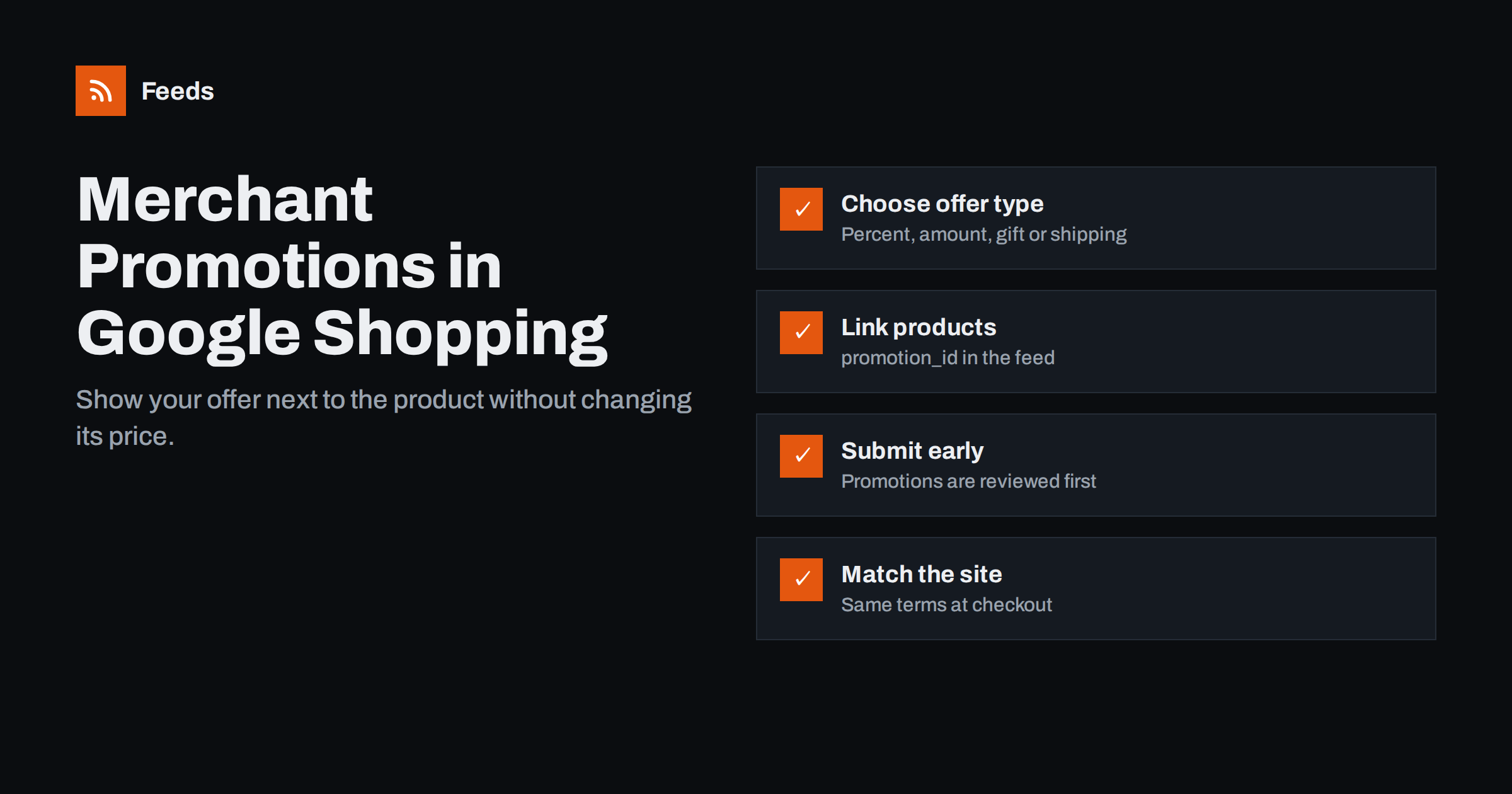
Short answer: Merchant promotions let you show a special offer, such as a percentage discount, an amount off, a free gift or free shipping, next to your products in Google Shopping ads and free listings, without changing the product price. You create a promotion in Merchant Center, or submit it through a promotions feed or the API, and link it to products either for your whole catalog or through a promotion_id attribute in your product feed. Promotions are reviewed before they run, so submit them several days early, and make sure the offer works exactly as described on your website.
Promotions vs sale prices: which to use
Both show shoppers a better deal, but they work differently and suit different situations.
| Feature | Sale price | Merchant promotion |
|---|---|---|
| How it appears | Reduced price, often with the original price shown | An offer link or annotation next to the product |
| Where it is set | sale_price attribute per product |
A promotion linked to products |
| Typical use | Product-level discounts | Codes, free shipping, gifts, basket-level offers |
| Coupon codes | Not supported | Supported, or no code required |
| Review | Part of normal product review | Separate promotion review before it runs |
They can be combined: a product can have a sale price and also be part of a free shipping promotion. What you must avoid is showing an offer in two places that the website does not honour in both. For product-level discounts, see our guide to sale prices and effective dates in product feeds.
Types of promotions you can run
Merchant promotions typically cover these kinds of offers:
- Percentage off: “15% off all running shoes”.
- Amount off: “10 EUR off orders over 100 EUR”.
- Free gift: a free item or sample with a purchase.
- Free shipping: standard, overnight or with a minimum order value.
- Buy X, get Y: in some markets, multi-buy offers are supported.
Each promotion can require a code or apply automatically. Codes must be generic codes that any shopper can use; single-use or personal codes are not suitable. Offers limited to members of a loyalty programme, specific customer groups or first-time buyers only may have their own rules or not be allowed, depending on the market. Availability of the programme and of individual promotion types varies by country, so check Merchant Center for your target markets.
Linking promotions to products
A promotion either applies to all products or to specific products. Applying to all products is simplest, but many offers are narrower: one brand, one category or a hand-picked selection.
The most flexible way to target specific products is the promotion_id attribute in your product feed:
- Choose an ID for the promotion, such as
AUTUMN15. Use letters, numbers and simple characters, and avoid spaces. - Add
promotion_idwith that value to every product that belongs to the promotion. A product can carry several promotion IDs if it belongs to several offers. - Create the promotion with the same ID and set it to apply to specific products.
Promotions can also be targeted by filters such as brand, product type or item ID in the promotion itself. Using promotion_id in the feed keeps the logic in one place, which helps when the same products take part in many promotions over a year.
You do not have to change your main feed to add promotion IDs. A supplemental feed that adds promotion_id to a list of item IDs is often easier to manage, especially if the main feed is generated by a plugin or service. Our guide to supplemental feeds in Merchant Center explains how that works.
Creating the promotion: interface, feed or API
- Merchant Center interface: best for a few promotions a month. You fill in a form with the title, dates, offer type, code and product selection.
- Promotions feed: a file, often a spreadsheet, with one row per promotion. Useful when marketing plans many offers in advance.
- API: suited to large retailers who manage promotions in their own systems.
A promotion typically needs a unique ID, a clear title that describes the offer, a start and end date and time, the countries and languages it applies to, whether a code is needed, and which products it covers. The title is what shoppers see, so write it plainly: the discount, what it applies to, and any key condition, such as a minimum order value.
Timing and review
Promotions are reviewed before they appear, separately from your products. Review can take time, especially in busy seasons, so submit promotions several days before they should start. You can set a future start date; the promotion will only show once it has been approved and the start time has passed.
- Set the start and end times in the correct time zone.
- Set a display start date if you want to announce the promotion slightly before it starts, where that is supported.
- Do not change promotion details after approval unless necessary, because edits may trigger another review.
- End promotions on time. An offer that is still displayed after it has ended on the site will cause disapprovals and unhappy shoppers.
For peak periods, plan promotions as part of your wider feed preparation. Our guide to preparing your product feed for Black Friday covers the rest of that timeline.
Why promotions get rejected
Most rejections come from a mismatch between what the promotion says and what happens on the website, or from terms that are not allowed. Common causes include:
- The code does not work at checkout, or is not valid for the linked products.
- The offer is not visible or not applied on the landing page or in the basket.
- Vague titles, such as “Big sale” without saying what the offer is.
- Restricted conditions, for example offers only for certain customer groups, or conditions buried in small print.
- Products that are not eligible or are themselves disapproved.
- Dates in the past or overlapping promotions that contradict each other.
Before submitting, place a test order up to the payment step with the code, using one of the linked products, and confirm the discount applies as described.
A worked example
Imagine an outdoor equipment store planning an autumn offer: 15% off all tents and sleeping bags from one brand, with the code AUTUMN15, for two weeks.
- Select the products. Export the item IDs of the brand’s tents and sleeping bags from the store, making sure they match the IDs in the product feed.
- Add the promotion ID. Create a small supplemental feed with two columns,
idandpromotion_id, and set every row’s promotion ID toAUTUMN15. - Create the promotion. In Merchant Center, set the same ID, a percentage-off offer of 15%, the code, the country and language, the start and end times, and “specific products”.
- Write the title. For example: “15% off selected tents and sleeping bags with code AUTUMN15”.
- Test. Add one of the products to the basket on the website, enter the code, and check the discount.
- Submit five or more days ahead and watch for the approval status.
When the promotion ends, remove the promotion ID from the supplemental feed so the products are ready for the next offer, and note the results in your promotion log.
Measuring whether promotions help
Promotions can raise click-through rates, but the discount reduces margin, so measure the result rather than assuming it. Useful approaches include:
- Compare performance of promoted products before, during and after the promotion.
- Use custom labels for promoted products so campaigns and reports can separate them; see custom labels in product feeds.
- Use a dedicated code for Shopping promotions so you can see how many orders came through that channel.
- Watch margin, not just revenue. Free shipping offers in particular can be expensive on low-value orders.
Keep a simple log of each promotion: dates, offer, products, results and any problems. After a few months, that log shows which kinds of offers actually move sales for your store.
How Feeds relates to promotions
Feeds creates the main product feed for Google Merchant Center and Meta catalogs directly from a WooCommerce or Shopify store or a CSV link, with IDs, titles, links, images, prices, availability and brands, and rules for stock, titles and prices. It does not create promotions themselves; those are set up in Merchant Center. Because the feed uses stable product IDs from your store, you can link promotions to products through a supplemental feed or promotion filters. For product feed plans, see the pricing page.
Related reading
- How to Fix Price Mismatch Errors in Google Merchant Center
- Price Rules in Product Feeds: When and How to Adjust Prices
- Google Shopping Free Listings: How Small Stores Get Started
The bottom line
Merchant promotions show an offer beside your products without changing their prices. Choose the offer type, link products through promotion_id or promotion filters, write a clear title, submit several days early, and make sure the code and conditions work exactly as described on your site. Measure margin as well as clicks, and end promotions on time.
GYIK
What is a merchant promotion in Google Shopping?
It is an offer, such as a discount, free shipping or a free gift, shown next to your products in Shopping ads and free listings. It is set up in Merchant Center and linked to some or all of your products.
What does the promotion_id attribute do?
It links a product in your feed to a specific promotion with the same ID. A product can carry several promotion IDs if it belongs to more than one offer.
How far in advance should I submit a promotion?
Several days before it starts, because promotions are reviewed before they appear. Allow more time during busy periods such as the weeks before major holidays.
Can I use a promotion and a sale price at the same time?
Yes, as long as both are honoured on your website. For example, a product can have a sale price and also qualify for a free shipping promotion.
Why was my promotion disapproved?
Common reasons are a code that does not work at checkout, an offer not clearly shown on the website, vague titles, restricted conditions, or linked products that are not eligible.


