 ENEnglish
 LTLietuviškai
 DEDeutsch
 FRFrançais
 RUРусский
 ESEspañol
 PLPolski
 ITItaliano
 UKУкраїнська
 CSČeština
 PTPortuguês
 JA日本語
JA日本語 LVLatviešu valoda
 ETEesti
 HUMagyar
 IDBahasa Indonesia
 TRTürkçe
 HIहिन्दी
 ELΕλληνικά
 ARالعربية
 THไทย
THไทย VITiếng Việt
 RORomână
 MSBahasa Melayu
 BNবাংলা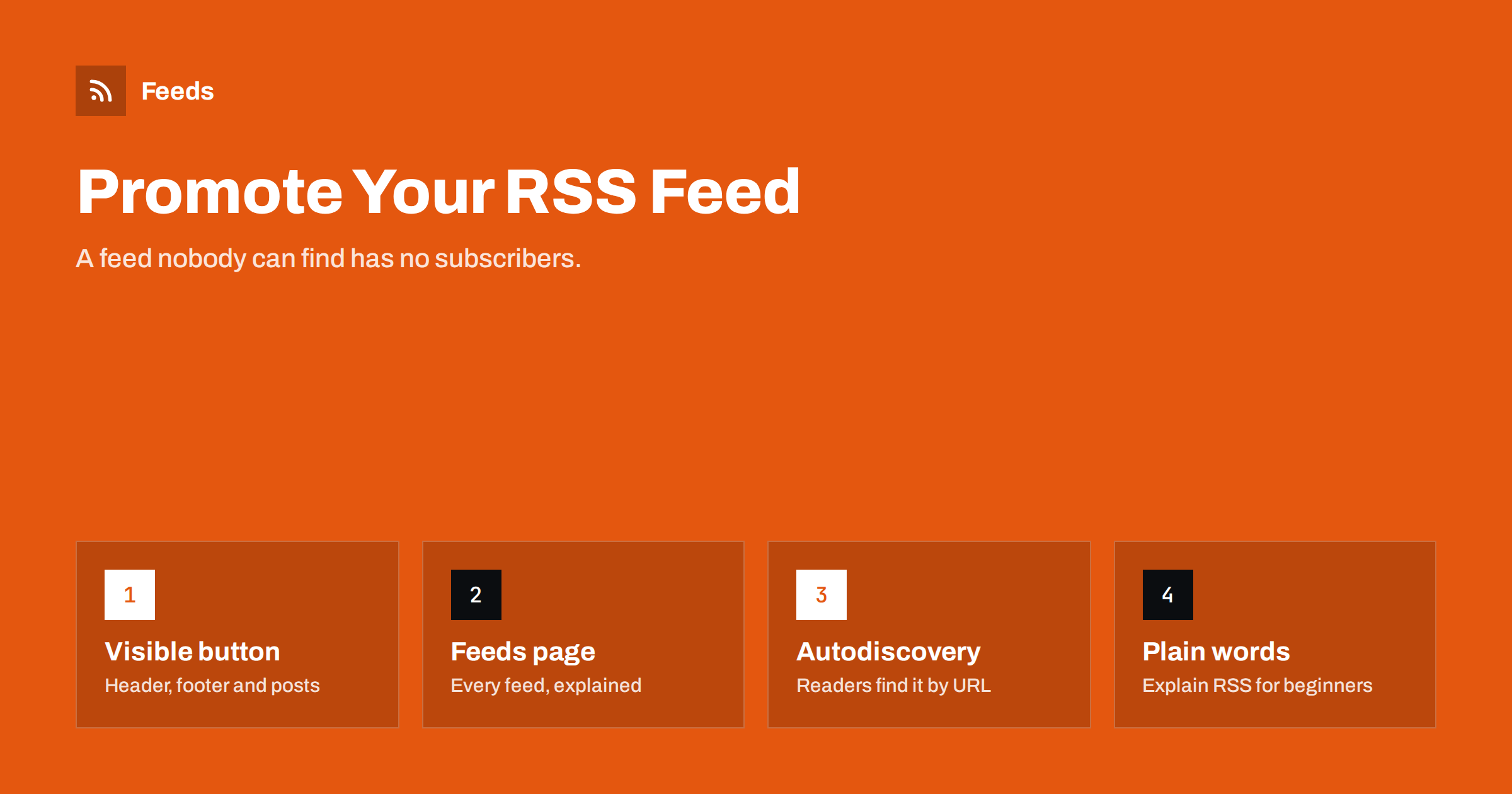
Short answer: most websites publish an RSS feed but hide it, so only experienced users ever subscribe. To promote it, add a visible “Follow via RSS” link in the header or footer and at the end of posts, create a simple feeds page that lists every feed with a sentence about what it contains, keep autodiscovery tags in the page head, style the feed so it does not look like code in a browser, and explain in plain words how to use it. Then measure subscribers so you can see whether the changes help.
Why promoting a feed is worth the effort
RSS readers never went away. Professionals use them to follow industry news, journalists use them to track sources, developers use them for release notes, and many people use them to escape algorithmic timelines. A subscriber in a reader sees every post you publish, in order, without a platform deciding whether to show it. That is a loyal, high-intent audience.
Feeds are also the input for tools. Newsletter services, social posting tools, team chat integrations and aggregators all start with a feed URL. When your feed is easy to find, partners and fans can connect your content to their own channels without asking you for anything. The benefits for company blogs are discussed further in why every company blog should publish a clean RSS feed.
Yet on many sites the feed is invisible. The theme dropped the RSS icon years ago, the footer has social icons but no feed link, and visitors who look for a feed have to guess the URL. A few small changes fix this.
Where to place the feed link
Place links where interested readers look, without cluttering the design:
- Footer: next to your social profile icons, with the recognisable orange RSS icon and the text “RSS”. This is where experienced users check first.
- Blog index and category pages: a small “Follow this category via RSS” link near the heading. It tells readers that category feeds exist.
- End of each post: alongside “subscribe to our newsletter”, offer “or follow via RSS”. The end of an article is when a satisfied reader decides to follow you.
- Header or navigation: for news sites, blogs and publications where following is a core action, a “Follow” or “Subscribe” menu item that leads to all options, including RSS.
- About or contact page: a short “How to follow us” section.
Use the feed icon together with a text label. The icon is well known among regular users, while “RSS” or “Feed” in text helps everyone else and is better for accessibility.
Create a feeds page
A dedicated page, often at /feeds/ or /subscribe/, is the single most effective way to promote feeds on a site with more than one. It lists every feed with its URL and a sentence about what it contains, for example:
- All articles: everything we publish, about three posts a week.
- Tutorials only: step-by-step guides, no news.
- Product updates: new features and changes, a few times a month.
- Podcast: new episodes for your podcast app.
- Jobs: new openings as soon as they are published.
Add a “Copy link” button next to each URL, and a short paragraph on how to use it. If your site runs on WordPress, you already have category and tag feeds you can list; see every feed a WordPress site already has. Link to the feeds page from the footer and from the end of posts so readers can pick the feed that fits them.
Explain RSS for people who have never used it
Many visitors have heard the word RSS but do not know what to do with a feed link. Clicking a raw feed shows XML, which looks like an error. A few sentences on your feeds page remove the confusion:
- “RSS lets you follow this site in a feed reader app, without email or social media.”
- “Copy the link below and paste it into your reader.”
- “No reader yet? Most offer a free plan; pick one that works on your phone and computer.”
- “You can unsubscribe at any time in your reader, and we never see your address.”
That last point is a genuine advantage worth mentioning: following via RSS needs no email address and no account with you. For a fuller beginner explanation you can point to a guide such as how to subscribe to RSS feeds.
Make the feed look friendly in a browser
When someone clicks a feed link, most browsers show the raw XML. For a newcomer, that is a dead end. You can attach an XSLT stylesheet to the feed so that the browser renders it as a readable page with a heading, a short explanation, a copy button and the latest items, while readers and tools still receive normal XML. The technique is explained in styling your RSS feed with XSLT.
A styled feed page turns an accidental click into a small onboarding moment: “This is our feed. Paste this address into your reader.” Several blogging platforms and plugins offer this out of the box.
Keep autodiscovery and technical basics in place
Promotion is not only visual. Readers and browser extensions look for a <link rel="alternate" type="application/rss+xml"> tag in the page head. With it, a user can paste your homepage or blog address into a reader and the feed is found automatically. Make sure:
- every page includes the main feed’s autodiscovery link, and category pages include their category feed;
- the feed has a meaningful title, such as “Acme Blog – Tutorials”, not just “Feed”;
- items have good titles, summaries, images and correct dates;
- the feed URL stays the same over time, with redirects if you ever change it.
Details and examples are in RSS autodiscovery link tags. Before promoting a feed widely, it is also worth running through a checklist such as RSS feed best practices for publishers.
RSS next to email and social: offer a choice
Promoting RSS does not mean competing with your newsletter. Different readers prefer different channels, and offering all of them side by side lets each reader choose:
| Option | Best for readers who | What you get |
|---|---|---|
| Email newsletter | Live in their inbox | An address and direct contact |
| RSS feed | Use a reader, value privacy, follow many sources | Reliable delivery of every post |
| Social profiles | Discover content in their timeline | Reach and conversation |
| Podcast apps | Listen rather than read | Regular listening habit |
A “Follow us” box that shows email, RSS and social options together works well at the end of posts. The trade-offs are discussed in RSS vs email newsletters.
Measure whether it works
RSS subscribers are harder to count than email subscribers, but there are useful signals: requests to the feed URL in server logs, subscriber counts that some large readers report in their user agent strings, clicks on your feed links and visits with referrers from reader apps. Record a baseline before you add buttons and a feeds page, then compare after a few months. The methods and their limits are explained in how to measure RSS feed subscribers.
Also watch for qualitative signs: partners asking for a category feed, readers mentioning they follow you in a reader, or your content appearing in other people’s curated digests.
How Feeds helps
Sometimes the feed you would like to promote does not exist: your site has a news or jobs page without RSS, or you want one combined feed of your blog, podcast and product updates. Feeds creates a clean RSS feed from any public page, uses existing feeds where they are available, merges several sources into one and can keep only items with or without certain words. Duplicates are removed automatically and the feed refreshes on its own, so you can list it on your feeds page next to your native feeds. Create a feed from a page and preview the items first.
Related reading
- Your Website Has No RSS Feed? Options for Site Owners
- Full Text or Summary? Choosing What Your RSS Feed Shows
- How to Display RSS Feeds on Your Website the Right Way
The bottom line
A feed only gains subscribers when people can find it and understand it. Put a labelled RSS link in the footer, on category pages and at the end of posts, build a feeds page that explains each feed in one sentence, style the feed for browsers, keep autodiscovery tags in place and offer RSS side by side with email and social. Then measure, and adjust what you promote.
GYIK
Where should I put the RSS link on my website?
In the footer next to your social icons, on blog and category pages, and at the end of each post. News sites and blogs can also add a Follow or Subscribe item to the main navigation.
What is a feeds page?
A page, often at /feeds/ or /subscribe/, that lists every feed your site offers with its URL, a copy button and a sentence about what each feed contains and how often it updates.
Why does my feed look like code when clicked?
Browsers show raw XML by default. Attaching an XSLT stylesheet makes the feed display as a readable page for people while tools still receive normal XML.
Will promoting RSS reduce my newsletter signups?
Usually not significantly, because the two appeal to different readers. Offering both side by side lets each reader choose, and many readers who would never share an email address will follow via RSS.
How can I tell whether more people follow my feed?
Compare feed requests in server logs, subscriber counts reported by some readers, and clicks on your feed links before and after the changes. Treat the numbers as estimates rather than exact counts.


