ENEnglish
 LTLietuviškai
 DEDeutsch
 FRFrançais
 RUРусский
 ESEspañol
 PLPolski
 ITItaliano
 UKУкраїнська
 CSČeština
 PTPortuguês
 JA日本語
JA日本語 LVLatviešu valoda
 ETEesti
 HUMagyar
 IDBahasa Indonesia
 TRTürkçe
 HIहिन्दी
 ELΕλληνικά
 ARالعربية
 THไทย
THไทย VITiếng Việt
 RORomână
 MSBahasa Melayu
 BNবাংলা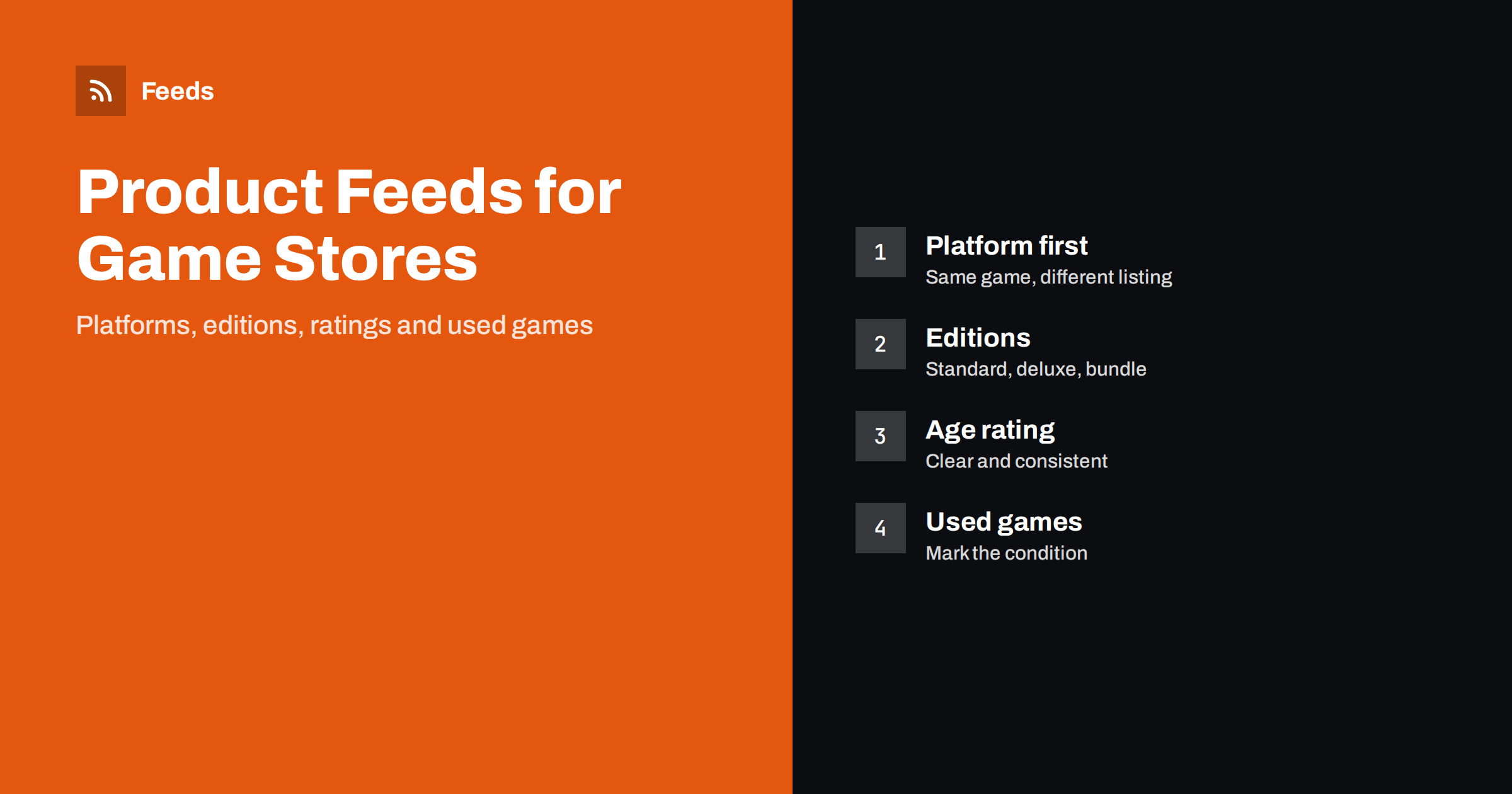
Short answer: A good feed for a video game store treats the platform as part of the product. The same game on two consoles is two products with their own identifiers, titles and prices. Put the platform and edition in the title, use the barcode of the exact release, state the age group honestly, mark used and pre-owned copies with the right condition, and keep stock and release dates accurate. These details decide whether your listings are approved and whether shoppers click the right one.
Why games need their own rules
Games look simple in a catalog, but they create more confusion than most categories. One title can exist for several consoles and for PC, in a standard edition, a deluxe edition and a collector’s box, in a physical or a digital version, and sometimes in versions made for different regions. A shopper who searches for a game wants one specific version, and a listing that does not say which one it is will bring clicks that do not convert and returns that cost money.
The feed must therefore answer, in the title and in the attributes, the questions that a buyer asks first: which platform, which edition, new or used, and when is it available. The general attributes are listed in Google product feed attributes: required and recommended, and this article adds the details that matter for games and consoles.
Platform and edition in the title
A reliable title pattern is the game name, the edition, the platform and, if useful, the format. For example: “Game Name Deluxe Edition, Console Name, Physical Disc”. Put the platform early enough that it is visible when the title is shortened in a shopping result. Use the same names for platforms across the whole catalog, so that filters and rules work the same way for every product. Title formulas and the order of words are discussed in product feed title optimization.
Avoid stuffing the title with extra words such as “best price” or “free shipping”. Keep the facts that identify the product: the name, the edition, the platform and the language of the packaging if you sell in more than one country.
Identifiers: the barcode of the exact release
Games and consoles usually have a barcode, and the barcode is specific to a release. A different platform, a different region or a different edition normally has a different one. Use the code printed on the box for the version you actually sell, and do not reuse one code for several platforms. Wrong or repeated codes are a common reason for disapproved items, and they also make it harder for the shopping program to match your offer with the right product page, and the rules for the identifiers are covered in GTIN, MPN and brand: product identifiers in feeds. The brand is the publisher or the console maker, and the MPN is the manufacturer part number when there is one.
For items without a barcode, such as some collector’s pieces or accessories made in small runs, follow the guidance for products that have no identifier instead of inventing a code.
Variants, bundles and pre-orders
When the same game is sold for several platforms, you can group the listings with a shared group identifier, as explained in product variants in feeds: how item_group_id works. Only group items that are the same product with a real variation such as the platform or the edition. Do not group different games together. A shopper who clicks the group should land on the right platform, so make sure the link of each item opens the page of that exact version and not a general page for the game.
Console bundles, for example a console with a controller and a game, need clear titles that list what is in the box, and the rules for them are in bundles and multipacks in product feeds. Pre-orders are very common in this category, since release dates are public months before the launch. Use the availability and the availability date correctly, as described in preorder and backorder products in feeds, and update the status on the release day so that the product moves to in stock.
Age ratings and sensitive content
Many games carry an age rating from a rating system used in the country of sale. Include the rating in the product description, and set the age group and any adult-content attribute in line with the platform’s own rules, because shopping programs restrict some adult material. Be consistent: a game marked for mature players should not appear with a title or image written for children. Check the current policies of the program before you upload a large batch, since the rules for adult and age-restricted products change from time to time.
New, used and refurbished
Used games and pre-owned consoles are a large part of many shops. Mark the condition as new, used or refurbished and do not describe a used copy as new, since the shopping programs and your customers both expect the condition in the feed to match the real item. State what is included: the case, the manual, the cables and the controllers, and note any visible wear in the description. A used console and a new one must be separate listings with their own prices. The details are explained in used and refurbished products in feeds.
Images, descriptions and digital items
Use the cover art or a clear photo of the box on a plain background, with no promotional overlays, and follow the size rules in product feed image requirements for Google and Meta. For consoles, add photos that show what is in the box. Write a description that gives the platform, the number of players, the language, the format and the main features in plain words, and avoid copying publisher text that is also used by many other shops.
Digital codes and downloads follow their own policies on each shopping program, so check whether your type of product is allowed before you add it to the feed. Keep physical and digital items separate and say clearly in the title which one the shopper receives.
Stock, prices and release-day peaks
Game sales are concentrated around launches, holiday periods and big discount events, and a feed that is a day late can cost a lot of money. Prices for new releases change quickly and stock can run out within hours, so a feed that refreshes only once a day will often show the wrong price or an item that is gone. The shopping programs compare the price and the availability in your feed with the product page, and a mismatch leads to warnings or to items being hidden, which is covered in how to fix price mismatch errors in Google Merchant Center.
Plan for the busy days in advance. Check your rules for out-of-stock items, make sure sale prices have start and end dates, and test the feed a few days before a big release. If you sell in several countries, remember that the price, the language of the packaging and the age rating can differ by market, and keep a separate feed or a separate set of items for each. The preparation steps for peak periods are listed in preparing your product feed for Black Friday and peak season.
How RSS Feed Creator helps
RSS Feed Creator builds Google Merchant Center and Meta catalog XML straight from your store. WooCommerce and Shopify are read automatically, and any other store can use a CSV link. You can skip out-of-stock products, rewrite titles with rules and adjust prices, and the currency is detected automatically. The free plan includes product feeds with up to 50 products, enough to test a first set of games and consoles. The Store plan covers one store with 3 product feeds and up to 2,000 products, and the details are on the pricing page.
Related reading
- Product feed checklist: 25 checks before you submit
- Merchant Center disapproved products: causes and fixes
- Product feeds for electronics stores: specs, GTINs, variants
The bottom line
For a game store the platform and the edition are part of the identity of each product. Name them in the title, use the barcode of the exact release, group only real variants, mark used items honestly, keep pre-order dates up to date and treat age ratings and adult content with care. A feed built this way is approved more often and brings shoppers who want exactly what you sell.
GYIK
Should each platform version of a game be a separate product?
Yes. Each platform has its own release, barcode, stock and often its own price, so each version should be a separate item. You can link them with a shared group identifier when the shopping program supports it.
Which barcode should I use for a game?
Use the barcode printed on the box of the exact release you sell. Do not reuse the code of another platform, region or edition, since repeated or wrong codes often lead to disapproval.
How do I list a used game or console?
Set the condition to used or refurbished, state what is included and describe visible wear. List it as its own item with its own price and stock, and never mix it with the new version.
How should I handle pre-orders?
Mark the item as a pre-order, give the release date as the availability date and keep the price consistent with the shop. Update the item on the release day so that it shows as in stock.
Can I include age-restricted games in my feeds?
It depends on the program and the country. Set the age group and adult attributes honestly, and read the current policy of each program before uploading, because restricted products may not be shown or may need extra settings.