 ENEnglish
 LTLietuviškai
 DEDeutsch
 FRFrançais
 RUРусский
 ESEspañol
 PLPolski
 ITItaliano
 UKУкраїнська
 CSČeština
 PTPortuguês
 JA日本語
JA日本語 LVLatviešu valoda
 ETEesti
 HUMagyar
 IDBahasa Indonesia
 TRTürkçe
 HIहिन्दी
 ELΕλληνικά
 ARالعربية
 THไทย
THไทย VITiếng Việt
 RORomână
 MSBahasa Melayu
 BNবাংলা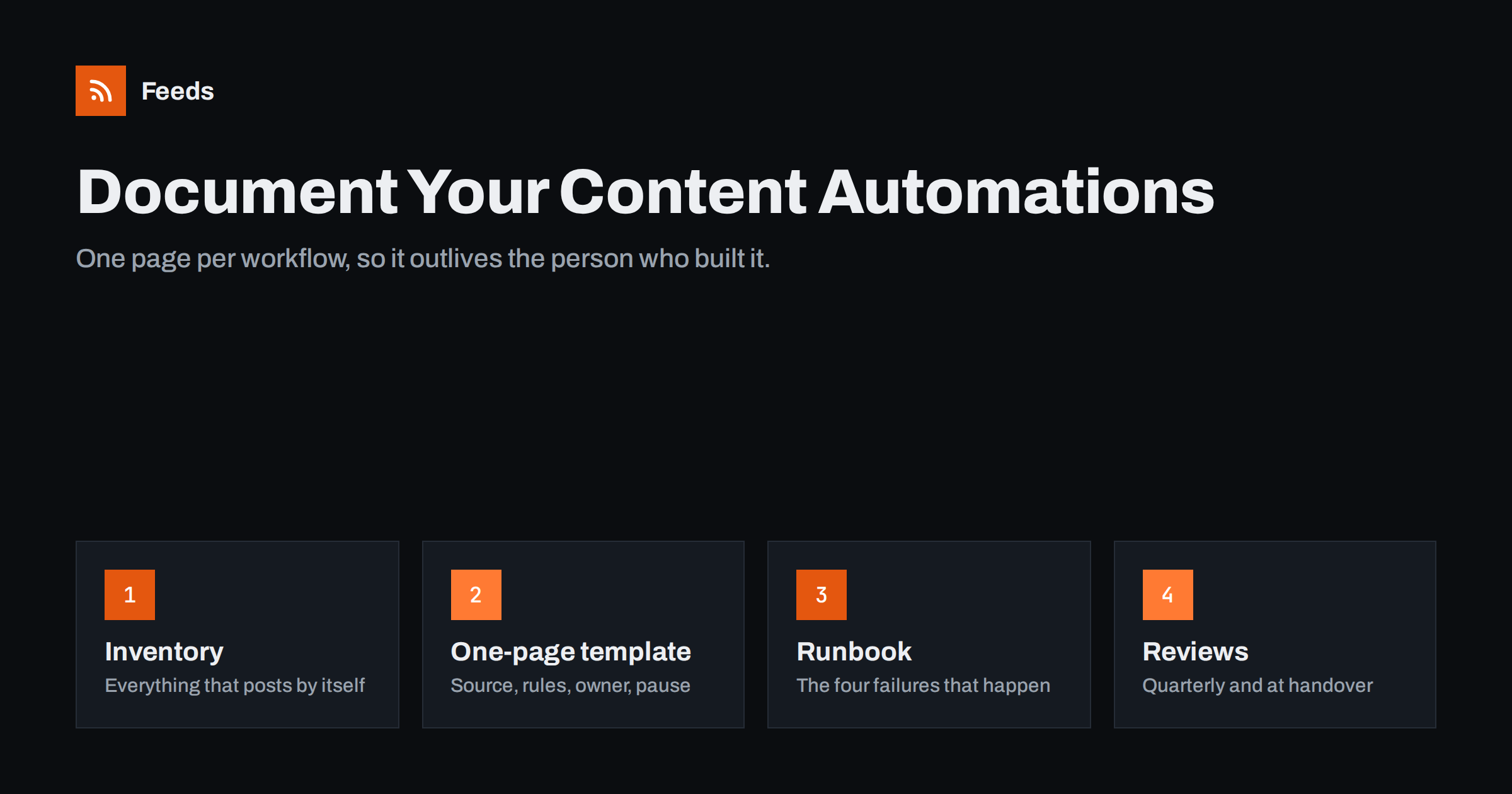
Short answer: Document every content automation on one short page that answers six questions: what it does, what triggers it, where it publishes, which account it runs under, who owns it, and how to pause or fix it. Keep all pages in one shared place, add a simple runbook for the three or four failures that actually happen, log changes, and review the pages whenever someone leaves or a workflow changes. Ten minutes of writing per workflow saves hours of detective work later.
Why automations need documentation
Content automations are set up once and then forgotten, which is the point. A new blog post appears on social networks, product updates go to the team chat, a weekly digest goes out, and nobody has to think about it. The problem comes months later, when something changes:
- The person who built the workflow has left, and nobody knows which account it runs under.
- Posts suddenly stop, or start appearing twice, and nobody knows which tool sends them.
- The company rebrands and every post template needs a new hashtag, but nobody knows where the templates live.
- A client asks why a certain article was posted to their page, and the answer is buried in a workflow tool nobody has opened for a year.
Every one of these turns into an investigation when there is no documentation, and into a two-minute check when there is. Small teams feel this most, because the knowledge usually sits in one person’s head.
Start with an inventory
Before writing detailed pages, make a list of everything that publishes or sends content automatically. Go through each tool you use and each destination you publish to, because automations are easier to find from the destination side: look at a social page and ask which of its recent posts were automated, then trace where they came from.
Typical places to look:
- Social posting tools connected to your pages and profiles.
- Workflow tools such as general automation platforms and self-hosted workflow engines.
- Email platforms with RSS-to-email campaigns.
- Team chat integrations that post feed updates to channels.
- Website plugins that share or syndicate content on publish.
- Product feed tools that send catalog data to shopping channels.
If you are still building your setup, the overview of a small business content automation stack shows the usual layers and makes the inventory easier to organise.
The one-page template
Each automation gets one page with the same headings. Consistency matters more than detail: anyone should be able to open any page and find the same information in the same place.
| Field | What to write |
|---|---|
| Name and purpose | A clear name and one sentence on why it exists |
| Source and trigger | The feed, form or event that starts it, with the exact URL |
| Filters and rules | Keywords, categories, limits, delays, approval steps |
| 出力先 | Every page, profile, channel or list it publishes to |
| Tool and account | Which tool runs it and under which company account |
| Templates | The post format per destination, or where to find it |
| Owner | The person responsible, plus a backup |
| How to pause | The exact steps to stop it quickly |
| Known issues | Anything unusual about this workflow |
| Last reviewed | Date and name of the last person who checked it |
Never write passwords, API keys or tokens into these pages. Write where the credentials are stored, for example the name of the entry in your password manager.
Write down the rules, not just the plumbing
Most documentation describes the connection: feed A goes to page B. The part that is usually missing is the reasoning behind the rules, and that is exactly what the next person needs.
- Why these filters? “Only posts in the News category, because product updates are posted manually with images.”
- Why this timing? “Delayed by one hour so editors can fix typos before the post goes out.”
- Why fully automatic, or why an approval step? The trade-offs in full auto versus an approval queue are worth summarising in a sentence on the page.
- Why this template? Note deliberate choices such as no hashtags on LinkedIn, or titles only on X. The guide to writing post templates for automated feeds can serve as your reference.
Without the reasoning, a well-meaning colleague will eventually “fix” a rule that was there on purpose.
Draw the map
Once you have more than five or six automations, a simple diagram helps more than any page. Put sources on the left, tools in the middle and destinations on the right, and draw a line for every workflow. It does not need to be pretty; a whiteboard photo is fine.
The map immediately shows things that pages hide:
- Two workflows publishing the same source to the same page, the classic cause of duplicate posts.
- A destination that receives content from five places and has become noisy.
- A single tool or account that everything depends on.
- Sources nobody remembers adding.
If you find duplicates, the steps in stopping duplicate posts in automated workflows will help you untangle them.
A short runbook for the failures that actually happen
You do not need a runbook for every imaginable problem. In practice, content automations fail in a handful of ways. Write a few lines for each:
- Nothing is being posted. Check whether the source feed has new items, whether the tool’s connection to the destination has expired, and whether the workflow was paused. The full diagnosis is in RSS automation stopped posting.
- Posts appear twice. Look for a second workflow with the same source, or a source that changed its item identifiers.
- Posts look wrong. Missing images, raw HTML or cut-off text usually point to the source’s summary or image fields, not the tool.
- Something unwanted was posted. Pause the workflow first, remove the post, then find out which item and rule let it through.
Put the “how to pause” steps at the top of the runbook. In an incident, stopping the automation quickly matters more than understanding it.
Keep a change log
A change log is a simple list at the bottom of each page: date, who, what changed and why. “Added keyword filter for ‘webinar’ after posts about internal events went public” is the kind of entry that saves someone a week of confusion a year later.
Log changes to sources, filters, templates, destinations and accounts. You do not need to log routine checks, only decisions.
A few example entries show the level of detail that is useful:
- “12 March, Anna: moved the LinkedIn workflow from a personal login to the company account, because Anna is changing teams.”
- “4 June, Tom: added a one-hour delay, because two posts went out with typos before editors could fix them.”
- “20 September, Anna: removed the partner news source, because the partner closed its blog and the page now redirects.”
Each entry takes a minute to write and answers the question the next person will ask: why is it like this?
Handover and review routines
Documentation decays unless something forces an update. Two routines keep it alive:
- Handover checklist. When someone leaves or changes role, walk through every page where they are the owner or backup. Reassign ownership, confirm the account the workflow runs under is a company account, and update the credentials location if needed.
- Quarterly review. Open each page, compare it with the real setup, read a sample of recent automated posts and update the “last reviewed” field. Retire workflows that no longer serve a purpose instead of leaving them running.
Agencies should do this per client, and the process in content automation for agencies shows how to keep many client setups consistent.
How Feeds helps
Documentation is simpler when each source is one clear link. Feeds turns pages without RSS into feeds, merges several sources into one feed and applies keyword filters, so the “source” and “filters” fields of a workflow page can often point to a single feed link instead of a tangle of rules inside several tools. You see a preview of the items before a feed is created, feeds refresh by themselves, and paid plans send an alert if a page changes and a feed stops finding items. You can create a feed on the free plan.
Related reading
- Content automation checklist: 30 checks before you go live
- 12 content automation mistakes and how to avoid them
- How to measure whether content automation is worth it
The bottom line
Content automations are only low-maintenance while someone understands them. Make an inventory, give every workflow a one-page description with its source, rules, destinations, account, owner and pause steps, explain why the rules exist, draw a simple map, and keep a short runbook and change log. Review everything when people change roles and once a quarter, and your automations will keep working long after the person who built them has moved on.
FAQ
What should content automation documentation include?
For each workflow: its purpose, source and trigger, filters and rules, destinations, the tool and account it runs under, templates, owner, how to pause it, known issues and when it was last reviewed. Keep credentials out of the documentation.
Where should I keep automation documentation?
In one shared place the whole team already uses, such as a wiki, a shared drive folder or a project tool. What matters is that everyone can find it and that it is not tied to one person’s account.
How often should automation documentation be reviewed?
Once a quarter for most teams, plus immediately when someone who owns a workflow leaves or changes role, and whenever a workflow is changed.
Do small teams really need to document automations?
Yes, arguably more than large ones, because the knowledge usually sits with one person. A one-page description per workflow is enough and takes about ten minutes to write.
What is the most important part of the documentation?
The steps to pause each automation and the name of its owner. When something goes wrong, stopping it quickly and knowing who to ask matter more than any other detail.


