 ENEnglish
 LTLietuviškai
 DEDeutsch
 FRFrançais
 RUРусский
 ESEspañol
 PLPolski
 ITItaliano
 UKУкраїнська
 CSČeština
 PTPortuguês
 JA日本語
 LVLatviešu valoda
 ETEesti
 HUMagyar
 IDBahasa Indonesia
 TRTürkçe
 HIहिन्दी
 ELΕλληνικά
 ARالعربية
 THไทย
 VITiếng Việt
 RORomână
 MSBahasa Melayu
 BNবাংলা
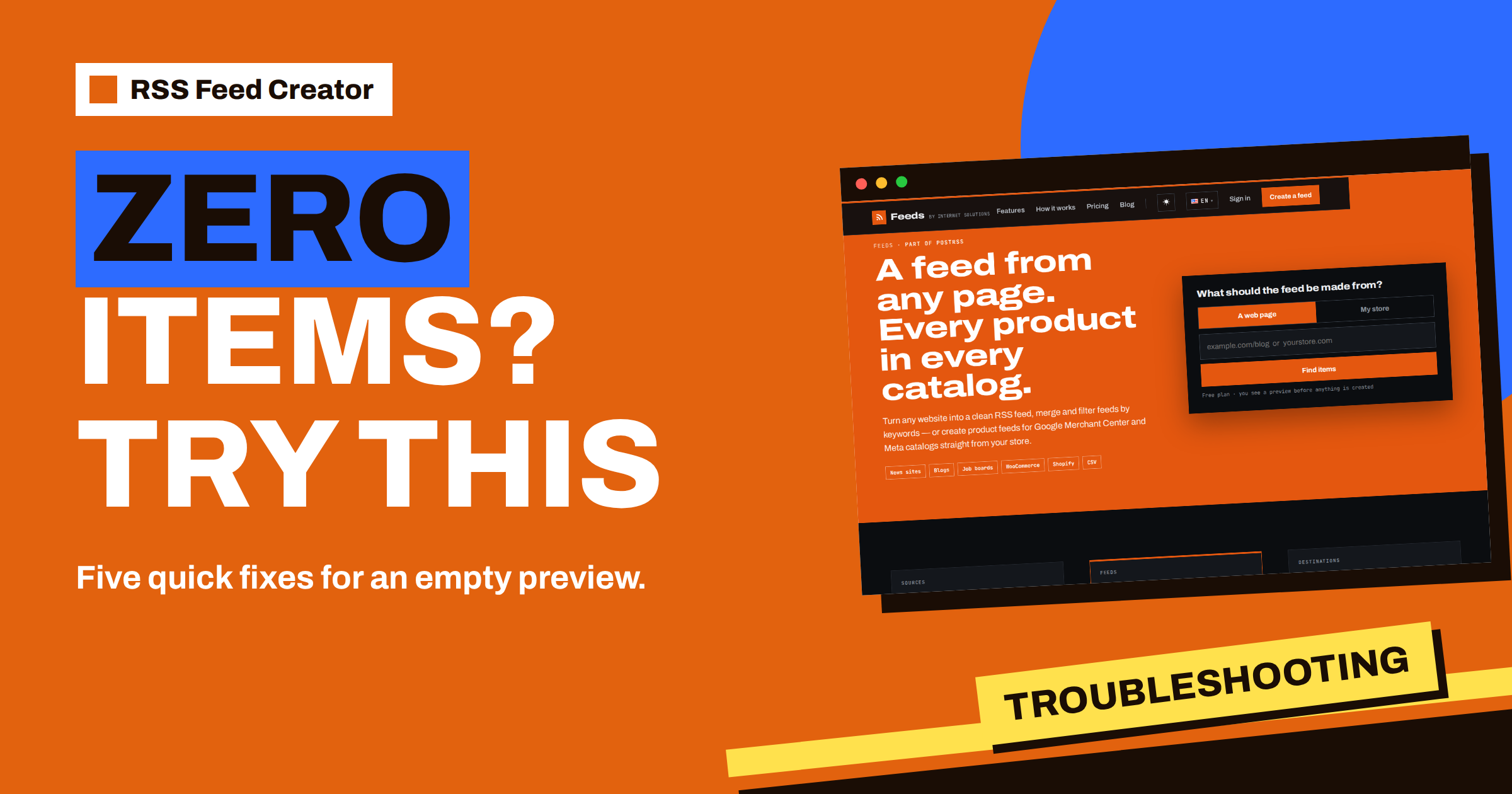
Short answer: When the RSS Feed Creator preview says “0 items found”, the tool could not see a list of items on the address you pasted. It is not an error and nothing has been created. The usual fix is a better address: the page that actually lists articles or products, such as /blog or /news, instead of a home page, a single article or a page that shows nothing until scripts run. This guide walks through the five common causes and what to try for each.
What the message says and what it means
After you paste an address and press the button, RSS Feed Creator opens a preview page. If it finds nothing, the heading reads “0 items found”, followed by the address it read and a plain sentence: it did not find a list of items on this page, and you should try the page that lists articles or products, for example /blog or /news, or another address.
Two things are worth noticing. First, the preview comes before any feed exists, so an empty result costs you nothing; you simply try again. Second, the sentence points at the most likely remedy. The tool looks for a repeating list on the page, and the address you gave it did not contain one. The preview step is explained in check every item before you create, and it is the reason you can experiment freely.
Cause 1: you pasted the wrong kind of page
This is by far the most common reason. A feed is a list of items, so the page must be a list. Pages that rarely work are:
- a single article, which has one headline and nothing repeated;
- an “about us” or contact page;
- a home page that shows three highlights and a lot of menus;
- a product page for one product.
What works is the page where the site lists its newest articles, news, jobs or products. Open the website in your browser, click the menu entry called Blog, News, Press or Latest, and copy the address from that page. The guide which web address to paste: home page, section or search goes through the choices in detail.
Cause 2: the list is too short to recognise
RSS Feed Creator needs a pattern, and a pattern needs repetition. When it falls back to reading the shape of the page, a block must repeat at least three times with three different links before it counts as a list. A page with only one or two news items looks like ordinary text to the tool. If the site has a longer list on another page, such as an archive, use that page. Structured article data works in the same way: a page needs to describe at least three items for the tool to accept them.
The reverse problem also exists. A page with many links but no real list, such as a mega menu or a footer full of categories, is ignored on purpose, so that menus do not become feeds. The reasoning is covered in how RSS Feed Creator finds items on pages without RSS.
Cause 3: the page shows nothing until scripts run
Some modern websites are built as applications. The page that arrives from the server is almost empty, and the list of articles appears only after the browser runs scripts. RSS Feed Creator reads pages the way a simple visitor does, from the outside, so it sees what the server sends. If the page looks full in your browser but the preview is empty, this is a likely reason.
You have several ways forward. Try another address on the same site, because an archive, a category page or a section listing may be built in a simpler way. Look for a page of the site that lists articles with plain links. And check whether the site has a feed of its own: many sites announce one even when the visible list is built with scripts, and if the tool finds that feed it uses it first.
Cause 4: the page needs a login or is hidden
The tool reads public pages. If the address leads to a login form, a members’ area or a page that is only shown after you accept something, the preview will have nothing to read. The same applies to addresses with a username and password inside them, which are refused, and to addresses that point to private networks. There is no way around this by design, and it is also the reason that no access to the source website is ever needed.
For a store, a similar situation appears when the shop is hidden behind a password page or when the product data is blocked. The preview then says that products could not be read and lists the supported platforms: WooCommerce, Shopify and CSV files. In that case try the CSV route, described in the columns RSS Feed Creator reads from a CSV link.
Cause 5: a typing or redirect slip
Small slips cause more empty previews than people expect. A missing letter in the address, a section that has been renamed, or an old address that now leads to a “page not found” message all produce the same result. A quick test is to paste the address into a browser tab first. If the browser shows a proper list, copy the address from the browser’s address bar after the page has loaded, because that is the final address after any redirects.
It also helps to remove extras. Addresses copied from newsletters or social posts often carry tracking parts after a question mark. Cut them off and keep the clean address of the section.
Finally, consider language and region versions. A site may keep its English news at one address and its local-language news at another, and the section you want may exist only in one of them. If the first address returns nothing, open the language menu on the site, pick the version you actually want to follow and copy the address from there. It costs a minute and often explains a result that otherwise looks mysterious.
A five-step routine for an empty preview
- Open the site in a browser and find the page that lists items. Copy its address from the address bar.
- Paste that address and press the button again. Check the number in the heading.
- Try a neighbouring page, such as the news archive, a category or the all-posts page.
- Look for an existing feed. Many sites mention one in the footer or in the page header. A pasted feed address is read directly.
- Decide whether the site fits. If every list on the site is built with scripts or hidden behind a login, a different source for the same news may work better.
Most empty previews are solved in step 1 or 2. The routine takes a couple of minutes and costs nothing, because every try happens before a feed is created. If you are testing several sites in a row, keep a short note of the addresses that worked, so that you can create the feeds later without repeating the search.
When items are found but look wrong
A related case is a preview that finds items, but the wrong ones: navigation links, categories, or only a few of the articles. The fix is the same: choose a more specific address, such as the blog section instead of the home page. If a site works but gives fewer items than you expect, whole-section feeds explain how the tool follows further pages when the plan has room for more.
Plans do not change any of this. An empty preview looks the same on the free plan and on paid plans, because the reading of the page is the same for everyone; the pricing page shows what changes after the feed exists, such as the number of items per feed and the refresh interval. So there is no reason to upgrade just to get a page to work. Solve the address first, and decide about a plan later.
One more habit saves time: when you find a site that works, look at what the preview shows for titles and dates before you create the feed. A page that gives clean headlines and sensible dates today is likely to keep doing so, and a page that needed three attempts is worth a note about which address finally worked. If you are creating several feeds for the same site, for example the blog and the news page, repeat the routine for each address separately, because every section of a site can be built differently.
Related reading
- RSS Feed Creator Walkthrough: From a Web Address to a Feed
- When a Page Layout Changes: How RSS Feed Creator Copes
- How to Create an RSS Feed for a Website Without RSS
The bottom line
An empty preview means “I cannot see a list here”, not “this site is impossible”. Choose the page that really lists items, use a clean address, try a neighbouring page and check for an existing feed. If you do those four things, most websites turn into a feed in a couple of minutes.
FAQ
Does an empty preview use up anything on my plan?
No. The preview is shown before a feed is created, so nothing is created and nothing is counted.
Why does the page look full in my browser but empty in the preview?
The page may build its list with scripts after it loads. RSS Feed Creator reads what the server sends, so try another listing page of the same site or look for an existing feed.
Can I turn a page behind a login into a feed?
No. The tool reads public pages, like an anonymous visitor, so pages that need a login cannot be used.
Which pages work best?
Pages that list many articles, jobs or products with plain links, for example a blog, a news page or a category.


