 ENEnglish
 LTLietuviškai
 DEDeutsch
 FRFrançais
 RUРусский
 ESEspañol
 PLPolski
 ITItaliano
 UKУкраїнська
 CSČeština
 PTPortuguês
 JA日本語
JA日本語 LVLatviešu valoda
 ETEesti
 HUMagyar
 IDBahasa Indonesia
 TRTürkçe
 HIहिन्दी
 ELΕλληνικά
 ARالعربية
 THไทย
THไทย VITiếng Việt
 RORomână
 MSBahasa Melayu
 BNবাংলা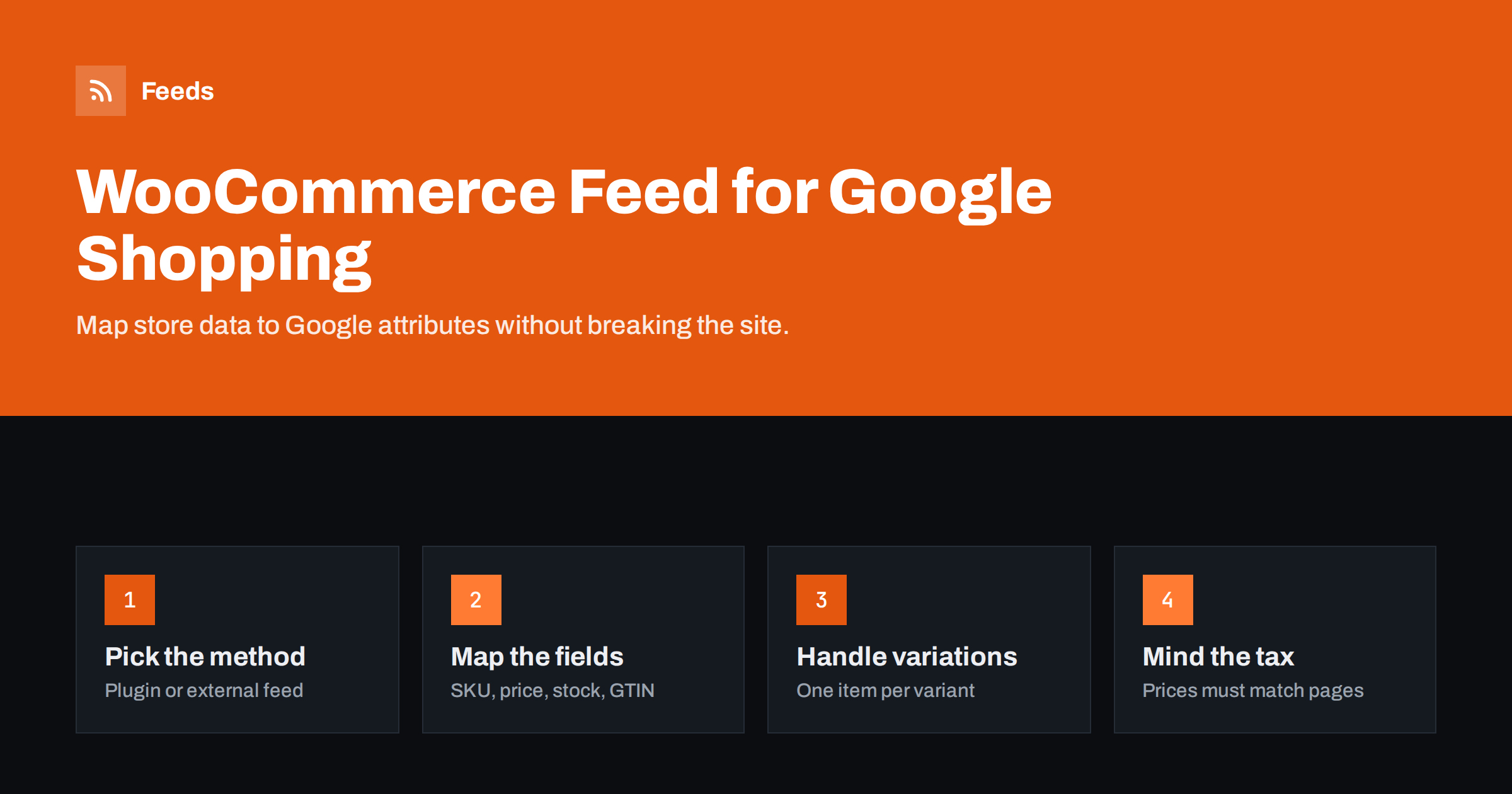
Short answer: To get WooCommerce products into Google Shopping, generate a product feed from your store with a feed plugin or an external feed service, map WooCommerce fields to Google attributes (SKU to id, regular and sale price to price and sale_price, stock status to availability), list each variation as its own item with a shared item_group_id, and register the feed URL in Google Merchant Center as a scheduled fetch. Then check that feed prices, including tax, match what shoppers see on the product pages.
Why WooCommerce needs a separate feed
WooCommerce is flexible: products can be simple, variable, grouped or external, prices can be set with or without tax, and dozens of plugins change how prices, stock and attributes are displayed. That flexibility is great for the store and awkward for Google. Merchant Center wants one clean row per purchasable item, with the price the shopper will actually pay and a clear stock status.
WooCommerce does not produce a Google Shopping feed on its own. You need something that reads the product data, resolves the variations and pricing logic, and outputs a file in Google’s format. There are two broad ways to do that, and the choice affects performance, maintenance and flexibility.
Plugin or external feed: the main options
| Approach | Strengths | Trade-offs |
|---|---|---|
| Feed plugin inside WordPress | Direct access to every product field and custom meta; many mapping options | Runs on your server; large catalogs can slow the admin or time out during generation; another plugin to update |
| Google’s own WooCommerce integration | Official connection that syncs products and links Merchant Center | Fewer transformation options; relies on the connection staying authorized |
| External feed service | Nothing installed on the store; generation load happens elsewhere; rules applied outside WordPress | Works from the product data the store makes available, so very custom fields may not be available |
For small catalogs on good hosting, a plugin is often fine. For stores that already struggle with plugin load, or for agencies managing many client stores, an external service keeps the feed out of the store’s resources. Whichever you choose, the mapping rules below are the same.
Mapping WooCommerce fields to Google attributes
Most of the work is deciding which WooCommerce field feeds which Google attribute. A sensible default mapping looks like this:
- id ← SKU. If some products have no SKU, fill them in before launch rather than falling back to the post ID, which changes if products are re-imported.
- title ← product name, plus variation attributes such as color or size for variations.
- description ← short description or full description, stripped of HTML and shortcodes.
- link ← product permalink; for variations, a link that preselects the variation.
- image_link ← featured image; for variations, the variation image if one is set.
- price ← regular price, including tax where required.
- sale_price ← sale price, with sale dates mapped to sale_price_effective_date if you schedule sales.
- availability ← stock status: in stock, out of stock or on backorder.
- brand, gtin, mpn ← product attributes or custom fields where you store them. WooCommerce has a built-in field for GTIN, UPC, EAN or ISBN in recent versions, and many stores use attributes or a brands taxonomy.
- product_type ← the product category path.
Write the mapping down. When a colleague or agency changes something six months later, a one-page mapping is the difference between a quick fix and a day of guessing.
Handling variable products
Variable products are where most WooCommerce feeds go wrong. Google expects each purchasable variation as a separate item, because each can have its own price, stock, image and GTIN. The parent product is not purchasable by itself and should not appear as an item.
- Export every variation as its own item with its own id, ideally the variation SKU.
- Give all variations of one product the same item_group_id, usually the parent SKU.
- Send the variation attributes as color, size, material or pattern, depending on what varies.
- Add the variation to the title, for example “Linen Shirt, Navy, Size M”.
- Use a link that opens the correct variation. WooCommerce supports URL parameters that preselect attributes, and many feed tools build these automatically.
If the link opens the default variation instead, Google may see a different price or availability on the page than in the feed and flag a mismatch.
Prices, tax and currency
WooCommerce lets you enter prices with or without tax and display them either way. Google cares only about what the shopper sees. In the EU, UK and most countries outside the US, the feed price must include VAT, matching the price displayed on the product page for the target country. In the US, prices are sent without tax, and tax is configured in Merchant Center.
Also check plugins that change prices dynamically: currency switchers, role-based pricing, bulk discounts and “price per unit” displays. A feed tool that reads the base price may not see these adjustments, while Google’s crawler sees the adjusted price on the page. Pick the price your default visitor sees and make sure the feed uses exactly that.
Stock status and what to exclude
Out-of-stock items can stay in the feed with availability set to out_of_stock, or you can exclude them. Keeping them tells Google the product exists and is temporarily unavailable; excluding them keeps the feed lean and avoids wasted clicks. For most small stores, excluding sold-out products that will not return soon and keeping only those with a restock date is a pragmatic middle ground.
Also exclude products that should never be advertised: hidden or private products, samples, gift cards, spare parts that only make sense with a purchase, and items restricted by Google’s policies. Doing this with a rule, such as a category or tag, is more reliable than excluding products one by one.
Registering the feed and checking results
Once the feed URL is ready, add it in Merchant Center as a scheduled fetch, choose the target country and language, and run the first fetch manually. Then compare ten random products in three places: the WooCommerce admin, the product page as a logged-out visitor, and the Merchant Center item details. Price, availability, image and title should agree everywhere.
Watch the diagnostics during the first week. Common early issues for WooCommerce stores are missing GTINs for branded products, variation links that open the wrong option, and images that are too small because the feed uses a thumbnail size instead of the full image.
Performance and caching pitfalls
Feeds generated inside WordPress can be heavy on large catalogs. If the feed is built on request, Google’s fetch may hit a timeout while the file is being generated. Prefer tools that generate the file in the background and serve a cached copy. Also make sure caching plugins and security rules do not block the fetcher or serve an outdated version. If a firewall challenges unknown bots, allow the platforms that fetch your feed.
A pre-launch checklist for WooCommerce stores
Before you submit the feed for the first time, run through this list. Each item is quick to check and each one prevents a category of rejections that otherwise shows up days later in diagnostics:
- Every product and variation has a unique SKU, and no two variations share one.
- Branded products have GTINs filled in where the manufacturer assigned them, and a brand value is set for every product.
- Product images are full-size photos of the actual product, not category banners, logos or placeholders.
- Descriptions are clean plain text in the feed, without shortcodes, page builder markup or leftover HTML entities.
- Prices in the feed include tax for countries that require it, and they match the price on the page for a logged-out visitor.
- Sale prices have end dates if the sale is temporary, so the feed does not keep a discount the page no longer shows.
- Hidden, private, draft and password-protected products are excluded.
- Variation links open the correct variation with the right price and image.
- The feed URL loads without a login, a cookie banner wall or a firewall challenge.
- Shipping and return policies are published on the site and match what you entered in Merchant Center.
It is worth repeating this checklist after major changes to the store, such as a theme switch, a new pricing plugin or a WooCommerce update that changes how variations are stored.
How Feeds helps
Feeds reads WooCommerce products from the outside, using the public store data, so nothing is installed in WordPress and the store’s server does not generate the file. It publishes a Google product XML feed with id, title, link, image, price, availability and brand that Merchant Center and Meta can both read. You can skip out-of-stock products, rewrite titles and adjust prices with rules, and you see a preview before the feed is created. Details are on the pricing page.
Related reading
- How to Set Up a Google Merchant Center Product Feed
- Google Product Feed Attributes: Required and Recommended
- How to Add a Product Feed to a Meta Catalog, Step by Step
The bottom line
A good WooCommerce feed maps SKUs to IDs, lists each variation separately with a shared item_group_id, sends the price shoppers actually see, and reflects stock status accurately. Choose a plugin or an external service based on catalog size and server load, register the feed as a scheduled fetch, and compare feed data with live pages during the first week.
FAQ
Does WooCommerce have a built-in Google Shopping feed?
No. You need a plugin, Google’s integration or an external feed service to produce a file in Google’s product format.
Should WooCommerce variations be separate items in the feed?
Yes. Each purchasable variation should be its own item with its own ID, price, stock and image, grouped by a shared item_group_id.
Why does Google say my WooCommerce prices do not match?
Usually because of tax settings, dynamic pricing plugins or variation links that open a different variation. The feed must use the price a default visitor sees on the linked page.
Can I build the feed without installing a plugin?
Yes. External feed services can read product data from the store’s public pages or data and publish the feed elsewhere, so nothing runs inside WordPress.
What should I use as the product ID?
The SKU, as long as every product and variation has a unique one. Avoid database post IDs, which change when products are re-imported.


