 ENEnglish
 LTLietuviškai
 DEDeutsch
 FRFrançais
 RUРусский
 ESEspañol
 PLPolski
 ITItaliano
 UKУкраїнська
 CSČeština
 PTPortuguês
 JA日本語
 LVLatviešu valoda
 ETEesti
 HUMagyar
 IDBahasa Indonesia
 TRTürkçe
 HIहिन्दी
 ELΕλληνικά
 ARالعربية
 THไทย
 VITiếng Việt
 RORomână
 MSBahasa Melayu
 BNবাংলা
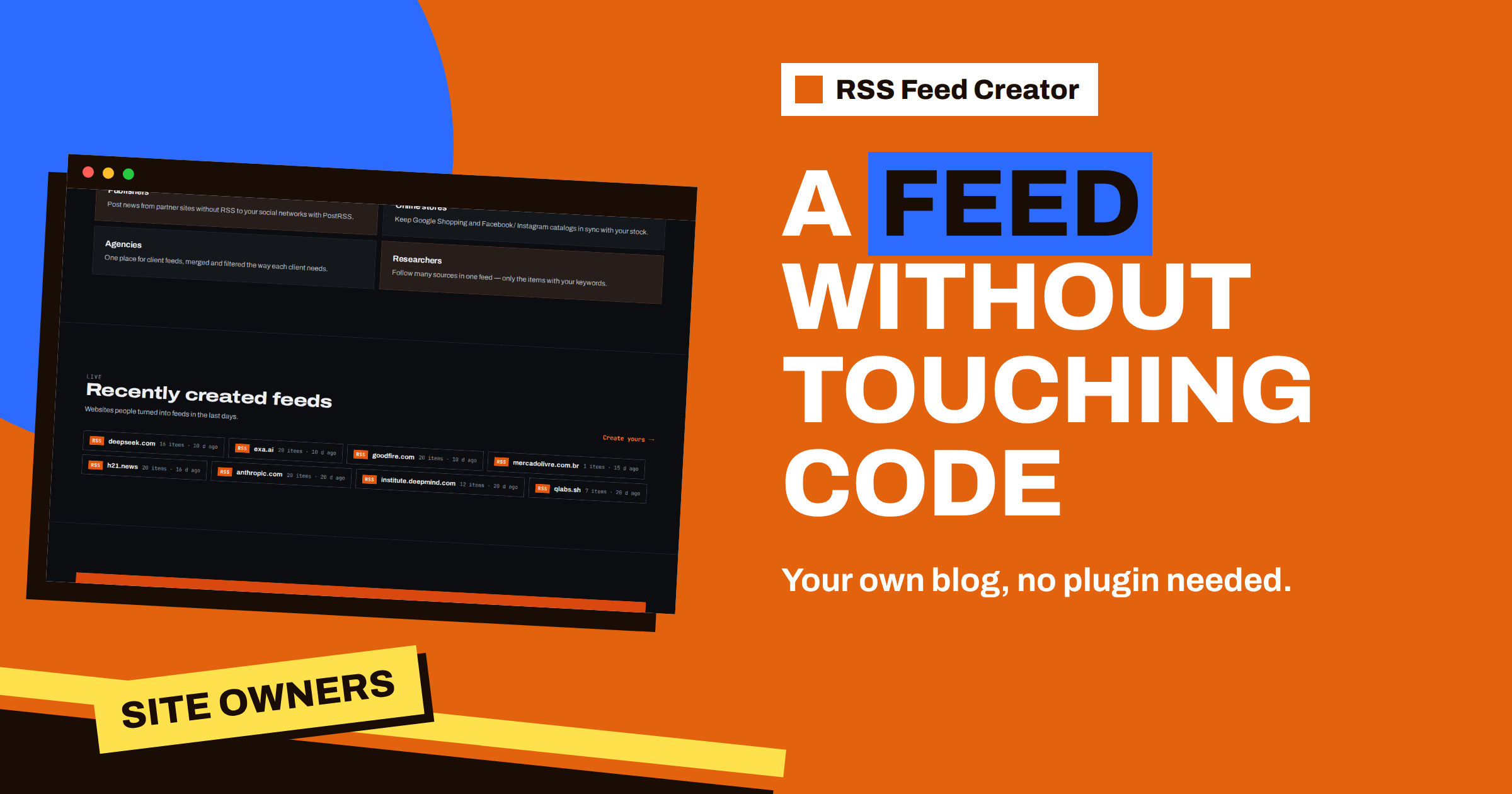
Short answer: If your own website has a blog or news page but no RSS feed, you can still get a working feed in a few minutes. Paste the address of that page into RSS Feed Creator, check the preview and create the feed. Nothing is installed on your site and no code or settings are changed, because the tool reads the public page the way a visitor would. The result is a permanent feed address that you can add to a reader, a team channel or PostRSS, so that each new post is also published to your social profiles.
Who this is for
Plenty of site owners have a page that lists their latest posts and nothing that machines can follow. It happens on sites built with site builders that offer no feed, on hand-made or static sites, on older content management systems, and on sites where a developer once switched the feed off. Changing the platform just to get a feed is a big step, and asking a developer for a small job is not always possible.
RSS Feed Creator offers a way around. Its home page says “No plugins and no code on the source website” and means it: the tool reads pages from the outside and keeps the feed up to date on its own. You are the owner of the site, but the tool treats it like any other public website, which is exactly why it works with no access.
Step 1: find the page that lists your posts
Open your site in a browser and click the menu entry that leads to your posts, such as Blog, News or Articles. Copy the address from the address bar. This is the page the tool needs, not your home page, which usually shows only a few highlights among many menu items. The choice of address is discussed in which web address to paste: home page, section or search.
Check the page with a visitor’s eyes. Does it show a clear list of posts, each with a heading and a link? Is there a picture and a short text for each one? The more regular the list, the better the result.
Step 2: read the preview
Choose “A web page” on the start form, paste the address and press the button. The preview lists the items it found, with title, address, date when one exists and a picture when the page has one. Because you know your own site, you can check it quickly: are your newest posts at the top, are the headlines right and do the links lead to the posts and not to categories?
Pay attention to dates. For a list that is built from repeated blocks, a date is taken from a time element inside the block, or from article data that the page publishes. If your theme prints dates as plain text without that markup, the items may show without a date, and the feed keeps them in the order of the page. That is a small point to know about, and the preview shows you the truth before you commit. How the tool reads pages is covered in how RSS Feed Creator finds items on pages without RSS.
Step 3: create the feed and keep the address
When the preview looks right, press Create. You arrive on the management page, which shows the feed address, a long web address ending in .xml, with a Copy button. Create a free account at this point if you have not yet; it keeps your feeds in one list and saves you from losing the management link, as explained in why a free account helps keep your feeds safe.
Each item in the feed carries the title, the link, a short summary when the page has one, the date when found and the picture. The picture is written in two forms, as a media element and as an enclosure, so that more readers and tools can show it. The link also serves as the item’s identifier, so a reader will not show the same post twice.
What you can do with the feed
- Post to social networks. Add the feed address as a source in PostRSS and each new post is published to the profiles you choose. This is the use the home page highlights: it says that Feeds works best with PostRSS. The route is described in from pages without RSS to social posts.
- Follow yourself. Add the feed to your own reader to see your site the way subscribers would, including how titles and pictures look.
- Feed a team channel or tool. Any tool that accepts an RSS link can take the feed address.
- Give readers a way to subscribe. You can offer the feed address to your audience. Note that it is hosted by RSS Feed Creator, not by your site.
What to expect from refreshes and limits
The free plan refreshes a feed every 3 hours and keeps up to 20 items. The PostRSS add-on at €5 per month refreshes every 30 minutes and keeps up to 100 items per feed. For a site that publishes a few posts a week, either interval is fine; for a news site, the shorter one helps new posts appear sooner. A feed is also refreshed when it is read after it has become old, so a tool that asks for it always gets the freshest version the plan allows. Details are in how often RSS Feed Creator refreshes your feed.
If you change your theme later, the tool detects the list again on every refresh. A redesign that keeps the list of posts usually causes no trouble. If the list disappears, the previous version of the feed stays in place and the management page says what went wrong.
Common surprises and how to handle them
The feed shows only the latest posts. A blog page normally lists ten or twelve posts, and the feed starts from what the page shows. Where your plan has room for more, the tool follows the next-page links and the section’s sitemap; the free plan keeps up to 20 items in any case. This is explained in RSS Feed Creator beyond page one.
Old posts appear in the feed. The feed shows what is on the page, so older posts that the page lists are included. The preview shows exactly which items the feed will hold, so you can judge this before you create it.
A post is missing. Posts that are not linked from the list page, for example drafts, hidden pages or posts that need a login, cannot be seen by a visitor and so cannot be seen by the tool either.
The picture is wrong. The tool takes the first picture in each block of the list. If your theme shows a small icon first, that icon becomes the picture. A theme setting that shows the post’s main image in the list fixes it, and the preview shows the result right away.
None of these needs more than a few minutes. They are also good reasons to look at your own list page with fresh eyes: a page that is clear for a feed tool is usually clear for visitors and search engines too.
When a native feed is better
Be honest about the alternatives. If your platform can produce its own feed with a setting or a plugin, that is the best long-term choice: the feed lives on your domain, contains the full text and updates the moment you publish. Many platforms already have one, and RSS Feed Creator will use it if it finds it. The tool is the quick route for the cases where adding a native feed is hard or slow.
Many site owners use both: a native feed when they can add it, and the tool as a stand-in until then. Others keep using the tool because it works the same for every site they own, with a single list of feeds and no changes to any of the sites.
A small checklist before you share the feed
- The preview shows your newest post first, with the right title.
- Links lead to posts, not to category pages.
- Pictures appear where you expect them.
- The feed address opens in a reader and shows items.
- You have saved the management page or created a free account.
Once these five boxes are ticked, the feed is ready to be used. You can check the plans on the pricing page whenever you need more items or a faster refresh.
Related reading
- How to Create an RSS Feed for a Website Without RSS
- RSS Feed Creator Walkthrough: From a Web Address to a Feed
- The €5 PostRSS Add-on: What Changes From the Free Plan
The bottom line
You do not have to change your website to get a feed for it. Choose the page that lists your posts, check the preview, create the feed and use its address in PostRSS, a reader or a tool. It is a quick route for sites that cannot easily add a feed of their own, and a native feed remains the best long-term solution where it is possible.
DUK
Do I need to install anything on my website?
No. RSS Feed Creator reads the public page from the outside, so no plugin or code is needed.
Will the feed contain my full articles?
It contains the title, link, a short summary when the page has one, the date when found and the picture.
Can I post new items to social media from this feed?
Yes. Add the feed address as a source in PostRSS, and new items are published to your profiles.
What if my site already has a feed?
The tool uses it when it finds one, and you can still filter or merge it with other sources.


