 ENEnglish
 LTLietuviškai
 DEDeutsch
 FRFrançais
 RUРусский
 ESEspañol
 PLPolski
 ITItaliano
 UKУкраїнська
 CSČeština
 PTPortuguês
 JA日本語
 LVLatviešu valoda
 ETEesti
 HUMagyar
 IDBahasa Indonesia
 TRTürkçe
 HIहिन्दी
 ELΕλληνικά
 ARالعربية
 THไทย
 VITiếng Việt
 RORomână
 MSBahasa Melayu
 BNবাংলা
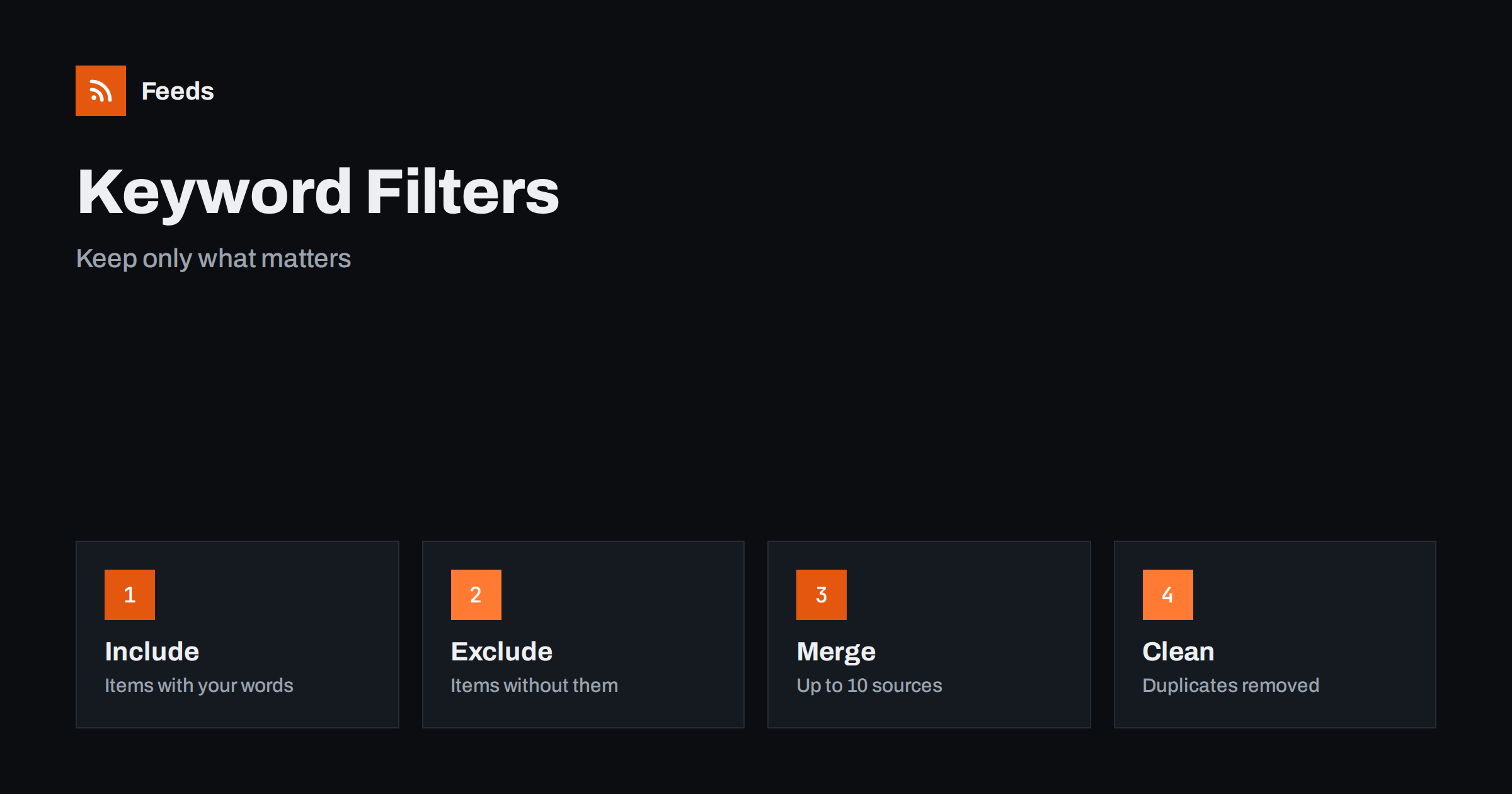
Short answer: In RSS Feed Creator you can combine several sources into one feed and keep only the items that contain your words, or only those that do not. Duplicates are removed automatically, and the result works in any RSS reader or tool. Start with a small list of words, look at the preview, and refine it until the feed shows what matters to you and little else.
Why filter a feed at all
A news page or a blog may publish twenty items a day, of which you care about two. A product page may list hundreds of items, and only a few belong to the category you follow. Reading everything costs time, and skipping things by hand means you sooner or later miss the one that mattered. A filter does the sorting for you, in the same way each time.
Filtering is also the reason feeds are better than most alerts. You decide which words count, and the result is a clean list that you can read in any reader or pass to another tool. If you are new to the idea, what is an RSS feed explains the basics, and how to reduce noise in RSS alerts without missing anything explains the aim of good filtering.
Words in other languages are a special case. If a source publishes in several languages, add the terms for each, or use separate sources per language. Names with accents or alternate spellings need the same treatment: if a company writes its name in two ways, list both. A few minutes spent on this step prevents silent gaps that you only discover months later.
There is also a calming effect. When a feed contains only what you asked for, you stop worrying about missing something, and you can close the reader without guilt. Many people who abandon feeds do so because the list grew faster than they could read it, and filtering is the cure.
Keep items with your words
The simplest filter keeps only items that contain words you choose. Imagine a feed from a broad industry news page, and you care about energy. You enter words such as “energy” and “solar”, and the feed shows only items that mention them. The same idea works for a company name, a product, a place or a person.
Think about the words with care. A short, general word may match many unrelated items, while a very specific phrase may miss variations. Use the form in which the word usually appears in titles, and add alternative terms: “electric vehicle” and “EV”, “tender” and “procurement”. Set up keyword alerts using RSS feed filters gives a step-by-step method for building and testing the list.
A good habit is to start without any exclusions and add them only when you see the same kind of unwanted item twice. This keeps the filter simple, and each exclusion has a real reason. When you add one, write the date and the example item that triggered it in your notes.
Keep items without certain words
The second kind of filter removes items that contain words you do not want. If your feed about jobs returns many internships and you are looking for senior positions, exclude “intern” and “trainee”. If a news feed includes sponsored content, exclude the words that label it. Exclusion is the quickest way to clean a noisy feed.
Use exclusion carefully, because a word may appear in a useful item. After you add an exclusion, check the preview again and look at what disappeared. If a good item is gone, make the word more specific. A short log of your filters and the reason for each makes it easy to explain the feed to a colleague later.
Choose sources that complement each other. One that publishes official facts, one with trade analysis and one with local news give a fuller picture than three sources of the same type. Remove sources that never produce an item that passes your filter, since they only add load without value, and replace them with better ones.
Merging up to 10 sources
Filters become more powerful when several sources feed into one list. RSS Feed Creator can combine up to 10 sources in one feed, and duplicates are removed automatically. Three trade news pages, a regulator’s announcements and a supplier’s blog can become a single stream, filtered by your words and sorted in order.
When several outlets report the same event, you would normally see it five times. With merging and duplicate removal, you see it once. How to merge multiple RSS feeds into one clean feed explains the idea in detail, and monitoring hundreds of sources with RSS without chaos shows how to organize many such feeds. Check the pricing page for the plans that include merging.
The same approach works for other jobs. A recruiter can merge several job boards and keep items with a skill and a city. A researcher can merge journal pages and keep items with a method. A shop owner can merge supplier pages and keep items with a product line. Only the words and sources change; the steps remain the same.
A worked example
Suppose you run a small consultancy on renewable energy. You paste the addresses of two industry news pages, the page of a national energy regulator and the news page of a large equipment maker. In the preview, you see forty items, many about oil, gas and politics. You add the words “solar”, “wind” and “storage” to keep items that mention them. Twelve items remain.
Then you exclude “webinar” and “sponsored”, which removes advertising. Nine items remain, all useful. You create the feed, copy the link and add it to your reader. Each morning you see the new items, and nothing else. After a month, you add the word “tariff” because customers ask about it, and check the preview again before you save.
Do not confuse the two jobs: word filters help you read, while product rules help you sell. Keep them separate in your mind and in your notes.
Filters for product feeds
Words are not the only way to filter. For product feeds, RSS Feed Creator offers product rules that skip out-of-stock products, rewrite titles and adjust prices, and they are available on the free plan within its limits. They serve a different purpose: they shape what goes into Google Merchant Center and Meta catalogs. If you sell online, read out-of-stock products in your feed and which products to exclude from your feed and how to do it.
Share the filter with the people who use the feed. A short note, such as “keeps items about solar, wind and storage; excludes webinars and sponsored posts”, tells readers what to expect and invites them to suggest missing words. Feeds that serve a team improve faster when everyone can say what they miss.
Testing and maintaining your filters
Treat a filter as a living thing. Words change: a technology gets a new name, a company is renamed and a regulation receives a new label. Review your filter every few months and compare the feed with the unfiltered source. If you find important items that your filter missed, add the words that appeared in them.
Also test for false positives. Open a handful of items that passed the filter and ask whether they belong. If many do not, tighten the words. Keep notes of changes with dates. This gives you a clear record of why the feed looks the way it does, which is useful when someone else takes over.
If you read the feed yourself, put it in a folder with a clear name, such as “energy: filtered”, and read it at a fixed time. If the volume is low, you can check it daily; if it is high, tighten the filter instead of reading faster. The aim is a feed short enough to finish.
Where to send the filtered feed
A filtered feed works wherever a feed works. Add the link to a reader for yourself, or send it to a team channel, an email digest or a spreadsheet. How to send RSS feed updates to a Slack channel and how to turn an RSS feed into an automatic email newsletter show two popular options. Because the filtered list is short, people read it, which is the whole point.
The feed refreshes on its own: every 3 hours on the free plan and every 30 minutes on paid plans. Plan details are on the pricing page.
Related reading
- How to Set Up Keyword Alerts Using RSS Feed Filters
- How to Merge Multiple RSS Feeds into One Clean Feed
- How to Reduce Noise in RSS Alerts Without Missing Anything
The bottom line
Keyword filters in RSS Feed Creator keep the items that contain your words, remove those that do not belong and, with merging, bring up to 10 sources into one clean feed without duplicates. Start small, check the preview, review the words from time to time and send the result to wherever your team reads.
DUK
Can I keep only items that contain certain words?
Yes. You can keep items with your words, or keep items without them, so a feed can both include and exclude.
How many sources can I merge?
Up to 10 sources in one feed, with duplicates removed automatically.
Does the filtered feed work in any reader?
Yes. It works in any RSS reader or tool that accepts a feed link.
How do I know the filter is not hiding good items?
Check the preview, compare with the unfiltered source from time to time and add the words that appear in items you missed.
How often does the feed update?
Every 3 hours on the free plan and every 30 minutes on paid plans.


