 ENEnglish
 LTLietuviškai
 DEDeutsch
 FRFrançais
 RUРусский
 ESEspañol
 PLPolski
 ITItaliano
 UKУкраїнська
 CSČeština
 PTPortuguês
 JA日本語
JA日本語 LVLatviešu valoda
 ETEesti
 HUMagyar
 IDBahasa Indonesia
 TRTürkçe
 HIहिन्दी
 ELΕλληνικά
 ARالعربية
 THไทย
THไทย VITiếng Việt
 RORomână
 MSBahasa Melayu
 BNবাংলা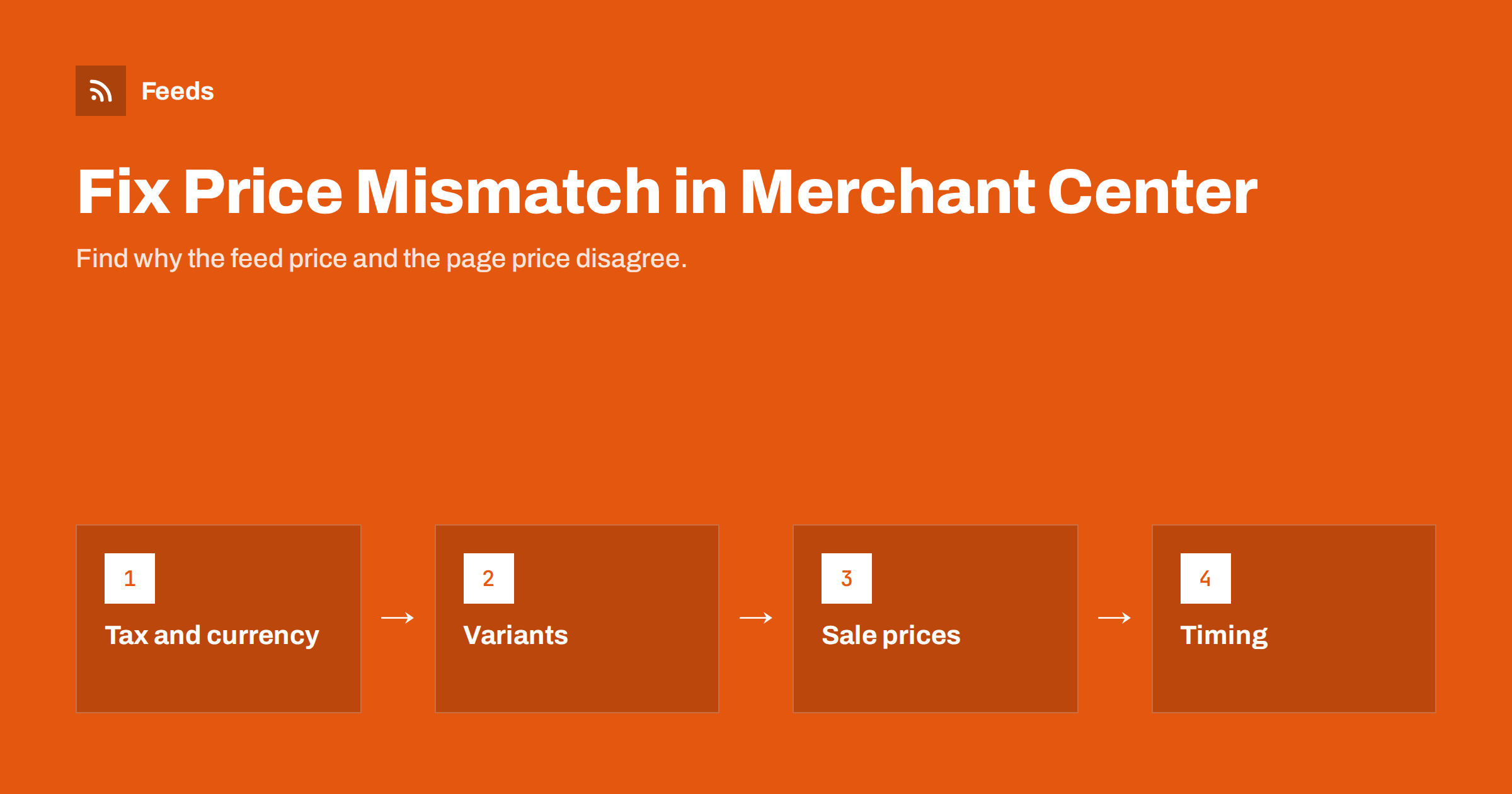
Short answer: A price mismatch means the price in your feed differs from the price Google sees on the landing page. The usual causes are tax (net price in the feed, gross on the page), wrong currency or market, links that open a different variant, sale prices that start or end at different times in the feed and on the site, cached pages, and plugins that change prices dynamically. Fix the cause in the store or feed rules, then let Google re-crawl; automatic item updates can also correct small gaps temporarily.
What Google actually checks
Google crawls the landing page for each product and reads the price shown to a shopper, using the page content and structured data. It compares that price with the price or sale_price in your feed for the target country. If they differ, the item gets a mismatch issue. Depending on how widespread and persistent the problem is, affected items can be disapproved, and repeated large-scale mismatches can lead to account-level warnings.
The key phrase is “shown to a shopper”. Google looks at the page as a normal visitor from the target country would see it, without being logged in, without a customer group discount, and without items in the cart. Any price logic that depends on those conditions can create a mismatch even if your feed is “correct” from the admin’s point of view.
The six most common causes
Cause 1: tax included in one place but not the other
In the EU, UK, Australia and most countries outside the United States, the price shown to consumers must include VAT or GST, and the feed price must include it too. A common setup error is a store that stores net prices and adds tax at display time, with a feed tool that reads the stored net price. The page shows 24.40 EUR, the feed sends 20.00 EUR, and every product mismatches by exactly the tax rate.
The reverse happens in the United States, where feed prices should exclude sales tax, which is configured separately in Merchant Center. If a store shows US prices with tax included, the feed and the page disagree in the other direction. When every item is off by the same percentage, check tax first.
Cause 2: currency and market settings
Stores that sell in several countries often show prices in the visitor’s currency, based on location or a currency switcher. Google’s crawler may see a different currency from the one in your feed, or a converted price that uses a different exchange rate or rounding. Make sure that:
- Each target country has a feed in the currency the page shows to visitors from that country.
- Links point to the market-specific URL, so the crawler sees the correct currency without relying on geolocation.
- Rounding rules on the site, such as ending prices in .99, are reflected in the feed price.
- Automatic currency conversion in the feed tool uses the same rates as the store, or is not used at all.
Cause 3: variants and default selections
When a product has variants with different prices, the link in the feed must open the exact variant listed. If the link opens the product page with a default variant preselected, Google compares your variant’s feed price with the default variant’s page price. A size XL priced higher than the default size M will always mismatch.
Check a few variant links in a private browser window. The page should load with the correct option selected and the matching price displayed immediately, without the visitor needing to click. Also check that the structured data on the page reflects the selected variant, not just the lowest price of the group.
Cause 4: sale prices and timing
Sales create mismatches at their edges. If a sale starts on the website at midnight but the feed is only regenerated in the morning, Google sees a lower price on the page than in the feed for several hours. When the sale ends, the opposite happens. Options to reduce this:
- Use sale_price_effective_date in the feed, so Google knows exactly when the sale price applies.
- Schedule the store’s sale start and end times to match the feed’s effective dates.
- Refresh the feed and trigger a fetch immediately after large price changes.
- Avoid sale prices that apply only after a coupon or at checkout; the feed must show the price visible on the page.
Cause 5: caching and CDNs
Page caches and content delivery networks can serve an old version of a product page long after the price changed. Google may see the old price from a cached page while your feed already has the new one. After bulk price updates, purge the page cache for the affected products. If your caching layer serves different content to bots, make sure it does not keep outdated prices for them.
Cause 6: dynamic pricing plugins and personalization
Plugins that change prices based on customer role, quantity, location, time or login status can make the displayed price different for different visitors. Google sees the anonymous visitor’s price. If your feed tool reads a base price that no anonymous visitor ever sees, mismatches follow. The rule is simple: the feed price must be the price an anonymous visitor from the target country sees on first page load.
A quick diagnosis routine
| Pattern in diagnostics | Most likely cause | Where to fix |
|---|---|---|
| All items off by the same percentage | Tax included in one place only | Feed price source or tax settings |
| Only one country affected | Currency, market URL or rounding | Market links and feed currency |
| Only variable products affected | Links open the default variant | Variant links |
| Spikes at sale start or end | Timing of sale prices | Effective dates and refresh schedule |
| Random items after price updates | Cached pages | Cache purge after updates |
How to fix and get items re-reviewed
Once you have found and fixed the cause, regenerate the feed and trigger a fetch in Merchant Center. Items are re-evaluated when Google processes the new data and re-crawls the pages, which can take from hours to a few days. You do not need to request a review for item-level mismatches. If the account received a warning, follow the instructions in the notification after the fix is in place.
Automatic item updates, a Merchant Center setting, can update prices and availability from the page’s structured data when they differ from the feed. It is a useful safety net that keeps items showing with correct data, but it does not replace a correct feed. If automatic updates are constantly correcting your prices, the underlying feed problem is still there.
Preventing mismatches in the future
- Generate the feed from the same price logic the site uses to display prices.
- Refresh the feed often enough to follow your price changes.
- Add accurate Product structured data to pages, with price and currency.
- Spot-check a handful of items weekly: feed, page and Merchant Center side by side.
- Test new pricing plugins and currency features against the feed before enabling them.
Two more checks: formatting and manual comparison
Price formatting and unit pricing
Sometimes the price is correct but written in a way Google interprets differently. Common formatting problems include:
- A decimal comma in the feed, such as 24,90 EUR, where the parser expects a dot. Depending on the format, it may be read as 2490.
- Thousands separators in large prices, such as 1.299,00, which can be misread in either direction.
- A currency symbol instead of an ISO code, or both together.
- Prices “from” a minimum amount on the page, where the page shows a starting price for a configurable product and the feed sends the price of a specific configuration.
- Unit prices shown more prominently than the item price, such as a price per kilogram next to the pack price, which can confuse crawlers.
Keep feed prices as plain numbers with a dot as the decimal separator and the ISO currency code. On the page, make the actual purchase price the most prominent price near the buy button, and mark it up in structured data. If you sell by weight or volume, use the unit pricing attributes where required rather than replacing the item price.
Checking a mismatch by hand
When an item is flagged, open Merchant Center’s item details and note the price Google found on the page and the price you submitted. Then open the link in a private browser window with no cookies, ideally through a connection in the target country. Look at the visible price and at the structured data in the page source. In most cases one of the three numbers immediately explains the problem: the visible price, the structured data price or the feed price will be the odd one out, and that tells you which system to fix.
How Feeds helps
Feeds builds product feeds from the public data of WooCommerce and Shopify stores, or from a CSV link, and refreshes them automatically, so price changes reach the feed without manual exports. The currency is detected automatically, and price rules let you adjust prices in the feed when needed. The result is a Google product XML file that Merchant Center and Meta can fetch on a schedule. Plans are listed on the pricing page.
Related reading
- How to Set Up a Google Merchant Center Product Feed
- Out-of-Stock Products in Your Feed: Keep, Mark or Remove?
- WooCommerce Product Feed for Google Shopping: A Setup Guide
The bottom line
Price mismatches almost always have a systematic cause: tax, currency, variant links, sale timing, caching or dynamic pricing. Read the pattern in the diagnostics, fix the cause at the source, refresh the feed and let Google re-crawl. Use automatic item updates as a safety net, not as the solution.
DUK
How long does it take for a price mismatch to clear?
Usually from a few hours to a few days after you fix the cause and Google fetches the feed and re-crawls the pages. Item-level issues do not need a manual review request.
Should my feed prices include VAT?
In the EU, UK and most countries outside the US, yes, because consumer prices must include VAT. In the US, prices exclude sales tax, which is set in Merchant Center.
What are automatic item updates?
A Merchant Center setting that lets Google update price and availability from your page’s structured data when they differ from the feed. It helps temporarily but does not fix the feed.
Why do only some variants show a price mismatch?
Usually the link opens the default variant instead of the one in the feed. Links must preselect the exact variant so its price shows on page load.
Can a price mismatch suspend my account?
Persistent, widespread mismatches can lead to account-level warnings or suspension. Isolated mismatches usually affect only the individual items.


