 ENEnglish
 LTLietuviškai
 DEDeutsch
 FRFrançais
 RUРусский
 ESEspañol
 PLPolski
 ITItaliano
 UKУкраїнська
 CSČeština
 PTPortuguês
 JA日本語
JA日本語 LVLatviešu valoda
 ETEesti
 HUMagyar
 IDBahasa Indonesia
 TRTürkçe
 HIहिन्दी
 ELΕλληνικά
 ARالعربية
 THไทย
THไทย VITiếng Việt
 RORomână
 MSBahasa Melayu
 BNবাংলা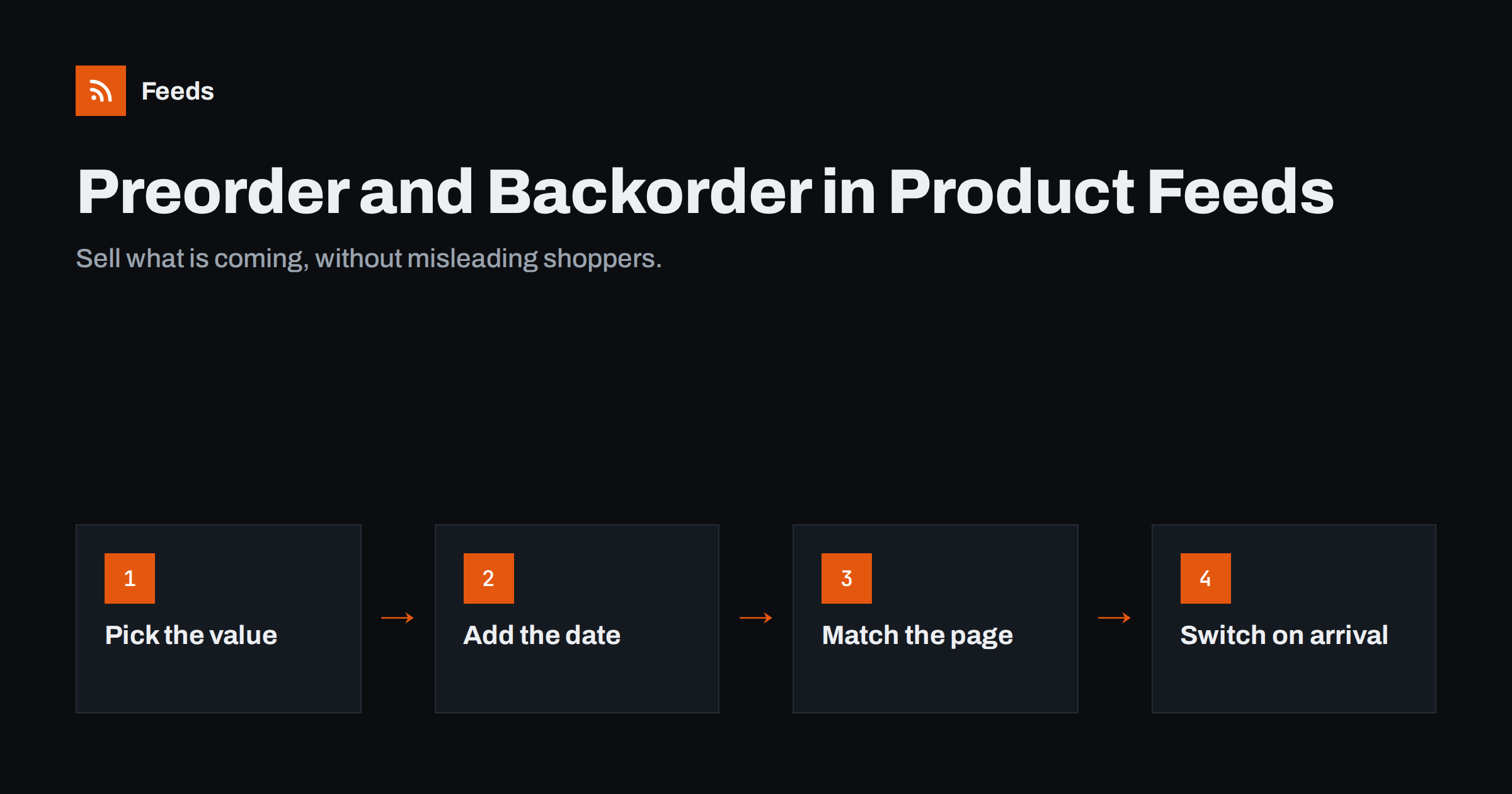
Short answer: use preorder for products that are not yet released and backorder for products that are temporarily out of stock but can still be ordered, and add availability_date with the expected shipping date in both cases. Your product page must show the same status and date. Do not mark these products as in_stock: it leads to availability mismatches, disapprovals and unhappy customers who expected fast delivery.
Four availability values and what they promise
The availability attribute in a Google product feed accepts four values. Each one is a promise to the shopper about when they can get the product:
in_stock: the product is available and ships within your normal handling time.out_of_stock: the product cannot be ordered right now.preorder: the product can be ordered now but has not been released yet; it ships on or after a known date.backorder: the product is temporarily out of stock but can be ordered; it ships when new stock arrives.
Meta catalogs use their own list of availability values, which also includes a preorder option, and many stores send the same Google-format file to both. If you use one file for several channels, check each platform’s current specification for how it reads preorder and backorder items.
The difference between preorder and backorder matters to shoppers. A preorder is exciting: they are among the first to get something new. A backorder is a delay: something they expected to be available is not. Being honest about which is which builds trust and reduces cancellations.
availability_date: required, not optional
When you use preorder or backorder, Google requires the availability_date attribute. It tells shoppers when the product will be available to ship. A few rules apply:
- Format: an ISO 8601 date, optionally with time and time zone, for example
2026-11-15or2026-11-15T09:00+01:00. - Future dates only: the date should be in the future, within the window Google allows (typically up to about a year ahead).
- Realistic dates: use the date the item will ship, not the earliest possible optimistic estimate.
- Update when things change: if the release or delivery slips, change the date in the store and the feed at the same time.
Missing dates are a common reason for warnings or disapprovals. If you see these items in diagnostics, the guide to Merchant Center disapproved products helps you read the messages.
The landing page must say the same thing
Google compares your feed with the product page. If the feed says preorder and the page shows an ordinary “Add to cart” with “In stock”, the item can be flagged for an availability mismatch. The page should clearly show:
- the status: “Preorder” or “Available on backorder”;
- the expected shipping or release date;
- a buy button that reflects it, such as “Preorder now”;
- structured data with a matching availability value, for example
PreOrderorBackOrderin schema.org terms.
The general rules for what a product link must lead to are covered in product landing page requirements. Preorders add one more: the shopper must understand before paying that they will not receive the item immediately.
Store settings that cause trouble
Most store platforms have backorder or “continue selling” settings, and they often do not match feed values out of the box.
- WooCommerce lets you allow backorders per product. The product’s stock status can then become “On backorder”, and a feed plugin or service must translate that into
backorderwith a date. If your feed tool exports “on backorder” products asin_stock, you will see mismatches. - Shopify offers a “continue selling when out of stock” option on variants. The product remains purchasable at zero or negative stock, but that alone does not tell a feed whether it is a preorder, a backorder or simply unlimited stock.
- Preorder apps and plugins add their own labels, buttons and dates. Check whether they also output the correct structured data and whether your feed reads their date field.
Whatever platform you use, test with one real product: set it to preorder or backorder, then look at the feed item, the visible page and the page markup. The WooCommerce side is covered in more detail in setting up a WooCommerce product feed for Google Shopping.
Preorders: a simple workflow
- Create the product with its final title, images, price and identifiers, so its history starts on the correct ID.
- Set availability to preorder and the availability date to the release or shipping date.
- Show a preorder label and date on the page, with a clear button and delivery information.
- On release day, switch availability to
in_stock. Ideally the store does this automatically when stock is received. - Check the feed after the switch to confirm the new status reached every channel.
For high-demand launches, think about stock as well. If you accept more preorders than you will receive in the first delivery, some customers will wait longer than the date you promised. Either cap preorders at the confirmed quantity or give later buyers a later date. Many stores also run a short campaign for preorder products with their own budget, because preorder buyers behave differently from shoppers comparing in-stock prices.
Keep the same product ID from preorder to release. Changing the ID resets the item’s performance history and may create a duplicate listing.
Backorders: when to use them and when not
Backorders let you keep selling a popular product during a short stock gap. They make sense when:
- you have a confirmed restock date from the supplier;
- the wait is short enough that most customers will accept it;
- you can show the expected date on the page and in confirmation emails.
They are a poor choice when the restock date is unknown, when the product may never return, or when the delay is long compared with competitors who have it in stock. In those cases, marking the product out_of_stock, or removing it from the feed as discussed in keeping, marking or removing out-of-stock products, is more honest and usually cheaper than paying for clicks that end in cancellations.
| Situation | Feed value | availability_date |
|---|---|---|
| New product, release date known | preorder |
Release or shipping date |
| Sold out, restock date confirmed | backorder |
Expected shipping date |
| Sold out, no restock date | out_of_stock |
Not needed |
| Discontinued | Remove from feed | Not needed |
| Made to order with fixed lead time | in_stock with handling time |
Not needed; set handling time in shipping |
Common mistakes to avoid
- Using
in_stockfor preorders to get more traffic. It misleads shoppers and usually triggers mismatches. - Dates in the past. A preorder whose date has passed but that still shows preorder looks abandoned and can be flagged.
- Forgetting to switch on release day. The product stays labelled preorder while it is in fact on the shelf.
- Different dates on page and feed. Customers notice, and so does Google.
- Feed updates too rarely. A daily feed cannot follow fast-moving launches; see how often a product feed should update.
Communicating with customers
Feed attributes are only part of the job. Customers who buy a preorder or backorder product should receive the same information in every place: on the product page, in the cart, at checkout and in the order confirmation. If the date moves, send an update before they have to ask. Clear communication reduces support requests and cancellations, and keeps reviews positive even when a product arrives later than a customer would like. It also protects you from payment disputes by customers who say they were never told about the wait.
How Feeds helps
Feeds creates Google product XML, which Meta can also read, directly from a WooCommerce or Shopify store or a CSV file link, with id, title, link, image, price, availability and brand. Rules let you skip out-of-stock products, rewrite titles and adjust prices, and the feed refreshes automatically so status changes, such as a preorder turning into a normal in-stock product, reach Merchant Center without manual exports. If you manage special availability states in a spreadsheet, a CSV file link gives you full control over the values. See the plans for product limits and store options.
Related reading
- Google Product Feed Attributes: Required and Recommended
- Sale Prices in Product Feeds: sale_price and Effective Dates
- 12 Product Feed Mistakes That Quietly Cost You Sales
The bottom line
Preorder and backorder are legitimate ways to sell products that are not on the shelf yet, as long as you say so clearly. Use the right availability value, always add availability_date, show the same status and date on the product page and in its markup, and switch items back to in stock as soon as they arrive. When no date is known, choose out of stock instead.
DUK
What is the difference between preorder and backorder in a product feed?
Preorder is for products that have not been released yet. Backorder is for products that are temporarily out of stock but can still be ordered because new stock is expected.
Is availability_date required for preorder products?
Yes. Google requires availability_date when availability is preorder or backorder. Use an ISO 8601 date for when the product will ship.
Can I mark preorder products as in stock to avoid problems?
No. It misleads shoppers and usually causes availability mismatches, because the product page shows a preorder while the feed claims it is in stock.
What should I do when a preorder product is released?
Switch availability to in_stock in the store and the feed, keep the same product ID, and check that the new status reached every channel.
Should I use backorder if I do not know when stock returns?
It is better not to. Without a confirmed date, mark the product out of stock or remove it from the feed until you know when it will be available again.


