 ENEnglish
 LTLietuviškai
 DEDeutsch
 FRFrançais
 RUРусский
 ESEspañol
 PLPolski
 ITItaliano
 UKУкраїнська
 CSČeština
 PTPortuguês
 JA日本語
JA日本語 LVLatviešu valoda
 ETEesti
 HUMagyar
 IDBahasa Indonesia
 TRTürkçe
 HIहिन्दी
 ELΕλληνικά
 ARالعربية
 THไทย
THไทย VITiếng Việt
 RORomână
 MSBahasa Melayu
 BNবাংলা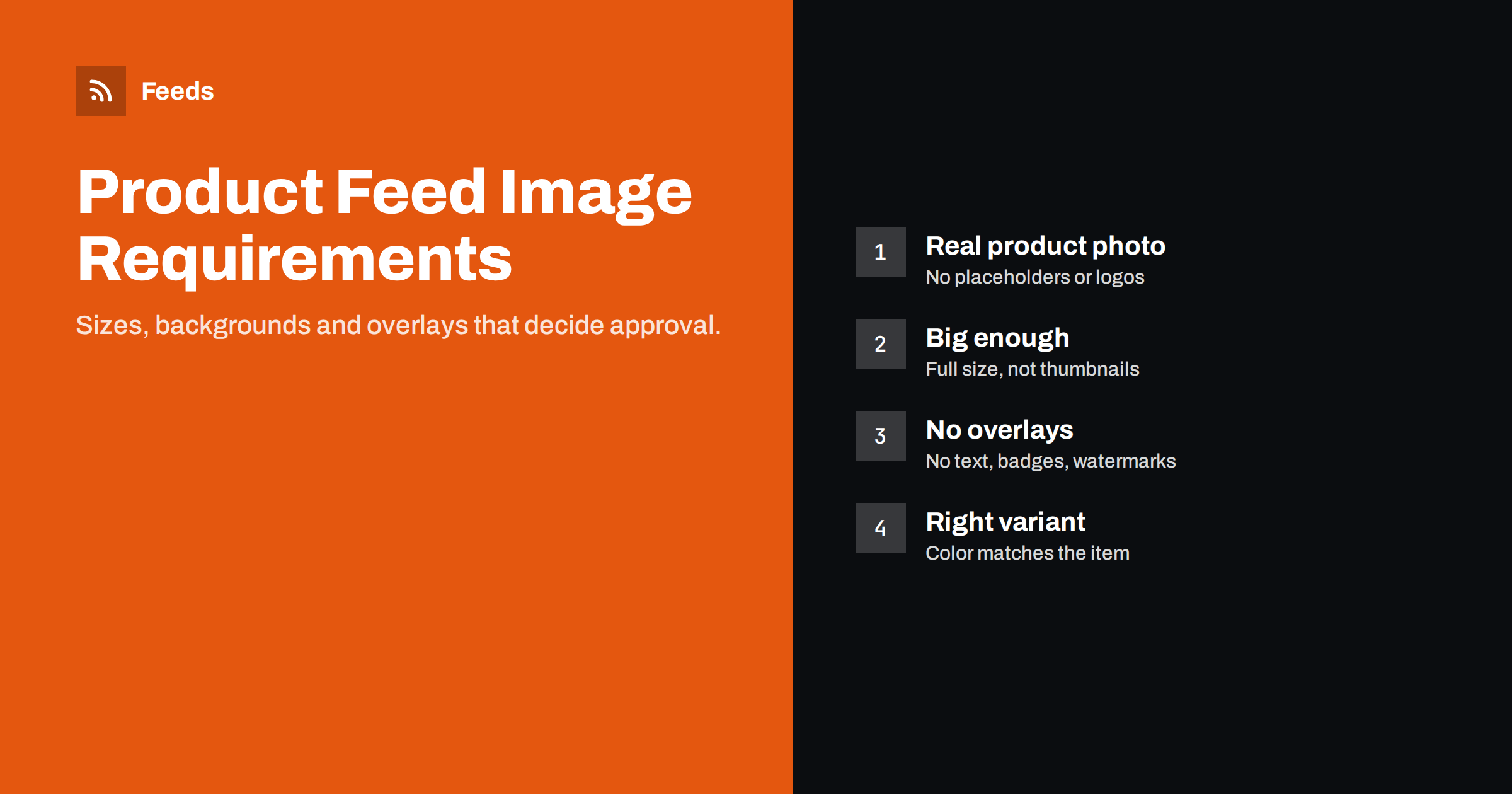
Short answer: A product feed image must be a real photo of the product, reachable by a direct HTTPS URL, and large enough: Google’s minimum is 100 by 100 pixels for most products and 250 by 250 for apparel, with 800 by 800 or larger recommended, and Meta asks for at least 500 by 500. The main image must not contain promotional text, watermarks, borders or placeholder graphics, and each variant should show its own color or style. Use full-size image URLs, not thumbnails, and keep them stable.
Why images make or break product listings
In Shopping results and catalog ads, shoppers scan a grid of pictures. The image decides whether your product is noticed at all; the title and price are read only after the image has caught attention. A sharp, well-lit photo on a clean background stands out. A tiny, cluttered or low-contrast image disappears among the competition, even if the product and price are better.
Images are also a frequent reason for disapprovals. Platforms check them automatically, at scale, and their checks are strict about a few things: size, crawlability, placeholder graphics and promotional overlays. Because feeds usually take image URLs from the store automatically, a single decision in how images are stored or exported can affect the whole catalog.
The good news is that image problems are usually systematic. Fix the mapping or the image template once, and hundreds of items recover together on the next fetch.
Size and format requirements
Google and Meta publish slightly different numbers, but the practical rule is the same: bigger is better, within reason.
| Requirement | Google Shopping | Meta katalogas |
|---|---|---|
| Minimum size | 100 x 100 px; 250 x 250 px for apparel | 500 x 500 px |
| Recommended | 800 x 800 px or larger | 1024 x 1024 px or larger, square |
| Maximum file size | 16 MB | 8 MB |
| Formats | JPEG, PNG, WebP, non-animated GIF, BMP, TIFF | JPEG, PNG |
Limits and supported formats change from time to time, so confirm them in each platform’s current documentation before a big image overhaul. A safe default that satisfies both is a square JPEG or PNG of at least 1000 by 1000 pixels, well under a few megabytes. Square images also display well in most grids, while very tall or wide images get letterboxed or cropped.
Content rules for the main image
The main image, image_link, is held to the strictest standard. It should show the product clearly and nothing that competes with it:
- Show the actual product. Not a logo, an icon, an illustration of the category or a “no image available” graphic.
- No promotional overlays. Text such as “sale”, “free shipping” or “new”, discount badges, price tags and call-to-action buttons are not allowed on the main image.
- No watermarks or borders. Store logos in the corner and decorative frames count as overlays.
- Use a neutral background where possible. White, grey or light backgrounds are preferred for many categories and make the product stand out in grids.
- Show one unit unless you are selling a set or multipack, in which case show what the shopper will receive.
- Avoid collages of several products or several views in one image.
Lifestyle photos, the product in use, are valuable, but they are better as additional images. Some platforms and campaign types can use them, but the main image should be clean.
Additional images and lifestyle shots
The additional_image_link attribute lets you send several more images per item. Google accepts up to ten. These can show the product from other angles, in use, in detail, or with packaging. They help shoppers who click through to product details and give platforms more material to work with.
The rules for additional images are more relaxed, but they still should not be misleading or contain promotional text that the main image would not be allowed to have. Order them from most useful to least: the back or side view, a scale reference, a detail of material or stitching, and then lifestyle images.
If your store already has image galleries, the feed can usually map the first gallery images to additional images automatically. Make sure the gallery order in the store makes sense, because that order is what the feed will send.
Variant images: one color, one picture
When a product comes in several colors, each color variant should have its own image showing that color. If every variant points to the same image, a shopper searching for a green jacket may see a black one in the results. At best, they scroll past; at worst, they click, see a different product than expected and leave.
In the store, assign images at variant level. WooCommerce variations and Shopify variants both support their own image. In the feed, map the variant image to image_link and fall back to the parent image only when the variant has none. For variants that differ only in size, the same image is fine.
Check a few variants in the feed preview or in the platform’s item details. It is common to discover that images were assigned to variants for newer products but not for older ones.
Crawlability and hosting
Platforms download images from the URL you provide. If they cannot, the item fails even if the image itself is perfect. Common hosting problems include:
- Relative URLs instead of absolute https:// URLs.
- Images blocked in robots.txt, or served only to browsers with cookies.
- Firewalls or bot protection challenging the platform’s image crawler.
- Slow servers that time out when many images are requested at once.
- URLs with query strings that change on every export, forcing constant re-crawls.
Use stable URLs that change only when the image actually changes. If you replace an image, a new URL signals the change clearly; overwriting the file under the same URL may leave the old version in the platform’s cache for a while.
Fixing image issues across a catalog
- Group the diagnostics by issue: too small, overlay, placeholder, not crawlable.
- Check the mapping for size issues. Many “too small” errors come from a feed using a thumbnail size. Switching to the original image fixes them all at once.
- Remove overlays at the template level. If badges are added by a theme or plugin, make sure the underlying image files are clean and the feed uses those.
- Exclude products without real photos until they have one, instead of sending placeholders.
- Test crawlability by opening a few image URLs in a private browser window and checking response codes and load times.
Some platforms offer automatic image improvements, such as removing promotional overlays. They can help, but they work best as a safety net over already clean images.
Practical photography tips for small stores
You do not need a studio to produce images that work well in feeds. Many small stores get good results with a phone, daylight and a simple setup. What matters is consistency across the catalog, so that products look like they belong to the same shop:
- Use soft, even light. A window with indirect daylight, or two inexpensive lamps with diffusers, avoids harsh shadows and color casts.
- Use a plain background. A roll of white paper or a light sweep makes cutouts unnecessary and keeps the product in focus.
- Fill the frame. The product should take up most of the image, typically around three quarters of it, with a little margin so it is not cropped in square grids.
- Shoot at the highest resolution and export a large square version for feeds, separately from the smaller versions the website theme uses.
- Keep color accurate. If the photo shows a different shade than the real product, returns follow. Check colors on more than one screen.
- Name files sensibly. Descriptive file names make catalog maintenance easier and help when you need to find and replace images later.
When suppliers provide images, check the license terms and quality before using them. Supplier images are often shared by many stores, so your own photos can also help you stand out in a grid of identical pictures.
How Feeds helps
Feeds takes the image for each product from your WooCommerce or Shopify store, or from the image column of a CSV file, and includes it in a Google product XML feed that Merchant Center and Meta both read. You see the products with their titles and images in a preview before the feed is created, which makes missing or wrong images easy to spot. Rules can also skip out-of-stock products, rewrite titles and adjust prices. Plans are on the pricing page.
Related reading
- Merchant Center Disapproved Products: Causes and Fixes
- How to Add a Product Feed to a Meta Catalog, Step by Step
- Google Product Feed Attributes: Required and Recommended
The bottom line
Send full-size, square, clean photos of the actual product, at stable HTTPS URLs that platforms can download. Keep promotional text, watermarks and placeholders off the main image, give each color variant its own image, and use additional images for angles and lifestyle shots. Most image problems are fixed once, at the mapping or template level.
DUK
What image size is best for Google Shopping?
At least 800 by 800 pixels is recommended, and larger square images display best. The minimum is 100 by 100 pixels, or 250 by 250 for apparel.
Can product images have a sale badge?
Not the main image. Promotional text, badges and watermarks on the main image can lead to disapproval. Use the sale_price attribute to show discounts.
Do product images need a white background?
Not always, but a white or neutral background is preferred for many categories and helps products stand out in results grids.
Why are my images reported as too small?
Often the feed uses a thumbnail URL instead of the original image. Map the full-size image and the issue usually disappears for all products at once.
How many additional images can I send?
Google accepts up to ten additional images per item. Use them for other angles, details and lifestyle photos.


