 ENEnglish
 LTLietuviškai
 DEDeutsch
 FRFrançais
 RUРусский
 ESEspañol
 PLPolski
 ITItaliano
 UKУкраїнська
 CSČeština
 PTPortuguês
 JA日本語
JA日本語 LVLatviešu valoda
 ETEesti
 HUMagyar
 IDBahasa Indonesia
 TRTürkçe
 HIहिन्दी
 ELΕλληνικά
 ARالعربية
 THไทย
THไทย VITiếng Việt
 RORomână
 MSBahasa Melayu
 BNবাংলা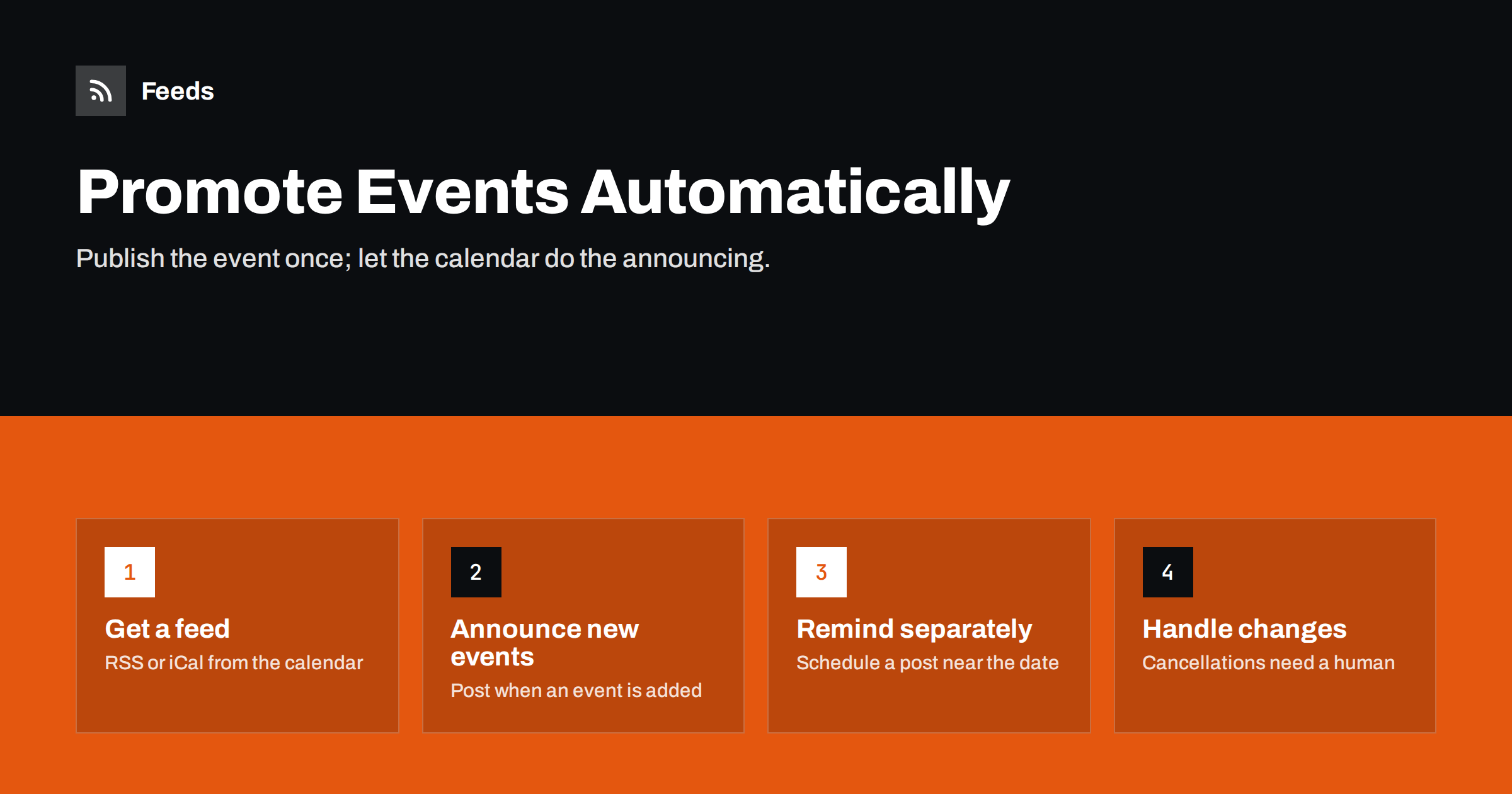
Short answer: if your website calendar publishes a feed of events, every new event can be announced automatically on social media, in a newsletter and in community channels. Get an RSS feed of upcoming events (from the calendar plugin, the events platform or by creating one from the events page), connect it to a posting or email tool with a clear template, and filter by category so each audience sees only relevant events. Automation handles the announcement well; reminders shortly before the event and cancellations still need a scheduled or manual step.
Why event promotion is worth automating
Organisations that run events, from libraries, museums and sports clubs to training companies, coworking spaces, churches and chambers of commerce, often publish a steady stream of them. Each event needs the same distribution: a social post, a line in the newsletter, a message to the members’ group and perhaps a note to partners. When the team is busy, some events are never announced anywhere except the calendar page, and attendance suffers.
The information already exists in one place: the calendar on your website. Automation simply takes each new event from that source and sends it to every channel in a consistent format. The result is that no event is forgotten, the wording is consistent, and staff spend their time on the events themselves rather than on copying details between tools.
Step 1: get a feed of your events
Start by finding out what your calendar can export. The common possibilities are:
- An RSS feed from the calendar plugin or module. Many event plugins for content management systems provide an RSS feed of upcoming events, sometimes per category.
- An iCal (.ics) feed. Almost every calendar offers one for subscribing in calendar apps. It is excellent for people who want events in their own calendar, but most social posting tools expect RSS rather than iCal.
- An events platform page. If you publish events on a ticketing or meetup platform, the organiser page may have a feed, or at least a stable public list of events.
- No feed at all. A hand-built “What’s on” page can be turned into a feed with a page-to-feed tool, as long as each event appears as a repeating block with a title and a link.
Our guide to turning event calendars into RSS feeds explains the options in more detail, from the reader’s side. The same feed that lets people follow your events also powers your own promotion.
Step 2: understand what “new” means in an events feed
Events feeds have a peculiarity that blog feeds do not. A blog post has one date: when it was published. An event has two: when it was added to the calendar, and when it takes place. Automation tools trigger on new items in the feed, which in practice means “newly added events”. That is exactly right for announcements, but it has consequences:
- An event added three months in advance is announced three months in advance. Good for conferences, possibly too early for a Tuesday workshop.
- Events added in bulk, for example a whole season at once, produce a burst of posts on the same day.
- If the feed is sorted by event date instead of publication date, the tool may still detect new items correctly, as long as each event has a stable link and identifier.
Plan around this. For bulk uploads, pause the automation, add the events, and let the tool post them gradually through a queue, or announce the season with one hand-written post instead. The issue of repeated or missed items is covered in how to stop duplicate posts in automated workflows.
Step 3: write a template that carries the key facts
Event posts need more structured information than article posts. A good template includes:
- the event title, written as a benefit or clear description;
- the date and time, in the format your audience uses;
- the place, or “online”;
- the price or “free”, if the feed provides it;
- the link to register or read more, with tracking parameters.
Check which of these fields your feed actually contains. Many feeds put the event date inside the description text rather than in a separate field, and some list only the publication date. If the date is missing from the title or description, the automated post will not show it, which makes it much less useful. The simplest fix is often to include the date in the event title on the website, for example “Beginners’ pottery workshop – 14 November”. For general template advice, see writing post templates for automated social feeds.
Step 4: route events to the right audiences
Not every event belongs everywhere. A members-only meeting should not be advertised publicly; a children’s workshop may not interest your LinkedIn followers; an event in another city is noise for local subscribers. Use categories or keyword filters to route events:
| Event type | Channels | Filter idea |
|---|---|---|
| Public events | Social profiles, newsletter, local listings | Category “Public” |
| Members only | Members’ group or email list | Category “Members” |
| Professional training | LinkedIn, partner newsletters | Keywords such as “workshop”, “course” |
| Family and children | Facebook, local community groups | Category “Family” |
| Online events | All channels, all regions | Keyword “online” |
If your calendar offers feeds per category, connect each feed to its destination. If it only offers one feed, create filtered versions by keyword. Newsletters can use a digest instead of individual messages: a weekly or monthly “upcoming events” section built automatically from the feed, as described in turning an RSS feed into an email newsletter.
Step 5: add reminders with scheduling, not the feed
An announcement weeks ahead is not enough; people forget. A reminder a day or a week before the event often matters more for attendance. Feed-based automation cannot do this on its own, because the feed only signals when an event is added. You have three practical options:
- Schedule reminder posts manually at the time you add the event. It takes a minute per event and gives you full control.
- Use a tool that reads event dates and can schedule a second post relative to the event date. Some social and email tools can do this if the date is in a separate field.
- Publish a “This week” roundup every Monday from the calendar, by hand or with a digest tool that selects events in the coming days.
The general difference between reacting to new feed items and posting at a planned time is discussed in scheduled posts vs feed-triggered automation.
Changes, cancellations and past events
Automation is good at announcing and bad at correcting. Plan for the cases it will not handle well:
- Cancellations. Removing the event from the calendar does not remove the social post. Post a clear update by hand and edit or delete the original where possible.
- Date or venue changes. Most tools do not repost an item when it is edited. Announce the change manually.
- Sold-out events. Update the event page and consider a short post, so people do not click through to a registration form that no longer works.
- Past events. Make sure the feed contains upcoming events only. A feed that still lists past events risks announcing something that already happened when the automation is reconnected.
Assign one person to check the automated posts weekly. A two-minute review catches mistakes before they cost attendance or credibility.
Measuring what works
Add UTM parameters to event links so you can see which channels bring registrations. Compare announcement posts with reminder posts, and public channels with members’ channels. Over a season, patterns appear: perhaps the newsletter drives most registrations for courses while social posts fill family events. Those insights tell you where to invest manual effort, such as extra posts or images, and where the automation alone is enough.
How Feeds helps
When an events page has no usable RSS feed, Feeds can create one from the page by finding the list of events and reading titles, links, images, summaries and dates; if the site already offers RSS, that feed is used. You can merge several calendars, for example your own and your partners’, into one feed, and keep only events with or without specific words, such as “online” or “members”. Duplicates are removed automatically and the feed refreshes by itself, ready for any social posting, newsletter or chat tool. Create a feed from your events page and check the preview before connecting it.
Related reading
- Content Automation for Local Businesses: A Simple Plan
- Content Automation for Nonprofits and Community Groups
- How to Track Traffic from Automated Posts with UTM Tags
The bottom line
Your events calendar already contains everything needed for promotion. Publish it as a feed, write a template that shows the date, place and link, route events to the right audiences with categories or filters, and let every new event be announced automatically. Add reminders through scheduling, and keep cancellations and changes in human hands.
DUK
Can I automatically post new events from my website to social media?
Yes, if your calendar provides an RSS feed of events or you create one from the events page. Connect the feed to a social posting tool and each newly added event is posted with your template.
Can automation send reminders before an event?
Feed-based automation reacts when an event is added, not when its date approaches. Use scheduled reminder posts, a weekly roundup or a tool that can schedule posts relative to the event date.
What if my calendar only has an iCal feed?
iCal is great for calendar apps, but most posting tools expect RSS. Look for an RSS option in your calendar plugin, or create an RSS feed from the public events page.
How do I keep members-only events out of public posts?
Put them in a separate category and use category feeds or keyword filters, so only public events reach social profiles and members’ events go to your internal channels.
What happens when an event is cancelled?
Automated posts are not removed automatically. Update the event page, post a clear cancellation notice and edit or delete the original post where the network allows it.


