 ENEnglish
 LTLietuviškai
 DEDeutsch
 FRFrançais
 RUРусский
 ESEspañol
 PLPolski
 ITItaliano
 UKУкраїнська
 CSČeština
 PTPortuguês
 JA日本語
JA日本語 LVLatviešu valoda
 ETEesti
 HUMagyar
 IDBahasa Indonesia
 TRTürkçe
 HIहिन्दी
 ELΕλληνικά
 ARالعربية
 THไทย
THไทย VITiếng Việt
 RORomână
 MSBahasa Melayu
 BNবাংলা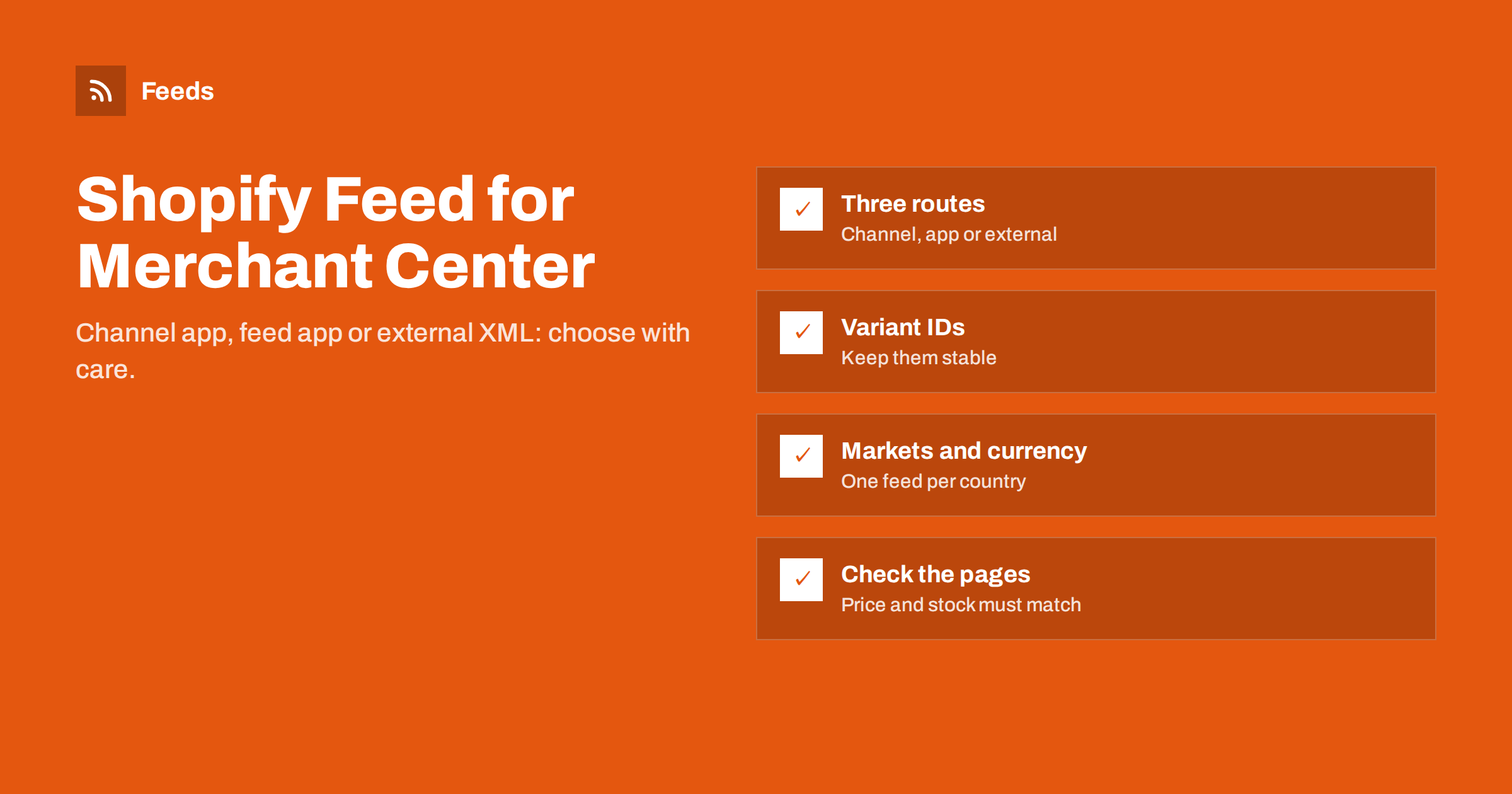
Short answer: Shopify stores can send products to Google Merchant Center in three ways: the Google sales channel app, a third-party feed app, or an external product feed that Merchant Center fetches from a URL. The channel app is quickest to start, feed apps and external feeds give more control over titles, exclusions and prices. Whatever you choose, list each variant as its own item, keep IDs stable, and make sure prices and stock in the feed match the variant’s page.
How Shopify product data maps to Google
Shopify organizes products as a parent product with up to many variants, each variant having its own price, SKU, barcode, inventory and optional image. Google Merchant Center thinks in purchasable items. That means the natural unit for a Google feed is the Shopify variant, grouped by the parent product.
- The parent product’s title, description, vendor and product type describe the whole group.
- Each variant supplies its own price, compare-at price, SKU, barcode, availability and image.
- Options such as Size and Color become Google attributes like size and color.
- The product handle builds the link, and a variant parameter in the URL opens the specific variant.
Shopify’s vendor field usually becomes the brand, and the barcode field usually holds the GTIN. If those fields are empty or used for something else in your store, the feed will be missing important identifiers, so review them before any feed goes live.
Three ways to send Shopify products to Google
Option 1: the Google sales channel
Google offers a sales channel app for Shopify that connects the store to Merchant Center and Google Ads. It creates or links a Merchant Center account, verifies the domain, syncs products automatically and handles basic settings for you.
It is the fastest way to get started and a good fit for stores that sell in one country with a straightforward catalog. The trade-off is control. Transformations such as rewriting titles for search, excluding products by rules, or adding custom labels are limited compared with dedicated tools, and the sync depends on the app connection staying healthy. Some stores also find it harder to see exactly what data was sent and why an item was changed.
Option 2: a feed app from the Shopify App Store
Feed apps generate one or more feeds from Shopify data with mapping and rule options. They often support many channels and let you build titles from several fields, filter products, and set custom labels. The feed is published as a URL or pushed to Merchant Center.
This works well when you need more control but want everything inside Shopify. Consider the monthly cost, how the app handles large catalogs, and whether you are comfortable with its permissions. Apps get broad read access to your products, and some also request access to orders or customers they do not really need for a feed.
Option 3: an external product feed
An external feed service reads your public product data from the outside and publishes a feed in Google’s XML format at its own URL. You register that URL in Merchant Center as a scheduled fetch, exactly as you would with any other file.
The benefits are independence and simplicity. Nothing is installed in the store, the same feed can serve Google and Meta, and switching tools later does not require uninstalling anything from Shopify. The limitation is that the service sees what the store publishes publicly, so data that exists only in the admin, such as cost prices or private metafields, is not available.
| Route | Setup effort | Control | Installed in Shopify |
|---|---|---|---|
| Google sales channel | Lowest | Basic | Yes |
| Feed app | Medium | High | Yes |
| External feed | Low to medium | Medium to high, via rules | No |
Product IDs: the choice you cannot easily undo
Different tools build item IDs differently. Some use the variant SKU, others a combination such as a country prefix, product ID and variant ID. Both work, but switching from one convention to another resets the item history in Merchant Center and breaks the connection to past performance data, and it can cause remarketing mismatches with tracking tags.
Before you launch, decide which convention you will use, confirm that your conversion tracking uses the same IDs, and keep it. If you later migrate between the channel app and another tool, check whether the new tool can reproduce the existing IDs. It is worth an hour of testing to avoid starting from zero.
Markets, currencies and languages
Shopify Markets lets one store sell in several countries with local prices and currencies. Google expects a feed per target country (or a feed with country-specific settings), in the currency and language shown to shoppers in that country, with links that open the matching market version of the page.
- Use the market’s URL structure or parameters in links so Google sees the right currency and price.
- Do not send prices converted by a different exchange rate from the one Shopify uses on the page.
- If a market uses rounding rules, the feed must reflect the rounded price.
- Translate titles and descriptions through the store’s translation features rather than inside the feed tool, so pages and feed agree.
Availability and inventory policies
Shopify can keep selling when inventory reaches zero if “continue selling when out of stock” is enabled. In the feed, that variant should not appear as out of stock if customers can still order it, but you also should not promise immediate delivery. Many stores map it to backorder, or keep it in stock with longer handling times set in Merchant Center. Whatever you choose, it must match what the product page says.
For variants that are truly sold out, either send out_of_stock or exclude them with a rule. Excluding keeps ads focused on what you can deliver; keeping them preserves the item history for products that will return soon.
Checking the result
After the first fetch or sync, open five products with several variants in Merchant Center and compare each variant with the page reached through its link. Check the price, compare-at price, availability, image and title. Then check the diagnostics tab for missing GTINs or brands, which usually point to empty barcode or vendor fields in Shopify. Fixing those fields in the store improves every channel, not just Google.
Titles and descriptions for Shopify products
Shopify product titles are written for the storefront, where the collection page, images and filters already tell the shopper a lot. In Google results, the title stands almost alone next to the image and price. A title like “The Everyday” may work on your site but tells a searcher nothing. For the feed, a better title leads with what the product is and adds the attributes people search for.
- Start with brand and product type: “Northwind Merino Wool Beanie” rather than “The Everyday”.
- Add the variant attributes: color, size, capacity or material, depending on the category.
- Keep promotional words out: “sale”, “free shipping” and “best price” are not allowed in titles.
- Keep the most important words in the first 70 characters, because longer titles are often truncated.
Descriptions should be plain text in the feed. Shopify descriptions often contain HTML, embedded videos or size charts in tables. A good feed tool strips markup, but it is still worth making sure the first two sentences of each description describe the product rather than the brand story.
Common Shopify feed mistakes
- Empty vendor field or the store name as vendor for resold brands. The brand should be the product’s actual brand.
- Barcode field used for internal codes. Invalid GTINs are worse than missing ones, because they can cause disapprovals.
- Compare-at prices that never change. A permanent “was” price can look like a misleading discount; send a sale price only for real, time-limited reductions.
- Draft or archived products in the feed. They lead to pages that do not exist for visitors.
- Password-protected storefront. A store still behind its launch password cannot be crawled or verified.
How Feeds helps
Feeds reads Shopify stores automatically from public store data, without installing an app, and creates a Google product XML feed with id, title, link, image, price, availability and brand. Merchant Center and Meta can both fetch the same URL. Rules let you skip out-of-stock products, rewrite titles and adjust prices, and the currency is detected automatically. You see a preview before the feed is created; see the pricing page for plans.
Related reading
- How to Set Up a Google Merchant Center Product Feed
- Google Product Feed Attributes: Required and Recommended
- WooCommerce Product Feed for Google Shopping: A Setup Guide
The bottom line
Shopify gives you three routes into Merchant Center: the Google channel for speed, a feed app for control inside Shopify, or an external feed for independence. Whatever you pick, treat variants as items, fix vendor and barcode fields at the source, choose an ID convention once, and make sure each market’s feed shows the same price and stock as the page it links to.
DUK
Do I need an app to connect Shopify to Google Merchant Center?
Not necessarily. The Google sales channel is one option, but you can also register an external XML feed URL in Merchant Center without installing anything in Shopify.
Which Shopify field becomes the GTIN?
Usually the variant barcode field. If it is empty or used for internal codes, Merchant Center will report missing or invalid GTINs.
Why are my Shopify variants disapproved for price mismatch?
Often the link opens the default variant instead of the listed one, or a market shows a different currency. Links must open the exact variant and market in the feed.
Can one Shopify feed serve several countries?
Each country needs prices and links in its own currency and language. That usually means a feed per market, or a feed with country-specific settings.
What happens to history if I change feed tools?
If the new tool uses different item IDs, Merchant Center treats the products as new. Check that the new tool can keep your existing IDs before switching.


