 ENEnglish
 LTLietuviškai
 DEDeutsch
 FRFrançais
 RUРусский
 ESEspañol
 PLPolski
 ITItaliano
 UKУкраїнська
 CSČeština
 PTPortuguês
 JA日本語
JA日本語 LVLatviešu valoda
 ETEesti
 HUMagyar
 IDBahasa Indonesia
 TRTürkçe
 HIहिन्दी
 ELΕλληνικά
 ARالعربية
 THไทย
THไทย VITiếng Việt
 RORomână
 MSBahasa Melayu
 BNবাংলা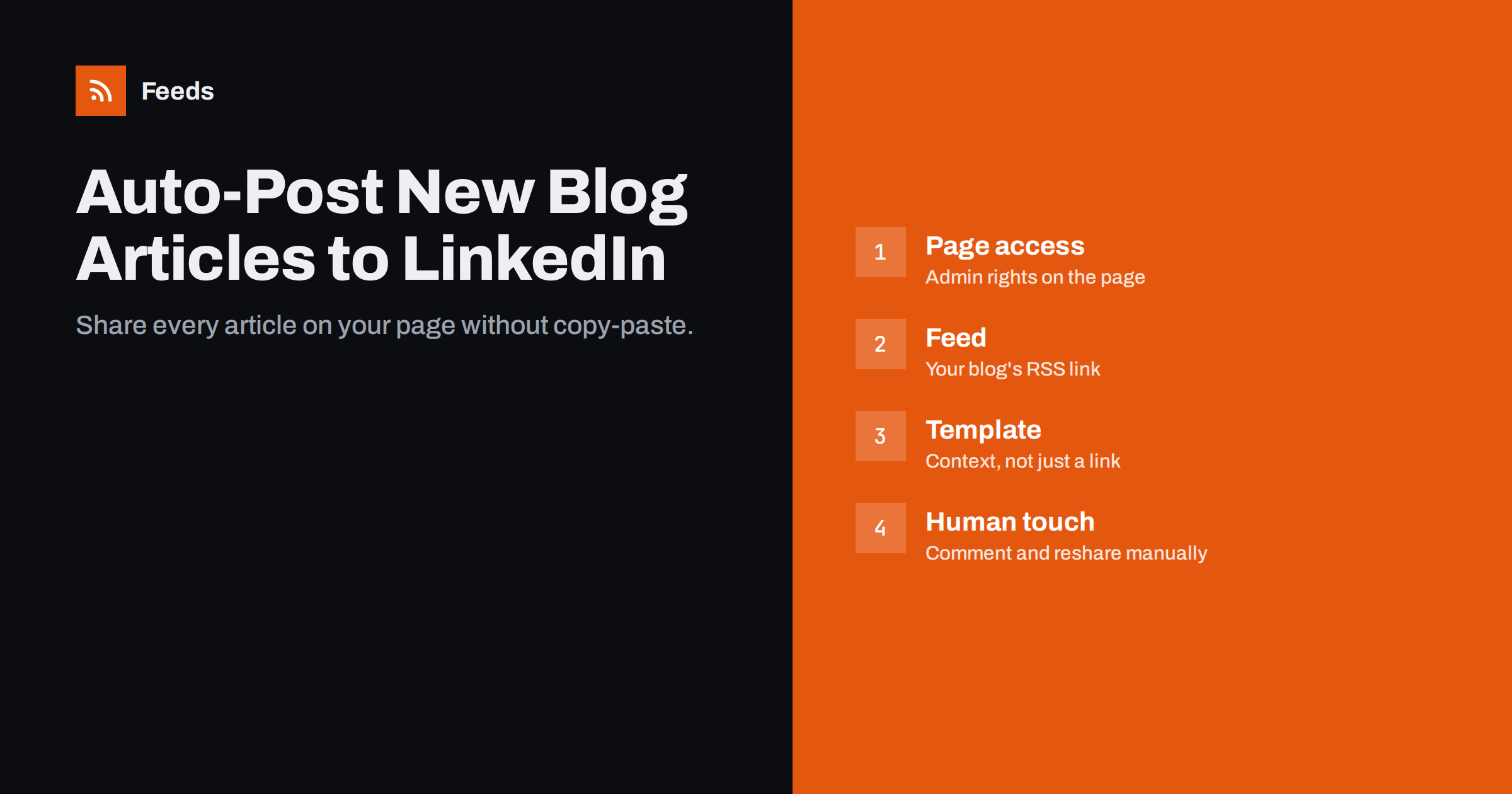
Short answer: To auto-post new blog articles to LinkedIn, connect your blog’s RSS feed to a tool that supports LinkedIn publishing, such as a social posting service or an automation platform, and authorise it to post on your company page or personal profile. Use a template that adds a line of context above the link, make sure your articles have good Open Graph images for the preview, and keep the personal side of LinkedIn, such as comments and thoughtful reshares, manual.
Why LinkedIn is worth automating
For B2B companies, consultancies, agencies and professionals, LinkedIn is often the social network where articles reach the right people: potential clients, partners and future employees. Yet many company pages look abandoned, with the last post months old, simply because sharing each article is one more task that falls through the cracks.
Automation fixes the consistency problem. Every published article appears on the company page within a short time, the page looks active, and colleagues can reshare posts to their own networks. It does not replace the personal activity that makes LinkedIn work, but it guarantees a baseline.
Consistency also builds trust with visitors who check your page before a meeting or a purchase. A page with regular, useful articles signals an active, knowledgeable company; a page frozen two years ago raises quiet doubts.
It also helps with internal visibility. Employees who follow the company page see new articles without anyone sending an internal email, which makes it more likely they will share them.
Company page vs personal profile
LinkedIn distinguishes clearly between company pages and personal profiles, and the difference matters for automation.
- Company pages are the natural home for automated article posts. Posting tools connect through LinkedIn’s official interfaces with the permission of a page admin. Followers of a page expect company news and content.
- Personal profiles can also be connected by many tools, but automated posting there is more sensitive. People follow individuals for their views and experience; a profile that only shares links automatically looks impersonal.
A common and effective pattern is to automate posting on the company page, then have authors or team members reshare the post manually with a sentence of their own. The reshare reaches their personal networks and carries the personal touch that automation lacks.
What you need before you start
- Admin access to the LinkedIn company page. Page roles with content permissions are required for tools to post on the page’s behalf.
- Your blog’s RSS feed URL. For WordPress, it is usually
/feed/; for a single category, add the category path before it. - Open Graph tags on your articles, especially
og:title,og:descriptionandog:image. LinkedIn builds its link preview from them. - A posting tool that supports LinkedIn pages. Dedicated RSS-to-social services and general automation platforms both do.
- A rule for what to post. All articles, or only certain categories?
Setting it up step by step
- Add the feed to your tool and check the preview of found items.
- Connect LinkedIn and select the company page, not only your personal account.
- Choose “new items only” so your archive is not posted all at once.
- Write the template. Include the article title, a one- or two-sentence summary and the link. Consider a fixed opening such as “New on our blog:” only if it reads naturally.
- Add tracking. Append UTM parameters like
utm_source=linkedin&utm_medium=social&utm_campaign=rss-autopost. - Set a posting limit if you sometimes publish several articles in one day, for example no more than one or two LinkedIn posts per day.
- Test by publishing an article and checking the post on the page itself, on desktop and on mobile.
Writing posts that do not feel automated
LinkedIn users are used to thoughtful posts with context. A bare link with a title looks lazy. Some practical improvements:
- Use the excerpt well. The summary field of your article often becomes the text of the post. Write excerpts as a short, specific promise: what the reader will learn and for whom.
- Front-load the value. LinkedIn shows only the first lines before “see more”. Put the most useful sentence first.
- Use line breaks. A title, a blank line, a sentence of context, a blank line and the link are easier to read than one block.
- Two or three relevant hashtags at most. More looks spammy on a professional network.
- A strong image. The Open Graph image appears in the preview card. Clear, readable images with little text perform better than generic stock photos.
- Consider timing. If you publish at night, a tool that holds posts until working hours in your audience’s time zone helps.
The manual layer that makes it work
Automation gets the post onto the page. The engagement usually comes from people. A few minutes of manual work after each automated post make a real difference:
- The author reshares the post with a personal comment about why they wrote it.
- Someone replies to comments on the company post within a day.
- Colleagues who have a genuine interest react or comment, rather than a forced “everyone must like” routine.
- For important articles, a native post written by hand, with the key insight in the post itself, can complement the automated link post.
This split, automated distribution plus human conversation, is what distinguishes a lively company page from a link dump.
Measuring whether it is worth it
Automated posting costs little time, but it is still worth knowing whether it brings anything. Look at two sources of data.
LinkedIn page analytics show impressions, clicks, reactions and follower growth per post. Compare automated article posts with any hand-written posts you publish. If hand-written posts consistently perform much better, that is a signal to invest more effort in the template, or to hand-write posts for your most important articles.
Your website analytics, filtered by the UTM parameters you added, show how many visitors arrived from LinkedIn posts and what they did next: how long they stayed, whether they read other articles, whether they signed up or got in touch. For B2B companies, a small number of engaged visitors from the right companies can matter more than large click numbers.
Review these numbers quarterly rather than weekly. Individual posts vary a lot; trends over several months are more reliable. Also note which topics perform best, since that feeds back into what you write, which is where the real leverage lies.
Finally, remember that LinkedIn reach is partly driven by early engagement. Automated posts that go out at a time when your audience is active, and that colleagues react to genuinely within the first hours, tend to travel further than posts published at midnight to an empty feed.
Common problems
- No image in the preview: the article lacks an
og:image, or LinkedIn cached an older version of the page. LinkedIn’s Post Inspector tool can refresh the preview. - Posts stopped: LinkedIn connections expire periodically and must be re-authorised. The admin who connected the page may also have lost their role.
- Posts appear on the wrong account: the tool was connected to the personal profile instead of the page.
- Duplicate posts: the article’s URL changed after publishing, or two workflows post the same feed.
- Too many posts in one day: set a daily limit or schedule posts instead of sending them instantly.
Sharing content from other sources
Some companies also share curated industry news on their page, or articles from partner sites and their own subsidiaries. When those sources have no RSS feed, automation has nothing to watch.
Feeds creates an RSS feed from any page that lists articles, uses a site’s existing feed when available, and can merge several sources into one feed. Keyword rules keep only relevant items, and duplicates are removed automatically. The feed link goes into your LinkedIn posting tool like your own blog feed. For third-party content, a human review step before posting is still wise, since the post appears under your company’s name. See the pricing page for plans.
Related reading
- How to Automate Social Media Posts from an RSS Feed
- How to Track Traffic from Automated Posts with UTM Tags
- 12 Content Automation Mistakes and How to Avoid Them
- How to Stop Duplicate Posts in Automated Content Workflows
The bottom line
Auto-posting blog articles to a LinkedIn company page is simple and keeps the page consistently active. Connect the feed to a tool with LinkedIn page support, post only new items, write excerpts and templates that give context, make sure the preview image looks good, and add a layer of human activity through reshares and replies. Automation provides the rhythm; people provide the conversation.
BUJ
Can I auto-post to a LinkedIn company page for free?
Some tools offer free tiers that support LinkedIn pages with limits on accounts or posts. Check each tool’s current plans, since free features change often.
Does LinkedIn penalise automated posts?
LinkedIn has not publicly stated that posts made through its official interfaces are penalised. Performance depends mostly on relevance, engagement and how the post is written.
Should I auto-post to my personal LinkedIn profile?
It is possible, but personal profiles benefit more from hand-written posts. A common approach is to automate the company page and reshare manually with a personal comment.
Why is the image missing from my LinkedIn link preview?
The article probably lacks an Open Graph image, or LinkedIn cached an old version. Add an og:image tag and use LinkedIn’s Post Inspector to refresh the preview.
How many automated posts per day are reasonable on LinkedIn?
For most company pages, one or two posts a day is plenty. If you publish more, schedule them across several days rather than posting everything at once.
Can I post only some blog categories to LinkedIn?
Yes. Use the category’s own RSS feed instead of the main blog feed, or add a keyword or category filter in your posting tool. This keeps unrelated posts, such as internal news or job ads, off your company page.


