 ENEnglish
 LTLietuviškai
 DEDeutsch
 FRFrançais
 RUРусский
 ESEspañol
 PLPolski
 ITItaliano
 UKУкраїнська
 CSČeština
 PTPortuguês
 JA日本語
JA日本語 LVLatviešu valoda
 ETEesti
 HUMagyar
 IDBahasa Indonesia
 TRTürkçe
 HIहिन्दी
 ELΕλληνικά
 ARالعربية
 THไทย
THไทย VITiếng Việt
 RORomână
 MSBahasa Melayu
 BNবাংলা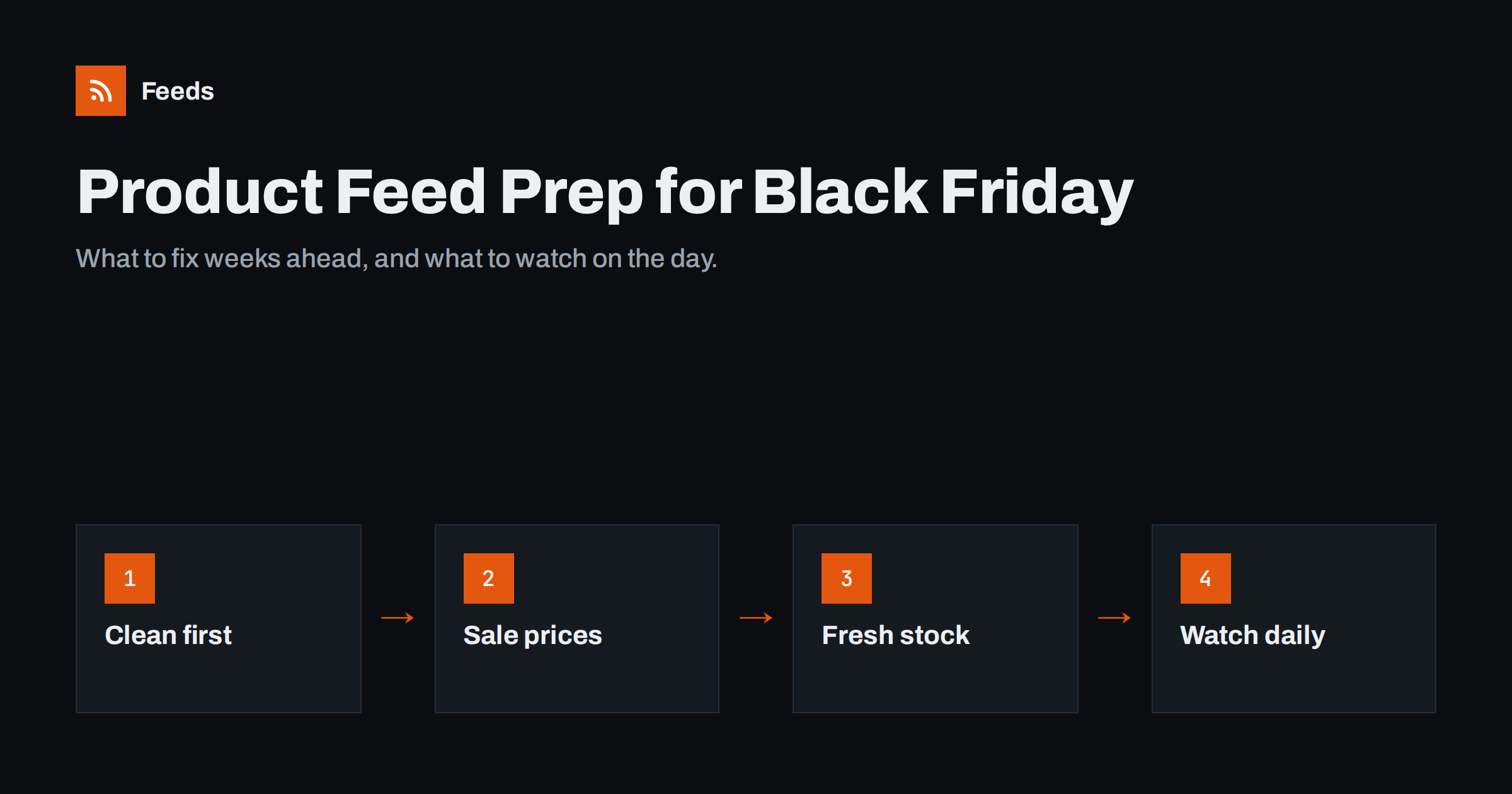
Short answer: Prepare your product feed for Black Friday in three stages. Several weeks ahead, fix existing errors, add missing identifiers and new products so they have time to be reviewed. In the final week, schedule sale prices with effective dates, label promoted products and increase how often the feed refreshes. During the peak itself, watch diagnostics daily for price mismatches, stock problems and disapprovals, and resist making large structural changes until it is over.
Why peak season is hard on product feeds
A product feed that works well in a quiet month can struggle during Black Friday, Cyber Monday and the weeks before the holidays. Three things change at once: prices move more often, stock sells out faster, and ad spend rises, so every rejected product costs more. The feed has to keep up with the store, and the advertising platforms have to accept the changes quickly.
The most common peak-season problems are predictable:
- Price mismatches when the website shows a sale price that the feed has not picked up yet, or the other way round.
- Sold-out products still advertised as in stock, which wastes clicks and frustrates shoppers.
- New products added days before the sale that are still waiting for review when the sale starts.
- Last-minute template changes to titles or categories that trigger a wave of re-reviews.
Almost all of these can be prevented by doing the right work in the right order. Think of it as a timeline rather than a single task.
Six to four weeks before: clean up the feed
Start with the basics while nothing is urgent. A clean feed is much easier to change quickly later.
- Clear existing errors and warnings. Open your diagnostics in Merchant Center or the catalog tool you use, and fix disapproved products first. Our guide to fixing disapproved products in Merchant Center covers the usual causes.
- Complete identifiers. Add GTINs, brands and MPNs where they exist. Products with correct identifiers are easier for platforms to match and show.
- Add seasonal products now. Gift sets, bundles and holiday lines should enter the feed weeks early so they are reviewed before traffic peaks.
- Review titles and images. Improve weak titles and replace poor images now, not in the final week. Changes to these fields can send products back through review.
- Check landing pages. Make sure every product link loads quickly and shows the same price and availability as the feed.
This is also the time to check shipping and returns settings. Holiday handling times, delivery cut-off dates and extended return windows are usually configured in account settings, and they affect what shoppers see next to your prices.
Plan your sale prices properly
The biggest peak-season mistake is changing the regular price to the sale price and then changing it back. It works, but it makes discounts invisible and increases the risk of mismatches. The better approach is to keep the regular price and add a sale price.
- Use the
sale_priceattribute for the discounted price, whilepricestays the regular price. - Add
sale_price_effective_datewith a start and end time, so the sale switches on and off automatically, in the correct time zone. - Make sure the website shows the same sale price during exactly the same period. The feed and the landing page must agree.
- Only show a regular price that the product has genuinely been sold at. Consumer protection rules in many countries restrict inflated “was” prices.
Our detailed guide to sale prices and effective dates in product feeds walks through the format. If you run store-wide promotions with codes rather than product-level discounts, consider the platform’s promotions tools as well, because they show the offer without changing the product price.
Refresh timing: make the feed keep up with the store
During a sale, a feed that updates once a day is often too slow. Prices change at midnight, popular items sell out in hours, and every hour of outdated data leads to mismatches.
| Period | Suggested refresh approach | Why |
|---|---|---|
| Normal weeks | Daily or several times a day | Keeps the feed accurate at low effort |
| Week before the sale | Several times a day | New products and price schedules settle in |
| Sale days | As often as your setup allows | Stock and prices change fastest |
| After the sale | Back to normal | Sale prices end; avoid stale discounts |
Two things matter here: how often the feed file is regenerated from your store, and how often the platform fetches it. Both need to be frequent enough. Some platforms can also update price and availability from the product page’s structured data between feed fetches, which is a useful safety net. For the general principles, see how often a product feed should update.
Stock: keep sold-out products from wasting clicks
Peak season sells stock faster than any other period. A product that sells out at noon but stays “in stock” in the feed until the next day keeps attracting paid clicks that cannot convert.
- Make availability follow the store in real time, or as close to it as your refresh schedule allows.
- Decide how to treat sold-out products. Marking them out of stock is usually safer than deleting them, because deleted products lose their history and must be reviewed again when they return. Our guide on out-of-stock products in feeds compares the options.
- Watch low-stock bestsellers. Some stores stop advertising items below a few units to avoid selling more than they have.
- Handle pre-orders and backorders with the correct availability value and date, not as “in stock”.
Label and group products for the campaign
Custom labels let you group products for bidding and reporting without changing what shoppers see. Before the sale, add labels such as “black-friday”, “doorbuster”, “gift-under-50” or “clearance” to the relevant products. Your campaigns can then give those groups their own budgets and bids, and you can see afterwards which groups performed.
Add these labels early. Labels do not affect approval, but campaigns built on them need time to be set up and tested. Keep the label scheme simple; a handful of clear values is easier to manage under pressure than a dozen overlapping ones.
During the peak: what to watch every day
Once the sale starts, the job changes from building to monitoring. A short daily check, ideally morning and afternoon on the main days, catches most problems before they cost much.
- Diagnostics: look for sudden rises in disapproved or limited products.
- Price mismatches: the most common sale-day error. Our guide to fixing price mismatch errors explains the causes.
- Feed fetch status: confirm the latest fetch succeeded and the product count looks normal.
- Stock: check that bestsellers which sold out are no longer advertised as available.
- Landing pages: open a few promoted products and confirm the sale price shows correctly.
Avoid large changes during the peak. Renaming every title, changing categories or restructuring variants in the middle of Black Friday can trigger re-reviews at the worst possible time. Collect ideas for after the season instead.
When the sale ends, do a short review while the details are fresh. Confirm that sale prices switched off on time and that the regular prices are back in both the feed and on the website. Remove temporary labels you no longer need, note which products ran out of stock too early, and write down every error that appeared during the peak and how long it took to fix. That list is the most valuable preparation for next year, and for smaller sales such as spring or summer promotions, which follow the same pattern on a smaller scale.
How a feed tool can help during peak season
If your store runs on WooCommerce or Shopify, or can export a CSV, Feeds can create a Google product XML feed that both Google Merchant Center and Meta catalogs read, straight from the store and without a plugin. It refreshes the feed automatically, can skip out-of-stock products, rewrite titles and adjust prices with rules, and detects the currency. Paid plans refresh more often, which matters most on sale days; see the pricing page for current limits. As with any feed tool, the prices it publishes should always match what shoppers see on your product pages.
Related reading
- Product Feed Checklist: 25 Checks Before You Submit
- Custom Labels in Product Feeds: A Practical Guide
- Product Feed Health Metrics: What to Monitor Every Week
The bottom line
Black Friday readiness is mostly timing. Fix errors, complete identifiers and add seasonal products weeks in advance. Schedule sale prices with effective dates instead of overwriting regular prices, label promoted products, and make the feed refresh more often as the sale approaches. On the day, check diagnostics, mismatches and stock every day, and save structural changes for January.
BUJ
How early should I prepare my product feed for Black Friday?
Start four to six weeks ahead. New products and changed titles or images may need review, which can take several days, and you want errors fixed before prices start changing.
Should I change the price or use sale_price for Black Friday?
Use sale_price with an effective date range and keep the regular price in the price attribute. The discount is then shown clearly, and the sale ends automatically at the right time.
How often should the feed update during the sale?
As often as your setup allows, and at least several times a day on the main sale days. Prices and stock change quickly, and an outdated feed leads to mismatches and wasted clicks.
Should I remove sold-out products from the feed?
Usually no. Mark them as out of stock instead, so they keep their history and return quickly when restocked. Remove only products that will not come back.
Can I change product titles during Black Friday?
You can, but large title changes may send products back through review at a busy time. Make title improvements a few weeks before the sale and keep changes during the peak to a minimum.


