ENEnglish
 LTLietuviškai
 DEDeutsch
 FRFrançais
 RUРусский
 ESEspañol
 PLPolski
 ITItaliano
 UKУкраїнська
 CSČeština
 PTPortuguês
 JA日本語
JA日本語 LVLatviešu valoda
 ETEesti
 HUMagyar
 IDBahasa Indonesia
 TRTürkçe
 HIहिन्दी
 ELΕλληνικά
 ARالعربية
 THไทย
THไทย VITiếng Việt
 RORomână
 MSBahasa Melayu
 BNবাংলা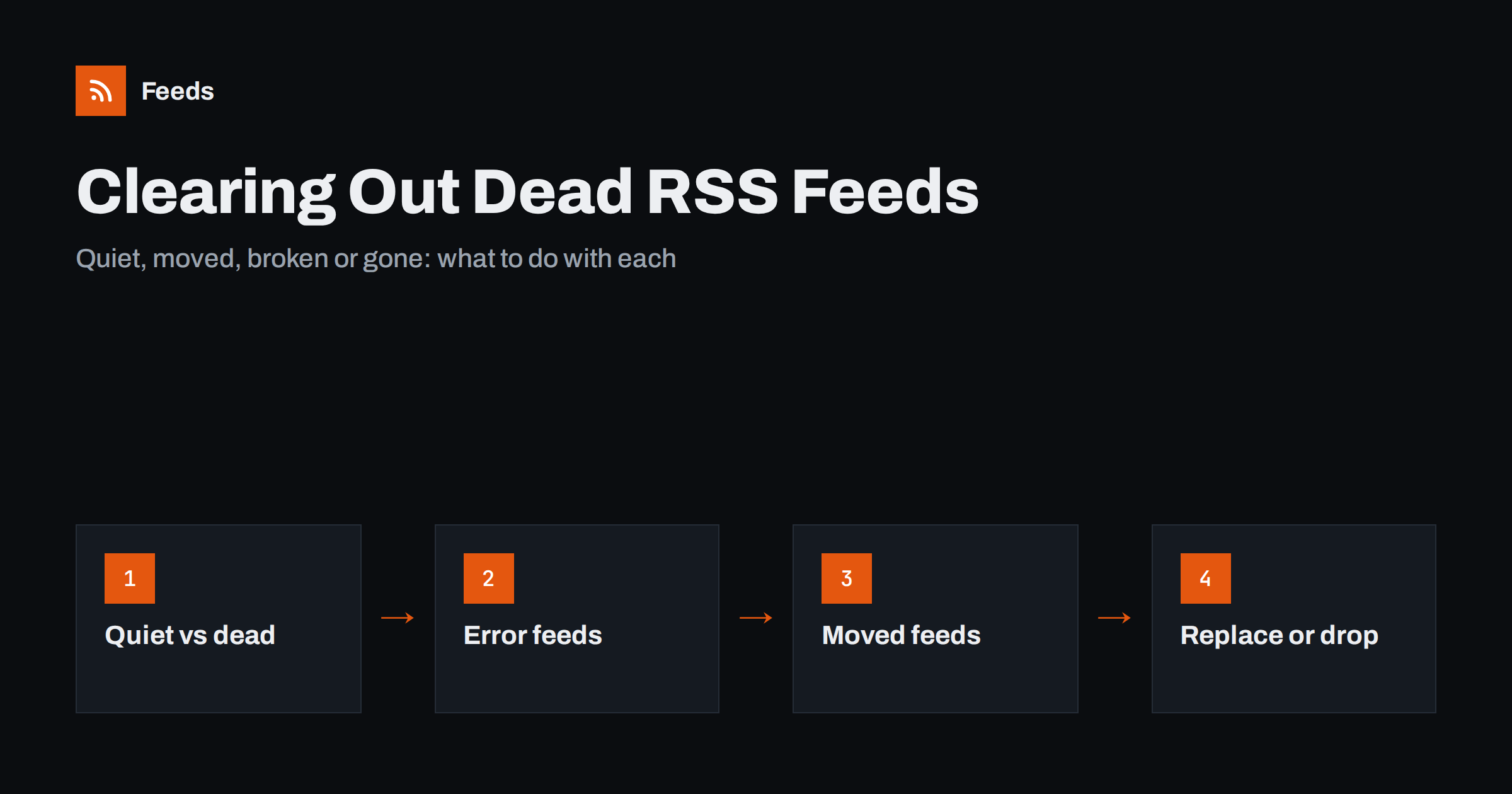
Short answer: Most RSS readers show which feeds have not updated for months or return errors, and that list is where you start. A feed that returns 404 or has been silent for a year because the site closed is dead and should go. A feed that returns an error because the site redesigned may simply have moved, and a minute of searching the site finds the new address. A feed that is silent because the author posts twice a year is not dead at all and should stay. For sites that dropped their feed but still publish, a feed made from the page replaces the dead one, and you keep the subscription.
Why dead feeds pile up
A reader that has been in use for a few years collects feeds the way a bookshelf collects books: some read every week, many never opened again. Sites close, blogs move to a new platform, companies rename themselves, a redesign changes the feed address without a redirect, and a reader keeps fetching the old address silently. None of this breaks the reader, so nobody notices until the subscription list is three hundred items long and half of them are ghosts.
The cost is not storage; it is attention. Folders look full but show nothing new, the unread count is dominated by five noisy feeds, and the good quiet sources are buried. A clean-up once or twice a year is the maintenance that keeps a reader useful, in the same way that organising the reader into folders keeps it readable day to day.
Step one: let the reader tell you
Most readers keep two pieces of information for each feed: the date of the last item and the result of the last fetch. Look for a view, filter or sort that exposes them. Common names are “inactive feeds”, “feeds with errors”, “sort by last updated” or a warning icon next to the feed in the sidebar. Self-hosted readers usually show the HTTP status of the last fetch in the feed settings. Sort by last update, oldest first, and you have your candidate list in a minute. Which readers expose this well is one of the things to look at when choosing an RSS reader.
If the reader offers nothing of the kind, export the subscriptions as an OPML file and look at the list in a text editor; it will not show dates, but it will show feed addresses, and old domains and odd paths stand out. OPML is also your backup before deleting anything, so export it regardless; the format is explained in OPML files explained.
Step two: tell quiet from dead
A feed that has not produced an item in eight months is not necessarily dead. Personal blogs, academic groups, small software projects and annual reports publish rarely and are worth keeping precisely because the reader will tell you when they do. The questions that separate the two:
- Does the feed still fetch without an error? If the reader gets a valid feed with old items, the feed is alive and the author is quiet.
- Does the site still exist? Open the site’s home page. If it loads and has recent content that is not in the feed, the feed is broken or moved. If it has no recent content, the author is quiet. If it does not load, the site is gone.
- Would you want to know if it posted again? If yes, keep it, whatever the date. The cost of a quiet feed is zero.
Rule of thumb: delete feeds whose site is gone, fix feeds whose site is alive but whose feed is not, and keep quiet feeds that you would still read.
Step three: diagnose the errors
Error feeds fall into a few patterns, and each has an obvious next step:
- 404 Not Found. The address changed. Look for the new feed on the site (next step).
- 403 Forbidden or 429 Too Many Requests. The site’s firewall or bot rules are blocking the reader. The feed exists; the fetch is refused. Sometimes it clears by itself; sometimes a different reader or a feed made from the page gets through.
- Redirect loop or wrong content. The feed address now redirects to the home page or to an HTML page. The feed was removed in a redesign.
- Invalid XML or parse error. The feed is served but broken, often a plugin or template error on the site. It may be fixed later; check again in a month before deleting.
- Timeout or DNS error. The domain expired or the server is down. If it persists for weeks, the site is gone.
The publisher’s view of the same problems, and why feeds stop updating from the inside, is in RSS feed stopped updating? how to find out why.
Step four: find where the feed moved
For a site that is alive but whose feed returns 404 or HTML, the feed has usually moved rather than vanished. Open the site, view the page source and search for rel="alternate" with a type of application/rss+xml or application/atom+xml; that is the autodiscovery tag, and it holds the current address. If there is none, try the usual paths: /feed/, /rss, /feed.xml, /atom.xml, /index.xml, and the equivalents for the platform the site runs on. Many sites that moved platforms keep a feed on the new platform at a new path. How the autodiscovery tag works is explained in RSS autodiscovery. When you find it, change the address in the reader rather than subscribing afresh, so the read history and folder stay intact.
Step five: replace feeds that are gone for good
Some sites simply stopped offering a feed. The site publishes, the news page updates, but there is no RSS anywhere, which is increasingly common and the reasons are discussed in why so many websites no longer offer RSS feeds. For these, the replacement is a feed made from the page itself: a tool reads the article list on the news or blog page and produces a standard feed with titles, links and dates, which goes into the reader like any other. The subscription survives even though the site’s own feed did not. The method is described in how to create an RSS feed for a website without RSS.
Page-based feeds are also the way around a 403 that never clears, because the page is read from outside rather than through the blocked feed address, and a reasonable refresh interval keeps that read polite.
Step six: delete cleanly
With the OPML backup made, delete the feeds whose sites are gone. Delete, do not move to a “dead” folder; a folder of corpses is just another thing to ignore. If the reader supports it, add a note to feeds you fixed with the date, so that next year’s clean-up knows the history. Then look at the opposite problem: the feeds that produce far too much. A feed that posts forty items a day in a folder you read weekly is not dead, but it is drowning the others, and a keyword filter or a move to its own folder does more for the reader than any deletion.
Keeping it clean: a yearly check
Put a reminder in the calendar for a yearly pass: sort by last update, check the error list, fix the moved ones, replace the gone ones, delete the dead ones, export OPML afterwards. It takes an hour for a few hundred feeds. Between passes, trust the reader: a feed that suddenly stops will show an error, and a quiet feed that wakes up will show an item, which is the whole point of subscribing rather than remembering to visit.
How RSS Feed Creator helps
RSS Feed Creator turns the article list of a web page into a standard RSS feed with titles, images, summaries and dates, which is the replacement for a feed a site has dropped, and it uses the site’s existing feed when the page already has one. It reads pages from the outside, so you do not need access to the source website, and you see a preview of the items before the feed is created. You can merge several sources into one feed (up to 10 on paid plans) and keep only the items that contain your keywords, which tames a feed that posts too much. Feeds refresh every 3 hours on the free plan and every 30 minutes on paid plans, paid plans send an alert when a page changes and a feed stops finding items, and the free plan allows up to 20 items per feed. The details are on the pricing page.
Related reading
- How Often Do RSS Feeds Update? Refresh Intervals Explained
- How to Monitor Websites for New Content Automatically
- How to Merge Multiple RSS Feeds into One Clean Feed
The bottom line
Let the reader list the feeds with errors and the feeds that have not updated, then sort them into four piles: quiet feeds you still want, which stay; moved feeds, which get their new address; feeds from sites that dropped RSS, which are replaced with a page-based feed; and feeds from sites that no longer exist, which are deleted after an OPML backup. An hour a year keeps the reader honest.
BUJ
How do I know if an RSS feed is dead?
Check two things: whether the reader’s last fetch returned an error, and whether the site itself still exists and publishes. A feed that fetches fine but is silent is quiet, not dead. A feed that errors while the site publishes has moved or broken. A feed whose site is gone is dead.
Should I delete feeds that have not updated in a year?
Only if the site is gone or you would not read it if it posted again. A quiet feed costs nothing to keep, and the reader will tell you the moment it wakes up. Delete based on the site’s state, not the date alone.
My feed returns 404 but the site is still online. What now?
The feed address changed. Look for the autodiscovery tag in the page source, try the common feed paths for the site’s platform, and update the address in your reader so the history and folder stay.
What if a site removed its RSS feed entirely?
Make a feed from the page where the articles are listed. A page-based feed produces standard items with titles, links and dates and goes into the reader like any other, so the subscription survives.
Why does a feed return 403 in my reader?
The site’s firewall or bot rules are blocking the reader’s requests. The feed exists but the fetch is refused. It may clear on its own; otherwise a feed made from the page, read at a polite interval, usually works.