 ENEnglish
 LTLietuviškai
 DEDeutsch
 FRFrançais
 RUРусский
 ESEspañol
 PLPolski
 ITItaliano
 UKУкраїнська
 CSČeština
 PTPortuguês
 JA日本語
 LVLatviešu valoda
 ETEesti
 HUMagyar
 IDBahasa Indonesia
 TRTürkçe
 HIहिन्दी
 ELΕλληνικά
 ARالعربية
 THไทย
 VITiếng Việt
 RORomână
 MSBahasa Melayu
 BNবাংলা
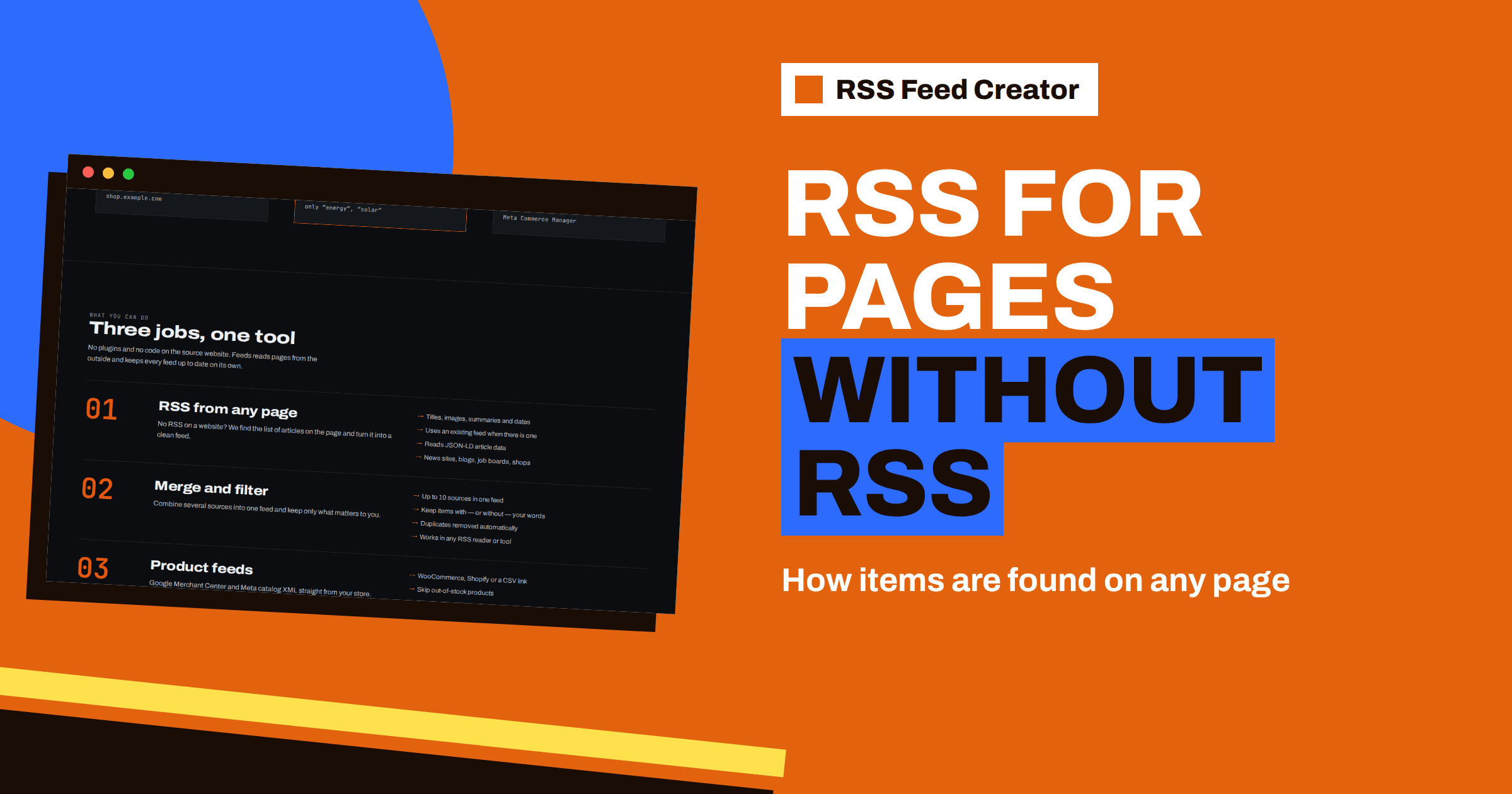
Short answer: RSS Feed Creator works through three steps in order. First it checks whether the page already has a feed and uses it. If not, it reads structured article data (JSON-LD) when the page contains it. If that is not enough, it looks for a repeating block of headline, link, image and summary, which is how almost every blog, news list or job board is built. You never see the steps, only a preview of the items they found, but knowing the order explains why some pages work instantly and others need a better address.
The problem it solves
Plenty of useful websites have no RSS feed: local news pages, supplier announcements, job boards, event lists, association news. You can visit them, but you cannot follow them in a reader or send their new items to a team channel. The usual fix is a custom scraper written for one site, which breaks when the layout changes.
RSS Feed Creator takes the opposite approach. It does not need a rule for each website. It looks at the structure that nearly all list pages share and re-detects the list on every refresh. That is why the home page can say “RSS from any page” and why no plugin or code is needed on the source website.
Step 1: look for an existing feed
The first thing the tool does is read the page and check whether the page itself is a feed. RSS 2.0, Atom and the older RDF format are all understood. If you pasted a feed address, you are done: the items are read directly, including titles, links, summaries, dates and images.
If the page is an ordinary web page, the tool also looks in its header for the standard line that announces a feed, the alternate link of type RSS or Atom. Comment feeds are ignored, because nobody wants a feed of comments by mistake. When a feed is announced, the preview tells you its address. That is the most reliable situation, and it is why you should always check the preview message before creating anything. The background on how sites announce feeds is in how to create an RSS feed for a website without RSS.
Step 2: read the structured data on the page
Many sites add machine-readable data to their pages so that search engines understand them. One common format is JSON-LD, a block of data that describes an article or product with fields such as headline, address, description, image and publication date.
RSS Feed Creator reads JSON-LD of the types Article, BlogPosting, NewsArticle and Product. When a page lists at least three such items, they become the feed items, with the headline as the title, the description as the summary and the date of publication as the date. This route is accurate because the site itself states what each item is. It also explains why a polished, SEO-minded site often works perfectly in the preview. For more on this format, see how JSON-LD structured data helps turn pages into feeds.
Step 3: spot the repeated block
If there is no feed and no usable structured data, the tool falls back to the shape of the page. A list of articles is almost always built from the same block repeated many times: a card with an image, a heading, a short text and a link. The tool groups links by the element that wraps them, finds which group repeats inside the same parent, and picks the group with the most different links to pages of the same website.
Several things are ignored so that the right block wins:
- menus, headers, footers, side columns and forms;
- language switchers, which would otherwise look like a list of links;
- links to categories, tags, authors, pagination, search, login and cart pages;
- links to images, PDFs and archives.
A block named like an article, post, news item or card gets a small preference, which helps on typical blog themes. A single large block with many links, such as a mega menu, is not accepted as a list.
How each item is filled in
Once a block is chosen, every instance becomes an item:
- Title: the first heading in the block, or a title element, or the text of the main link.
- Link: the link attached to that heading, made into a full address.
- Image: the first image in the block. Lazy-loaded images are handled by reading the attributes that hold the real address, and images given as a set of sizes are handled too.
- Date: the machine-readable date of a time element when the block has one.
- Summary: the first paragraph of reasonable length, shortened to a few hundred characters.
That is why the preview matters: if a title is wrong, you see it at once. The check is described in the RSS Feed Creator preview.
Three typical pages and how they are read
A local news page usually repeats one card per story, each with a photo, a headline and a date, so the block detector finds the cards and the feed is clean. A job board often repeats a row per vacancy with a title, a company and a location, and the same method gives you the vacancy titles and links, which you can then narrow with keywords. A company blog built on a modern theme usually includes JSON-LD article data, so the second step already delivers every field.
In all three cases the work for you is the same: choose the list page, check the preview, create the feed. The difference lies only in which step of the detection did the work, and you can ignore that unless a preview looks wrong.
Beyond the first page
A site often shows only its latest dozen items on the first page. RSS Feed Creator goes further when your plan has room for more items: it follows the next-page links of the list and, where the site has a sitemap, adds further addresses from the same section, newest first, taking their title, description, image and date from the page’s own meta tags. So a feed can represent a section of the website, not only the visible teaser list. The plan limit for items still applies: 20 per feed on the free plan and 100 on paid plans.
When detection struggles, and what to do
Automatic detection has limits, and knowing them saves time:
- Lists drawn by scripts after the page opens. If the items are not in the page’s HTML, a reader of the page cannot see them. Try another page of the same site that lists the same content, or a section page.
- Very small lists. The block must repeat at least three times with three different links.
- Mixed pages. A home page with a news strip, a promotion strip and a product strip may pick the wrong strip. Use the section page instead.
- Pages behind a login. Only public pages can be read.
The practical advice is always the same: paste the page that lists what you want, look at the preview, and try a neighbouring address if the cards are wrong. If the site is yours, adding a real feed or JSON-LD article data makes every tool, not only this one, read your page correctly.
What the finished feed contains
The result is a standard RSS 2.0 feed. Each item has a title, a link, a stable identifier, a description when a summary was found, a publication date when a date was found, and an image when one exists, written both as a media element and as an enclosure so that more readers and tools can show it. When you merge several sources, the items are sorted newest first and links to the same page are kept only once. A feed made this way works in any RSS reader, and you can use it as a source in PostRSS if you want new items posted to your social profiles.
The feed is rebuilt automatically: every 3 hours on the free plan and every 30 minutes on paid plans. Because detection runs again on each refresh, a small layout change does not necessarily break a feed, and paid plans send an alert if a feed stops finding items. See the pricing page for the plan limits.
Related reading
- How to Monitor Websites for New Content Automatically
- Sitemap vs RSS: Which Is Better for Detecting New Pages?
- Anatomy of an RSS 2.0 Feed: Every Element Explained
The bottom line
RSS Feed Creator does not guess blindly. It prefers a real feed, then the site’s own article data, and only then the visible pattern of the page. Give it the page that lists your items, read the preview and you will know within a minute whether the page can become a feed.
BUJ
Do I need to change anything on the source website?
No. RSS Feed Creator reads public pages from the outside, like a visitor, so no plugin or code is needed on the source site.
What if the website already has an RSS feed?
Then the tool uses it, and you can still merge it with other sources and filter it by keywords.
Which structured data formats does it read?
JSON-LD of the types Article, BlogPosting, NewsArticle and Product, when a page lists at least three of them.
Why are some items missing a date or an image?
The tool can only use what the page offers. If a block has no time element or no picture, that item is saved without them.
What happens when the page layout changes?
The list is detected again on every refresh, and paid plans send an alert if a feed stops finding items.


