 ENEnglish
 LTLietuviškai
 DEDeutsch
 FRFrançais
 RUРусский
 ESEspañol
 PLPolski
 ITItaliano
 UKУкраїнська
 CSČeština
 PTPortuguês
 JA日本語
JA日本語 LVLatviešu valoda
 ETEesti
 HUMagyar
 IDBahasa Indonesia
 TRTürkçe
 HIहिन्दी
 ELΕλληνικά
 ARالعربية
 THไทย
THไทย VITiếng Việt
 RORomână
 MSBahasa Melayu
 BNবাংলা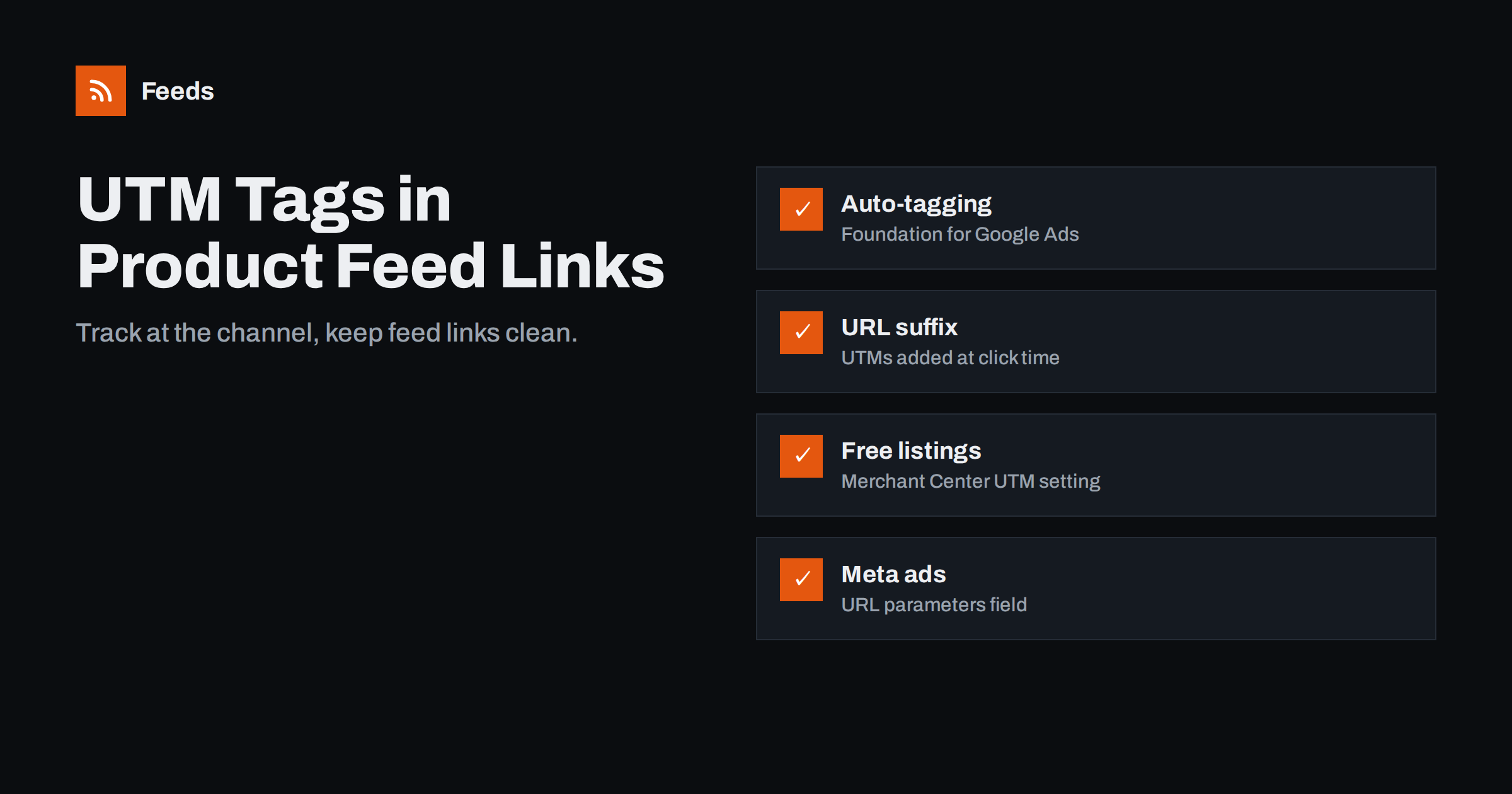
Short answer: In most cases, keep the link in your product feed clean and add tracking at the channel level instead: auto-tagging and tracking templates or a final URL suffix in Google Ads, the UTM setting for free listings in Merchant Center, and URL parameters in Meta ad settings. Put UTM parameters directly into feed links only when a channel offers no other way to tag clicks, and then make sure the landing page still works, keeps its canonical URL and shows the same price and availability.
Why tracking product links is different
Tagging a link in a newsletter or a social post is simple: you add UTM parameters and nobody else cares. Product feed links are different, because the channel does more with them than send clicks.
- They are crawled and checked. Google and Meta visit the landing pages to confirm price, availability and policy compliance. Every URL change can trigger another check.
- They are product identifiers in practice. Many tools match feed items to web pages by URL. Changing the link format for thousands of products at once is a big change.
- Ads already carry tracking. Google Ads auto-tagging adds its own click identifier to every ad click, and analytics tools read it. Adding manual UTM tags on top can create conflicting attribution.
- The same feed serves several destinations. One feed can feed Shopping ads, free listings and other surfaces. A single set of UTM values in the feed cannot tell them apart.
That is why the usual advice is to track at the channel, not in the feed. The general principles of UTM tagging are the same as for any automated link, and the guide to tracking automated posts with UTM tags covers naming conventions that work here too.
Your tracking options, from best to last resort
1. Auto-tagging in Google Ads
With auto-tagging on, Google Ads appends a click identifier to landing page URLs, and a linked analytics property uses it to attribute sessions to the right campaign, ad group and product. It needs no changes to the feed and is the foundation of Shopping and Performance Max measurement. If you run Performance Max with a product feed, check auto-tagging first.
2. Tracking templates and final URL suffix
Google Ads lets you add parameters to every landing page through account, campaign or ad group settings. A final URL suffix such as utm_source=google&utm_medium=cpc&utm_campaign={campaignid} is appended to product links at click time, and Google Ads offers ValueTrack parameters for Shopping, such as the product ID and channel, that you can include. Check the current list in Google Ads help before relying on a specific parameter. Because this happens at click time, your feed links stay clean.
3. Merchant Center settings for free listings
Clicks from free product listings do not come through Google Ads. Merchant Center offers a setting to add UTM parameters to these clicks automatically, so that analytics can separate free listings from paid traffic. The guide to Google Shopping free listings explains how free listings work in general.
4. URL parameters in Meta ads
Meta’s ad setup includes a URL parameters field, where you can add UTM tags with dynamic values such as the campaign or ad name. For catalog ads, this is the natural place for tracking, as described in what your feed must get right for Meta catalog ads.
5. UTM tags in the feed link itself
This is the fallback when a channel offers no click-time tagging, for example some comparison sites and marketplaces that simply send visitors to whatever URL is in the feed. It works, but it needs care.
Where to add tracking: a quick guide
| Channel | Recommended method | UTM in feed link? |
|---|---|---|
| Google Shopping ads and Performance Max | Auto-tagging plus optional final URL suffix | No |
| Google free listings | Merchant Center UTM setting | No |
| Meta catalog ads | URL parameters in ad settings | Usually no |
| Comparison sites without tagging options | Separate feed with UTM links | Yes, in a channel-specific feed |
| Affiliate and partner feeds | The partner’s tracking system | Only if the partner requires it |
If you must put UTMs in the feed: do it safely
When feed-level tagging is the only option, follow these rules:
- Use a channel-specific feed. Keep your main feed clean and create a separate feed or a supplemental rule for the channel that needs tags, so Google and Meta never see those parameters. Supplemental feeds explain the idea of layering changes on top of a main feed.
- Append parameters correctly. Use
?if the URL has no query string yet and&if it already has one. Variant URLs such as?variant=123are the most common place where this goes wrong. - Encode values. Spaces and special characters must be URL-encoded. Stick to lowercase letters, numbers, hyphens and underscores in UTM values.
- Keep the canonical tag. Product pages should declare the clean URL as canonical, so tagged URLs are not treated as separate pages by search engines.
- Test that parameters survive. Some sites redirect or strip unknown parameters, and some caches or cookie banners interfere. Open a sample of tagged links and check that the product page loads with the correct variant, price and stock.
- Keep naming consistent. Decide once how you write source, medium and campaign, and document it. Mixed spellings split reports.
Common pitfalls
- Manual tags overriding auto-tagging. When both are present, analytics tools apply their own precedence rules, and reports can end up attributing ad clicks to the wrong source. Do not add manual UTMs to Google Ads links unless you understand how your analytics setup resolves the conflict.
- Tagged links in the main feed. Every destination then reports the same source, and free listings, ads and other surfaces become indistinguishable.
- Links that land on the wrong variant. A malformed query string can drop the variant parameter, so the shopper sees a different colour or price. That can also trigger mismatch issues; see fixing price mismatch errors.
- Redirect chains. Tracking redirects add delay and sometimes break on mobile. The landing page requirements for feed links explain what the destination must do.
- Mass link changes before peak periods. Changing every link at once can trigger re-reviews. Make such changes well before important sales dates.
A simple setup for most stores
For a typical small or mid-sized store selling through Google and Meta, this setup covers the essentials without touching the feed:
- Turn on auto-tagging in Google Ads and link it to your analytics property.
- Optionally add a final URL suffix with consistent UTM values for reporting outside Google’s tools.
- Enable the UTM setting for free listings in Merchant Center.
- Add URL parameters to Meta catalog ads in the ad settings.
- Keep feed links as the plain canonical product or variant URLs.
- Check a week of analytics data to confirm that ads, free listings and Meta appear as separate sources.
Reading the results
Tracking is only useful if the reports answer real questions. For product feeds, the questions are usually these:
- Which channel brings buyers, not just visitors? Compare conversions and revenue by source, not only sessions. Free listings often bring fewer clicks than ads but at no media cost.
- Which products sell through which channel? Reports by landing page or product ID show whether some products only sell through ads, or only through Meta.
- Is anything unattributed? A large share of “direct” or “unassigned” traffic after launching a new channel usually means tags are missing or being stripped.
- Did a change help? When you rewrite titles or adjust prices in the feed, compare the same products before and after, with tracking unchanged.
Review these once a month. Tracking that nobody reads is just longer URLs.
How Feeds helps
Feeds builds Google Merchant Center and Meta catalog feeds straight from a WooCommerce or Shopify store, or from a CSV link, using the Google product XML format. Links come from your store’s own product pages, so the feed carries clean URLs by default, which fits the channel-level tracking approach above. You can preview the products before the feed is created, skip out-of-stock items and apply title and price rules. Plans and product limits are on the pricing page.
Related reading
- Google product feed attributes: required and recommended
- Product feed checklist: 25 checks before you submit
- How to add a product feed to a Meta catalog, step by step
The bottom line
Product feed links work best when they are clean, stable canonical URLs. Track clicks where the channel lets you: auto-tagging and URL suffixes in Google Ads, the free listings UTM setting in Merchant Center and URL parameters in Meta ads. Reserve UTM tags inside the feed for channels that offer nothing else, keep them in a separate feed, and test that every tagged link still lands on the right product at the right price.
BUJ
Should I add UTM parameters to my Google Shopping feed?
Usually not. Google Ads auto-tagging and final URL suffixes add tracking at click time, and Merchant Center has a setting for free listings. Keeping feed links clean avoids re-reviews and attribution conflicts.
How do I track free listings separately from Shopping ads?
Turn on the UTM setting for free listings in Merchant Center, and use auto-tagging for ads. Your analytics will then show free listing clicks and paid clicks as different sources.
Where do I add UTM tags for Meta catalog ads?
In the URL parameters field of the ad setup in Meta’s ads tools. You can use dynamic values such as the campaign or ad name there, without changing the links in your catalog feed.
Can UTM parameters in product links cause problems?
Yes. Badly appended parameters can drop variant information, some sites strip or redirect unknown parameters, and tagged URLs without a canonical tag can create duplicate pages. Test a sample of links before submitting.
When is it right to put tracking directly in the feed?
When a channel, such as some comparison sites, simply sends visitors to the URL in your feed and offers no tagging options. Create a separate feed for that channel so your main feed stays clean.


