 ENEnglish
 LTLietuviškai
 DEDeutsch
 FRFrançais
 RUРусский
 ESEspañol
 PLPolski
 ITItaliano
 UKУкраїнська
 CSČeština
 PTPortuguês
 JA日本語
JA日本語 LVLatviešu valoda
 ETEesti
 HUMagyar
 IDBahasa Indonesia
 TRTürkçe
 HIहिन्दी
 ELΕλληνικά
 ARالعربية
 THไทย
THไทย VITiếng Việt
 RORomână
 MSBahasa Melayu
 BNবাংলা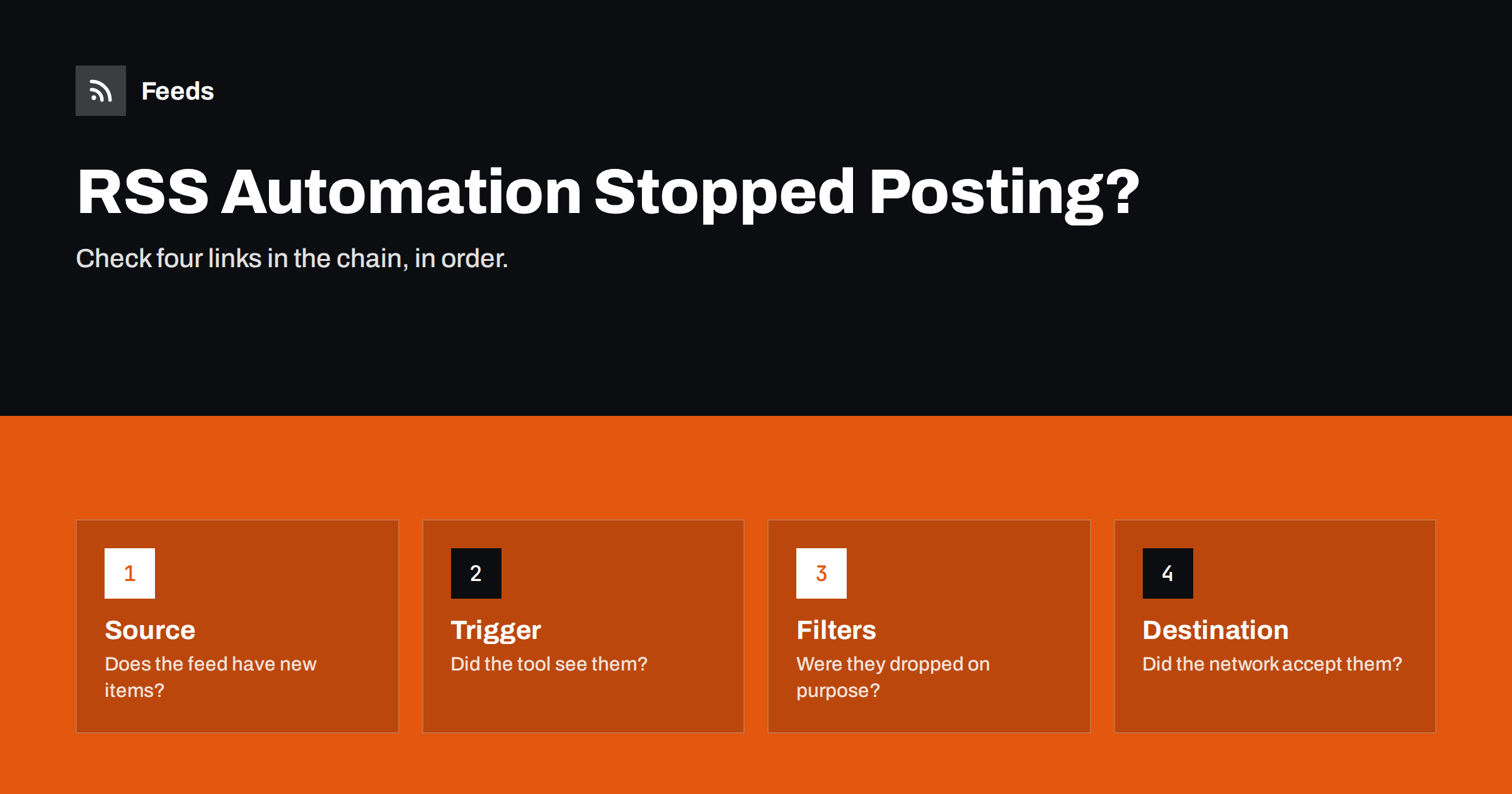
Short answer: When an RSS automation stops posting, check the chain in order: first whether the feed itself has new items, then whether the automation tool’s trigger detected them, then whether filters or limits dropped them, and finally whether the destination accepted the post. Most stoppages come from four causes: the source feed stopped updating, the tool lost or changed its feed connection, a filter or cap blocked items, or the connection to the social network or chat tool expired.
Think in links, not in symptoms
“Nothing is posting” is a symptom. The cause sits somewhere in a chain of four links, and each link can fail independently:
- Source: the website publishes new content, and the feed lists it.
- Trigger: the automation tool checks the feed and detects new items.
- Rules: filters, caps, schedules and conditions decide whether each item continues.
- Destination: the social network, email platform or chat tool accepts and publishes the post.
Checking these in order, instead of changing settings at random, finds the problem faster and avoids creating new ones. Resist the urge to delete and recreate the workflow as a first step: it destroys the history you need for diagnosis and can cause a flood of reposts when the new workflow sees every item as new.
Before starting, write down when the last successful post happened. That timestamp is your most useful clue, because it lets you compare with changes that happened around the same time: a website update, a password change, a new plugin, a plan change in the tool.
Step 1: check the source
Open the feed URL in a browser. Ask three questions.
- Does it load? An error page, a login page, a redirect to the homepage or a security challenge means the feed itself is broken or blocked.
- Is it valid XML? A single broken character can make a feed unreadable for tools while it still looks fine to a person. A feed validator will show errors.
- Does it contain the new items? Compare the newest item in the feed with the newest content on the site. If the site has new posts that the feed lacks, the problem is in the source.
If the feed is the problem, the related guide on why an RSS feed stops updating goes deeper into caching, plugins and server issues. Common culprits include a caching plugin serving an old version of the feed, a security plugin blocking automated requests, or a redesign that changed the feed address.
If you do not control the source, for example a partner’s site, note what you found and contact them, or switch to another way of getting their items.
Step 2: check the trigger
If the feed has new items, look at the automation tool.
- Is the workflow still active? Tools sometimes pause workflows after repeated errors, when a plan limit is reached, or when a payment fails.
- What does the run history show? Look for the last time the trigger fired and any errors since. “Feed could not be fetched” points back to source or blocking issues; no runs at all may mean the workflow is paused or the polling schedule changed.
- Is it watching the right URL? A site migration from HTTP to HTTPS, a new domain or a changed feed path can leave the tool watching an old URL that still responds but never changes.
- Is the tool blocked? Some sites block requests from cloud servers used by automation platforms, while your browser works fine. The tool’s error message or a test fetch usually reveals this.
Also consider deduplication. If the source changed how it generates item IDs, the tool may be confused: sometimes treating everything as already seen, sometimes everything as new.
Step 3: check the rules
Items can be detected correctly and still be stopped deliberately by your own rules. This is surprisingly common, because rules set months ago are easy to forget.
- Keyword filters: new content may use different wording than your include list expects, or accidentally contain an excluded word.
- Category filters: the site may have reorganised its categories, so items no longer land in the category your workflow expects.
- Daily caps and schedules: items may be queued for later because the cap was reached or the posting window is closed.
- Date conditions: rules like “only items from the last 24 hours” fail if the source now publishes wrong or missing dates.
- Approval queues: items may be waiting for someone to approve them, and that person is on holiday.
Run one recent item through the rules manually, or look at the tool’s log for the step where it stopped.
Step 4: check the destination
If the tool shows the post was attempted, look at the destination’s response.
- Expired connections: social networks require periodic re-authorisation, and connections break after password changes, security checks or when the connecting person loses their role on the page.
- Permission changes: the page, channel or group may have changed who can post, or the bot may have been removed as an administrator.
- Platform limits: posting limits, API tier changes or temporary blocks after bursts of posts.
- Rejected content: text too long, unsupported image, links flagged by the platform.
- Archived or renamed destinations: a renamed chat channel or deleted webhook stops delivery immediately.
Error messages here are usually specific. Copy the exact text and search the tool’s help pages for it.
A quick reference table
| What you see | Most likely link | First thing to check |
|---|---|---|
| Feed shows no new items | Source | Site caching, plugins, feed URL |
| Feed fine, no runs in the tool | Trigger | Workflow paused, plan limit, wrong URL |
| Runs happen, items skipped | Rules | Filters, caps, date conditions |
| Runs fail at the last step | Destination | Expired connection, permissions |
| Some items post, others do not | Rules or destination | Filters, content limits, images |
A worked example
A small company notices that its LinkedIn page has not received an automated post for three weeks. The last successful post was on a Tuesday. Following the chain:
- Source: the blog feed opens and lists four articles published since that Tuesday. The source is fine.
- Trigger: the posting tool’s history shows the feed was checked regularly and the four new items were detected. The trigger is fine.
- Rules: no filters apply to this workflow, and no cap was reached. The rules are fine.
- Destination: each of the four attempts failed with an authorisation error. The history shows the first failure on the Wednesday after the last success.
A quick question in the team reveals that the marketing manager who originally connected LinkedIn changed her password that Wednesday, after a security prompt. The connection token was invalidated. She reconnects the page in the tool, and the next check posts the newest article. To avoid a flood, the team decides not to post the older three automatically and shares one of them by hand instead.
Total diagnosis time: about fifteen minutes, because each link was checked once, in order. To prevent a repeat, the team turns on failure emails in the tool and adds a monthly reminder to open the LinkedIn page.
After the fix: prevent the next stoppage
- Turn on failure notifications in the automation tool and route them to a shared inbox or channel.
- Monitor feeds for sources that change layout or break often.
- Keep a register of workflows, feed URLs, destinations and owners, so the next person can diagnose quickly.
- Re-authorise connections proactively when you change passwords or roles.
- Check after website changes. Every migration, redesign or plugin update is a moment to look at the feed and the next automated post.
- Restart carefully. If you had to recreate a workflow, make sure it starts with new items only.
Where Feeds reduces source failures
Many stoppages start at the source, especially for feeds created from third-party pages or for sites that redesign often. Feeds creates RSS feeds from pages without RSS and detects the list of items again on every refresh, so small layout changes do not necessarily break the feed. When a page changes so much that items can no longer be found, paid plans send an alert that the feed stopped finding items, which turns a silent failure into a notification. Feeds refresh automatically, and an out-of-date feed is also refreshed when it is read. See the pricing page for details.
Related reading
- RSS Feed Stopped Updating? How to Find Out Why
- How to Stop Duplicate Posts in Automated Content Workflows
- 12 Content Automation Mistakes and How to Avoid Them
- Webhooks vs RSS Polling: Which to Use for Automation
The bottom line
A stopped RSS automation is a broken link in a four-part chain: source, trigger, rules, destination. Note when the last post succeeded, check each link in order, read the exact error messages and change one thing at a time. Then add notifications, feed monitoring and a simple register, so the next stoppage is caught in hours instead of weeks.
BUJ
Why did my automation stop posting without any error?
Common silent causes are a feed that stopped updating, a filter that excludes new items, a daily cap or posting window, or a workflow paused by the tool. Check the feed first, then the run history.
Should I delete and recreate a broken workflow?
Only as a last resort. Recreating it loses the history you need for diagnosis and can repost old items unless the new workflow is set to new items only.
How do I know if a social network connection expired?
The tool’s run history usually shows authorisation or permission errors at the posting step. Reconnecting the account in the tool typically fixes it.
Can a website block my automation tool?
Yes. Some sites block requests from cloud servers or unknown bots. The tool may report fetch errors even though the feed opens in your browser.
How can I catch stoppages sooner?
Enable failure notifications, monitor feeds that often change, and look at each destination regularly. A weekly glance is enough to catch most problems early.


